Paying for & Activating Pro
This guide covers the whole journey: buying a Pro plan and unlocking it in either app. Activation works in two ways — sign in with your account, or paste the license key from your confirmation email. Both unlock exactly the same Pro features.
What Pro includes
A Pro subscription unlocks everything in both apps — you choose the product that matches how you work:
| Plan | XWX Exporter (browser) | XWX Backup (desktop) |
|---|---|---|
| XWX Backup Pro | ✔ Pro unlocked | ✔ Pro unlocked |
| XWX Exporter Pro | ✔ Pro unlocked | Free plan |
In both apps, Pro removes the “Powered by XWX” watermark, unlocks PDF, Word & Notion exports with generous limits, keeps Markdown/TXT/JSON unlimited, and adds AI tags & summaries plus priority support.
- XWX Backup Pro ($9.98/mo or $95.76/yr) — one purchase covers the desktop app and the browser extension. Best if you batch-backup your AI history.
- XWX Exporter Pro ($4.99/mo or $47.88/yr) — for exporting individual conversations right from the browser.
Every plan comes with a 3-day money-back guarantee.
Buying a plan
- Open the extension pricing page or the desktop pricing page and pick Monthly or Yearly (Yearly saves 20%).
- Complete checkout — the payment page is hosted by Polar, our merchant of record. Cards, Apple Pay, Google Pay and SEPA are supported; taxes are calculated automatically for your country.
- A confirmation email with your license key and invoice arrives within a minute or two.
Method 1: Sign in with your account
The fastest way to activate — your subscription is tied to your email, so simply signing in is enough.
In XWX Exporter (browser extension)
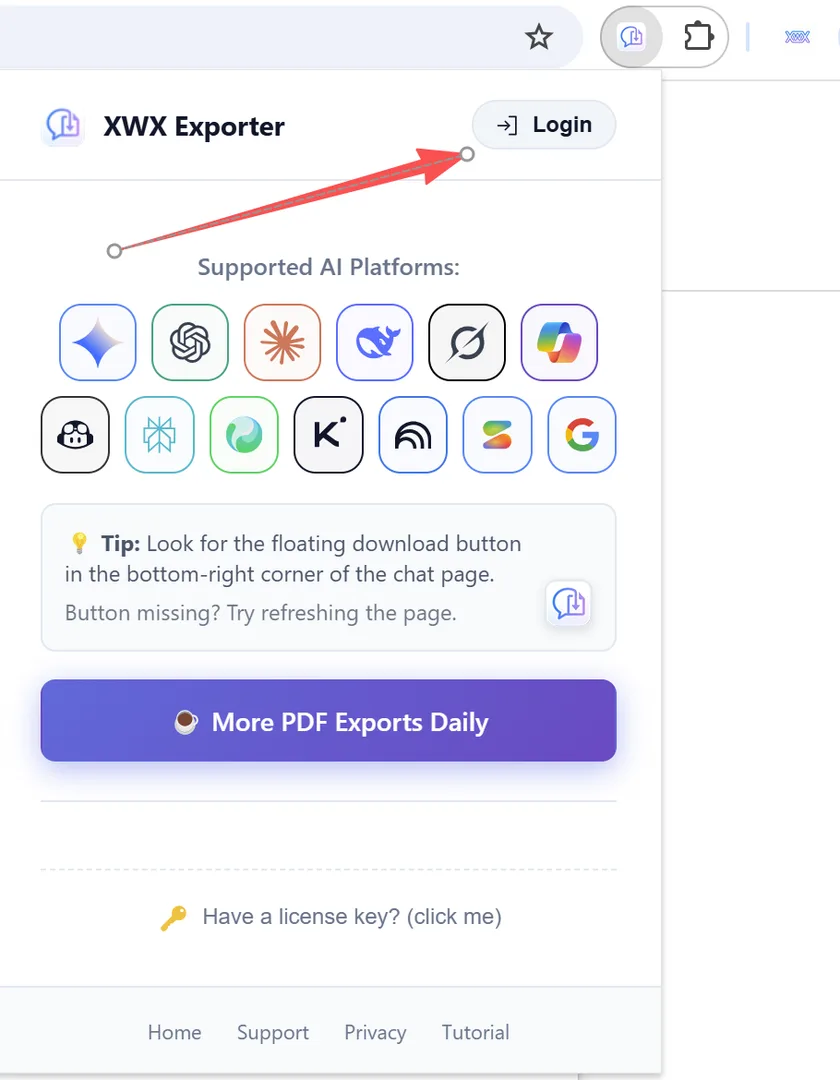
- Click the XWX icon in the browser toolbar to open the popup
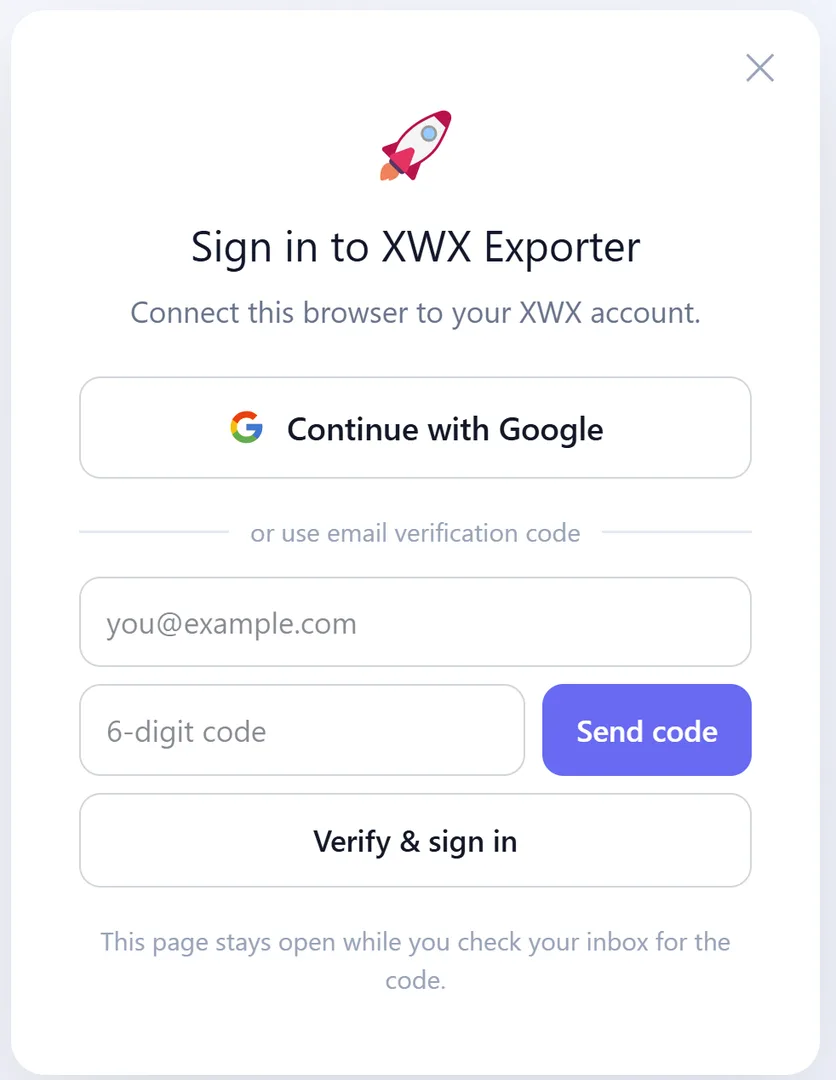
- Click Sign in and choose Google one-click or an email verification code
- Use the email you purchased with — the popup flips to Pro on its own
Method 1 (desktop): Sign in on XWX Backup
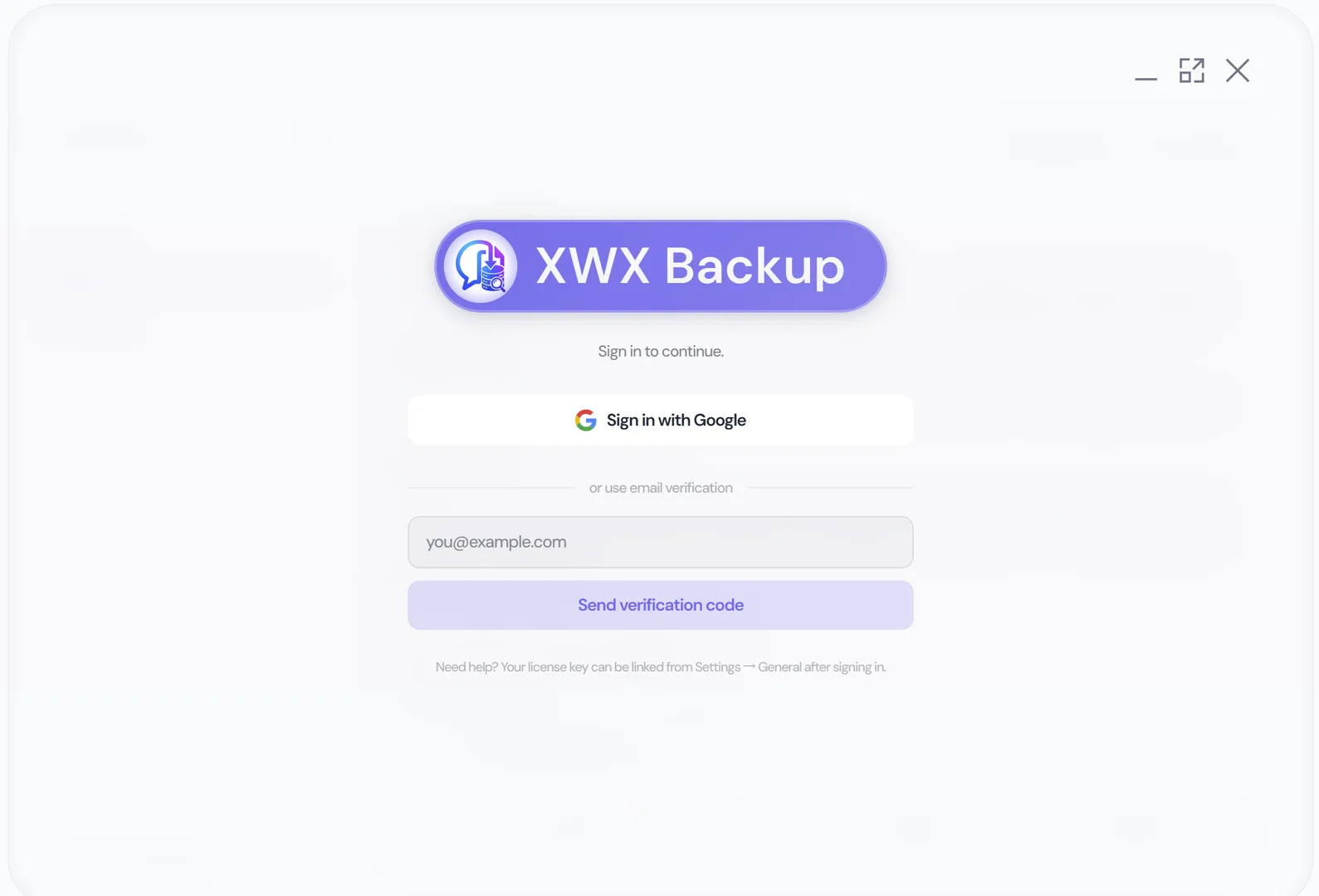
The desktop app asks you to sign in right away — no navigation needed.
- Launch the XWX Backup desktop app — on first start the sign-in screen appears immediately
- Sign in with Google one-click or an email verification code
- Pro activates immediately — your local vault keeps working as before
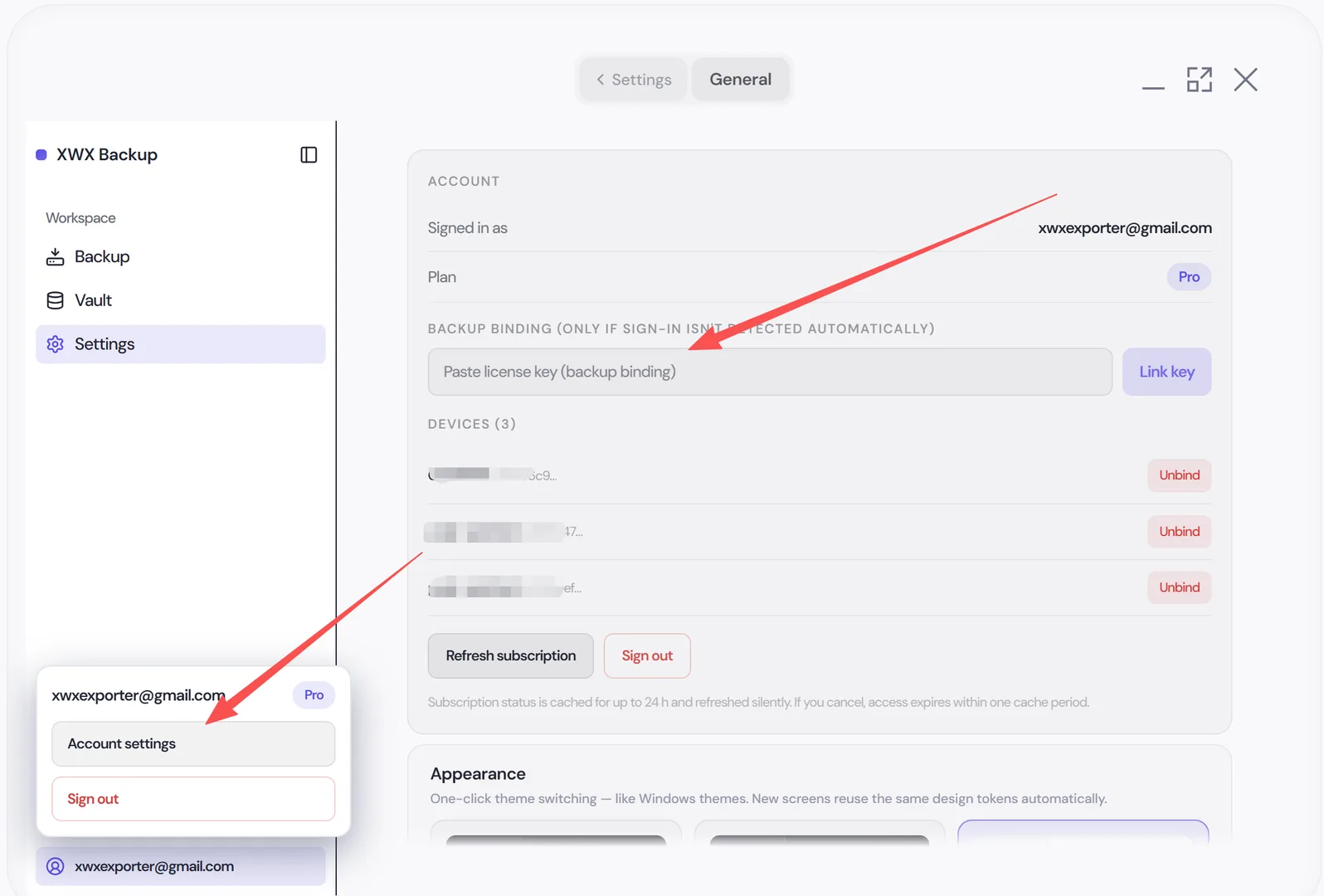
Once signed in, you can manage your account, unbind devices and paste a Link key under Settings → General → Account.
Method 2: Paste the license key from your email
Prefer not to sign in? Every order includes a license key that works like a one-time activation code.
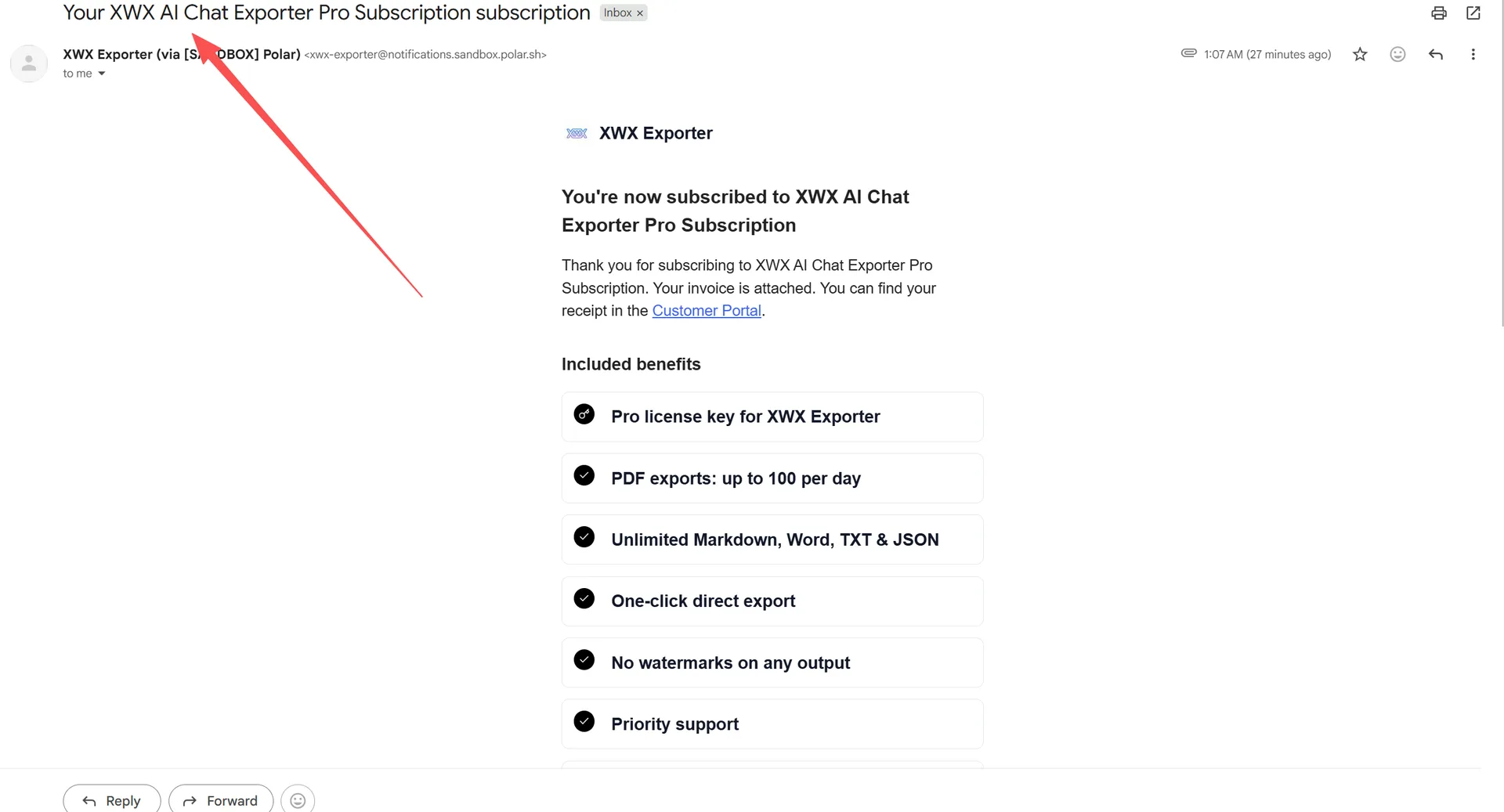
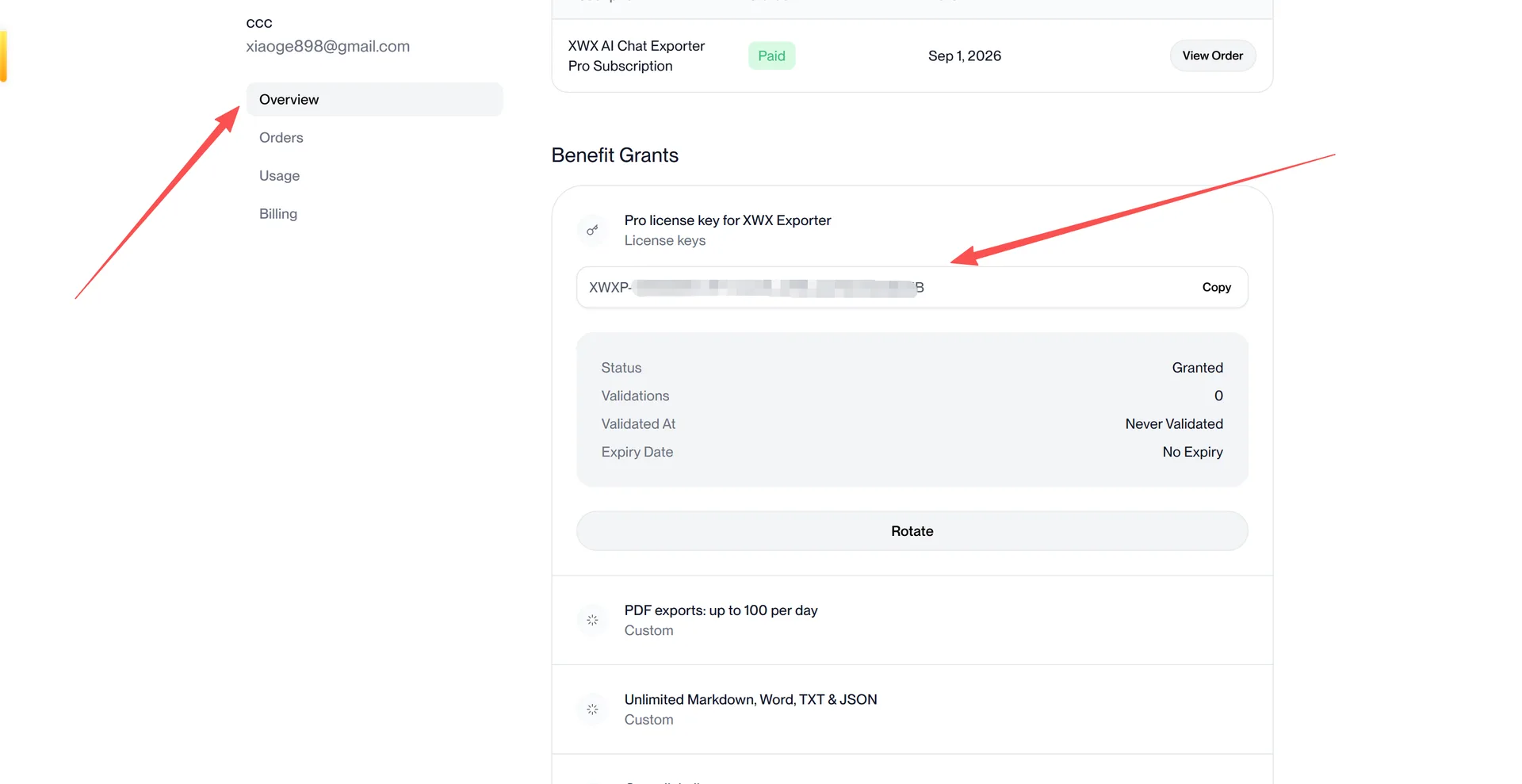
- Find the confirmation email from Polar (subject starts with “Your XWX order”) and copy the license key formatted XXXX-XXXX-XXXX-XXXX
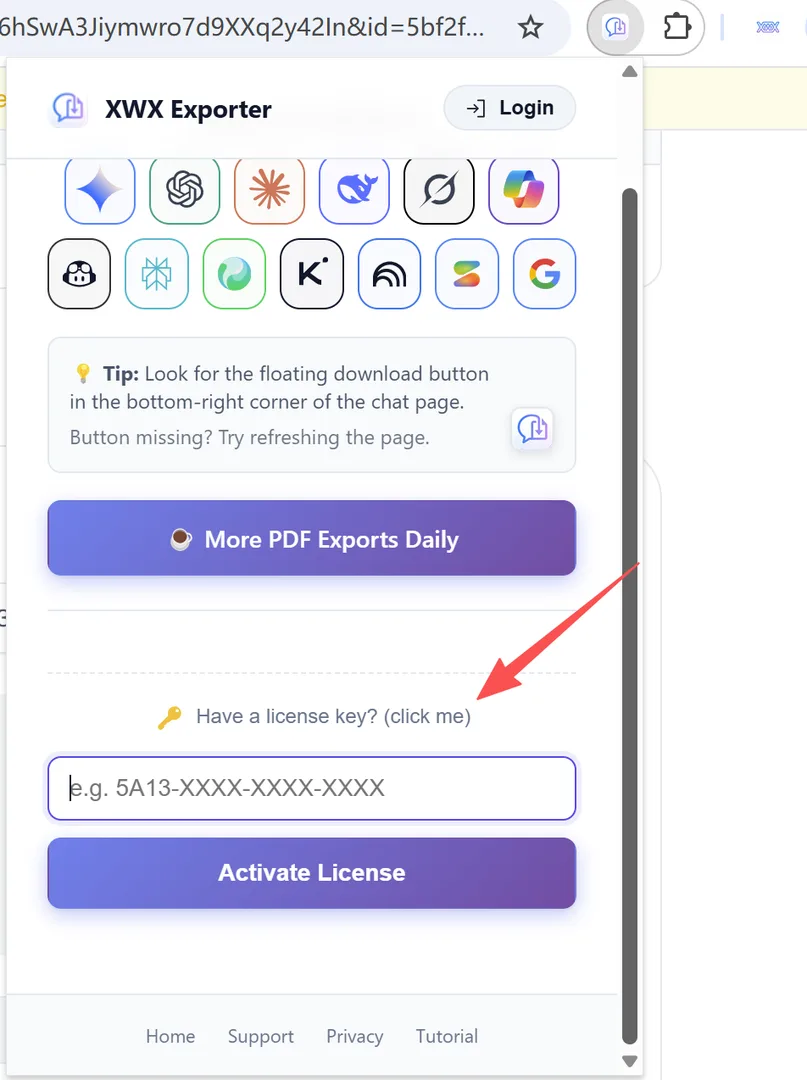
- Paste it into the app:
| App | Where to paste |
|---|---|
| XWX Exporter | Popup → “Have a license key?” → paste → Activate |
| XWX Backup | Sign in first (Method 1), then Settings → General → Account → Link key → paste → confirm |
- The PRO diamond badge 💎 appears — you are done.
Where to find your license key
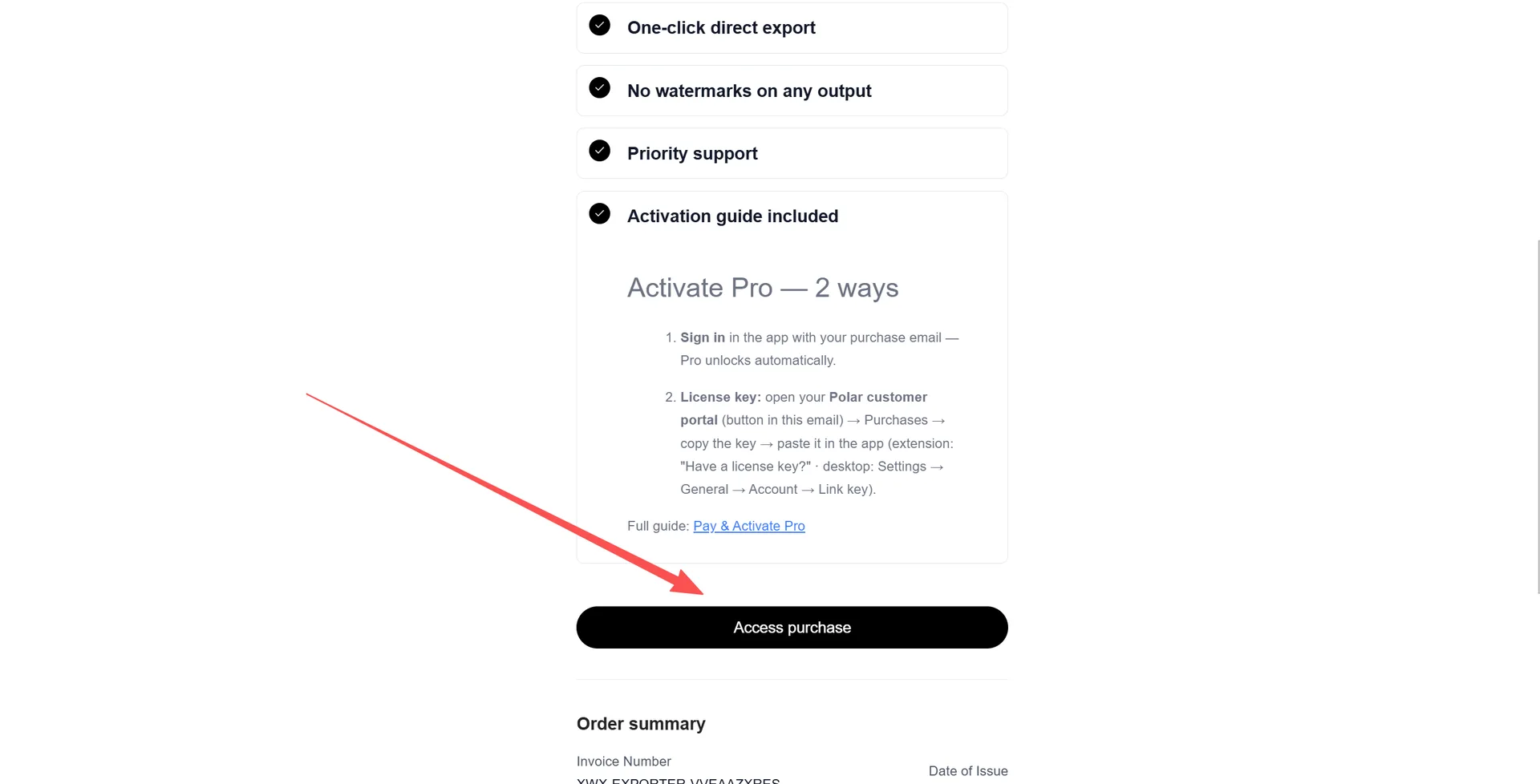
- Open the confirmation email you received after the purchase (sender: Polar).
- Scroll to the bottom of the email and click Access purchase — this opens your personal Polar customer portal.
- In the portal, open Purchases and copy the license key shown under your plan.
Managing your subscription
- Devices: a Pro subscription covers up to 3 personal devices. Unbind one in Account settings to free a slot.
- Billing & cancellation: manage your plan, invoices and cancellation in the Polar customer portal (the link is in your confirmation email).
- Refunds: within 3 days of purchase, contact us via the contact form with your order number — no questions asked.
- Renewals: subscriptions renew automatically; yearly plans keep their locked-in price.
Troubleshooting
| Symptom | Fix |
|---|---|
| No confirmation email | Check spam/promotions and search for “Polar” or the amount; still nothing → contact support with the payment email |
| “License key is not valid” | Watch for copy-paste artifacts (extra spaces); the key may already be tied to another email — sign in with that email instead |
| Paid but still Free | No sign-out needed. Make sure you are signed in with the checkout email (Method 1), then click Refresh subscription in Settings → Account — or simply return to / restart the app. Pro status can take a minute to sync after payment. |
| Hit the device limit | Unbind an old device in Account settings |
| Want a refund | 3-day money-back — contact us with your order number |
Frequently Asked Questions
Do I need to sign in, or can I just paste the key?+
Either works and both unlock identical features. Signing in is more convenient (nothing to look up when you switch devices); pasting the key is handy when the purchase email is not one you check often.
I paid with Alipay/WeChat — will activation still work?+
Yes. Orders from our legacy Alipay/WeChat checkout (Lemon Squeezy) activate in exactly the same two ways — sign in with the purchase email or paste the key from the email you received.
Does one purchase cover both the extension and the desktop app?+
XWX Backup Pro covers both. XWX Exporter Pro covers the browser extension only.
Can I use Pro on more than one device?+
Yes — up to 3 personal devices per subscription. Unbind a device in Account settings to free a slot.
How do I cancel?+
Cancel in the Polar customer portal (link in your confirmation email) or contact us via the contact form. Pro features stay available until the end of the current billing period.