Copy AI Chat to Clipboard
Sometimes you just need to grab some text from an AI chat and paste it somewhere. Clipboard export copies the conversation as formatted text — ready to paste into emails, Slack, docs, or anywhere.
How to Copy to Clipboard
- Open your AI chat
- Click the XWX floating button (FAB)
- Select Copy to Clipboard from the format menu
- The formatted content is instantly copied — a toast notification confirms it
- Paste anywhere with Ctrl+V / Cmd+V
That's it. No file downloaded, no format conversion needed.
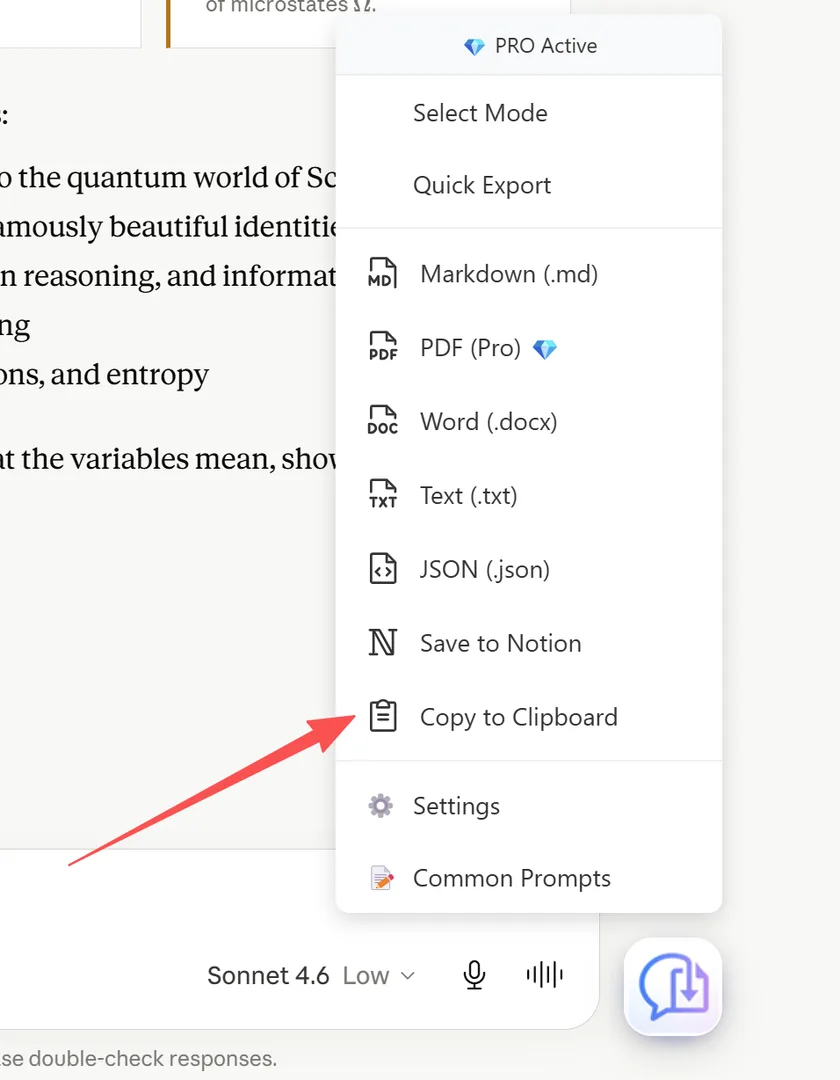
Copy to Clipboard option in the export menu
What Gets Copied
The clipboard receives formatted rich text:
- Bold and italic text preserved
- Code shown in monospace font
- Links remain clickable
- Lists maintain their structure
- Headings shown as bold, larger text
For plain text only, use TXT export instead.
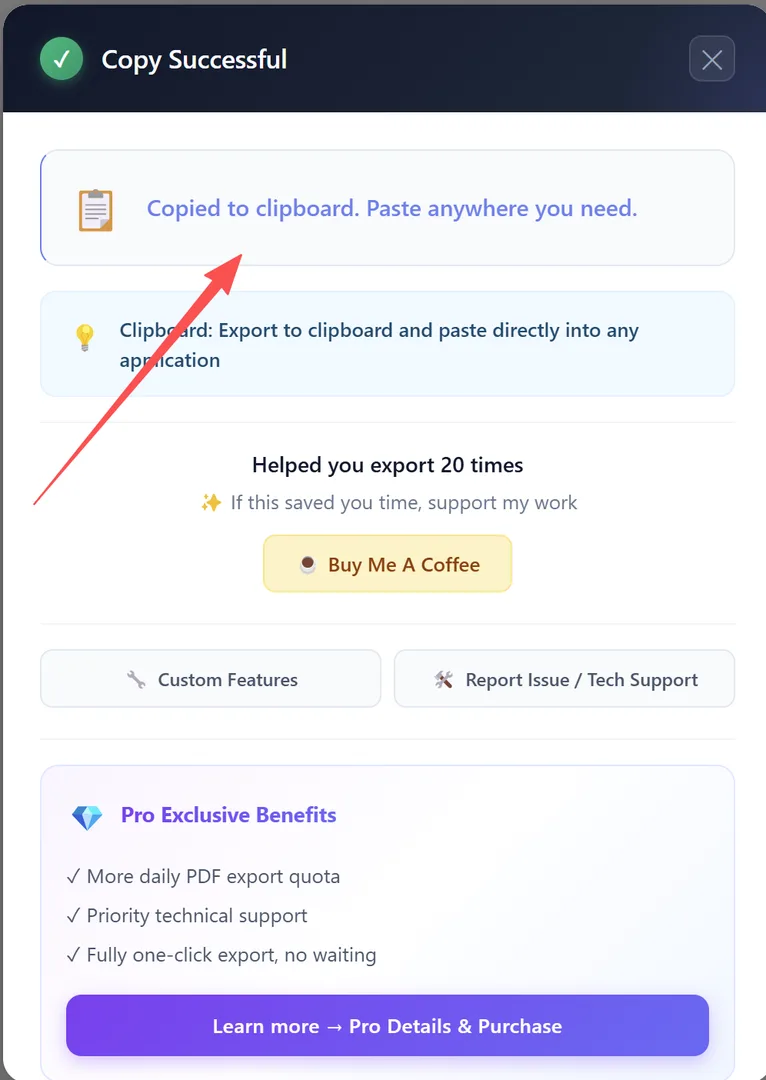
Toast notification — content copied to clipboard
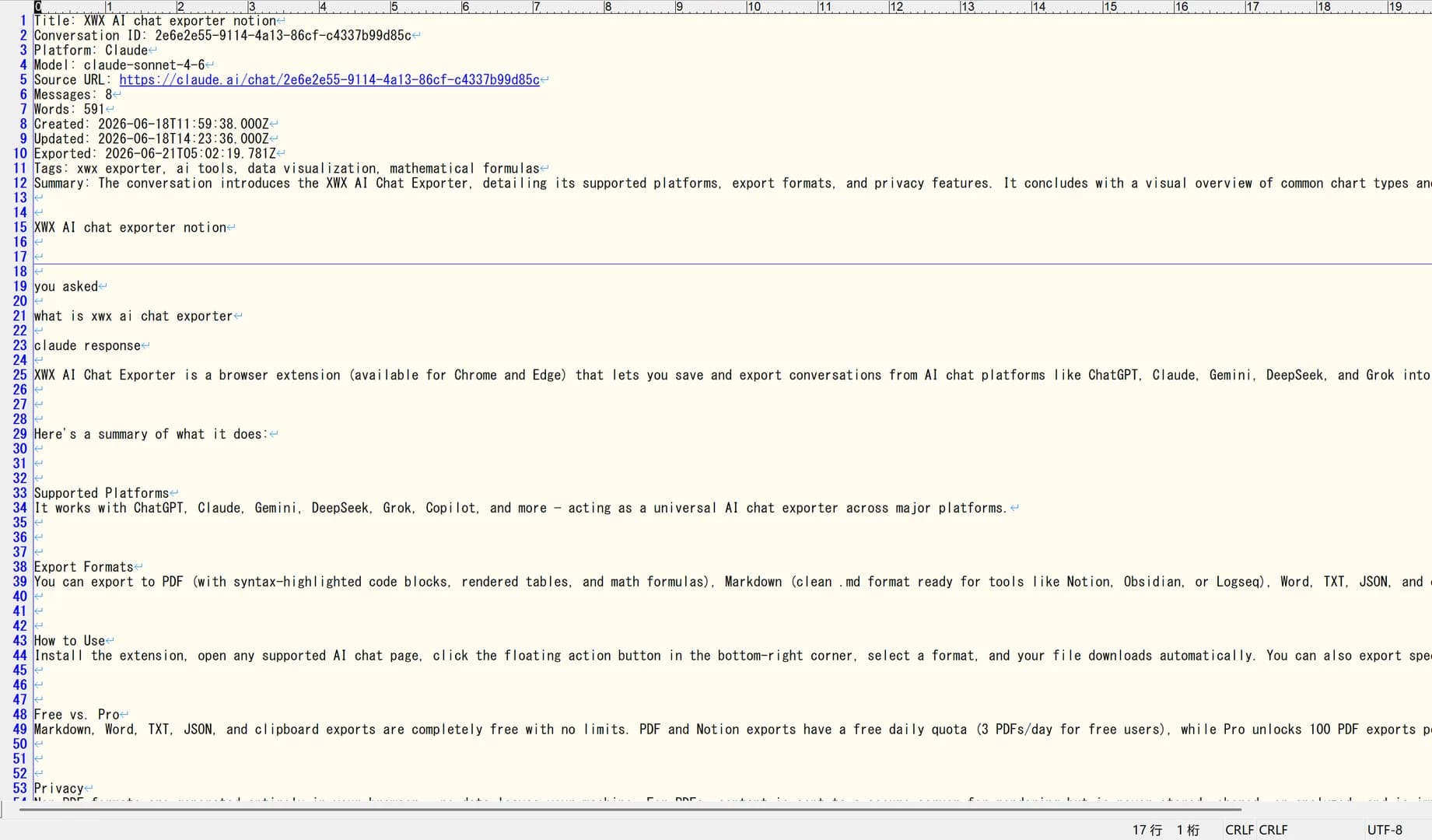
Formatted text pasted from clipboard into an editor
When to Use Clipboard Export
- Quick sharing: Paste a conversation snippet into Slack, Teams, or email
- Documentation: Paste into Google Docs, Notion, or Confluence
- Social media: Copy an interesting AI response for sharing
- Code snippets: Grab code blocks without downloading a file
- Meeting notes: Paste relevant Q&A into your meeting document
Frequently Asked Questions
Is clipboard export free?+
Yes, it's completely free with no limitations.
Does it preserve formatting?+
Yes. Rich text formatting (bold, italic, code, links) is preserved when pasting into compatible applications.
Can I copy only selected messages?+
Yes. Use Smart Selection to pick specific messages, then choose clipboard export.