Why Isn’t the Export Button Appearing on Google Search AI Mode?
The floating XWX button is designed to appear only while you are on a Google Search AI Mode page. If you don’t see it, it is almost always one of three things: you’re on the standard results page, the page needs a refresh, or the extension isn’t allowed in your current browsing mode. This guide walks through each fix in order.
1. Make sure you’re in AI Mode
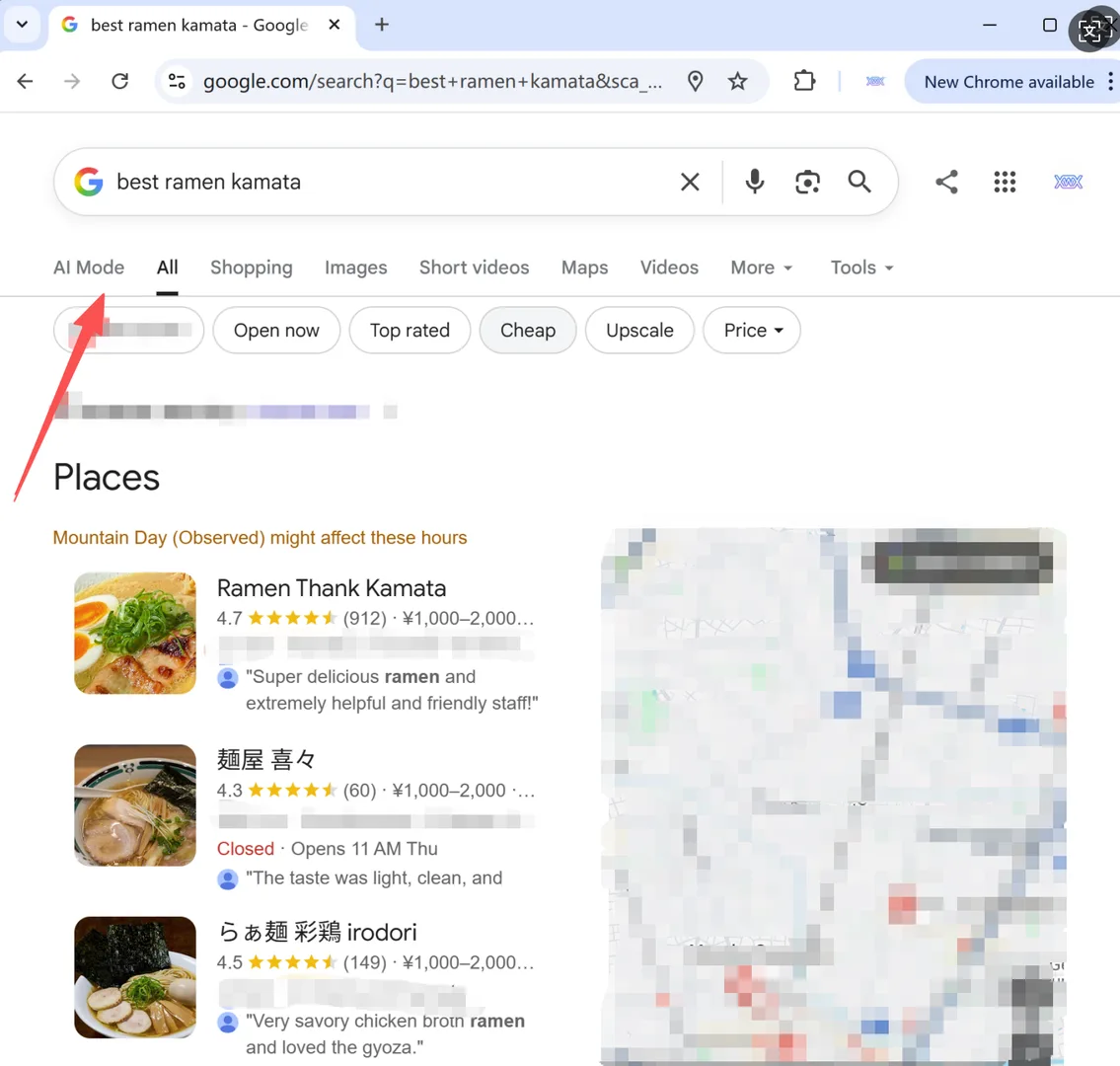
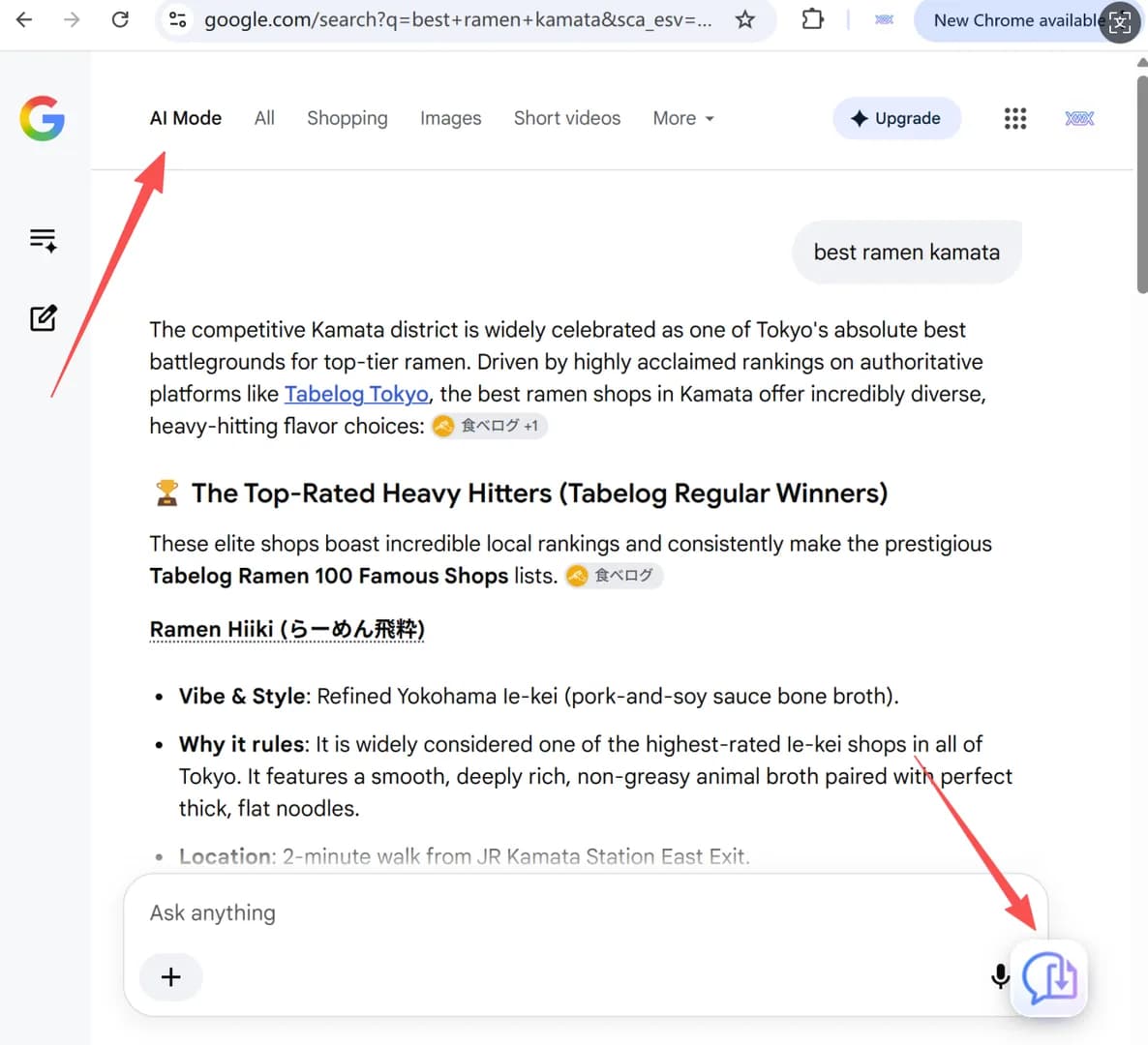
The FAB button is intentionally shown only after you switch to the AI Mode tab on Google Search. On the standard search results page (under the All tab), the button will not appear — this is expected behavior.
Once you click the AI Mode tab, the floating button should appear immediately in the bottom-right corner of the page, near the input area.
Quick test: search for anything on Google, then click the AI Mode tab beside the results. If the button shows up there but not on the regular results page, you’re doing everything right.
2. Refresh the page after installing or updating
If you installed or updated the extension while a Google Search tab was already open, the content script won’t inject automatically — the page needs to be reloaded.
Press F5, or Ctrl + R on Windows / Linux, or Cmd + R on Mac to refresh the current page. After the refresh, the button should appear within a second or two.
3. Allow the extension in Incognito / private mode
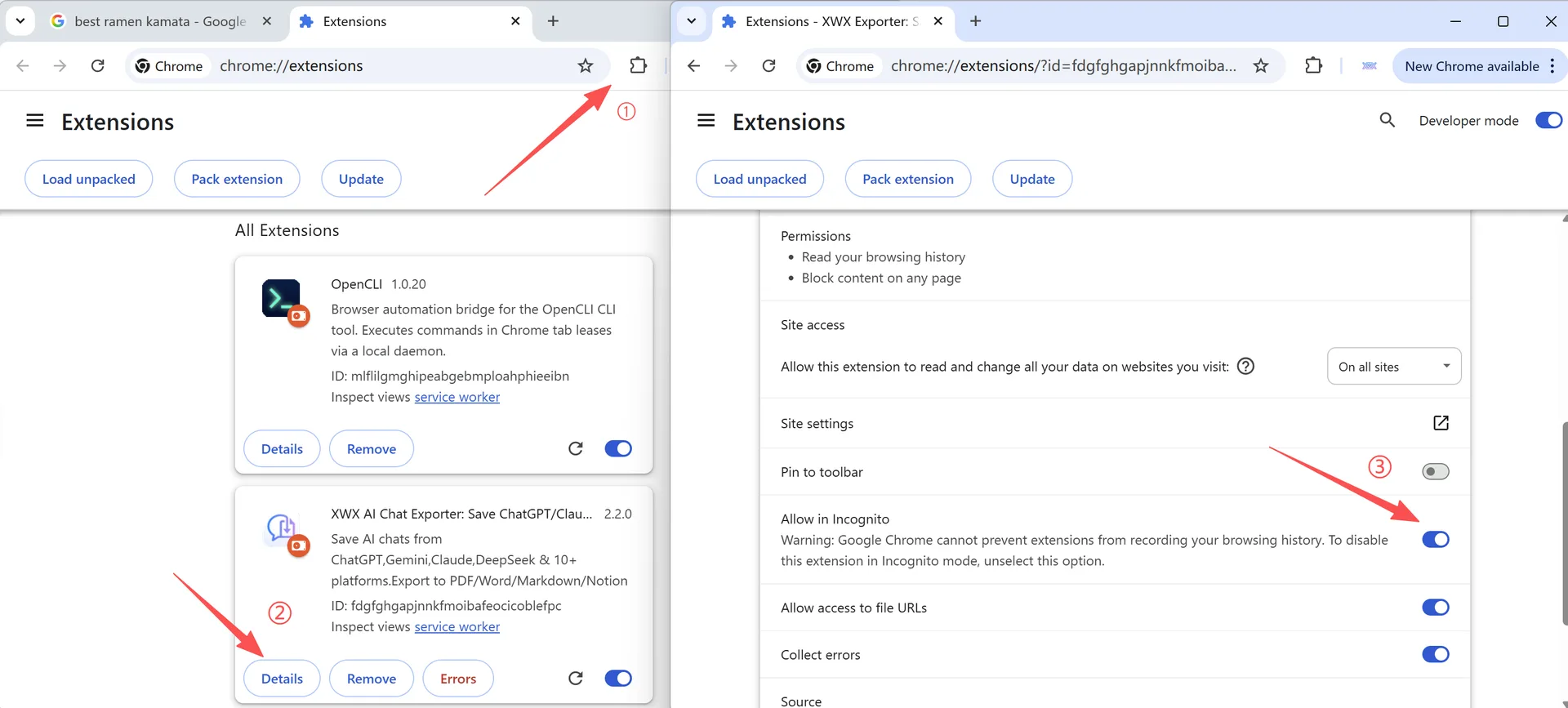
By default, Chrome disables extensions in Incognito and private windows. If you’re browsing privately, the button won’t show until you enable the extension there.
- Open
chrome://extensions(click the puzzle icon → Manage extensions). - Find XWX AI Chat Exporter.
- Click Details.
- Turn Allow in Incognito to ON.
- Reload the AI Mode page.
4. Still missing? Share the page URL
If the button is still missing while you’re in AI Mode after a refresh, the fastest way for us to help is to see the exact URL in your browser’s address bar.
The extension identifies AI Mode pages by specific URL parameters (such as udm=50). If Google serves the page with a different parameter set — for example on a localized domain or a newer layout — the button may not appear.
How to help: copy the full URL from the address bar and reply with it (or email support@xwxexporter.com). It helps us pinpoint unexpected parameters and release a quick fix. It helps us pinpoint unexpected parameters and release a quick fix.
Using Microsoft Edge on Copilot? If the missing button is on copilot.microsoft.com in Edge (not Google Search), that is a separate, browser-level block: Edge 135+ refuses to run any extension on Copilot pages. See why you can’t export Copilot chats in Edge for the full explanation and the Chrome workaround.Frequently Asked Questions
Does the export button appear on regular Google search results?+
No. The floating button is intentionally shown only on Google Search AI Mode pages. On the standard results page (under the All tab) it will not appear — switch to the AI Mode tab.
Do I need to refresh after installing or updating the extension?+
Yes. If a Google Search tab was already open when you installed or updated the extension, reload the page once with F5 / Ctrl+R / Cmd+R for the button to appear.
Does the extension work in Incognito mode?+
Only if you enable it: open chrome://extensions, find XWX AI Chat Exporter, click Details, and turn on Allow in Incognito.
I’m in AI Mode and refreshed the page, but the button is still missing. What now?+
Send us the full URL from your browser’s address bar while you’re on that page. The exact parameters help us identify the cause and release a fix quickly.