Why You Can’t Export Microsoft Copilot Chats in Microsoft Edge (And the Fix That Works)
You installed a chat exporter, opened a Microsoft Copilot conversation in Edge, and… nothing. No floating button, no export menu, no error message — just a Copilot page that looks exactly like it did before you installed anything. If you reinstalled the extension, checked permissions, and searched “extensions not working on copilot.microsoft.com,” you already know how thin the explanations are. Here’s the part nobody tells you up front: this isn’t a bug in the extension you picked. Starting with Edge 135, Microsoft Edge deliberately blocks every browser extension from running on copilot.microsoft.com — exporters, ad blockers, password managers, user scripts, even enterprise security tools. This guide explains what’s actually happening behind the scenes, lists the fixes that waste your time so you can skip them, and shows you the one approach that does work: exporting your Copilot conversations to PDF and Markdown from Chrome, where the same chats are waiting under the same account.
The symptom: an exporter that works everywhere — except Copilot in Edge
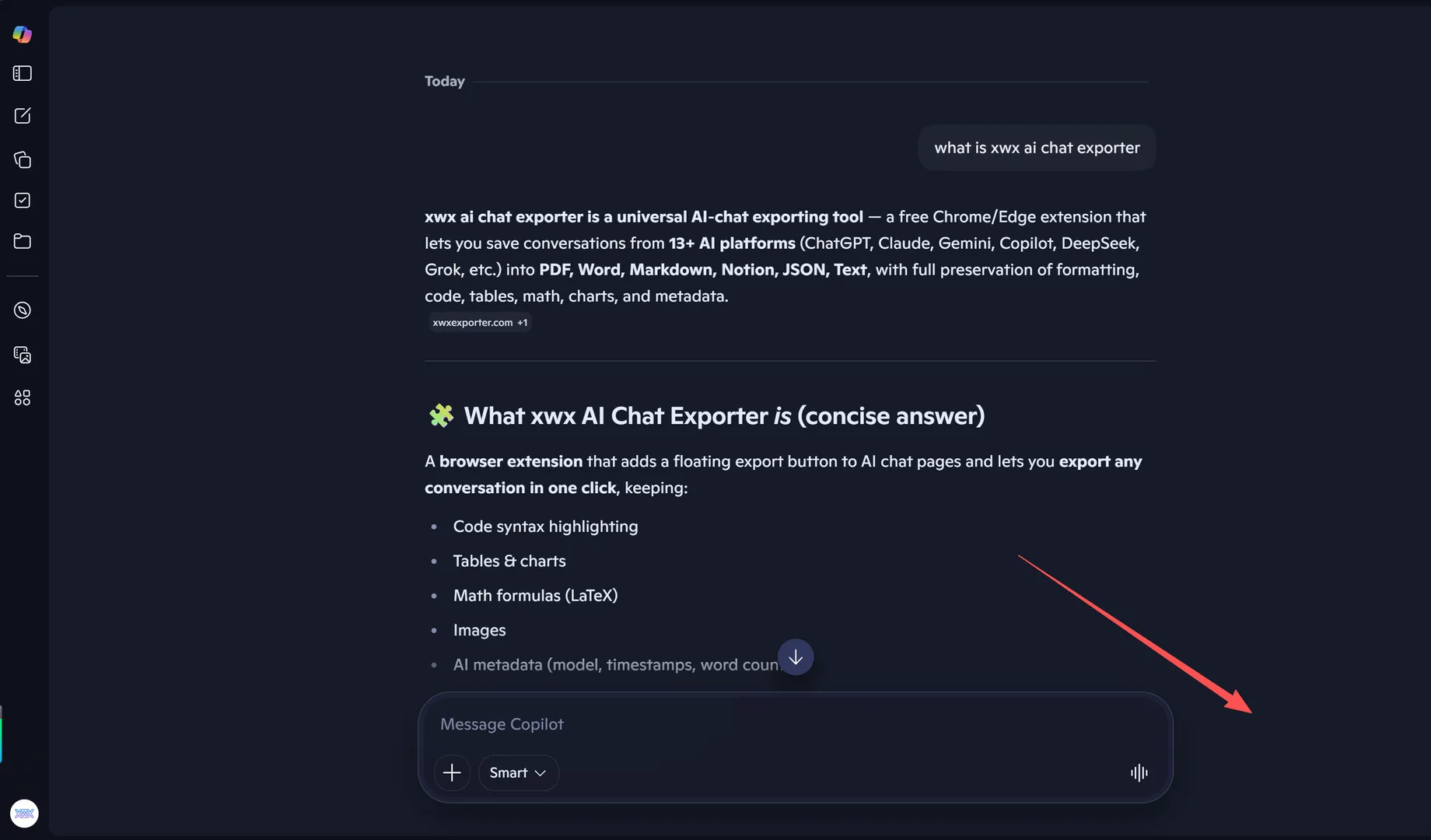
Most people discover this problem the same way. The exporter has good reviews, it works fine on ChatGPT or Claude, and then you open a conversation at copilot.microsoft.com/chats/… in Edge and the floating action button simply never appears.
There’s no error, no permission prompt, nothing in edge://extensions flagging a problem. The extension believes it’s working. The page looks normal. The button just isn’t there — which sends you down the classic rabbit hole of reinstalling, toggling permissions, and disabling other extensions.
The short answer
Microsoft Edge blocks all browser extensions on copilot.microsoft.com by design. Since Edge version 135, the browser treats Copilot like a protected internal page — the same category as its own add-ons store — and refuses to run any extension code there. There is no setting, flag, or group policy to override it. Microsoft’s Edge extensions team has confirmed this directly.
The workaround that actually works: open the same conversation in Google Chrome and export there. Your Copilot chat history lives in your Microsoft account, not in the browser — the identical conversation is waiting at the same URL in Chrome, where extensions run normally and XWX AI Chat Exporter can save it as a polished PDF or Markdown file.
Short on time? Jump straight to the step-by-step fix. If the floating button is missing on other AI platforms too — ChatGPT, Claude, Google AI Mode — that’s a different problem with different fixes, covered in why the export button isn’t appearing.
What Edge actually does to extensions on Copilot pages
When Edge refuses to let an extension onto copilot.microsoft.com, any attempt to inject a script fails with the error “The extensions gallery cannot be scripted.” That message is the tell: Edge has filed Copilot under the same protection level as its own add-ons store, which Chromium-based browsers have always forbidden extensions from touching.
What makes this unusual is that copilot.microsoft.com is a regular public website — not an edge:// internal page. The restriction was introduced quietly in Edge 135 (early 2025) and expanded since. By Edge 150, developers found the blocklist also covered *.cloud.microsoft, edgeservices.bing.com, explore.microsoft.com, and www.microsoft365.com — essentially the whole Copilot and Microsoft 365 web family.
| What you’re trying to do | What happens in Edge (135+) |
|---|---|
| Manifest-declared content scripts | Silently never injected |
chrome.scripting.executeScript | Fails: “The extensions gallery cannot be scripted” |
| Extension icon / toolbar | May appear greyed out on the page |
| Any override (flag, policy, manifest change) | None exists |
If you want the primary sources: Microsoft’s extensions team confirmed the behavior and the lack of overrides in their response on the official Edge Extensions GitHub, and the expanded Edge 150+ blocklist is documented in issue #644, where enterprises including CrowdStrike reported the same collision.
It’s not just chat exporters — every extension is affected
One reason this problem is so confusing: whatever extension you install, the failure looks identical. Public reports of the same block include:
- Tampermonkey — userscripts silently never start on Copilot pages in Edge
- AdGuard Assistant — the “block ads on this website” panel stopped opening on Copilot chats after Edge 135
- SingleFile — unable to capture a Copilot conversation as a single HTML file in Edge
- Enterprise security tools — Symantec/Broadcom DLP confirmed their extension is greyed out on copilot.microsoft.com, with Microsoft confirming it’s working as designed
So if you tried three different exporters and none of them showed a button, that’s the expected outcome — not evidence that you picked wrong three times.
Fixes that don’t work (save yourself the evening)
Before the solution, here are the dead ends — listed because they’re the things you’d naturally try, and each one is a dead end for the same underlying reason:
- Reinstalling the extension — the block happens at injection time, after a clean install.
- Enabling “Allow on this site” / site access permissions — Edge accepts the setting and then ignores it on protected domains.
- Trying InPrivate or a new profile — the blocklist applies regardless of profile or window mode.
- Looking for a group policy or registry key — Microsoft has explicitly stated none exists (
ExtensionSettings → runtime_allowed_hostsdoes not lift it). - Downgrading Edge below 135 — technically removes the block, but leaves you on an unsupported, security-vulnerable browser. Not worth it.
- Waiting out Copilot’s own settings — nothing in Copilot’s UI controls extension access; the restriction lives in the browser, not the website.
The only variable that changes the outcome is which browser renders the page.
The fix: export your Copilot chats from Chrome in four steps
Your Copilot conversation history is stored in your Microsoft account, so the exact same chats — same sidebar, same URLs, same formatting — are available in any browser where you sign in. That makes the fix straightforward:
Step 1 — Install XWX AI Chat Exporter in Chrome. Grab it from the Chrome Web Store; installation takes one click and no account signup. If you already installed it in Edge, you still need the Chrome copy — extensions don’t transfer between browsers.
Steps 2–4: Open the chat, click the button, pick PDF
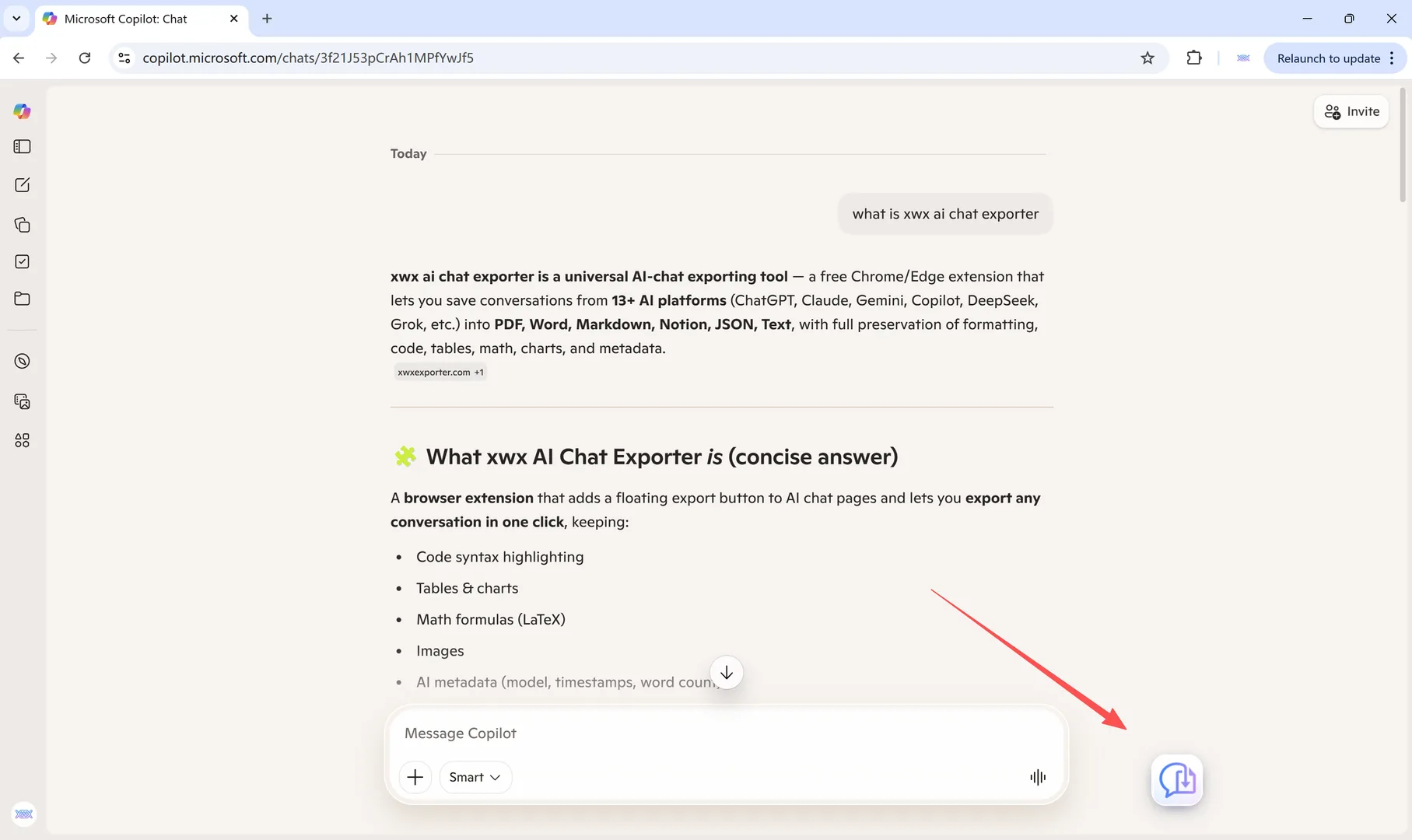
Step 2 — Open the same conversation in Chrome. Sign in with the same Microsoft account and go to copilot.microsoft.com — your chat history is right there. The XWX floating button appears in the bottom-right corner automatically.
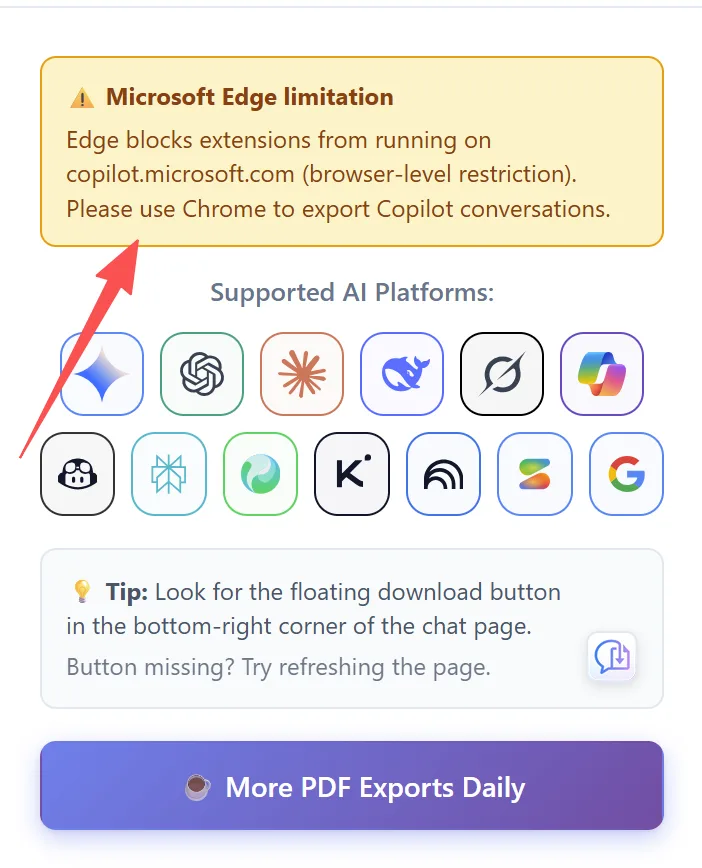
Step 3 — Click the floating button and choose PDF. The conversation is pulled through Copilot’s backend rather than scraped off the screen, so long threads stay complete and code, tables, and math survive intact. You can also pick Markdown (.md) with YAML frontmatter, Word (.docx), JSON, plain text, clipboard, or direct Save to Notion.
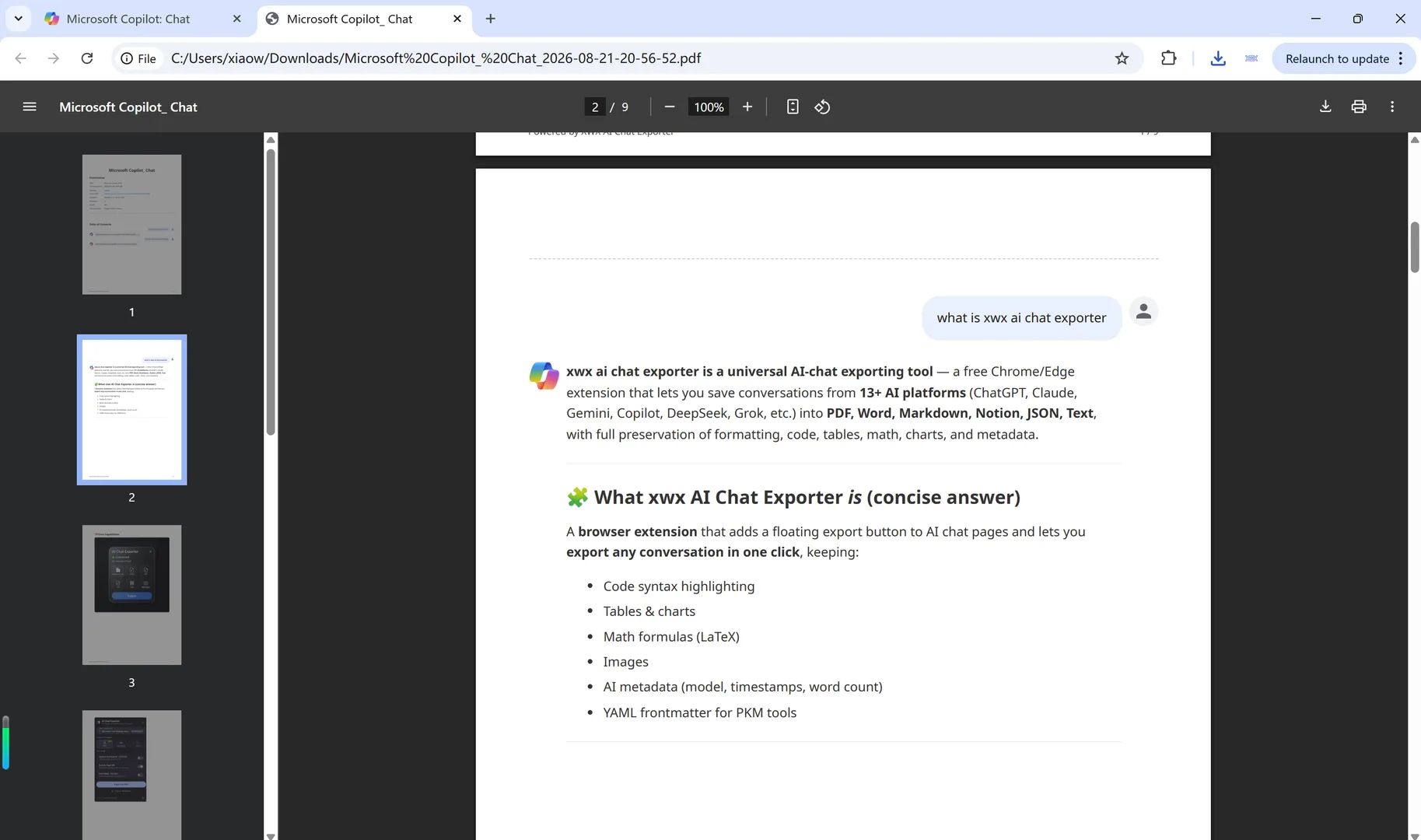
Step 4 — Done. The PDF downloads immediately — typically a paginated document with a metadata header (platform, model, timestamps, word count) on page one.
How XWX tells you about the block while you’re still in Edge
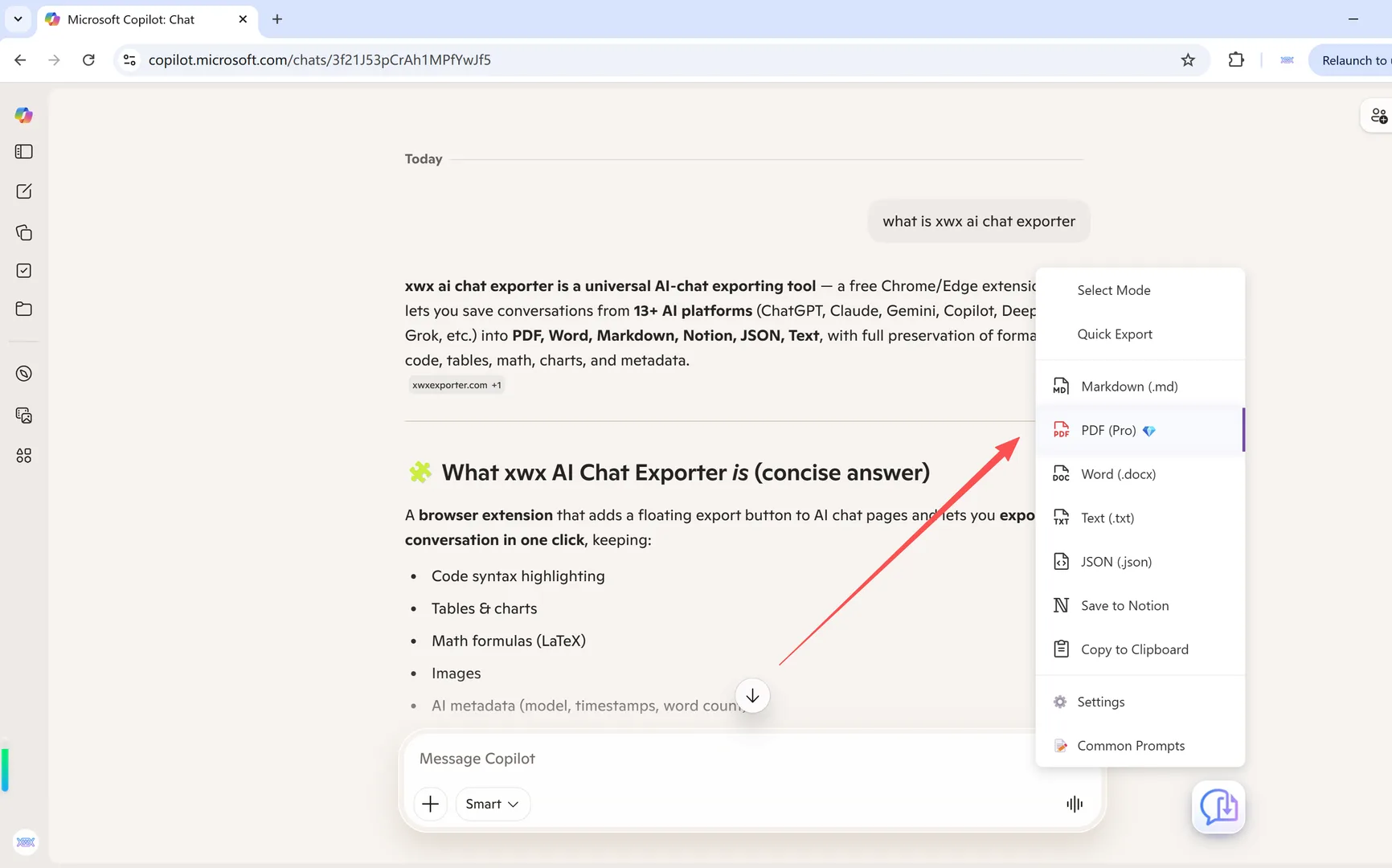
If you open the XWX popup while sitting on a Copilot page in Edge, it won’t leave you guessing. The popup detects the situation — Edge browser plus a blocked URL — and shows an explicit notice explaining that Edge prevents extensions from running on copilot.microsoft.com and recommending Chrome for Copilot exports.
It’s a small thing, but it converts a silent failure into a five-second diagnosis. The rest of the extension keeps working normally in Edge: exports from ChatGPT, Claude, Gemini, DeepSeek, Grok, Perplexity, and the other supported platforms are unaffected, because those domains aren’t on Microsoft’s blocklist.
What the exported PDF actually looks like
Here’s the result of exporting the very conversation shown above: a clean, paginated document with a metadata cover section, the full exchange in reading order, and formatting preserved end to end — ready to attach in an email, drop into OneNote, or file away for compliance.
| Export format | Best for | Runs locally |
|---|---|---|
| Sharing, printing, archiving | Rendered server-side, deleted after | |
| Markdown (.md) | Obsidian, Notion, knowledge bases | Yes |
| Word (.docx) | Editing, comments, reports | Yes |
| JSON | Backups, scripts, analysis | Yes |
| TXT / Clipboard | Quick saves | Yes |
| Save to Notion | Direct push into a workspace | Via Notion API |
Markdown, TXT, JSON, and clipboard exports are free with no limits; PDF includes a free daily quota with Pro for heavier use.
A note on work and school (Microsoft 365) accounts
Everything above covers the consumer Copilot at copilot.microsoft.com. If you sign in with a work or school account, Microsoft increasingly redirects Copilot traffic to Microsoft 365 surfaces such as m365.cloud.microsoft — a different product surface with a different layout, and (per Microsoft’s own issue tracker) its own evolving extension restrictions in Edge.
XWX currently supports exporting the consumer Copilot experience. If your organization routes you to the Microsoft 365 Copilot web app, the same advice applies — Chrome gives you the healthiest extension environment — but check that your conversations live at copilot.microsoft.com before expecting the button to appear.
Key takeaways
- Edge 135+ blocks every extension on copilot.microsoft.com, by design, with no override — confirmed by Microsoft’s Edge extensions team.
- The failure is silent: no button, no error, no permission prompt. Now you know why.
- Nothing you install or configure in Edge changes it. Don’t burn time on reinstalls or policies.
- Your chats follow your Microsoft account, so opening the same conversation in Chrome takes seconds.
- In Chrome, XWX exports Copilot to PDF, Markdown, Word, and more — with formatting, code, tables, and metadata intact.
Frequently Asked Questions
Why don’t extensions work on copilot.microsoft.com in Edge?+
Starting with Edge 135, Microsoft classifies copilot.microsoft.com as a protected domain — the same category as its add-ons store — and refuses to inject any extension code into it. Injection attempts fail with “The extensions gallery cannot be scripted.” Microsoft has confirmed there is no flag, manifest setting, or group policy to disable the block.
Is XWX broken in Edge, or just on Copilot?+
Only the Copilot site is affected. In Edge, XWX continues to export chats from ChatGPT, Claude, Gemini, DeepSeek, Grok, Perplexity, NotebookLM, and the other supported platforms normally. For Copilot specifically, use Chrome — the XWX popup will show a reminder when it detects the Edge block.
Can I force Edge to allow extensions on Copilot with a policy?+
No. Microsoft has explicitly stated that neither browser flags nor enterprise policies such as ExtensionSettings/runtime_allowed_hosts override the block. Downgrading Edge below version 135 technically works but leaves the browser unsupported and insecure.
Does Microsoft Copilot have a built-in way to export a conversation?+
Only partial ones: you can copy individual responses, export a single response to Word/PDF/TXT where available, or print the visible page with Ctrl+P. None of these produce a complete, well-formatted archive of a full conversation — which is why dedicated exporters exist.
Will my Copilot chats be in Chrome if I signed in there?+
Yes. Chat history is tied to your Microsoft account, not to the browser. Open copilot.microsoft.com in Chrome, sign in with the same account, and the same conversations appear — ready to export.
Does this work with work or school (Microsoft 365) Copilot accounts?+
XWX supports the consumer Copilot at copilot.microsoft.com. Work and school accounts are often redirected to the Microsoft 365 Copilot web app, which is a separate surface with its own layout and restrictions — check which URL your chats actually live on before exporting.
Export Your AI Chats
Free Chrome extension. No account required. Works on 13 AI platforms.