Quick Export — Instant Export with One Toggle
Quick Export is a toggle in the FAB menu. When enabled, clicking the FAB immediately exports the conversation using your last-used format — no menu, no format selection. Perfect for power users who always use the same format.
Enabling Quick Export
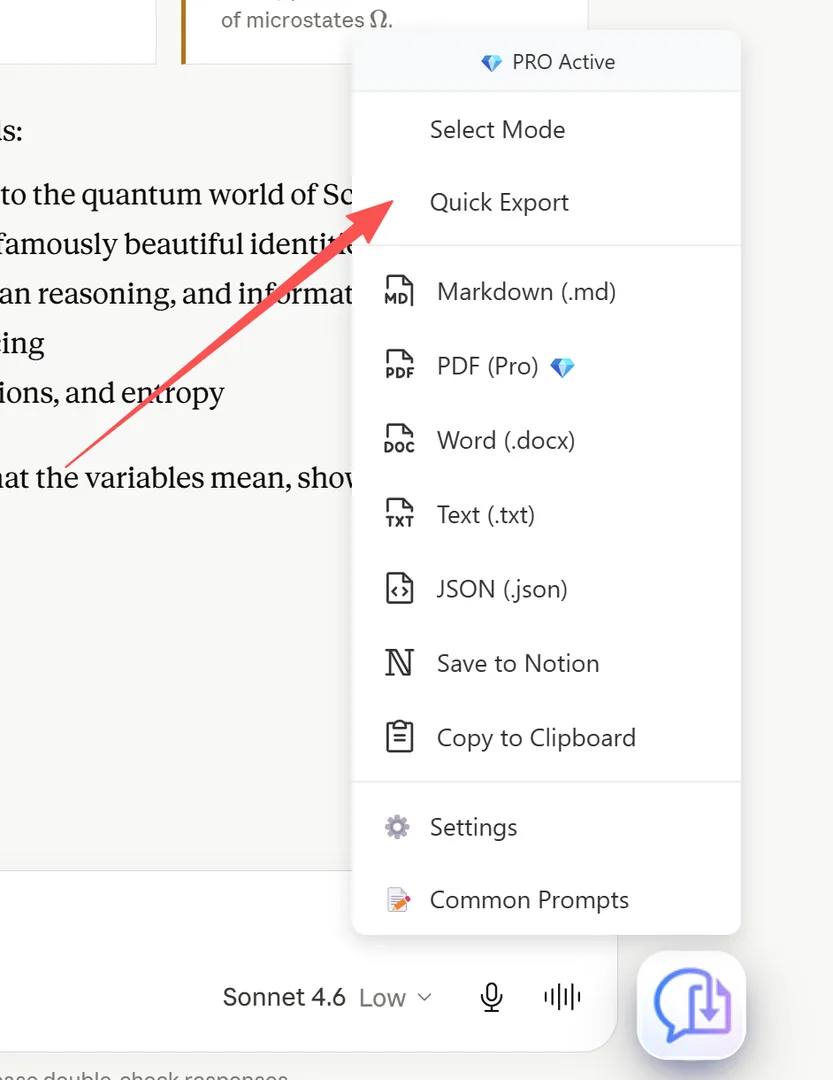
- Click the XWX FAB to open the menu
- Click "Quick Export" — it's a checkmark toggle item
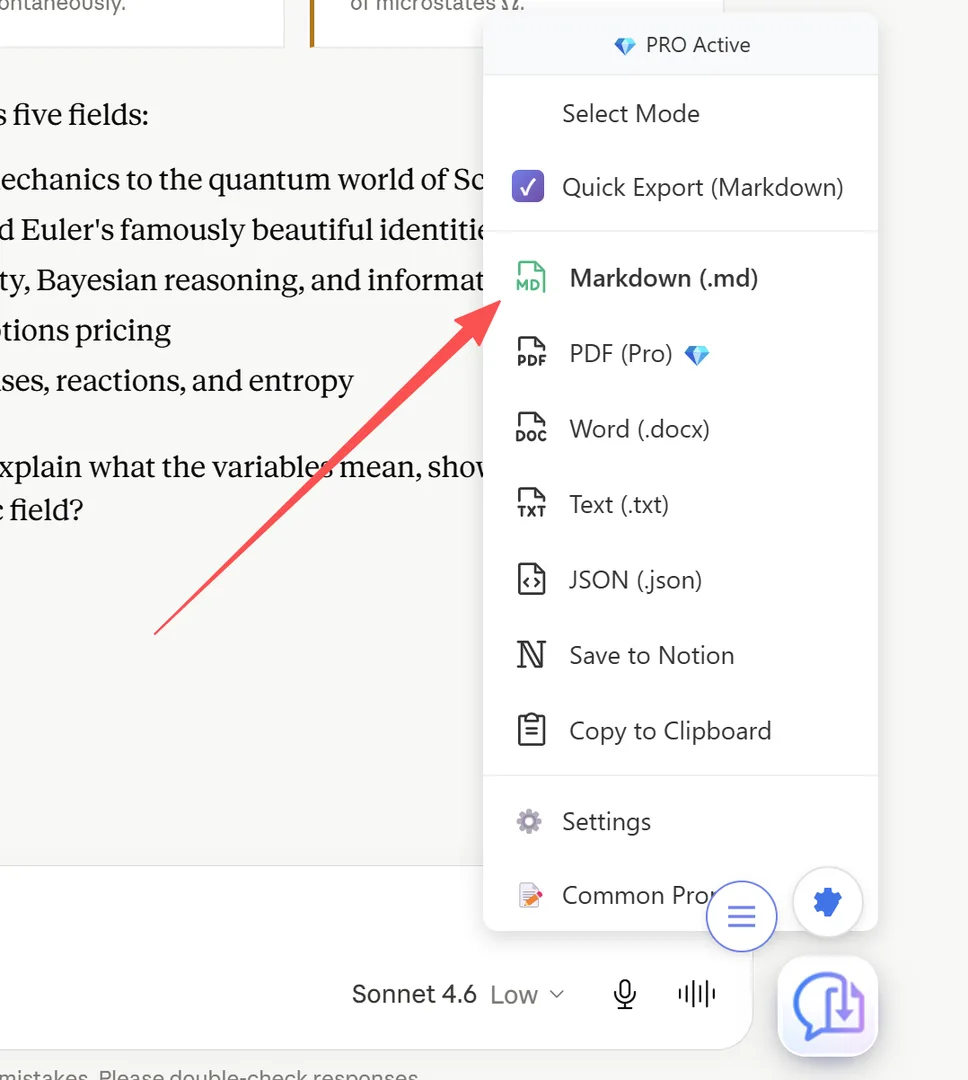
- When enabled, the label changes to show your format: "Quick Export (Markdown)", "Quick Export (PDF)", etc.
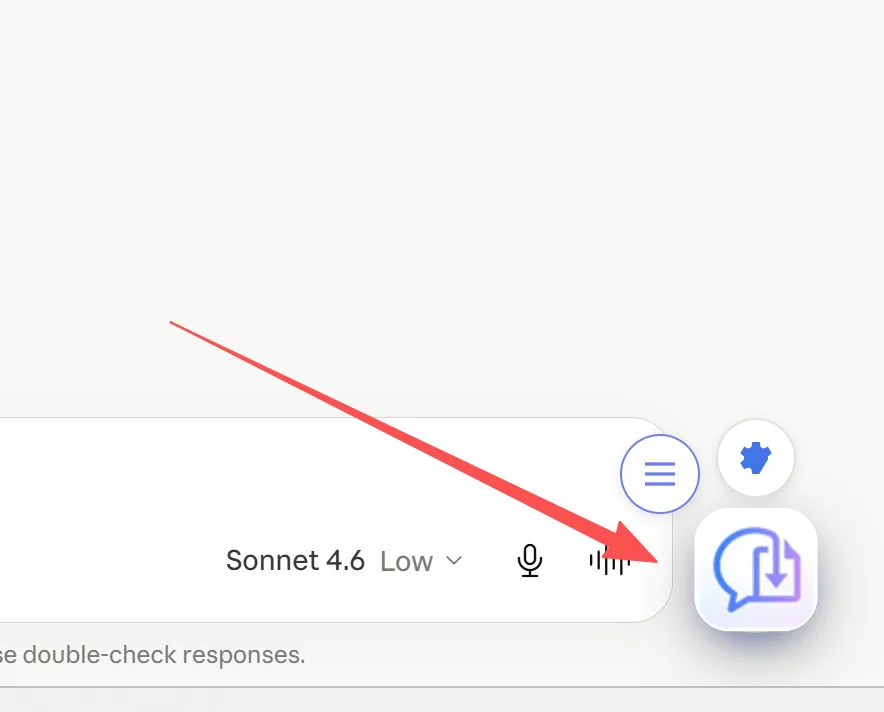
- Now clicking the FAB immediately exports — no menu opens
The last-used format is automatically remembered. To change the format, click any format item in the menu — it becomes the new Quick Export format.
Using Quick Export
With Quick Export enabled:
- The FAB itself becomes the export button — one click, instant download
- The menu does NOT open — the file downloads immediately
- The format used is your last-used format (defaults to Markdown)
- All your saved settings apply (PDF width, font size, frontmatter, etc.)
To change the Quick Export format:
- Open the menu (right-click the FAB, or temporarily disable Quick Export)
- Click a different format — it becomes the new default
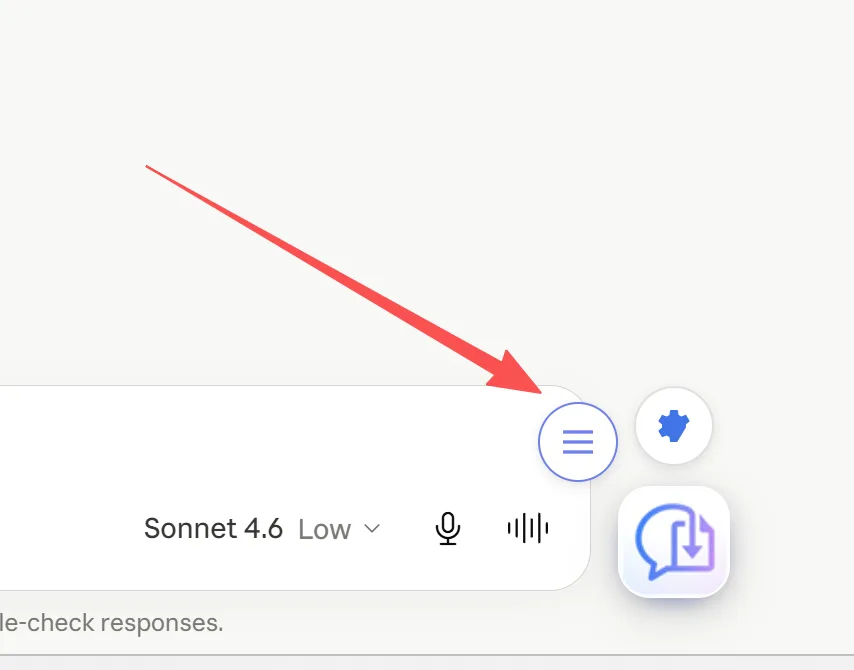
To access Settings while Quick Export is ON:
- Click the settings gear satellite button (⚙️) to the left of the FAB
Super One-Click
Super One-Click is an advanced feature that makes exporting even faster.
What it does:
- Normally, after export completes, a success modal appears showing the file name, tips, and support links
- With Super One-Click enabled, the success modal is skipped entirely — the menu closes immediately after the file downloads
- This gives you the fastest possible export workflow: click → download → done
How to enable:
- Open Settings (FAB menu → Settings, or gear satellite button)
- Go to the General tab
- Toggle Super One-Click ON
💡 Super One-Click works with all export formats, including Quick Export.
Combine with Other Features
Quick Export works seamlessly with:
- Select Mode: Select messages first, then Quick Export only the selected ones
- AI Tags & Summaries: Auto-generate metadata even in quick exports
- Subfolder: Files are still placed in your configured subfolder
- Append Date/Time: Filename still includes the date/time stamp
Frequently Asked Questions
How do I change the Quick Export format?+
Open the FAB menu, click a different format (e.g., PDF). It becomes the new Quick Export default. The menu label updates to show "Quick Export (PDF)".
How do I access Settings when Quick Export is ON?+
A settings gear satellite button (⚙️) appears to the left of the FAB. Click it to open Settings.
Can I use Quick Export with Select Mode?+
Yes. Select messages first, then click the FAB to export only the selection using your Quick Export format.