Sync AI Chats to Notion
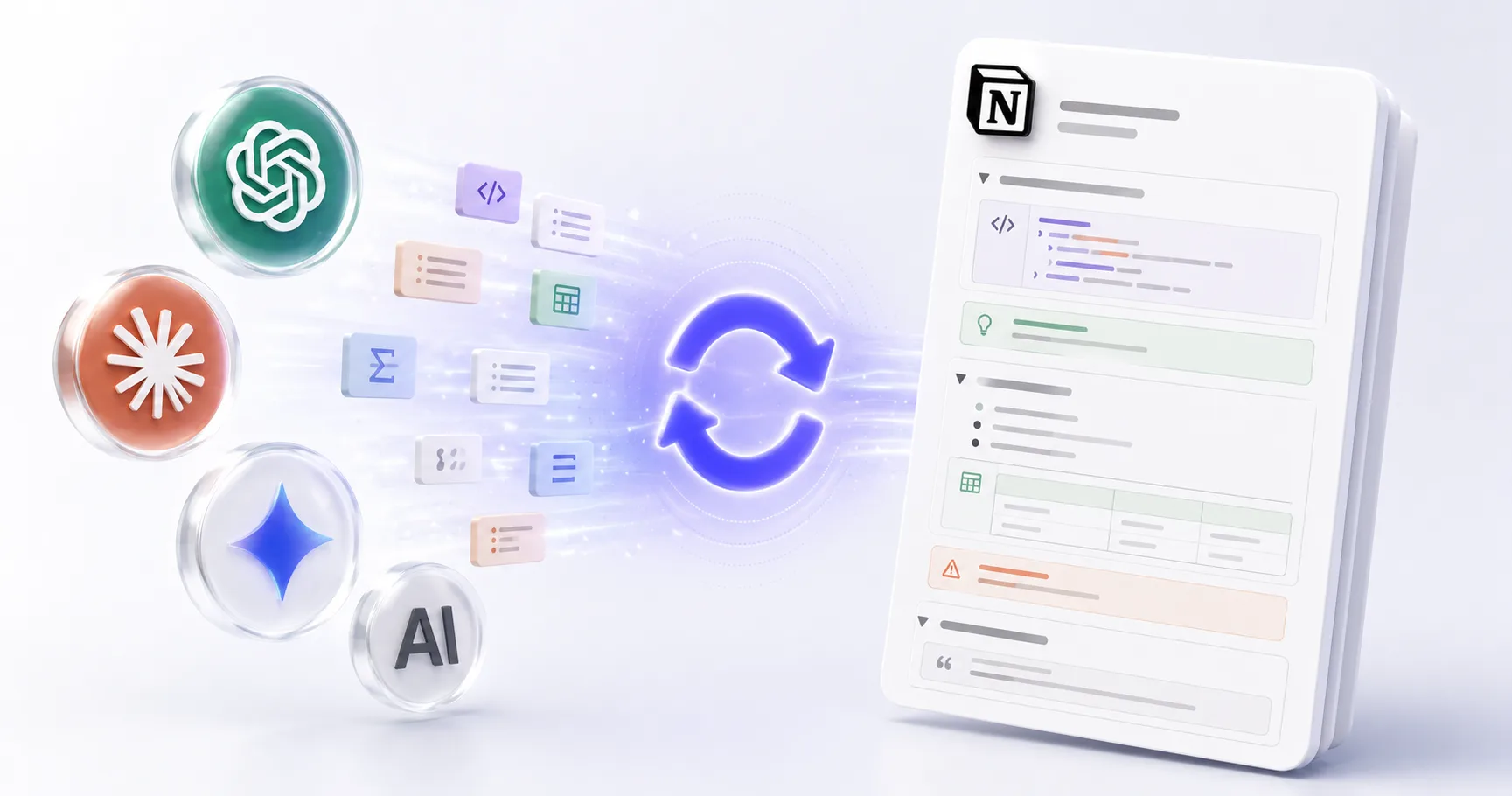
Push your AI conversations directly into Notion with one click — auto-formatted, structured, and ready to organize. No more copy-pasting between ChatGPT, Claude, or Gemini and your Notion workspace.
Why Sync AI Chats to Notion?
Copy-pasting AI conversations into Notion is painful. Formatting breaks. Code blocks lose highlighting. Tables become plain text. XWX sends your chats directly to Notion with perfect formatting — as if you typed them there yourself.
One-Click Sync
Click once to push any AI conversation to your Notion workspace. No copy-paste, no formatting fixes.
Auto-Structured Formatting
Code blocks, tables, headings, lists — everything is properly formatted as Notion blocks, not plain text.
Organize with Notion Databases
Exported chats land in your Notion database with proper properties — date, platform, tags for easy filtering.
Share with Your Team
Once in Notion, your AI conversations are instantly shareable with teammates via Notion's collaboration features.
Bi-Directional Links
Link AI exports to your existing Notion pages, projects, and knowledge base for connected workflows.
Build Your Second Brain
Accumulate AI insights in Notion over time — creating a searchable, linkable knowledge base from daily AI use.
How to Sync AI Chats to Notion
Install XWX AI Chat Exporter
Add the free Chrome extension. It supports all major AI platforms automatically.
Open Your AI Conversation
Navigate to ChatGPT, Claude, Gemini, or any supported AI platform. Open the conversation you want to export.
Click Export → Save to Notion
Click the floating button and select 'Save to Notion'. Authorize Notion access on first use.
Choose Your Notion Destination
Select the Notion page or database where you want the conversation. It appears instantly, perfectly formatted.
Who Syncs AI Chats to Notion?
Knowledge Workers
Build a centralized knowledge base from daily AI interactions — research, analysis, and insights all in one Notion workspace.
Product Managers
Save AI-generated PRDs, user research summaries, and competitive analysis directly to your product Notion workspace.
Developers
Archive coding conversations, technical decisions, and code reviews in your team's Notion engineering wiki.
Content Creators
Push AI brainstorming sessions and drafts to Notion for editing, collaboration, and content calendar management.
Students
Organize AI study notes, explanations, and research into Notion databases organized by subject and topic.
What Makes XWX Different?
Direct Notion Sync
Unlike PDF/Markdown exports that require manual import, XWX pushes content directly to Notion with one click.
13 Platforms to Notion
Sync chats from ChatGPT, Claude, Gemini, Perplexity, and 10 more — all to the same Notion workspace.
Smart Structuring
Auto-generated Notion properties include platform, date, model, and tags for instant organization.
FAQ
How do I export ChatGPT to Notion?+
Install XWX AI Chat Exporter, open your ChatGPT conversation, click the floating button, and select 'Save to Notion'. Authorize Notion access, choose your destination page, and the conversation appears instantly.
Does it work with Claude and Gemini too?+
Yes. XWX supports 13 AI platforms — ChatGPT, Claude, Gemini, Perplexity, DeepSeek, and more. All sync to Notion with the same one-click workflow.
Is the formatting preserved in Notion?+
Yes. Code blocks, tables, headings, lists, and math formulas are properly formatted as native Notion blocks — not plain text pasted in.
Is it free?+
Yes. Notion sync is included in the free plan with daily quota limits. Pro unlocks unlimited Notion exports.
Do I need a Notion API key?+
No. XWX uses Notion's OAuth flow — just click 'Save to Notion' and authorize access. No API key configuration needed.
Can I choose which Notion page to export to?+
Yes. You can select any page or database in your Notion workspace as the destination for each export.
Related Features
Export ChatGPT Chats to PDF
Learn More →Export Gemini Conversations to PDF
Learn More →Download Claude Chats as PDF
Learn More →Export AI Chats to Obsidian
Learn More →Export AI Chats to Word
Learn More →AI-Generated Tags & Summaries for AI Chats
Learn More →Smart Message Selection with Synced Sidebar
Learn More →Automatic AI Chat Backup
Learn More →Ready to Export Your AI Chats?
Free Chrome extension. No account required. Works on 13 AI platforms.