Export AI Chats to Word
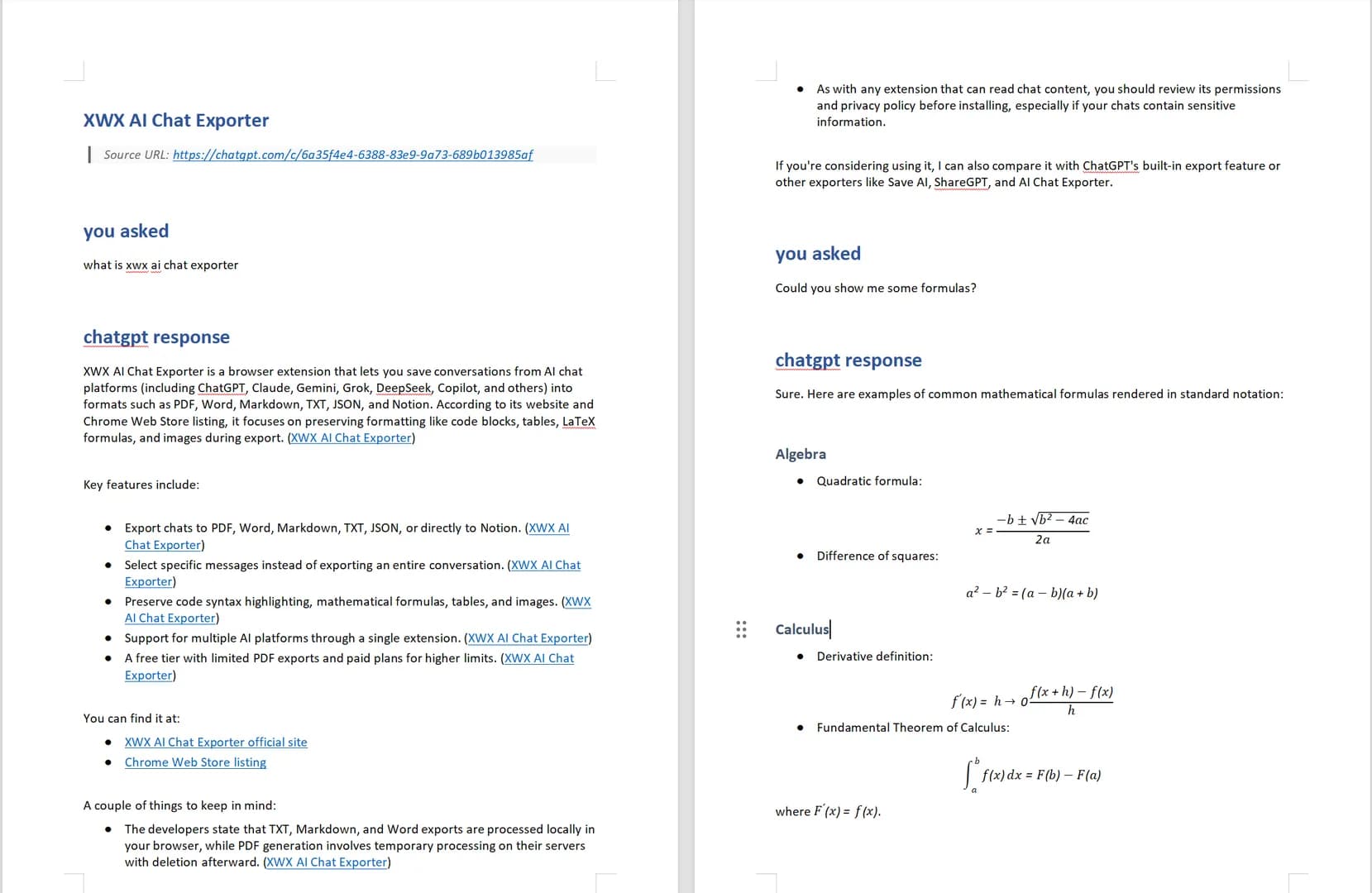
Save your AI conversations as editable Word (.docx) documents with perfectly preserved formatting — tables, code blocks, math formulas, and charts. Ready for editing, sharing, and professional use.

Why Export AI Chats to Word?
Sometimes you need more than a PDF — you need an editable document. Word format lets you modify, comment, and collaborate on AI-generated content. XWX preserves every element of your AI conversation in a properly formatted .docx file.
Fully Editable
Unlike PDF, Word documents can be edited, commented on, and tracked with changes — perfect for team collaboration.
Tables & Charts Preserved
Data tables, Charts.js visualizations, and structured content maintain their layout in the Word document.
Code Blocks with Formatting
Syntax-highlighted code blocks are preserved with monospace fonts and proper indentation.
Math Formulas Intact
LaTeX math equations are rendered correctly in Word — no broken formulas or missing symbols.
Easy to Share
Word is the universal document format. Share with clients, colleagues, or stakeholders who may not use Obsidian or Markdown.
Print-Ready Layout
Professional page layout with proper margins, headers, and page breaks. Ready for printing or formal submission.
How to Export AI Chats to Word
Install XWX AI Chat Exporter
Add the free Chrome extension. Works with ChatGPT, Claude, Gemini, and 10 more AI platforms.

Open Your AI Conversation
Navigate to any supported AI platform and open the conversation you want to export.
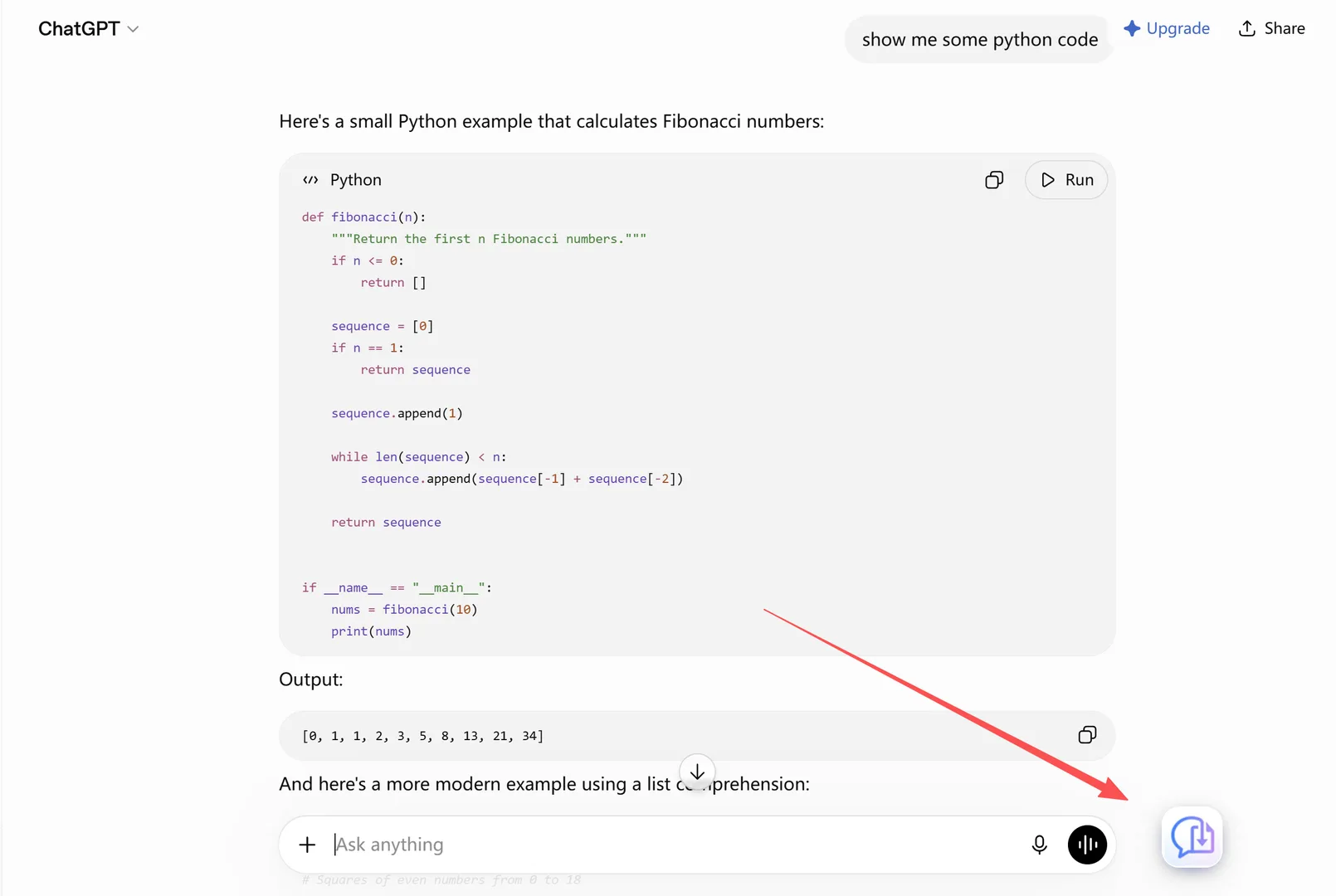
Click Export → Word
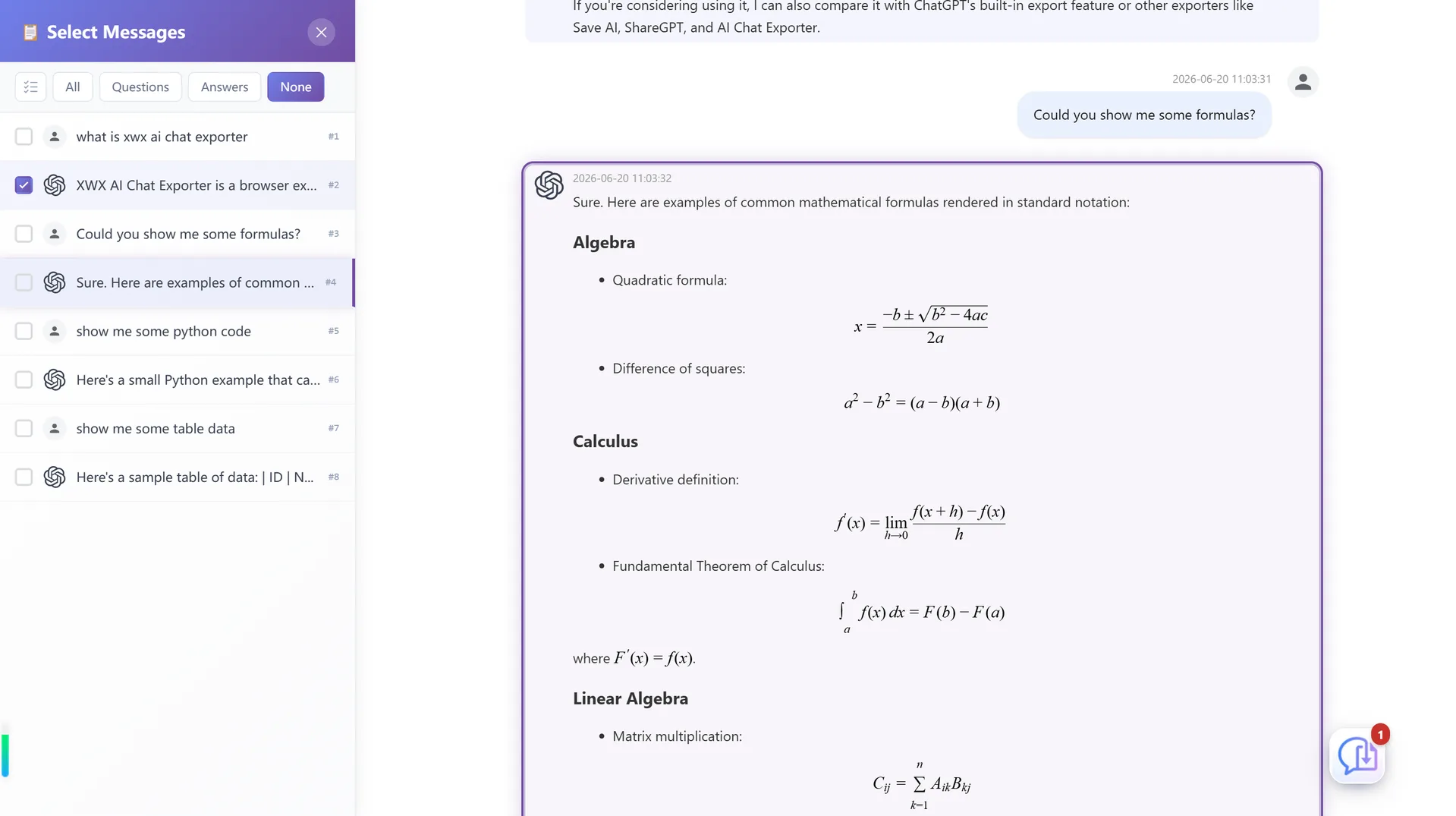
Click the floating button and select Word (.docx) format. The file downloads automatically. Use Smart Selection first if you only want part of the thread.
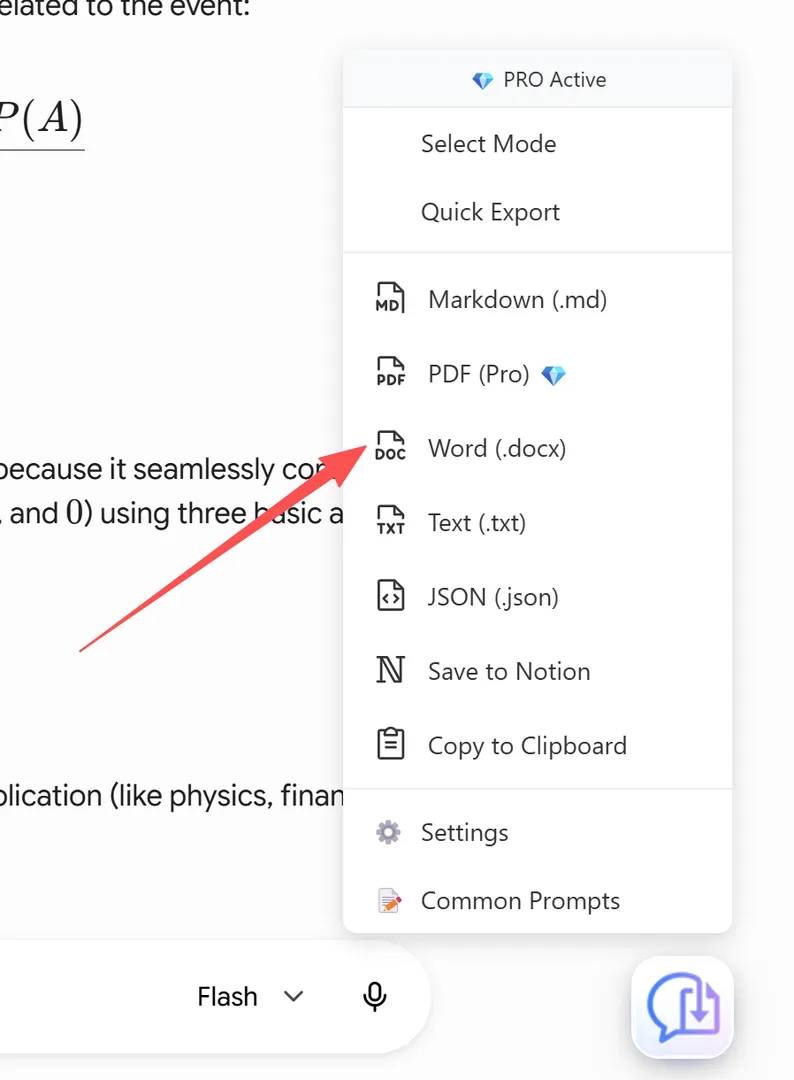
Open & Edit in Word
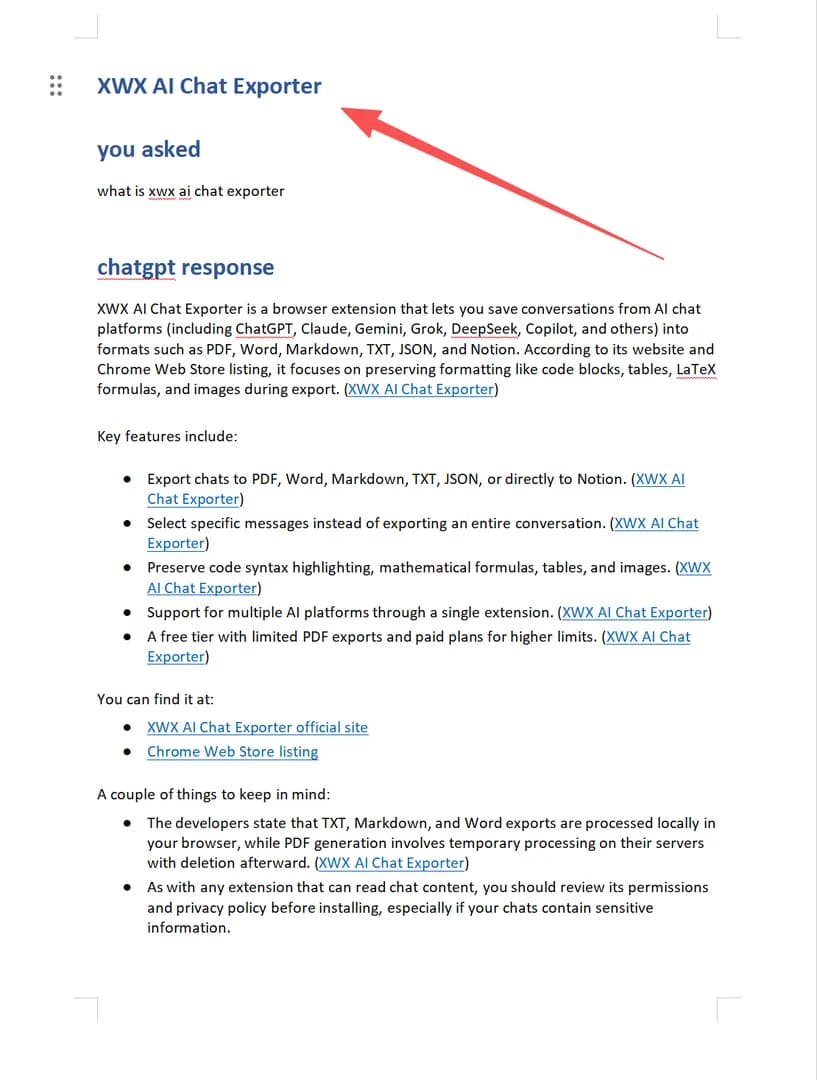
Open the .docx file in Microsoft Word, Google Docs, or LibreOffice. Everything is formatted and ready to edit.
Who Exports AI Chats to Word?
Consultants
Turn AI-assisted analysis into client-ready Word reports with professional formatting and branding.
Students
Export AI study notes as Word documents for printing, annotating, and submitting as assignments.
Content Creators
Save AI writing drafts as Word files for editing in your preferred word processor before publishing.
Teams
Share AI-generated content as Word documents for team review, commenting, and collaborative editing.
Legal Professionals
Export AI legal research and document analysis as formatted Word files for case preparation and review.
What Makes XWX Different?
Editable Output
Unlike PDF, Word exports are fully editable — modify content, add comments, track changes for team workflows.
13 Platforms
Export from ChatGPT, Claude, Gemini, and 10 more AI platforms — all to the same Word format.
Rich Content Support
Tables, charts, code blocks, and math formulas all render correctly in the Word document — not just plain text.
FAQ
How do I save a ChatGPT conversation as a Word document?+
Install XWX AI Chat Exporter, open your ChatGPT conversation, click the floating export button, and select Word (.docx). The file downloads with all formatting preserved.
Can I edit the exported Word file?+
Yes. The .docx file is fully editable in Microsoft Word, Google Docs, LibreOffice, or any Word-compatible editor. All formatting is preserved for easy editing.
Are tables and charts preserved in Word?+
Yes. Data tables, Charts.js visualizations, and structured content are properly formatted in the Word document. Code blocks use monospace fonts with syntax highlighting.
Is it free?+
Yes. XWX includes a free daily quota for Word exports. Markdown, TXT, and clipboard exports are unlimited. Pro unlocks unlimited exports and watermark removal.
Can I export only specific messages to Word?+
Yes. Use Smart Selection to pick specific messages before exporting. Only your selected messages will appear in the Word document.
Does it work with Google Docs?+
Yes. The .docx format is compatible with Google Docs. Upload the exported file to Google Drive and open it — all formatting is preserved.
Related Features
Export ChatGPT Chats to PDF
Learn More →Export Gemini Conversations to PDF
Learn More →Download Claude Chats as PDF
Learn More →Sync AI Chats to Notion
Learn More →Export AI Chats to Obsidian
Learn More →AI-Generated Tags & Summaries for AI Chats
Learn More →Smart Message Selection with Synced Sidebar
Learn More →Automatic AI Chat Backup
Learn More →Ready to Export Your AI Chats?
Free Chrome extension. No account required. Works on 13 AI platforms.