AI Overview vs AI Mode: Which Google Answer Should You Export?
Google answers questions two ways now. Search for anything and you’ll often see a compact AI Overview sitting above the results — a one-paragraph summary with a few links. Click the AI Mode tab right beside it and Google turns that same query into a full conversational thread you can keep refining with follow-up questions. Both are ephemeral, but they are not equally worth saving. This guide explains the difference and shows why exporting the AI Mode conversation — not the Overview box — gives you a file that actually preserves the reasoning, the images, and the sources.
The two ways Google answers: AI Overview vs AI Mode
Search for “best ramen in tokyo” and Google shows you two layers of AI:
- AI Overview — the summary box that appears above the organic results. It gives you a quick, cited answer in a couple of paragraphs.
- AI Mode — a tab right next to the regular search filters. Click it and the same query becomes a live conversation: Google answers, you ask a follow-up, it answers again, and the thread grows with sources attached to every turn.
| AI Overview | AI Mode | |
|---|---|---|
| What you get | One summary box | A full conversation |
| Where | Above search results | google.com/aimode |
| Follow-up questions | Not supported | Yes — the core feature |
| Images & maps in answers | Rarely | Often — e.g. store cards, maps |
| What’s worth keeping | The one-liner | The whole reasoning chain |
The Overview is a convenience. The AI Mode thread is the actual research.
Why AI Mode is the one worth exporting
An AI Overview is useful in the moment, but as a saved file it’s thin: one paragraph, a few links, no trail. An AI Mode conversation is a different asset:
- It records the journey, not just the answer. Your follow-up questions and the refinements are part of the thread.
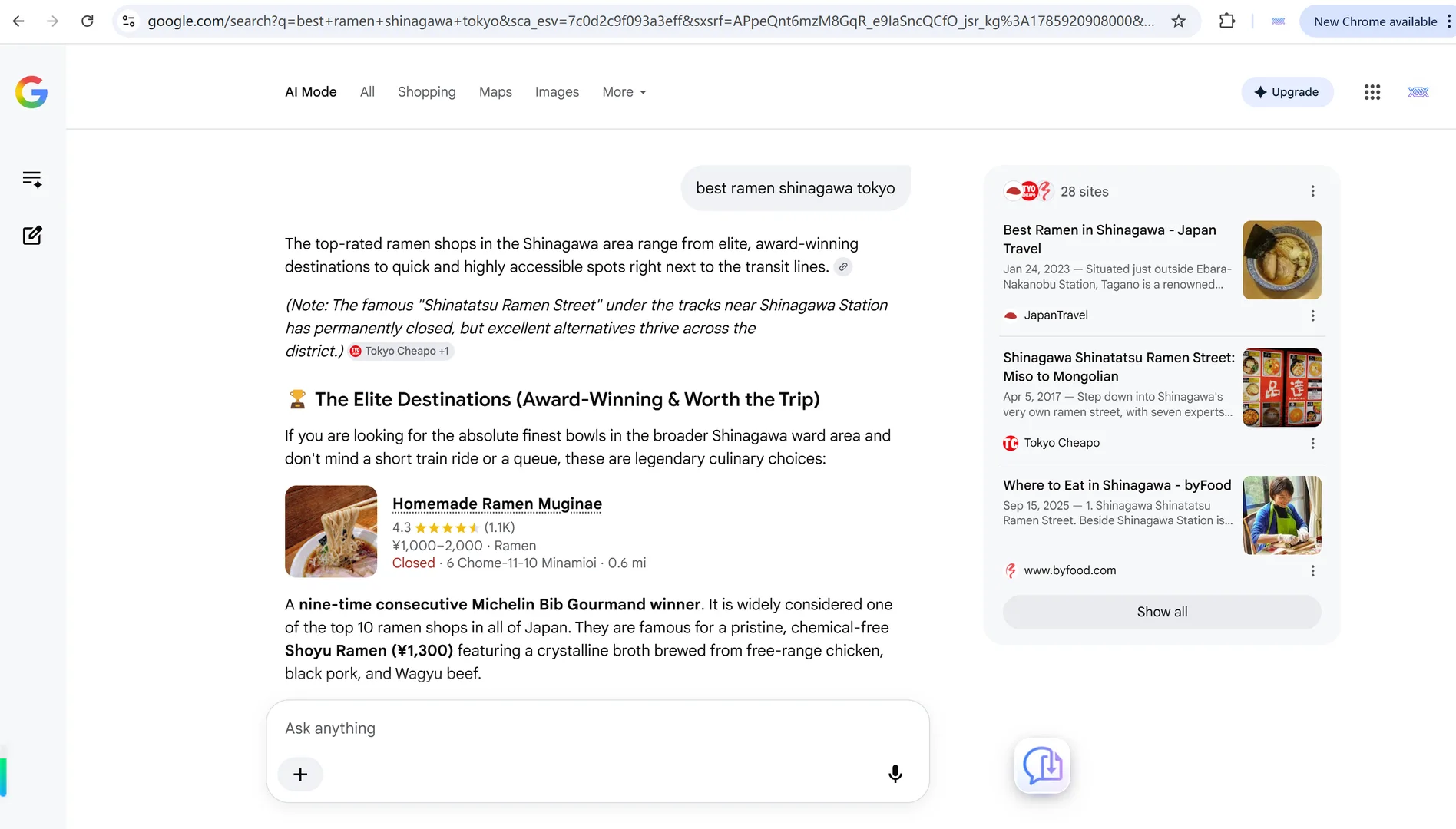
- It keeps the evidence. In a query like “best ramen in tokyo”, AI Mode answers often include store cards with ratings and addresses, and even maps — the kind of detail a one-paragraph Overview never shows.
- It stays useful in your notes. Exported as Markdown, the thread becomes a searchable note in Obsidian or Notion, not a floating text box.
In short: if you’re going to save one of them, save the conversation. The Overview is already a compressed version of it.
How to export the AI Mode conversation
Step 1 — Install XWX AI Chat Exporter. Search for it in the Chrome Web Store and click Add to Chrome. No account, no signup.

Step 2 — Switch to AI Mode and build your thread
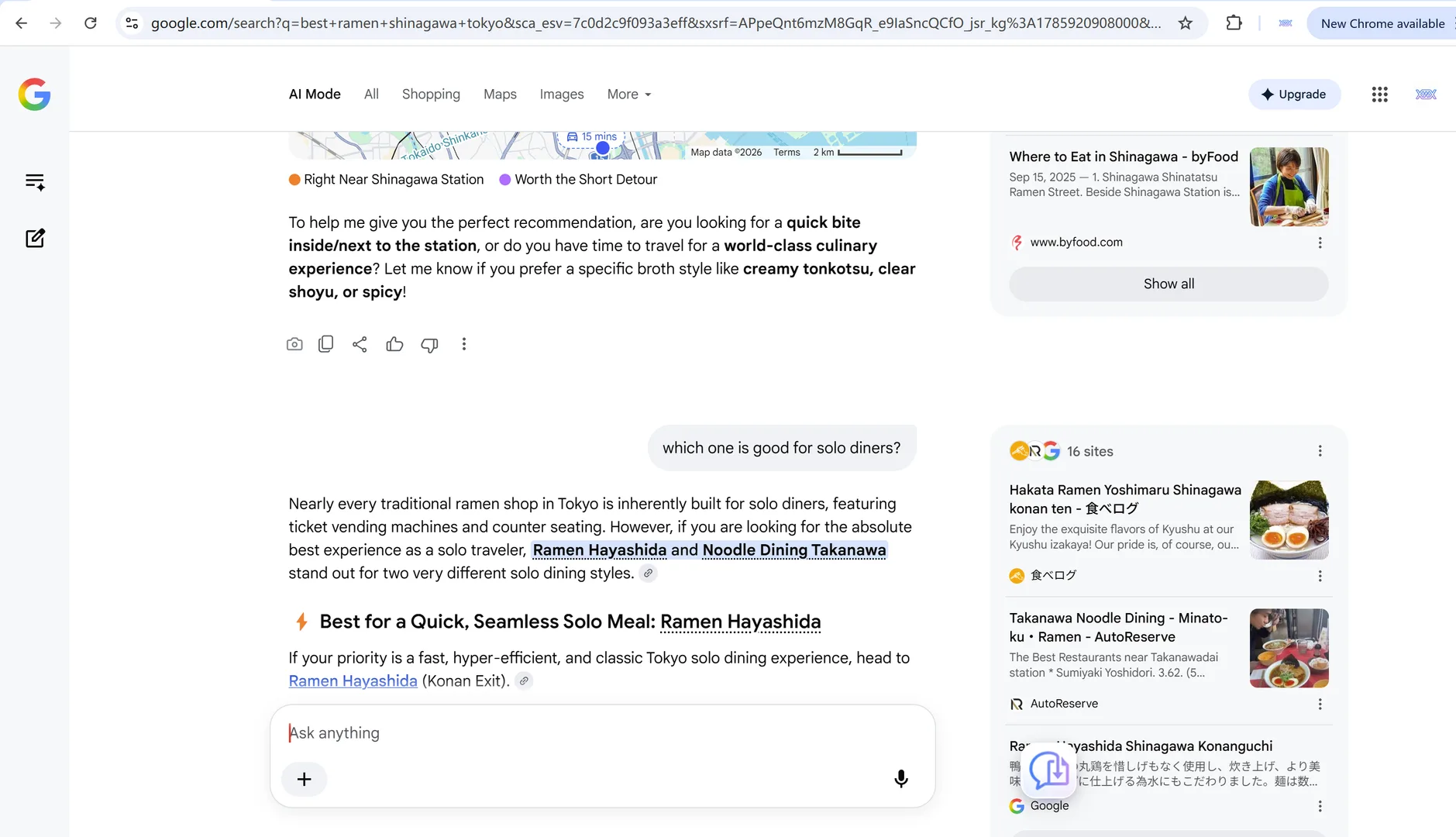
Run your search, then click the AI Mode tab. Ask your question and follow up as needed — for example, narrow “best ramen in tokyo” to “best ramen for solo diners”. Every turn is added to the thread.
Step 3 — Click Export and choose your format
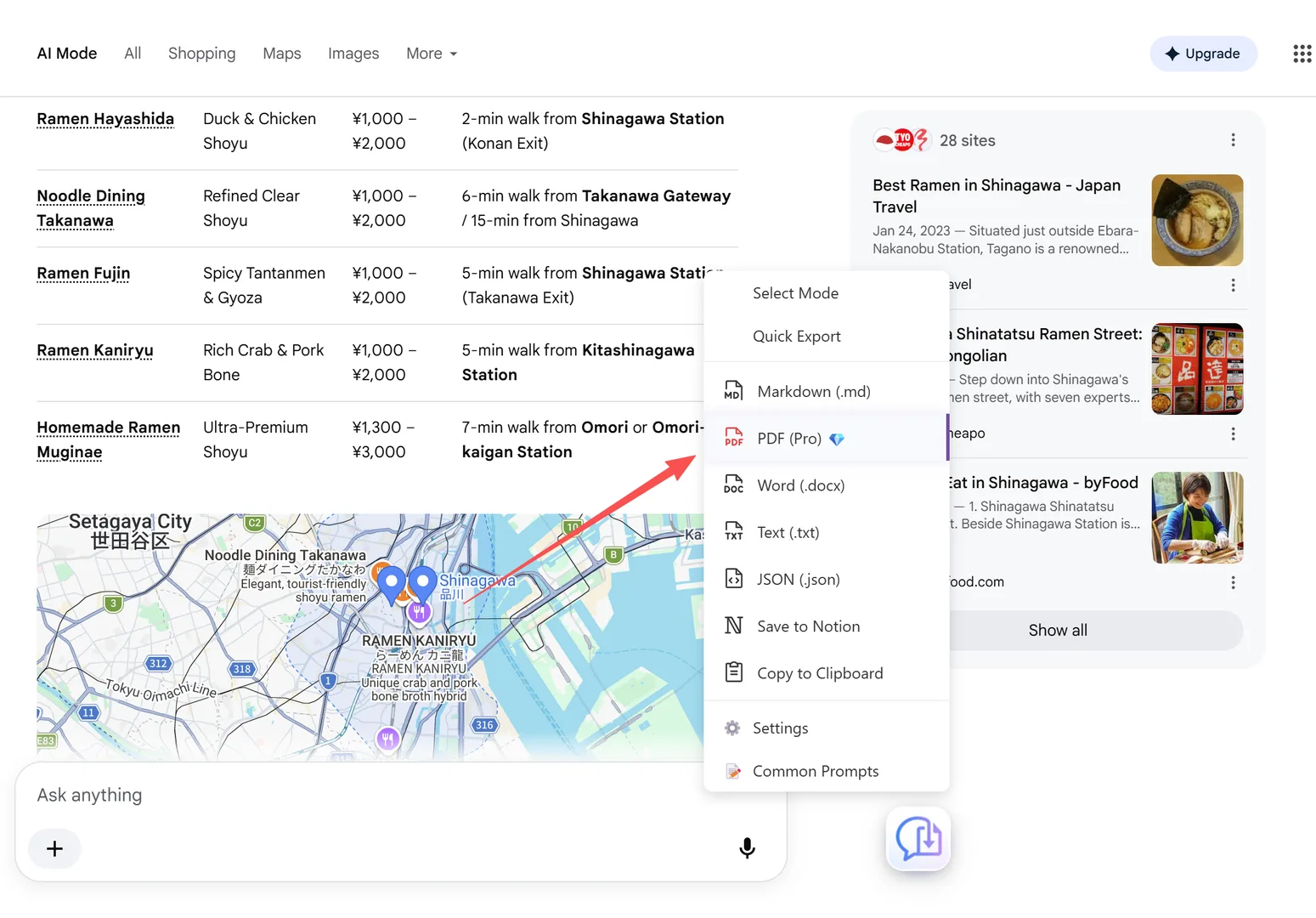
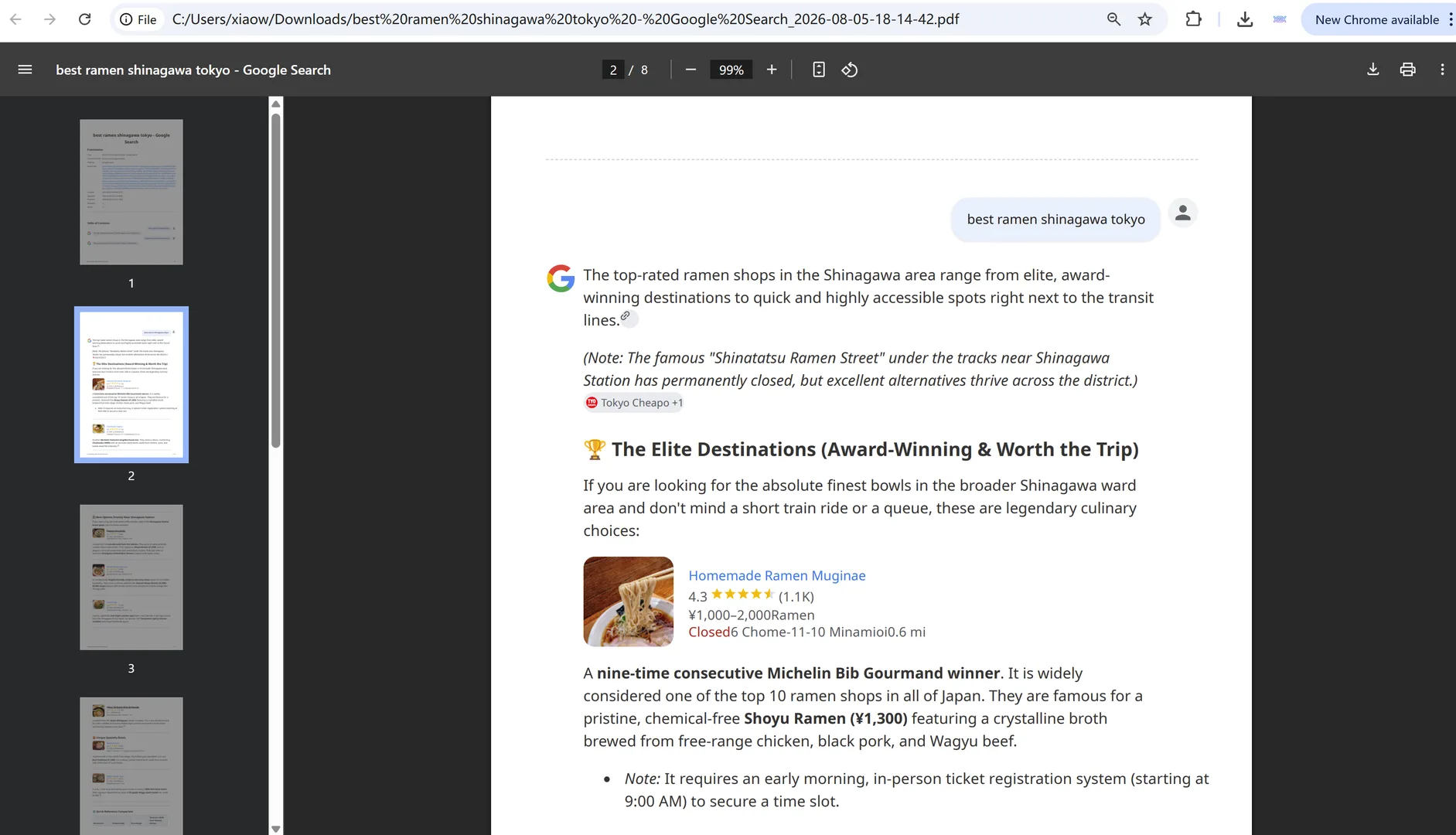
Click the floating XWX button on the AI Mode page, then choose PDF, Markdown, or Word. The whole thread — questions, answers, images, maps, and sources — is captured in order. PDF is great for keeping and sharing; Markdown is better when you want the conversation inside your notes system.
Can’t see the button? The floating button only appears on AI Mode pages, not on the regular results tab. If you’re in AI Mode and it’s still missing, see why the export button isn’t appearing on Google Search AI Mode for quick fixes.
A practical research workflow
- Run your search and click into AI Mode.
- Refine with follow-up questions until you have the answer you need.
- Export the thread as Markdown into your Obsidian vault or Notion workspace.
- For anything you might need to cite later, export that conversation as a PDF.
- Tag exports by topic so the whole research session becomes searchable.
This turns a transient Google conversation into a durable, searchable archive you actually own.
What survives in the export
| Content | Screenshot | XWX export |
|---|---|---|
| Full AI Mode thread | No — clips on scroll | Yes, in order |
| Your follow-up questions | Manual | Written into the document |
| Store cards / ratings | Often cut | Preserved |
| Maps in answers | Fragments | Rendered in the PDF |
| Source citations | Unreadable | Kept with titles and links |
| Search timestamp | Not included | In metadata |
Frequently Asked Questions
What’s the difference between AI Mode and AI Overviews?+
An AI Overview is a one-paragraph summary that appears above Google search results. AI Mode is a conversational tab where you can ask follow-up questions in a running thread with sources on every answer.
Should I save the AI Overview or the AI Mode conversation?+
Save the AI Mode conversation. The Overview is a compressed version of the same answer, while the AI Mode thread preserves the follow-ups, images, maps, and sources — a much more useful record.
How do I get from AI Overview to AI Mode?+
Click the AI Mode tab on the results page, or go to google.com/aimode and run your query there.
Does the export include images and maps?+
Yes. AI Mode answers that include store cards, images, or maps are exported with those visuals rendered in the PDF.
Is exporting AI Mode free?+
Markdown, TXT, JSON, and clipboard exports are free with no limits. PDF exports include a free daily quota; Pro removes the limit and adds AI-generated tags and summaries.