Export Google AI Mode Conversations with Images, Charts, and Sources
The whole point of saving a Google AI Mode answer is the evidence: the image that illustrated the point, the chart that showed the numbers, the source that backed the claim. Most export attempts destroy exactly that. Screenshots clip the images. Copy-paste drops them entirely. Even some browser extensions flatten everything into plain text. This guide shows how to export an AI Mode conversation so the images, charts, tables, and source references survive in the final PDF — and what to check in your export to confirm nothing was lost.
What should survive in an AI Mode export
A good AI Mode export preserves five kinds of content:
- Text — the full answer, no clipped sentences
- Images — photos and diagrams rendered in place
- Charts & tables — data presented the way AI Mode showed it
- Code — when the answer includes a code block, the syntax and background should survive
- Sources — the citation links with titles and domains
If any of these are missing from your export, you’re not saving the answer — you’re saving a paraphrase of it.
Why most exports lose the images and sources
AI Mode answers load their images and source cards dynamically — the elements aren’t in the page’s initial HTML, they’re rendered by JavaScript after the answer appears. Export tools that read the page too early capture placeholders. Tools that read only text ignore the images. And source chips are often styled in ways that flatten into dead links or nothing at all.
This is also why AI Mode export quality varies so much between tools — the hard part isn’t grabbing text, it’s grabbing the rendered answer: images, charts, and sources after everything has loaded.
Exporting with XWX AI Chat Exporter
Step 1 — Install the extension. Search for XWX AI Chat Exporter in the Chrome Web Store and click Add to Chrome.

Step 2 — Build your AI Mode conversation
Open google.com/aimode and ask your questions. Include image-heavy follow-ups and queries you know produce charts or tables — this is what we want to verify survives the export.
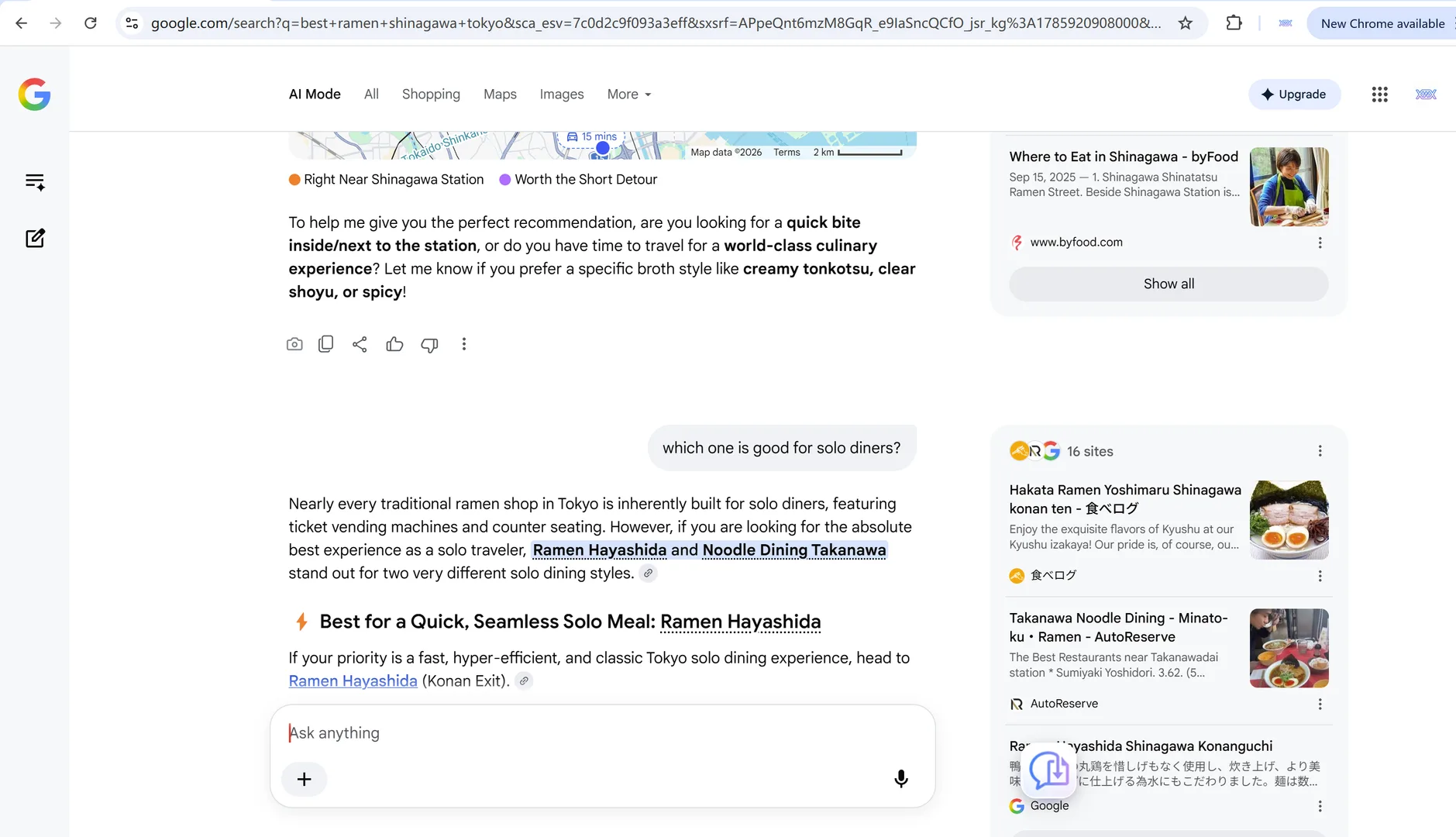
Step 3 — Refresh before you export
AI Mode streams its answers onto the page live, and the exporter reads the conversation in that same live form. Usually that means a complete, perfect file. But there’s one common gotcha: if you type a new question while the previous answer is still being written, Google stops that answer mid-sentence. Export in that moment and the interrupted text lands in your file — and on rare occasions a message can be missed entirely. Either way, you end up exporting the conversation a second time.
The one-second fix: press F5 (Windows) or Cmd+R (Mac) to refresh the page before you export. The conversation replays from the beginning, every answer complete, so the file you get matches exactly what you see on screen.
After the refresh, click the floating XWX button at the bottom-right of the AI Mode page — the export menu appears with PDF, Markdown, and Word options.
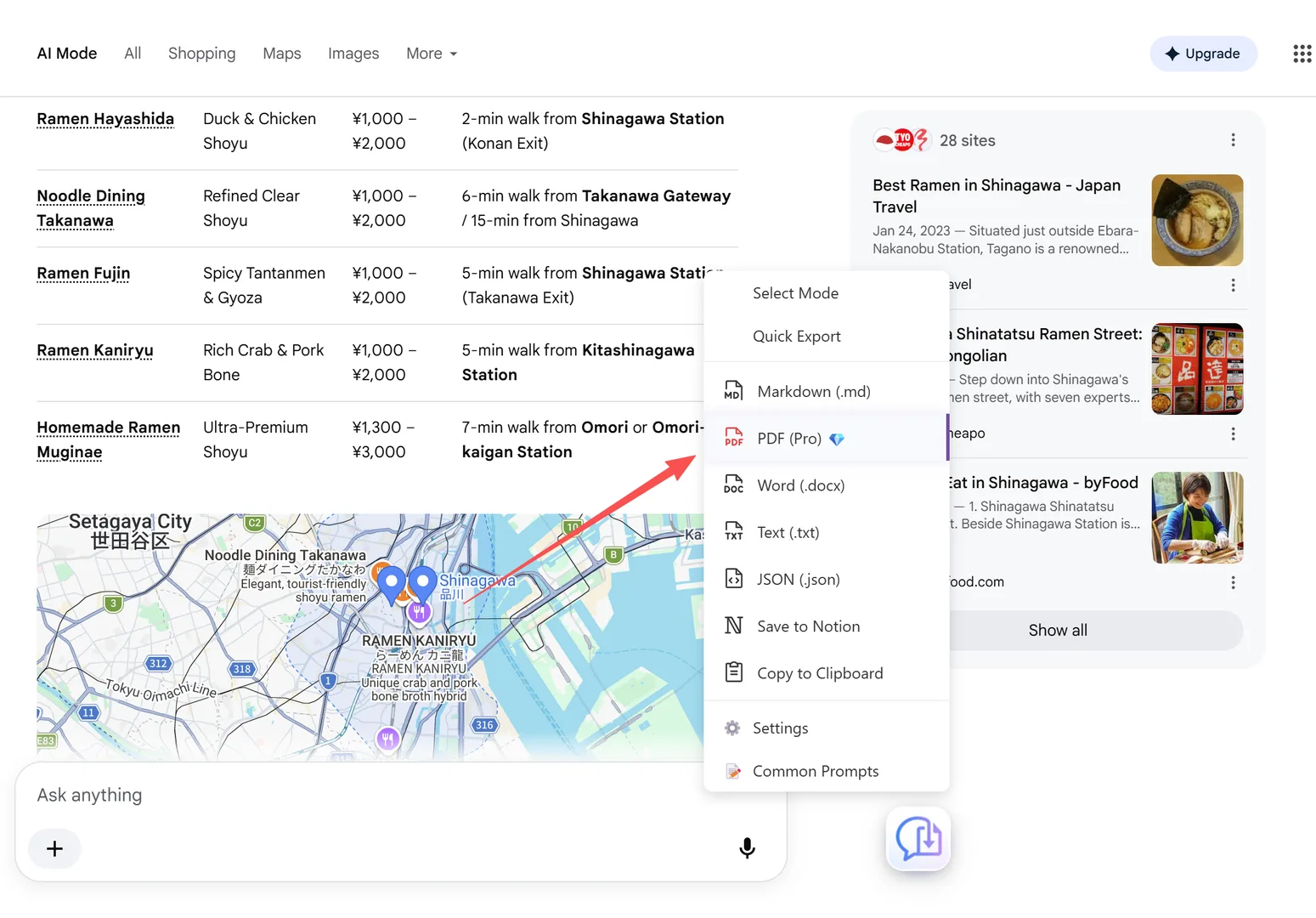
Step 4 — Click Export and choose PDF
Click PDF in the export menu. The export captures the complete rendered conversation — images, charts, tables, code, and source references — into a print-ready document.
Can’t see the button? The floating button only appears on AI Mode pages, not on the regular results tab. If you’re in AI Mode and it’s still missing, see why the export button isn’t appearing on Google Search AI Mode for quick fixes.
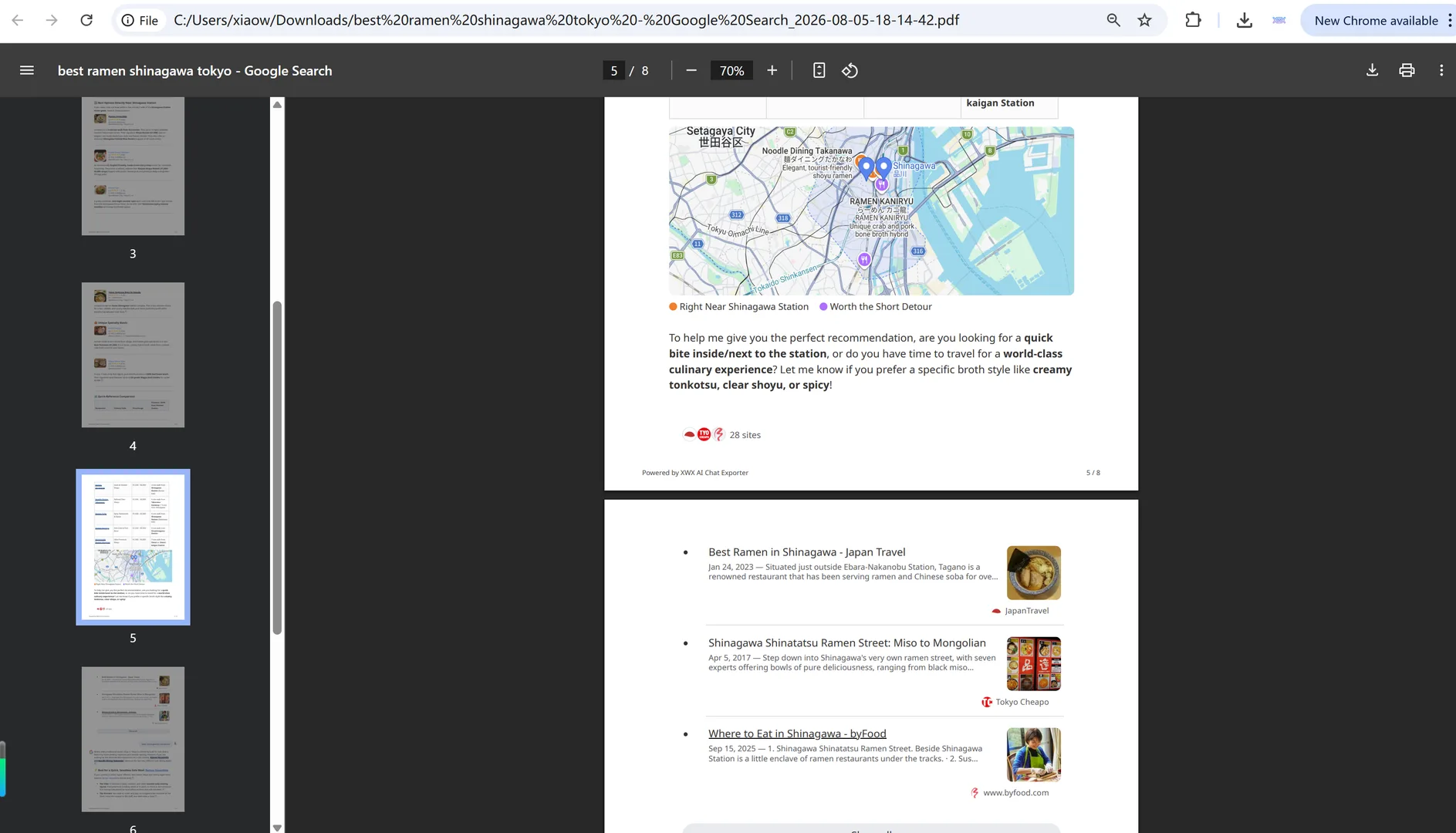
Step 5 — Verify the export
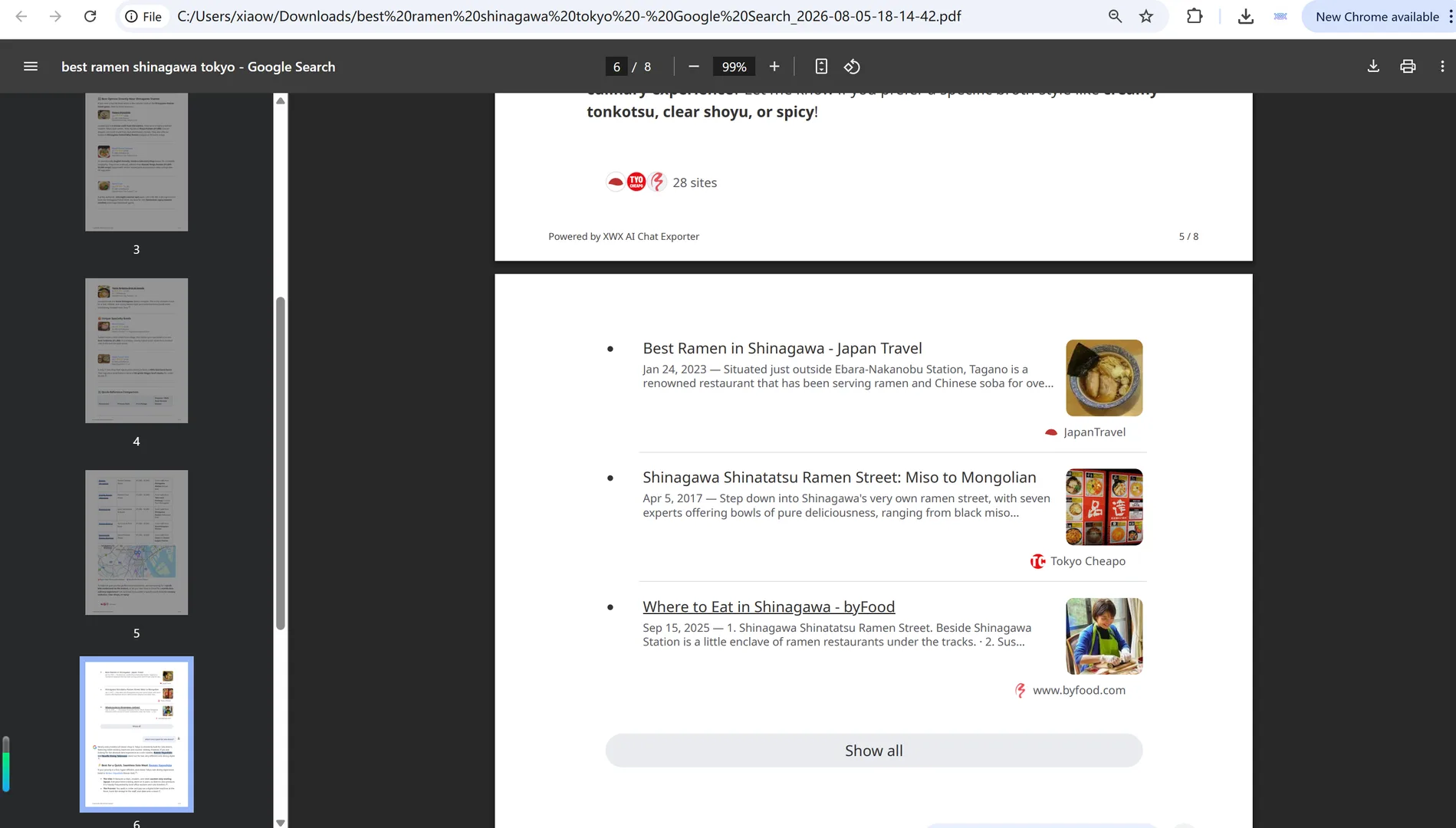
Open the PDF and confirm the important parts survived: images in place, charts and tables laid out cleanly, and source links intact under each answer. The screenshots below show what a good export looks like — tables and code keep their formatting, and every source is listed with its title, domain, and link.
- [ ] Is every image present, not a placeholder?
- [ ] Do charts and tables render cleanly?
- [ ] Are the source links readable, with titles and domains?
- [ ] Is your query in the header?
If all four check out, you have a faithful record of the answer.
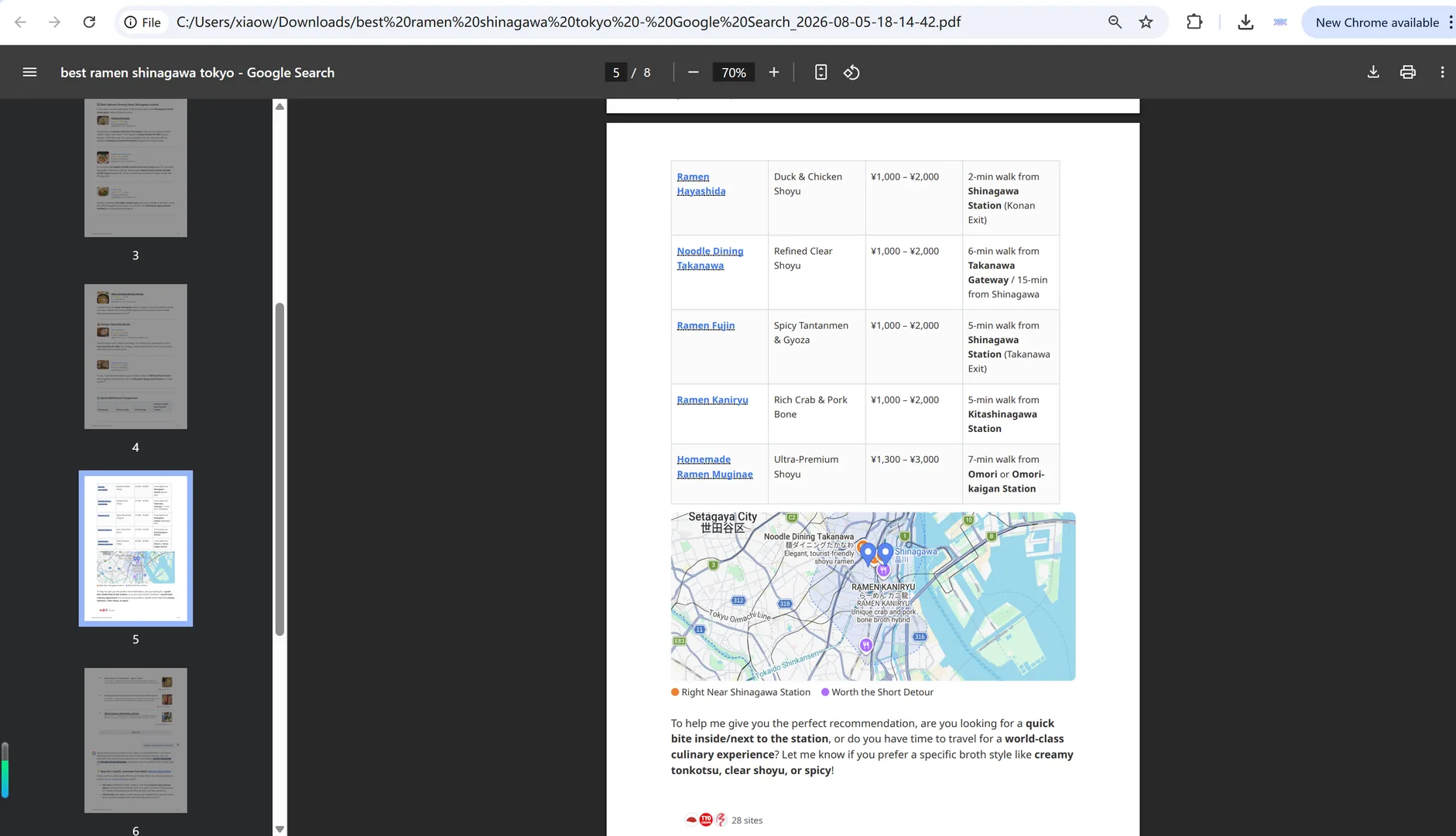
The Markdown path: exports you can search
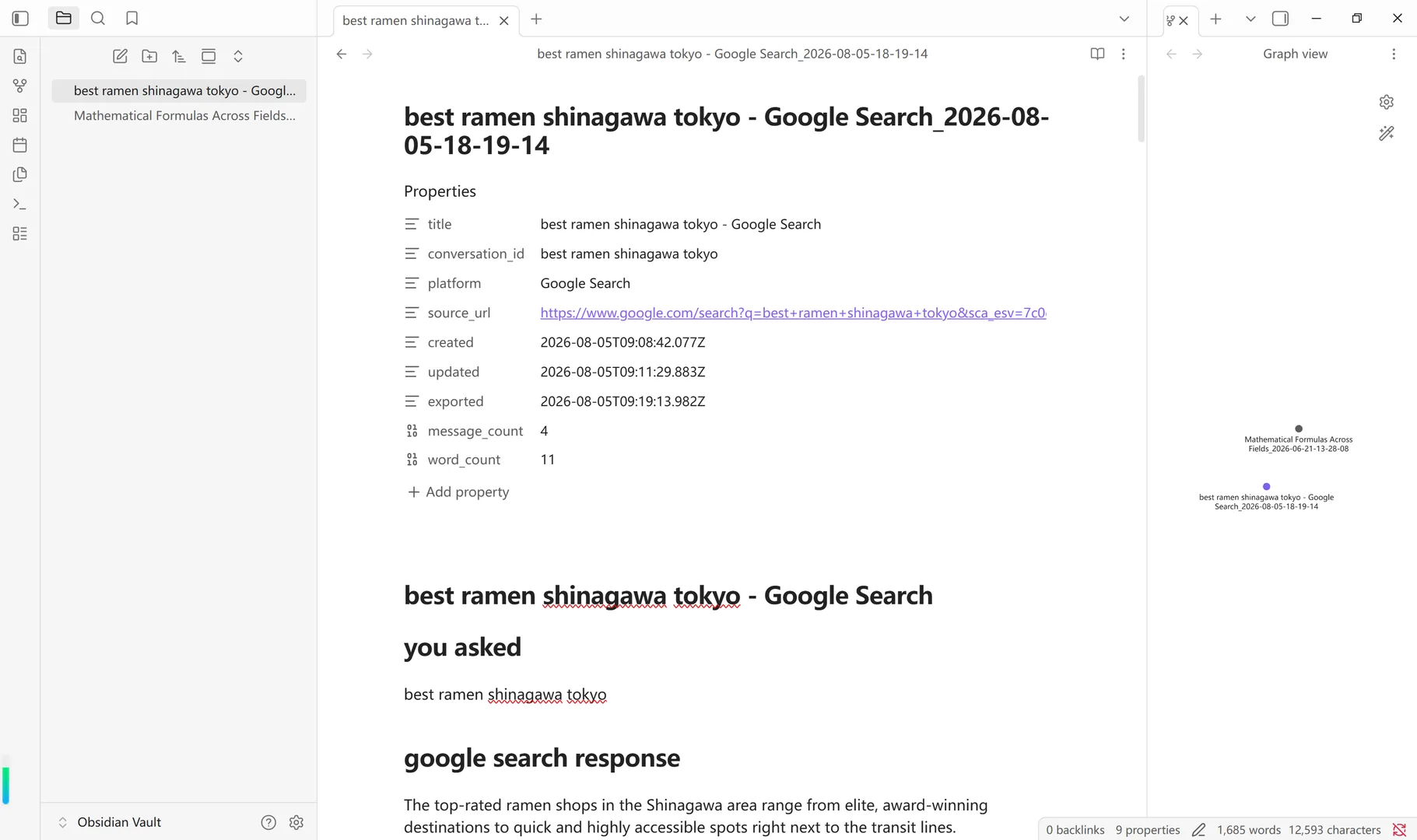
When you want the AI Mode answer inside your notes system, export as Markdown instead of PDF. The thread becomes a .md file with the query in YAML frontmatter, ready for Obsidian, Logseq, or Notion — where it’s not just saved, it’s searchable.
Troubleshooting: what to do when something is missing
- An image exported as a placeholder — refresh the page (F5 on Windows, Cmd+R on Mac), let the conversation replay, and export again; this clears up most cases. If a host blocks the image download, it can still fall back to a placeholder — export as Markdown, which handles that differently. On very long conversations, images may be dropped entirely (see the note in Step 5); shorter threads keep them in.
- A chart looks flat — some AI Mode charts are interactive widgets. Export as PDF renders them as static visuals; if you need the data, export the conversation to JSON.
- Sources look truncated — source cards with very long titles may wrap. The links themselves are preserved in the file.
Frequently Asked Questions
Does the export keep the images from AI Mode answers?+
Yes. XWX captures the rendered conversation, including images and charts, and includes them in the exported PDF or Markdown.
Are the source references preserved?+
Yes. Source references are kept in place with titles, domains, and links, so the file records where each claim came from.
Why do my current exports lose the images?+
Most tools read the page before images finish rendering, or ignore non-text content. Export tools must capture the fully rendered answer to include images, charts, and source cards.
Can I export AI Mode as Markdown for Obsidian?+
Yes. Markdown exports include the query in YAML frontmatter and are compatible with Obsidian, Logseq, and Notion.
What if an image fails to export?+
Refresh the page (F5 on Windows, Cmd+R on Mac), wait for the conversation to replay, and export again — most cases resolve on the second pass. If a host blocks the image download, it can still fall back to a placeholder; exporting as Markdown handles that differently.
Do I need to refresh the page before exporting?+
It’s the one habit worth keeping. AI Mode answers stream in live, and if you asked a follow-up before the previous answer finished, that answer was cut off. A quick refresh (F5 on Windows, Cmd+R on Mac) replays the conversation cleanly, so the export captures every complete answer instead of interrupted text or a missing message.
Why is my Google Search export slow, and why are some images missing?+
Google Search pages are complex, so AI Mode exports take longer than most chat platforms — usually one to two minutes, and more for a very long thread. If the conversation is extremely long, the export keeps the text and source links but may leave out the images from the Google answers, so you still get a complete file. Exporting in shorter sessions keeps the images in.