How to Save Google AI Mode Conversations to PDF
Google AI Mode is the closest thing to a real AI assistant built into search. You ask a question, follow up, refine, and the thread builds on itself with cited sources for every answer. And then it’s gone. AI Mode conversations are not stored as permanent URLs, there’s no “save this thread” button, and the moment you close the tab or search something new, the whole reasoning chain disappears. This guide shows how to export an AI Mode conversation to a PDF you keep — the complete thread, including your follow-ups, the images in the answers, and the source links.
Why AI Mode is harder to save than anything else on Google
A normal Google search result is a URL — you can bookmark it, share it, and come back to it. AI Overviews, the summary boxes that appear above regular results, are already hard to pin down because they regenerate on every search.
AI Mode is a different beast entirely:
- It is a conversation, not a page. You ask follow-up questions in a running thread, so there is no single URL that captures the whole exchange.
- The thread can include images, tables, and source cards woven into the answers, not just text.
- Google does not expose a public API for AI Mode that you could use to pull a conversation out after the fact.
- Nothing survives a refresh. The conversation state lives in the page session, not in a retrievable history.
That last point is why screenshots and copy-paste fail so badly here. A long AI Mode thread scrolls across several screens, the images shrink to thumbnails, and the sources become unreadable. You end up with fragments — and no record of the questions that produced them.
The honest comparison: 5 ways to save an AI Mode conversation
| Method | Full thread | Follow-ups kept | Images kept | Sources kept | Reusable file |
|---|---|---|---|---|---|
| Screenshot | No — clips on scroll | No | Partial | No | No |
| Copy-paste | Text only | Manual | No | No | Partial |
| Browser print | No — layout breaks | No | Partial | Partial | Yes |
| Screen recording | Yes | Yes | Yes | Yes | No — video |
| Chrome extension | Yes | Yes | Yes | Yes | Yes (PDF/MD/Word) |
Only the last method produces a real document that records the questions, the answers, the images, and the sources in one file.
Method 1: Screenshots (the tempting trap)
Screenshots feel like progress, but an AI Mode answer routinely runs longer than one screen. The scrolling screenshot tools stitch fragments together and mangle tables and source cards. The citation links — the entire point of saving a research answer — become flat images you can’t click. And if the answer includes an image or a chart, it’s usually cut off or tiny.
Method 2: Copy-paste into a document
Select the text, paste into Google Docs or Word, export PDF. This keeps the prose but destroys everything that makes an AI Mode answer useful: the layout, the source chips, the images, and the mapping between a claim and where it came from. It also requires manual bookkeeping — you have to remember which question each paragraph answered.
Method 3: Browser print
Press Ctrl+P (Windows) or Cmd+P (Mac) and save to PDF. The print stylesheet was never built for a conversational thread. Long answers clip mid-sentence, images fall out of the flow, and the organic search links print alongside your AI answer whether you want them or not.
Method 4: Export with a Chrome extension (recommended)
Step 1 — Install XWX AI Chat Exporter. Search for it in the Chrome Web Store and click Add to Chrome. No account, no signup, nothing to configure.

Step 2 — Ask your question in Google AI Mode
Go to google.com/aimode, type your question, and build your thread with follow-ups. Ask as many questions as you need — the export captures the entire conversation, not just the last answer.
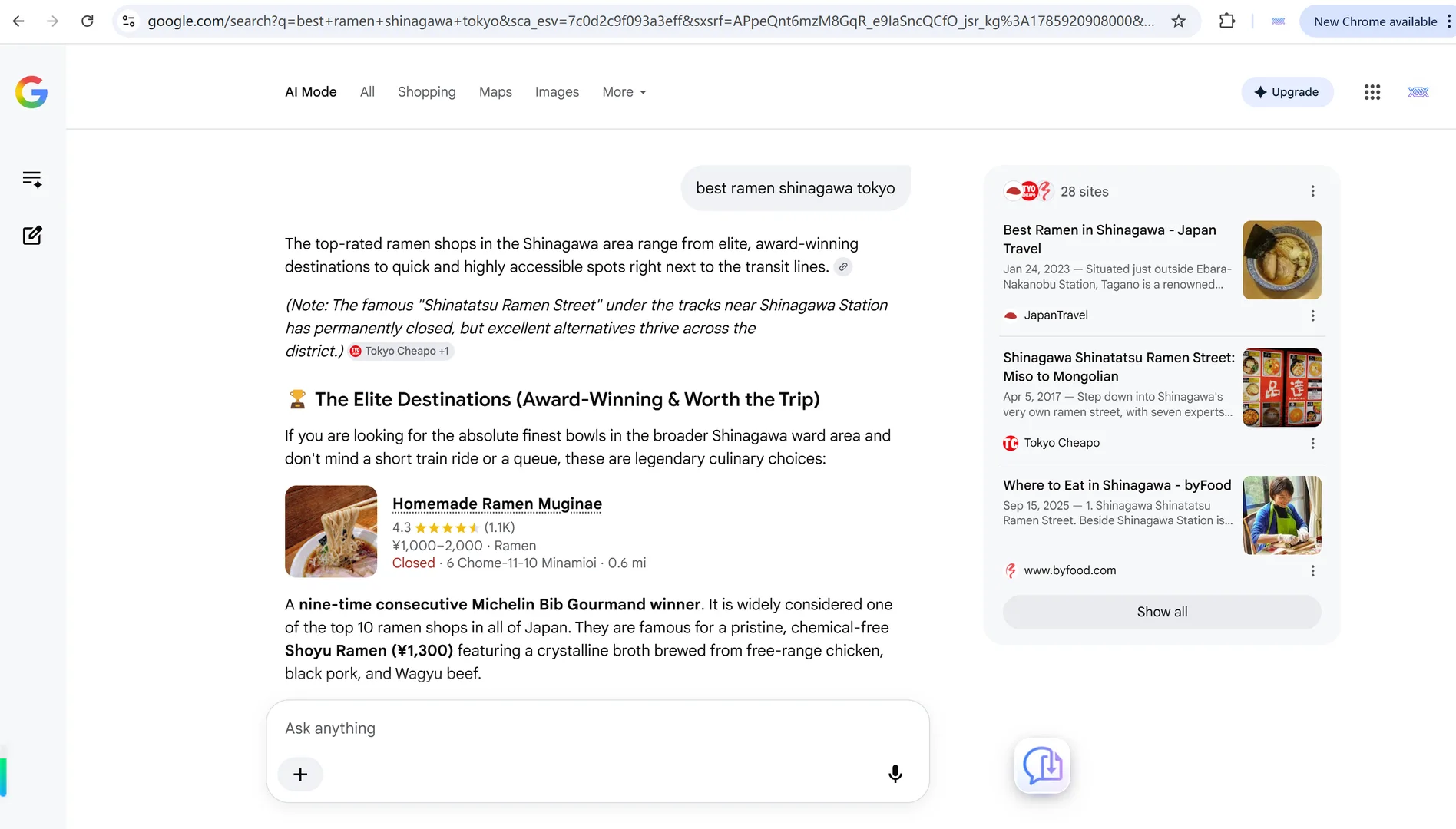
Step 3 — Build the thread with follow-ups
The value of AI Mode is the follow-up chain. Each question refines the previous one, and each answer carries its own sources. Keep the thread open — everything you see here is what the export will preserve.
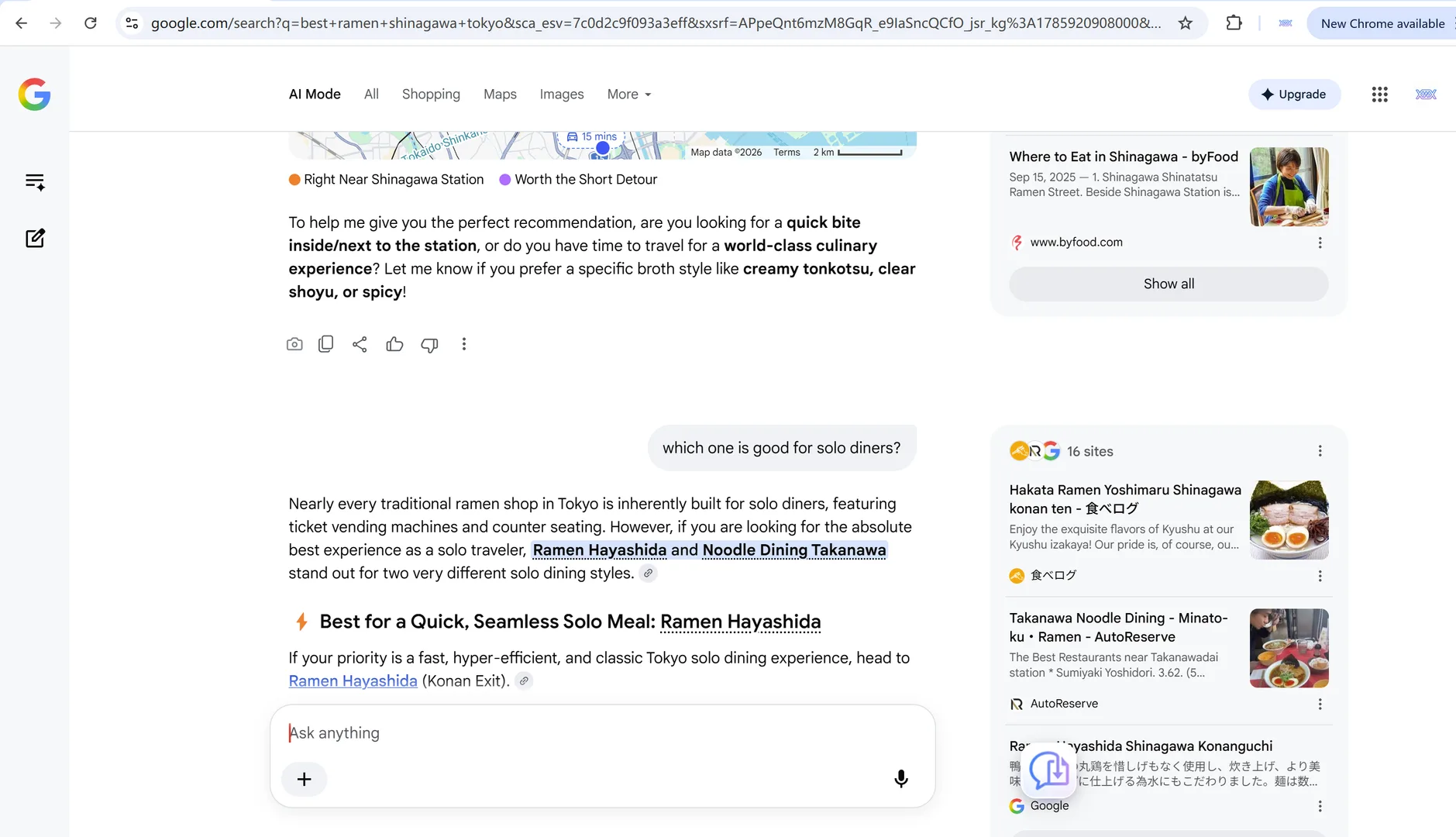
Step 4 — Click Export and choose PDF
Click the floating XWX button in the bottom-right corner of the AI Mode page, then choose PDF. The extension reads the live conversation — every turn, image, and source — and renders it into a print-ready document.
Can’t see the button? The floating button only appears on AI Mode pages, not on the regular results tab. If you’re in AI Mode and it’s still missing, see why the export button isn’t appearing on Google Search AI Mode for quick fixes.
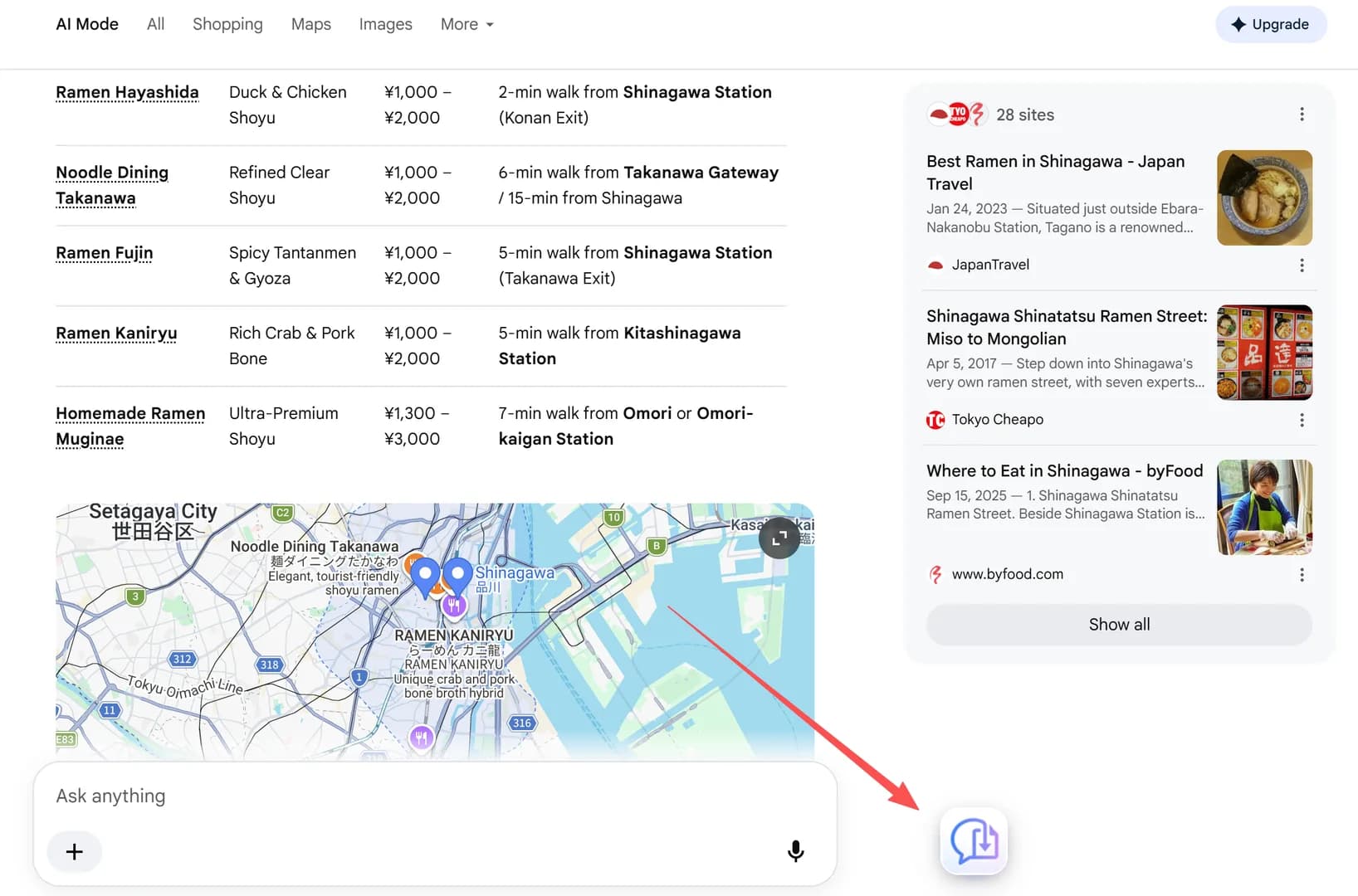
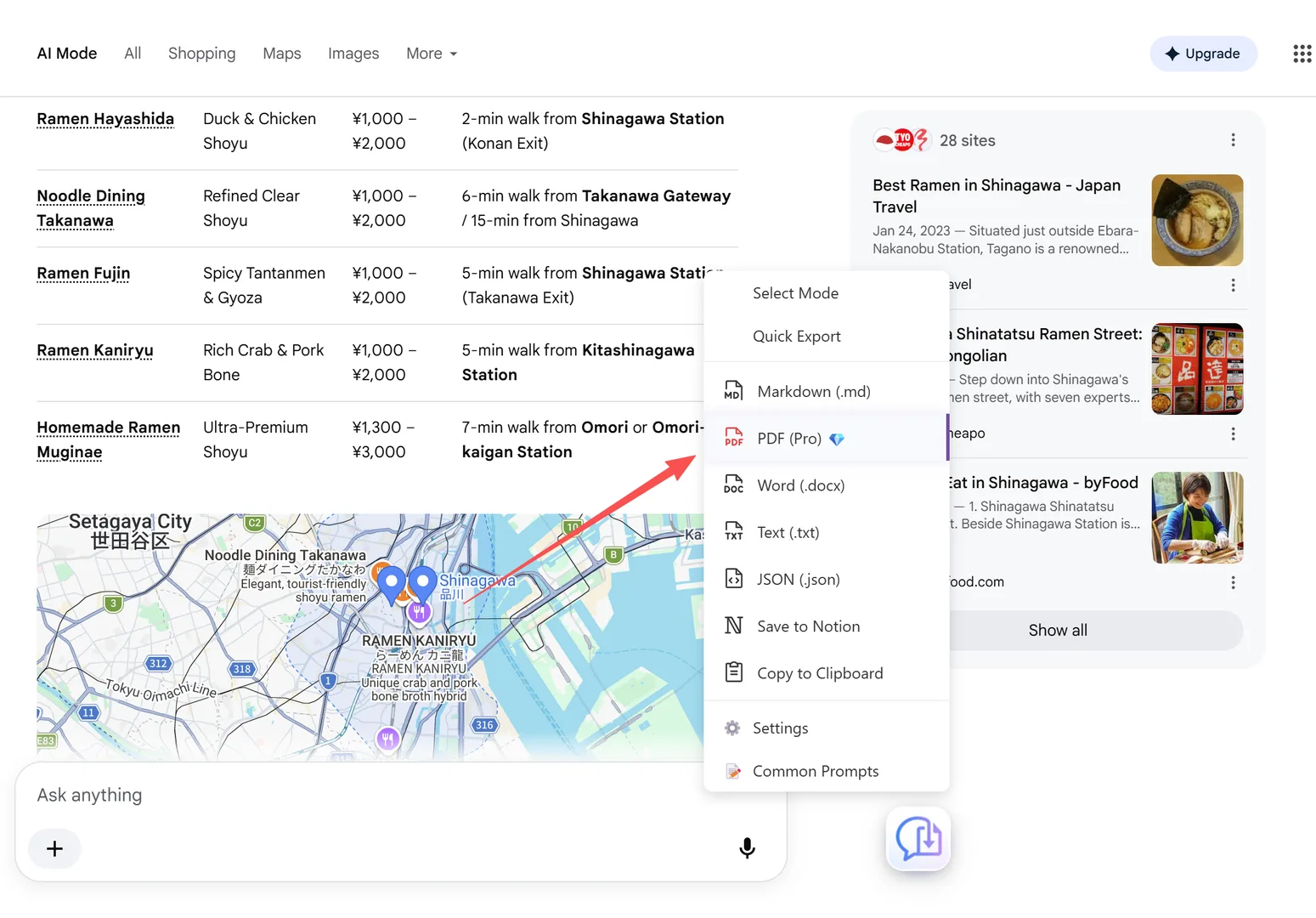
What the exported PDF contains
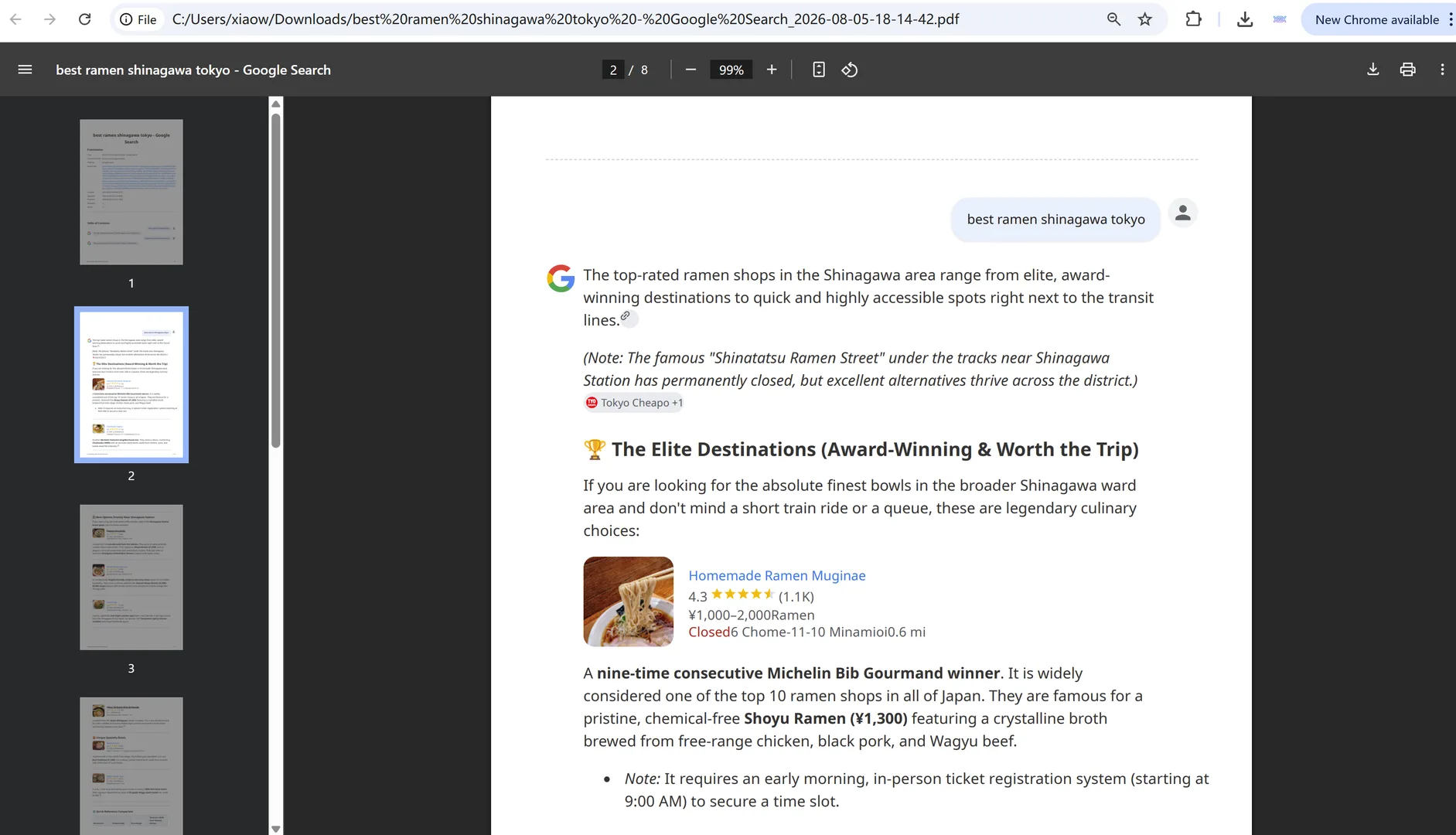
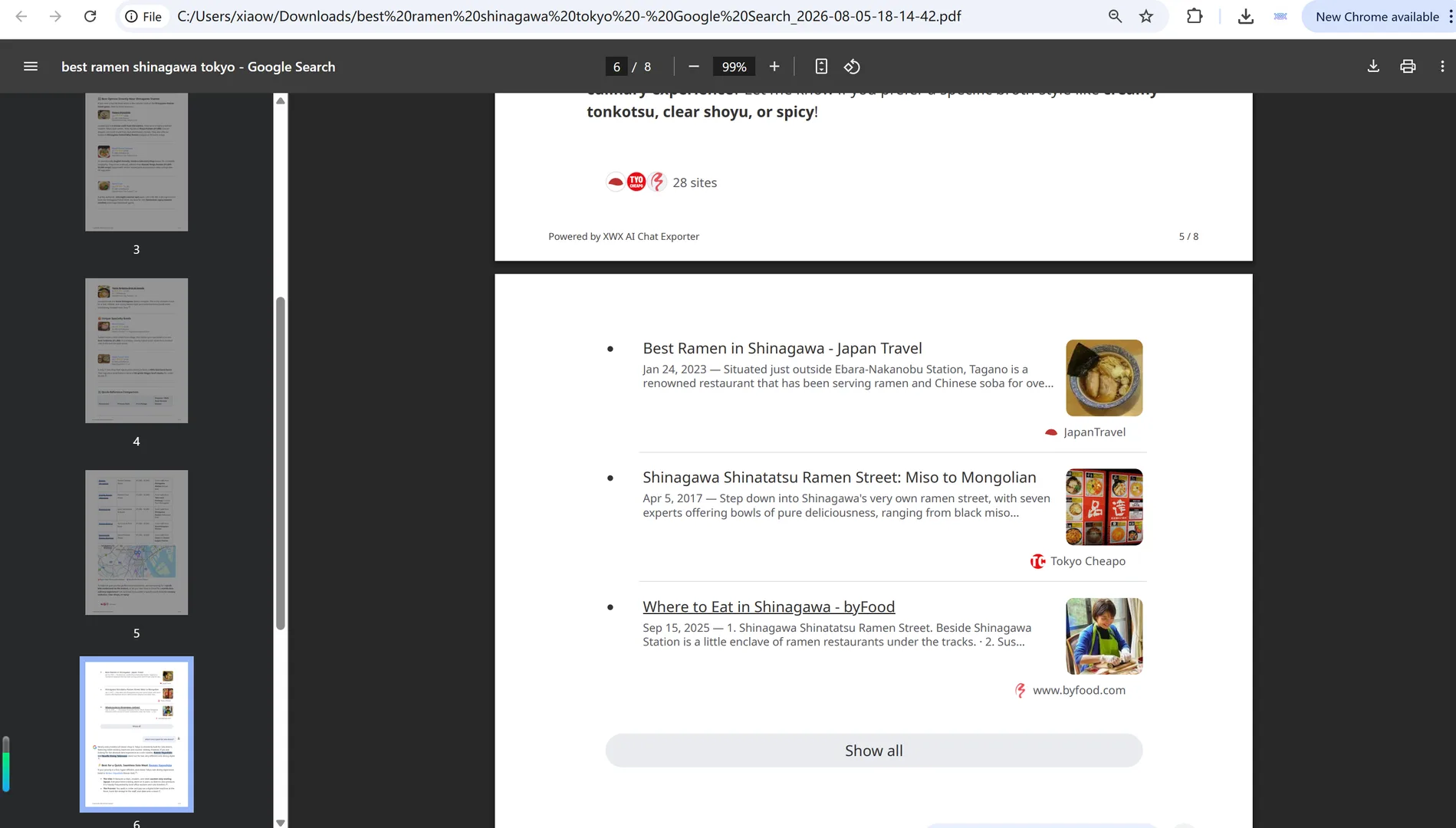
The PDF is a faithful record of the conversation:
- Your query written in the document header, so the file says what you asked
- Every turn of the AI Mode thread, in order — no clipped answers
- Images and charts from the answers, rendered in place
- Source references kept where they appear, with titles, domains, and links
- Search timestamp recorded in the metadata
Beyond PDF: Markdown, Word, and Notion
PDF is for keeping and sharing. But the same AI Mode thread can also become:
- Markdown — dropped straight into Obsidian or Logseq with the query in YAML frontmatter
- Word (.docx) — for editing and folding into a report
- Notion — pushed into your workspace as a structured page
This matters if you research across multiple sessions: the file format determines whether your saved answers become part of a searchable knowledge base or just another folder of documents.
Tips for clean AI Mode exports
- Refresh before you export. AI Mode answers stream in live, so a cut-off answer can end up in your file. Press F5 (Windows) or Cmd+R (Mac) to replay the conversation cleanly, then export.
- Don’t navigate away until you’re done. A refresh is fine — but closing the tab or searching something new loses that exact thread.
- Keep the tab open while the PDF renders. The export reads the live conversation, so switching tabs mid-export can interrupt it.
- Keep threads a reasonable length. Google Search pages are complex, so a very long AI Mode thread takes several minutes to export — and may drop the images to deliver text and links only. For image-heavy research, export in shorter sessions.
Frequently Asked Questions
Can you export a Google AI Mode conversation?+
Yes. A browser extension like XWX AI Chat Exporter adds a floating export button to AI Mode. Click it, choose PDF (or Markdown/Word), and the full thread — questions, answers, images, and sources — is saved as a document.
Why can’t I just bookmark an AI Mode conversation?+
AI Mode conversations are not stored at a retrievable URL. They live in the page session and disappear when you refresh or navigate away. That’s why exporting the thread while it’s on screen is the only reliable way to keep it.
Does the PDF include the follow-up questions?+
Yes. XWX captures the entire conversation thread — every follow-up question and every answer — in order, not just the first response.
Are the sources included in the export?+
Yes. Source references are kept where they appear in the answers, with titles, domains, and links, and the query you searched is written into the document header.
Is it free to export Google AI Mode conversations?+
Markdown, TXT, JSON, and clipboard exports are free with no limits. PDF exports include a free daily quota; Pro removes the limit and adds AI-generated tags and summaries.