How to Export a ChatGPT Conversation to Markdown
ChatGPT’s official export gives you every conversation you’ve ever had as one giant JSON file — complete, and completely unreadable. For the conversations you actually want to keep, Markdown is the better destination: code blocks stay runnable, tables stay tables, and a YAML frontmatter block turns each file into a structured record you can file into Obsidian, Notion, or a Git repository. This guide shows how to export any ChatGPT conversation to Markdown in one click — free, with no daily limit — and what to expect from the result.
Markdown export vs. the official export
These two serve opposite needs, and you’ll likely want both eventually:
| Official export | Markdown export (per chat) | |
|---|---|---|
| Scope | Entire account | One conversation |
| Format | conversations.json in a ZIP | Clean .md file |
| Readable | No — machine format | Yes — renders anywhere |
| Metadata | Buried in JSON structure | YAML frontmatter at the top of the file |
| Speed | 20 minutes to hours, by email | ~30 seconds, immediate |
| Cost | Free | Free, unlimited |
Run the official export monthly as your safety net. Use Markdown exports for the conversations you’re actually working with — they’re the ones you’ll need to find and read again.
Export a ChatGPT conversation to Markdown in three steps
Step 1 — Install the extension. Add the free XWX AI Chat Exporter from the Chrome Web Store. No account or signup.

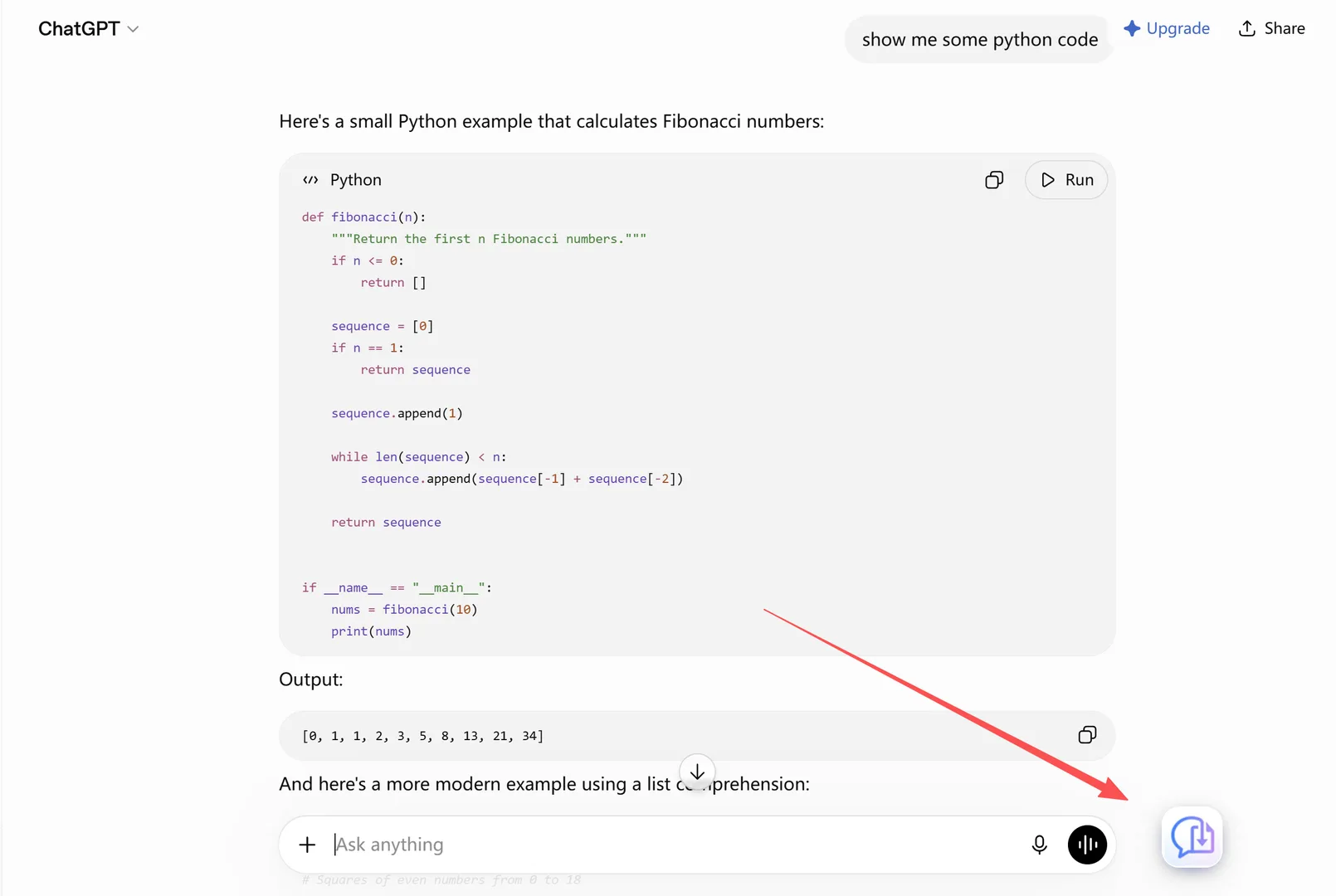
Open the chat, click Export, choose Markdown
Step 2 — Open the conversation on chatgpt.com. The extension detects it automatically.
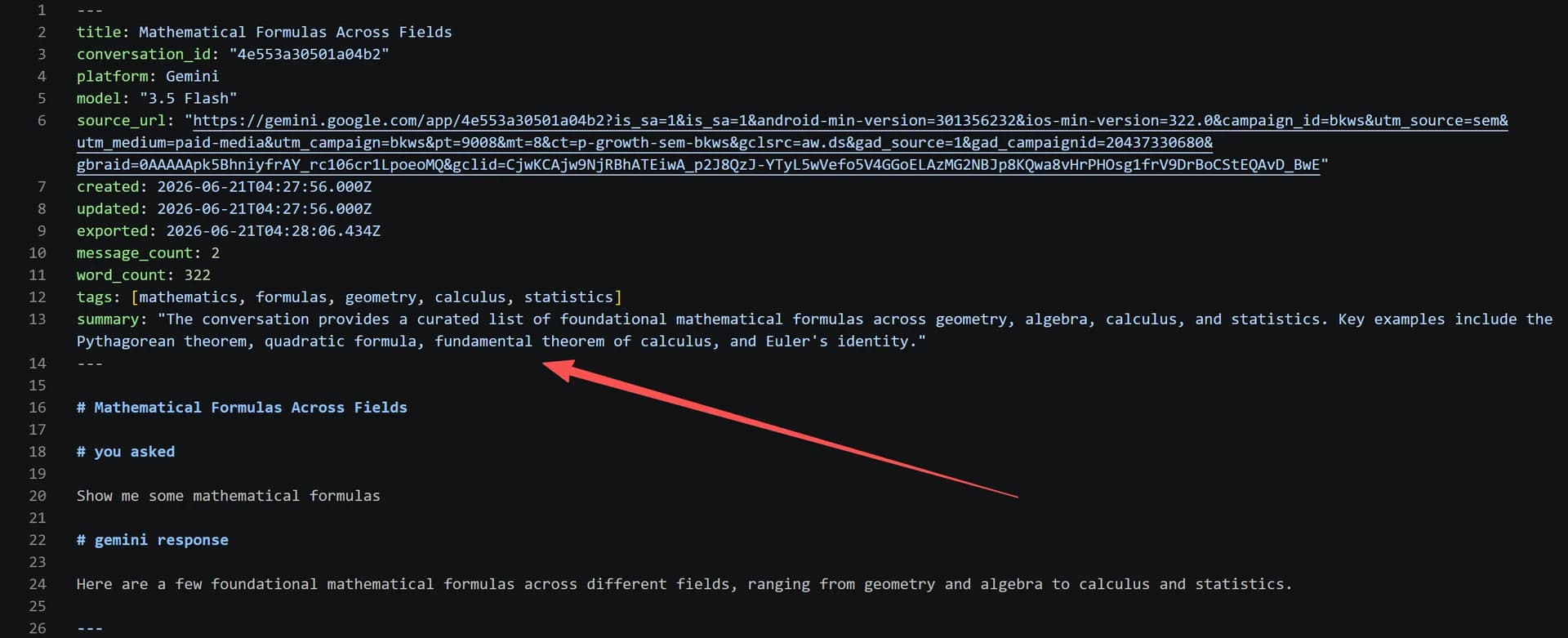
Step 3 — Click the floating button and choose Markdown. The .md file downloads right away — code blocks with language tags, tables as pipe tables, math as LaTeX, and a YAML frontmatter block recording the platform, model, timestamps, message count, and source URL. Markdown, TXT, JSON, and clipboard exports are free with no daily limit.
What’s inside the exported .md file
- The full conversation in order — your prompts and ChatGPT’s answers, including images embedded as self-contained data URIs
- Code blocks with fence syntax and language tags — paste them back into an IDE and they just work
- Tables as GitHub-flavored pipe tables
- YAML frontmatter — the structured metadata that makes the file queryable in Obsidian Dataview or any script
One honest limitation: Custom GPT conversations export like any other chat, but platform-side file attachments aren’t included — re-download anything you uploaded separately.
Where Markdown exports go next
- Obsidian — drop the file in your vault; frontmatter powers Dataview queries. Full workflow: ChatGPT conversations to Obsidian
- Notion — import the .md, or skip the file entirely and push the chat to Notion directly
- Git repositories — commit decision records and debugging threads next to the code they explain
- A local archive — the XWX Backup desktop app saves every new conversation as Markdown on a schedule, no manual exports at all
Who uses this
- Developers — keeping debugging threads and prompt patterns in the repo where they belong
- Writers and researchers — interview-style explorations become searchable notes instead of scrollback
- Anyone cleaning up their account — export the keepers as Markdown before deleting anything, since deleted ChatGPT chats can’t be recovered
Frequently Asked Questions
How do I export a ChatGPT conversation to Markdown?+
Install the free XWX AI Chat Exporter extension, open the conversation on chatgpt.com, click the floating export button, and choose Markdown. The .md file downloads in about thirty seconds with formatting and metadata intact.
Is it free to export ChatGPT to Markdown?+
Yes — Markdown, TXT, JSON, and clipboard exports are free with no daily limits. Only PDF, Word, and Notion exports have a free daily quota (Pro removes it).
Does the Markdown export keep code blocks?+
Yes. Code blocks export with fence syntax and language tags, tables keep their structure, LaTeX stays as LaTeX, and images are embedded as self-contained data URIs.
How is this different from ChatGPT’s data export?+
The official export archives your entire account as one machine-readable JSON file — great for backup, useless for reading. A Markdown export is one readable, formatted file for one conversation. Use both: official export as the safety net, Markdown for the conversations you reuse.
Can I export all ChatGPT conversations to Markdown at once?+
The official export gives you everything as JSON, not Markdown. For readable Markdown files of your whole history, the XWX Backup desktop app batch-exports every conversation as one .md per chat into a local folder — see [how to export all ChatGPT conversations](/blog/export-all-chatgpt-conversations).