How to Sync AI Chats to Notion (ChatGPT, Claude & Gemini)
If your AI chats live in one place and your notes live in another, you’re maintaining two separate archives and neither one is complete. The second brain that PKM people actually want — every useful ChatGPT answer, Claude analysis, and Gemini brainstorm filed next to your own notes — dies on the copy-paste step. Nobody pastes a 40-message thread into Notion and walks away happy. This guide shows you how to bridge that gap in one click — and how to structure it so your chat archive is actually searchable and filterable.
Why the copy-paste workflow is the bottleneck
The manual route looks easy until you do it twice:
- Select the conversation in ChatGPT.
- Copy.
- Paste into a Notion page.
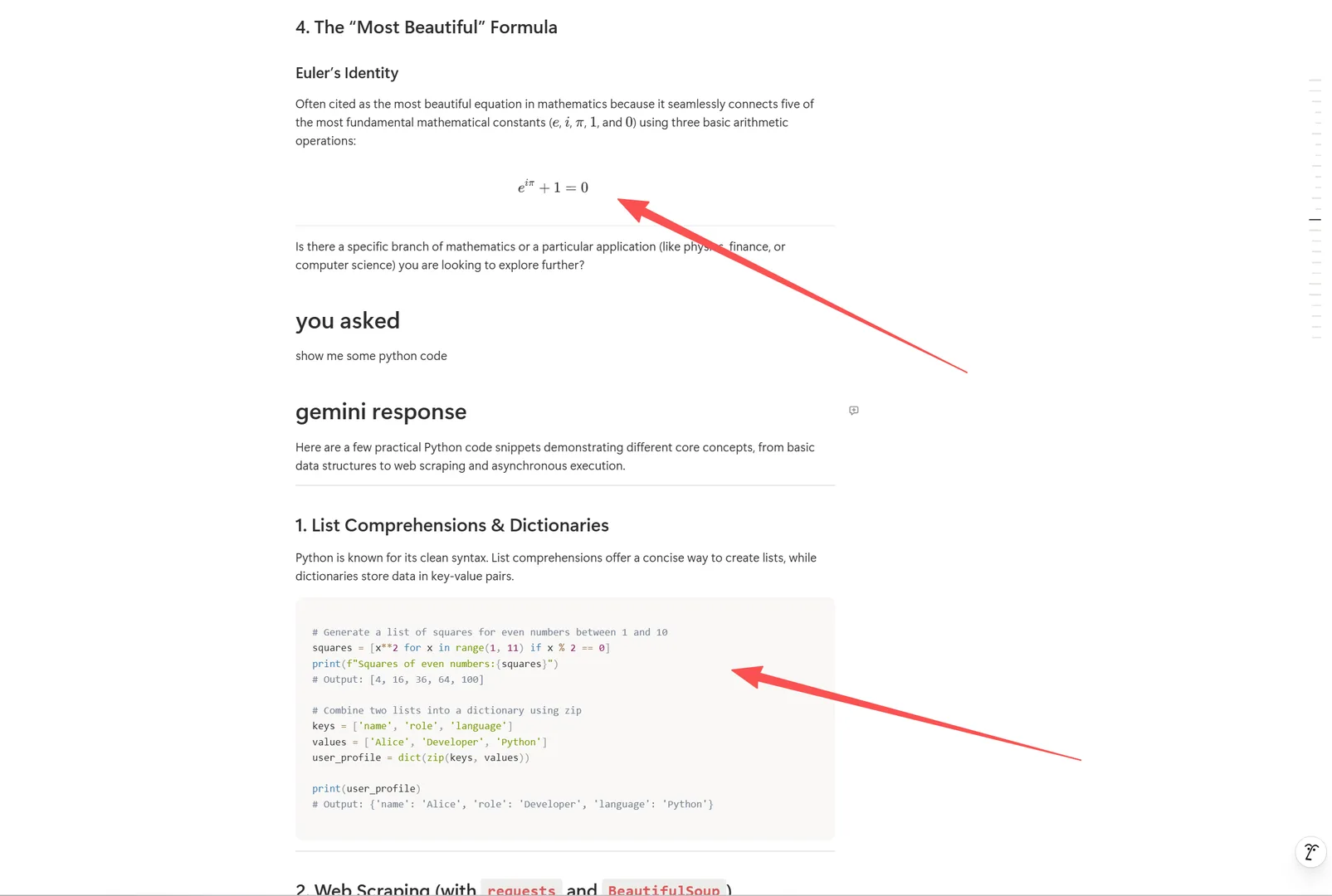
- Repeat for the formatting — which is already broken. Code blocks arrive as plain text, math as raw markup, images as broken links.
- Repeat for every conversation you want to keep.
The real cost isn’t the pasting. It’s that the result is unstructured. You can’t filter by model, sort by date, or query "all Claude chats from last month." A text dump doesn’t become a second brain — it becomes a graveyard.
The 3 ways to get AI chats into Notion (honest comparison)
| Method | Setup | Formatting preserved | Searchable by metadata | Automation | Best for |
|---|---|---|---|---|---|
| Manual copy-paste | None | Poor — code/math/images degrade | No | No | One-off snippets |
| Markdown export → import | Medium | Good, but manual import step | Partial | No | Batch imports |
| One-click Notion push | 1 click + connection | Excellent — structure and images intact | Yes — tags/date/model/platform as properties | Yes | Daily PKM & knowledge work |
Method 1: Manual copy-paste (the baseline)
Copy a chat, paste it into a Notion page. It works for a short exchange you want to keep verbatim. It fails at everything you’d actually want Notion for: long threads, code blocks, formulas, images, and any kind of filtering later.
Method 2: Export Markdown, then import into Notion
Export the chat as Markdown (with YAML frontmatter), then import the file into Notion. This preserves formatting far better than paste — but it’s two manual steps per chat, and Notion’s import treats the file as a page, not as structured database rows.
Method 3: One-click push with a Chrome extension (recommended)
XWX AI Chat Exporter connects directly to your Notion workspace and pushes a conversation in one click — as a structured page with database properties, not a text dump. Here’s the workflow:
Step 1 — Install. Search for XWX AI Chat Exporter in the Chrome Web Store and click Add to Chrome.

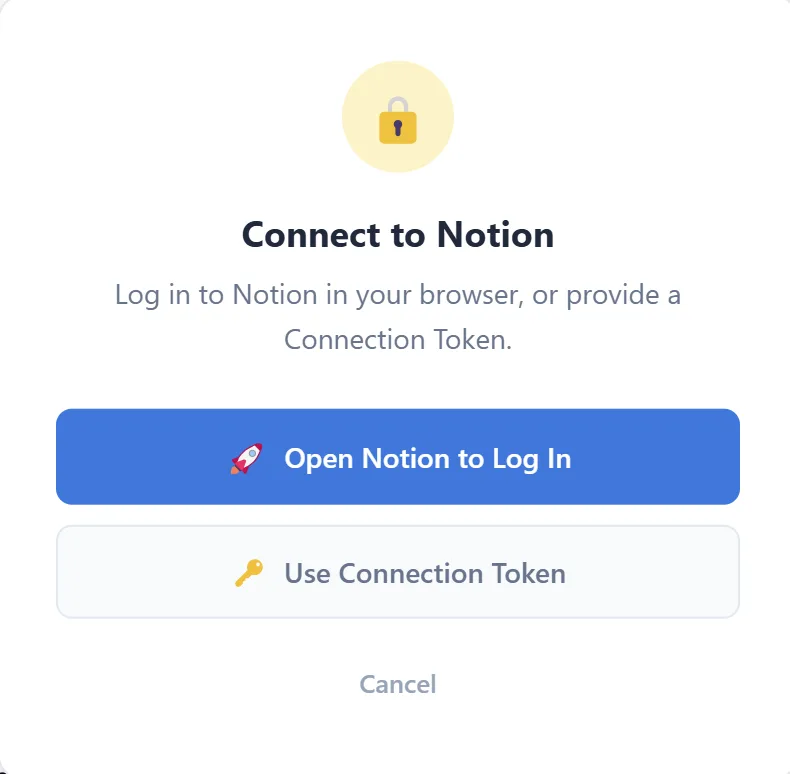
Step 2 — Connect Notion
Choose the Notion option in the export menu and connect your workspace. XWX supports two paths: a cookie-based connection that skips OAuth entirely, or the standard OAuth / personal access token route if you prefer explicit authorization. Either way, the conversation goes to your Notion account — nothing is stored on our side.
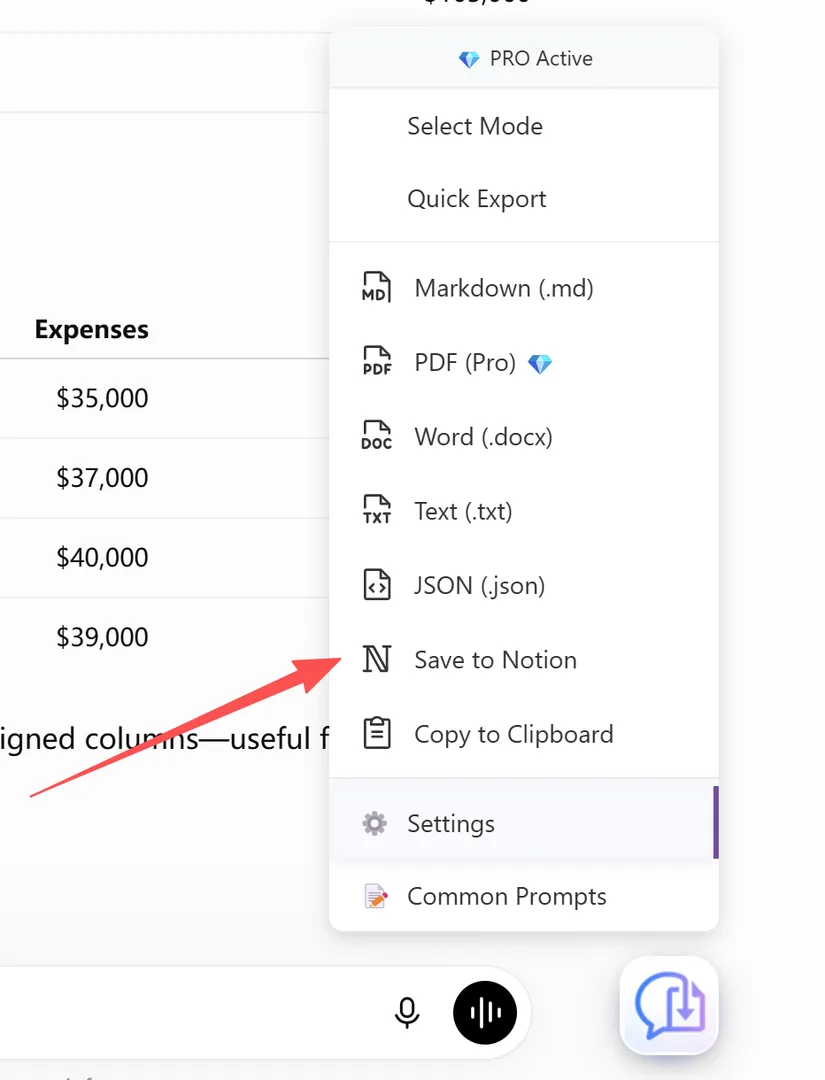
Steps 3–4: Open the chat and click the Notion option
Step 3 — Open the chat you want to sync. Open any conversation on chatgpt.com, claude.ai, or gemini.google.com. The extension detects the platform automatically.
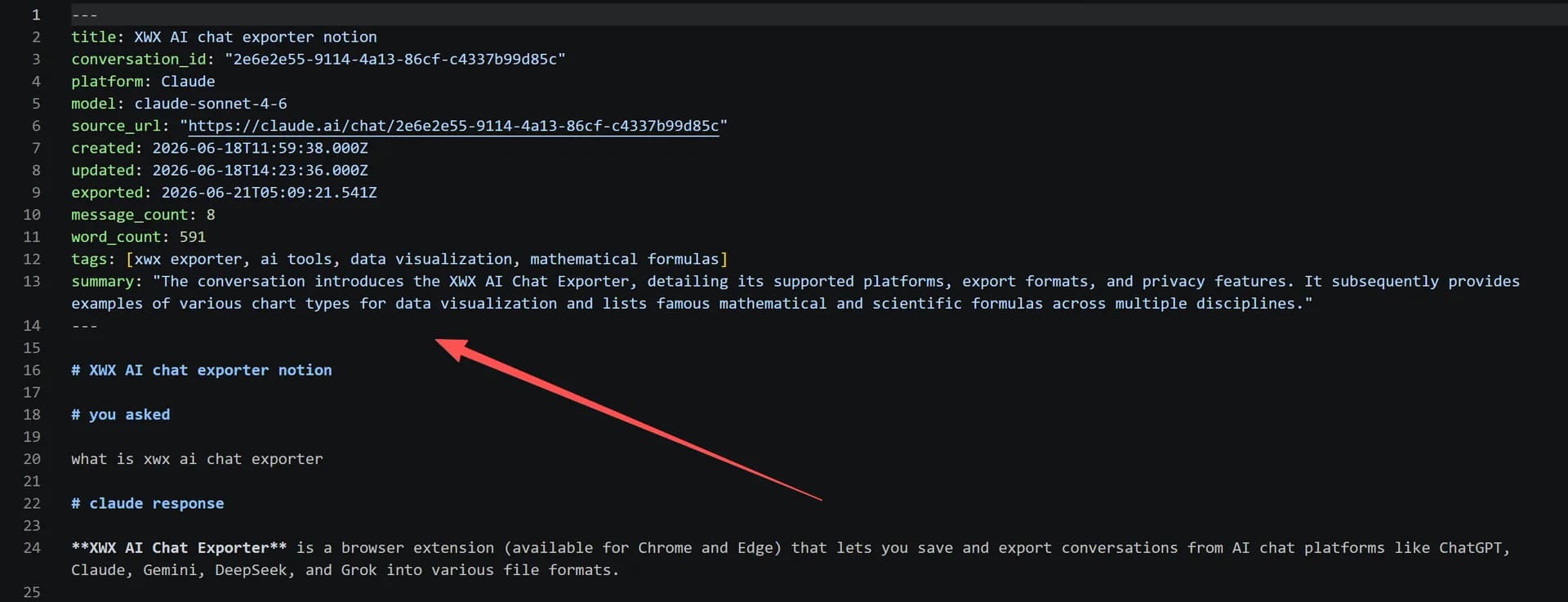
Step 4 — Click the Notion option. The conversation is pushed into your Notion workspace as a structured page. Each export carries database properties — tags, date, model, and platform — so you can build a Notion database view that filters your entire AI archive.
Step 5 — (Optional) Auto-generate tags
With Pro, AI Tags & Summaries reads the conversation and generates a label and a one-line summary — which are injected directly into the Notion properties. That turns your archive from "files I dumped" into "knowledge base I can search." This feature uses the LLM provider you configure (OpenRouter, OpenAI, Gemini, Qwen, Kimi, DeepSeek, and more), and it requires a Pro plan plus your own API key. Without it, you still get tags, date, model, and platform as properties.
What actually makes it into Notion
| Content | Manual copy-paste | XWX Notion push |
|---|---|---|
| Full conversation, all messages | Only what you select | Complete thread |
| Code blocks | Plain text | Structure preserved |
| Tables | Broken / misaligned | Layout intact |
| Math formulas | Raw markup | Rendered |
| Images | Broken or missing | Embedded where available |
| Model name | Not included | Database property |
| Timestamp | Not included | Database property |
| Tags / platform | Not included | Database properties (AI tags with Pro) |
| Search & filter | Manual | Native Notion database views |
The realistic limitations
- Notion push requires a connection. Set it up once; if you use the cookie path and your platform session changes, reconnect. The OAuth/PAT path is the more explicit, longer-lived option.
- AI Tags & Summaries needs Pro + your own API key. It sends the conversation to the AI provider you configure for tagging. Without it, you still get tags, date, model, and platform as properties.
- Images require the source to be downloadable; if a host blocks it, the export keeps the URL or a placeholder.
- Notion’s own formatting limits apply. Notion is a rich-text database, not a PDF layout engine. For a pixel-perfect shareable document, PDF is the better format.
Who actually syncs AI chats to Notion
- PKM / second-brain builders — conversations become queryable database rows next to their own notes.
- Researchers — filing source-backed threads into a project database they can filter by topic, model, and date.
- Consultants & analysts — building a client knowledge base where every AI-assisted finding is tagged and traceable.
- Team knowledge workers — sharing a workspace database where colleagues can search past AI work instead of re-asking the model.
- Writers & content teams — archiving brainstorming threads, draft iterations, and research into one searchable pipeline.
Alternatives to Notion (and when to choose them)
- Obsidian / Logseq — if you want local, file-based notes, export to Markdown with YAML frontmatter instead. See Export AI Conversations to Obsidian.
- PDF — when you need a shareable, pixel-perfect document. See Export ChatGPT to PDF.
- Word (.docx) — when you need to edit or fold content into a report. See Export AI Chats to Word.
Frequently Asked Questions
Can I export ChatGPT conversations to Notion?+
Yes. With XWX AI Chat Exporter, connect your Notion workspace once, then open any ChatGPT conversation and click the Notion export option. The conversation lands in Notion as a structured page with database properties.
Does it preserve formatting and code blocks?+
Yes. Code blocks, tables, and math are pushed to Notion as structured content rather than flattened text — unlike copy-paste, which degrades all of them.
Does Notion sync work with Claude and Gemini too?+
Yes. The same one-click push works across ChatGPT, Claude, Gemini, and the other supported platforms, so all your AI chats can live in one Notion database.
Can I filter my AI chats in Notion?+
Yes. Each export carries database properties — tags, date, model, and platform — so you can build Notion database views that filter your entire archive by any of them.
Is syncing to Notion free?+
Notion exports include a free daily quota. Markdown, TXT, JSON, and clipboard exports are free with no limits. Pro removes the quota and adds AI-generated tags and summaries.
How do AI tags work?+
With Pro and your own API key, XWX reads the conversation with the LLM provider you configure and generates a label and summary, injected directly into the Notion properties.