How to Export a Claude Chat to Markdown
Markdown is the format Claude conversations deserve. Code blocks stay copy-pasteable, tables keep their shape, and with YAML frontmatter at the top, every exported chat becomes a queryable record instead of a scrollback you can’t search. Claude itself doesn’t offer per-chat export — the only official option dumps your whole account as machine-readable JSON. This guide shows the one-click way to export a Claude chat to Markdown in about thirty seconds, what exactly survives the trip, and how to turn exported files into an Obsidian vault you can actually query.
Why Markdown is the right format for Claude chats
Claude conversations are technical by nature: code blocks with syntax highlighting, tables comparing options, LaTeX in math discussions, and thinking/reasoning blocks that show how Claude worked through the problem. Markdown keeps all of that as plain text:
- Code blocks keep their fences and language tags — paste them straight back into an editor
- Tables survive as pipe tables any editor can render
- Thinking blocks are preserved, so the reasoning behind a decision stays with the decision
- Plain text forever — no proprietary format, no export lock-in, greppable with any tool
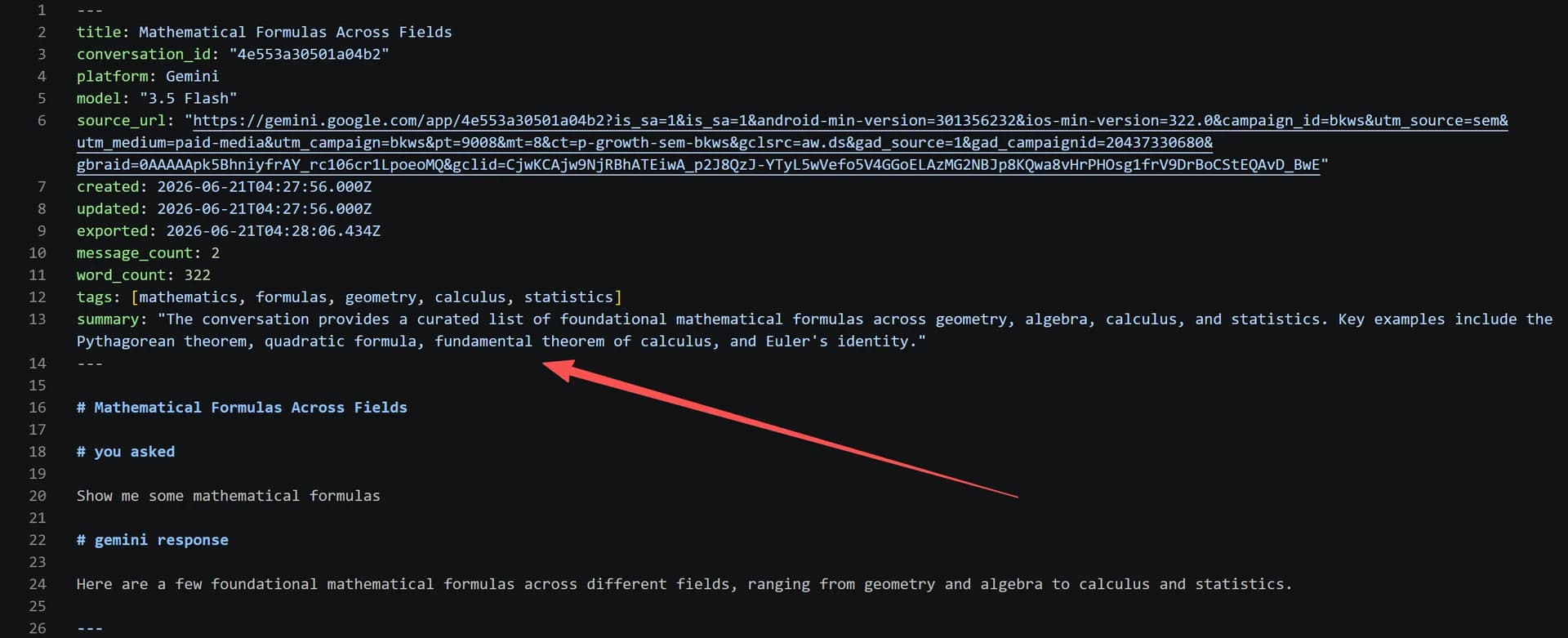
And because each file carries YAML frontmatter — platform, model, timestamps, message count, source URL — your exports are structured data, not just documents. Tools like Obsidian Dataview can filter them by model, date, or tag.
Ways to get Claude into Markdown, compared
| Method | Formatting | Per-chat | Metadata | Cost |
|---|---|---|---|---|
| Copy-paste | Code fences and tables usually break | Yes | None | Free, tedious |
| Official export | JSON, not Markdown | No — whole account only | Machine format | Free |
| XWX extension (per chat) | Clean Markdown with frontmatter | Yes | YAML frontmatter | Free, unlimited |
| Desktop app (batch) | One .md per conversation | Whole library | YAML frontmatter | Free feature |
The official export has one thing the others don’t — completeness for the entire account — so run it occasionally as a safety net. For the chats you actually reuse, the extension is the working tool.
Export a Claude chat to Markdown in three steps
Step 1 — Install the extension. Add the free XWX AI Chat Exporter from the Chrome Web Store. No account, no signup.

Open the chat and choose Markdown
Step 2 — Open the conversation on claude.ai. The extension detects Claude automatically — including Projects and organization workspaces.
Step 3 — Click the floating button and choose Markdown. The .md file downloads immediately with formatting and frontmatter intact. Markdown exports are free with no daily limit — export every chat you care about. If you only need part of a long thread, toggle selection mode and pick the exact messages first.

Turn exports into an Obsidian vault (optional but worth it)
Markdown files with frontmatter are exactly what Obsidian expects. Move your exports into a vault folder and they become searchable, linkable notes — with the frontmatter fields available to Dataview queries. For the full setup, see syncing Claude conversations to Obsidian. If you’d rather not move files by hand, the XWX Backup desktop app can land every new Claude conversation in the vault automatically on a schedule.
What survives the export (and what doesn’t)
- Survives: message text and order, code blocks with highlighting, tables, LaTeX, thinking blocks, images embedded as data URIs, the YAML frontmatter block
- Doesn’t survive: Artifacts render as their content where possible, not as live artifacts; canvas-style formatting is flattened to text; server-side file attachments are not included
Run one export and compare it against the conversation before you batch-export anything — thirty seconds of checking beats discovering a gap months later.
Who exports Claude to Markdown
- Developers — debugging threads and architecture decisions belong in the repo wiki or a knowledge base, not in Claude’s sidebar. See also exporting Claude Code sessions.
- PKM users — Obsidian and Logseq live on Markdown; this is the bridge from chat to vault.
- Consultants and analysts — a dated, self-documenting .md file is a working record a client can open anywhere.
Frequently Asked Questions
Does Claude export to Markdown natively?+
No. Claude’s only official export (Settings → Privacy → Export data) delivers the whole account as a JSON archive — there’s no per-chat Markdown export in the UI. The XWX extension adds one: open the chat, click the floating button, choose Markdown.
Is exporting Claude chats to Markdown free?+
Yes — Markdown is one of the permanently free formats (along with TXT, JSON, and clipboard) with no daily limit. PDF, Word, and Notion exports include a free daily quota with Pro for heavier use.
Does the Markdown file keep code blocks and tables?+
Yes. Code blocks export with their fences and language tags, tables keep their pipe-table structure, and LaTeX stays as LaTeX. Thinking blocks are preserved too.
What is in the YAML frontmatter?+
Platform, model, timestamps, message count, word count, and the source URL of the conversation. It’s what makes exported files queryable in tools like Obsidian Dataview instead of just readable.
Can I export all Claude conversations to Markdown at once?+
Yes. The XWX Backup desktop app batch-exports your whole Claude history as one Markdown file per conversation into a local folder — filtered by Project or date, with already-saved chats skipped on re-runs.