How to Export a ChatGPT Conversation to JSON
There are two very different "ChatGPT JSON exports" and confusing them wastes hours. The official data export hands you one enormous conversations.json for the entire account — complete, but a machine-format maze to navigate. A per-conversation JSON export gives you one clean, structured file for the chat you actually care about — ready for a script, a diff, or an import pipeline. This guide covers the second kind: one-click JSON export for individual ChatGPT conversations, free and unlimited, and what you can do with it.
Two JSON exports, two purposes
| Official data export | Per-chat JSON export | |
|---|---|---|
| Scope | Entire account | One conversation |
| Structure | App-internal format, deeply nested | Clean message sequence |
| Best for | Full-account backup, migration | Scripting, analysis, tooling |
| Effort to use | Hours of unpicking | jq and done |
| Cost | Free | Free, unlimited |
Keep the official export as your account-level safety net. Use per-chat JSON when a conversation is an input to something — an analysis script, a prompt library, a fine-tuning dataset.
Export a ChatGPT conversation to JSON in three steps
Step 1 — Install the extension. Add the free XWX AI Chat Exporter from the Chrome Web Store. No account, no signup.

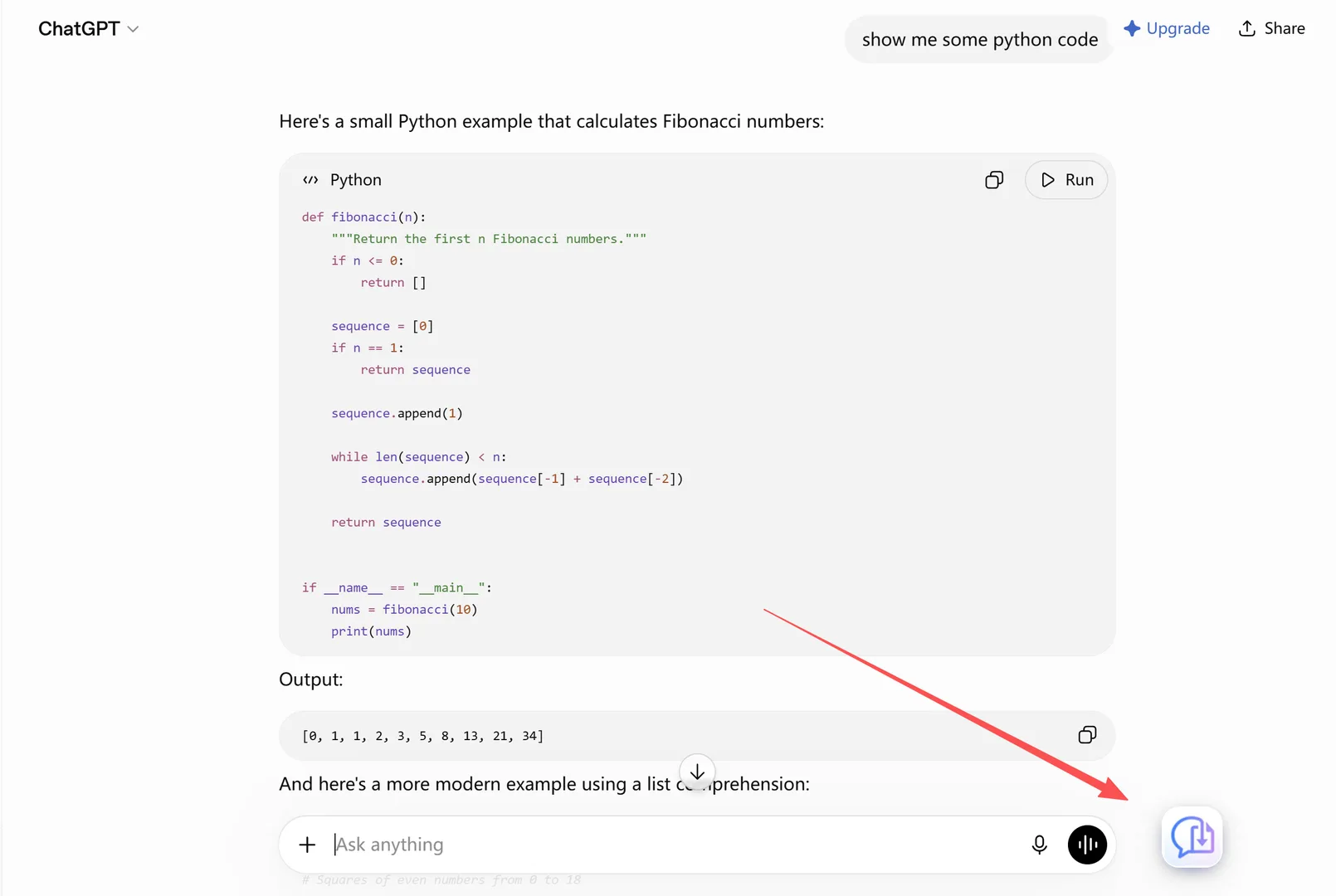
Open the chat and choose JSON
Step 2 — Open the conversation on chatgpt.com.
Step 3 — Click the floating button and choose JSON. The .json file downloads immediately — one structured file per conversation, free with no daily limit. JSON exports are generated locally in your browser and never touch a server.
What developers do with the JSON
- Prompt libraries — extract your prompts (and the responses that validated them) into a searchable catalog
- Fine-tuning datasets — collect instruction/response pairs from your best sessions
- Analysis scripts — message counts, response lengths, model behavior over time
- Diffing sessions — two runs of the same prompt, compared line by line
- Pipelines — feed conversations into summarizers, indexers, or your own knowledge-base tools
For the human-readable side, the same conversation also exports as Markdown with YAML frontmatter — JSON for machines, Markdown for people.
Bulk JSON export
The XWX Backup desktop app supports JSON as an output format for batch and scheduled exports — one file per conversation across your whole ChatGPT history (and other platforms), landed in a local folder. Useful when the per-chat click becomes the bottleneck.
Frequently Asked Questions
How do I export a ChatGPT conversation to JSON?+
Install the free XWX AI Chat Exporter extension, open the conversation on chatgpt.com, click the floating export button, and choose JSON. One structured file downloads immediately — free, no daily limit.
Is this the same as ChatGPT’s official data export?+
No. The official export (Settings → Data Controls → Export Data) archives the entire account as one app-format JSON archive. The per-chat JSON export is one clean, structured file for the conversation you’re viewing — much easier to script against.
What’s in the JSON file?+
The conversation’s message sequence with roles and content, plus metadata — enough structure to reconstruct the chat or process it programmatically without unpicking an app-internal format.
Is exporting to JSON free?+
Yes — JSON is one of the permanently free formats (with Markdown, TXT, and clipboard) with no daily limit. Files are generated locally in your browser.
Can I export all conversations as JSON at once?+
The official export is your account-wide JSON source. For readable per-chat JSON across the whole history, the XWX Backup desktop app batch-exports with JSON as an output format — one file per conversation.