Export AI Chats to PDF with Perfect Formatting
PDF export renders your AI conversations as pixel-perfect documents — code blocks, math formulas, tables, and images all look exactly as they do in the chat. Available to all users.
How to Export to PDF
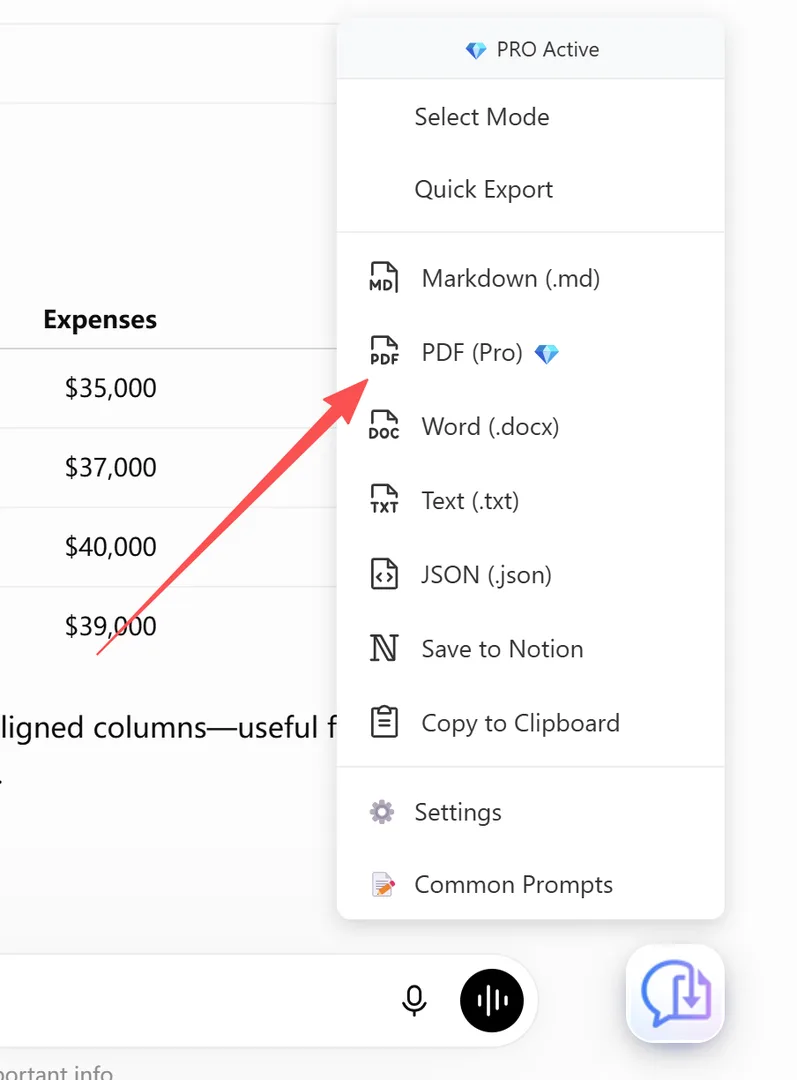
- Open your AI chat (ChatGPT, Claude, Gemini, etc.)
- Click the XWX floating button (FAB)
- Select PDF (Pro) 💎 from the format menu
- The export starts immediately — a progress ring appears around the FAB
- When complete, the PDF downloads automatically and a success modal appears
For long conversations, the export may take a few seconds. The progress ring around the FAB shows the current status.
What's Preserved in the PDF
The exported PDF faithfully reproduces everything from the chat:
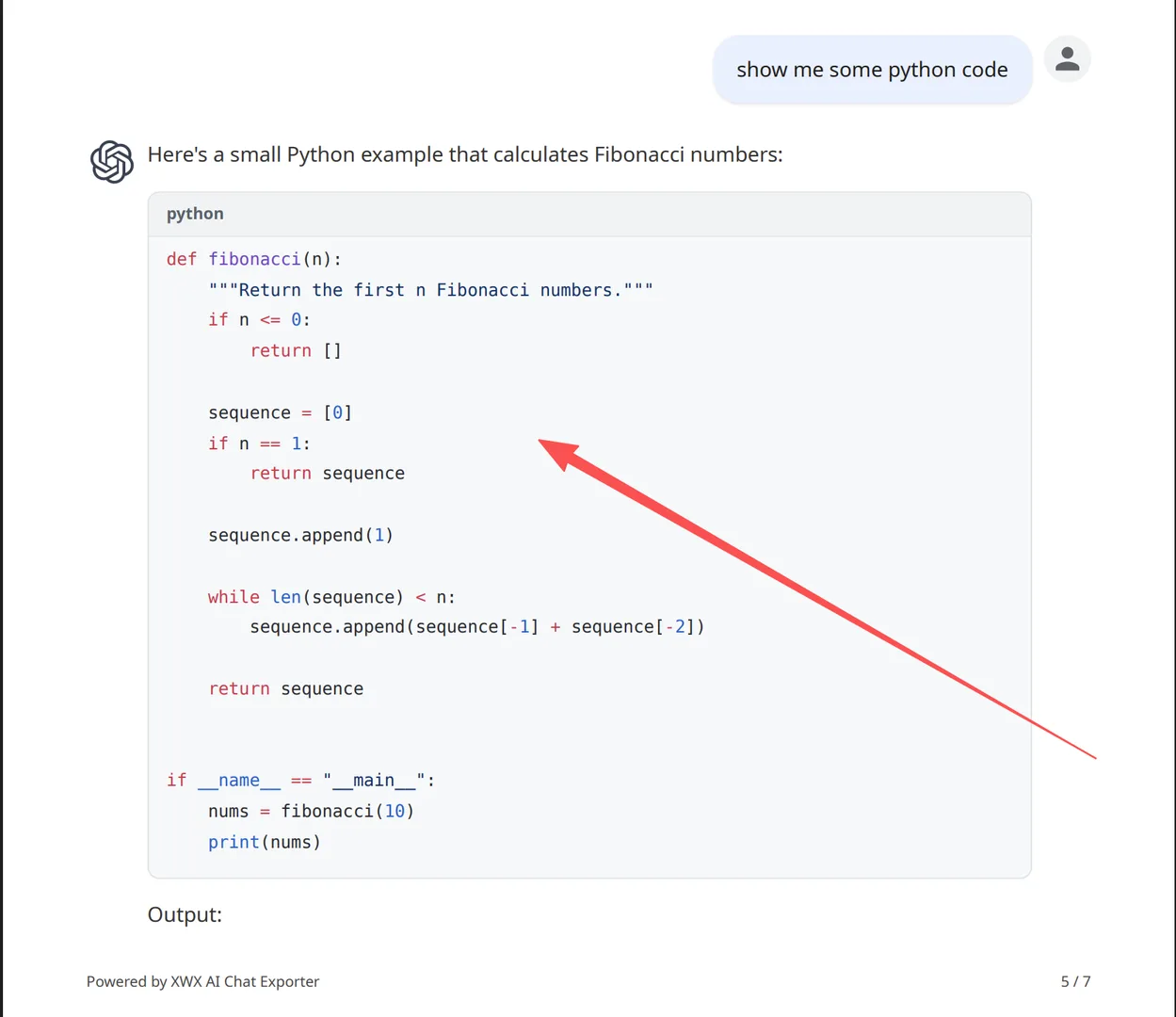
- Code blocks: Syntax highlighting with 3 themes (GitHub, Monokai, Dark)
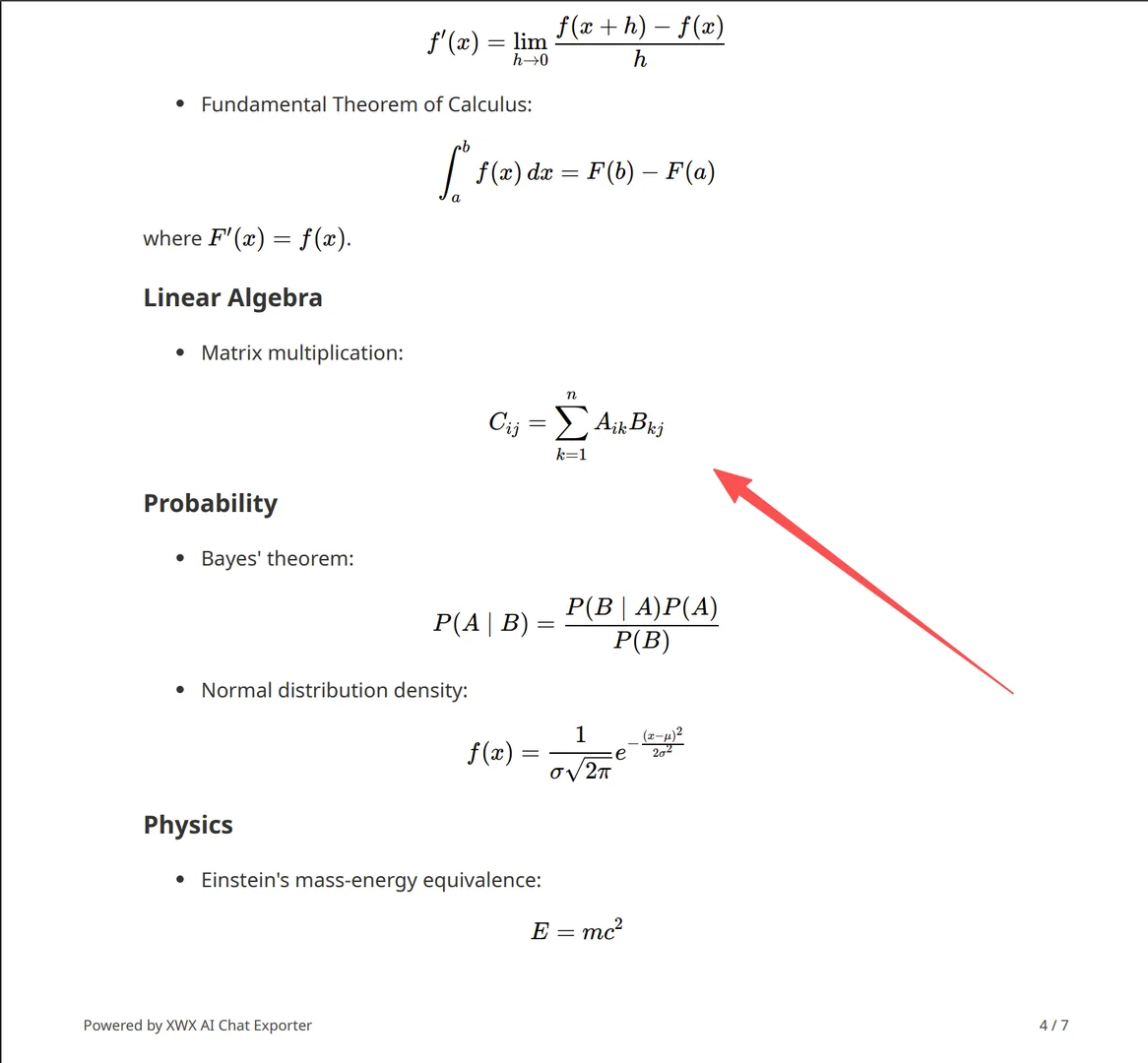
- Math formulas: LaTeX rendered as crisp vector graphics
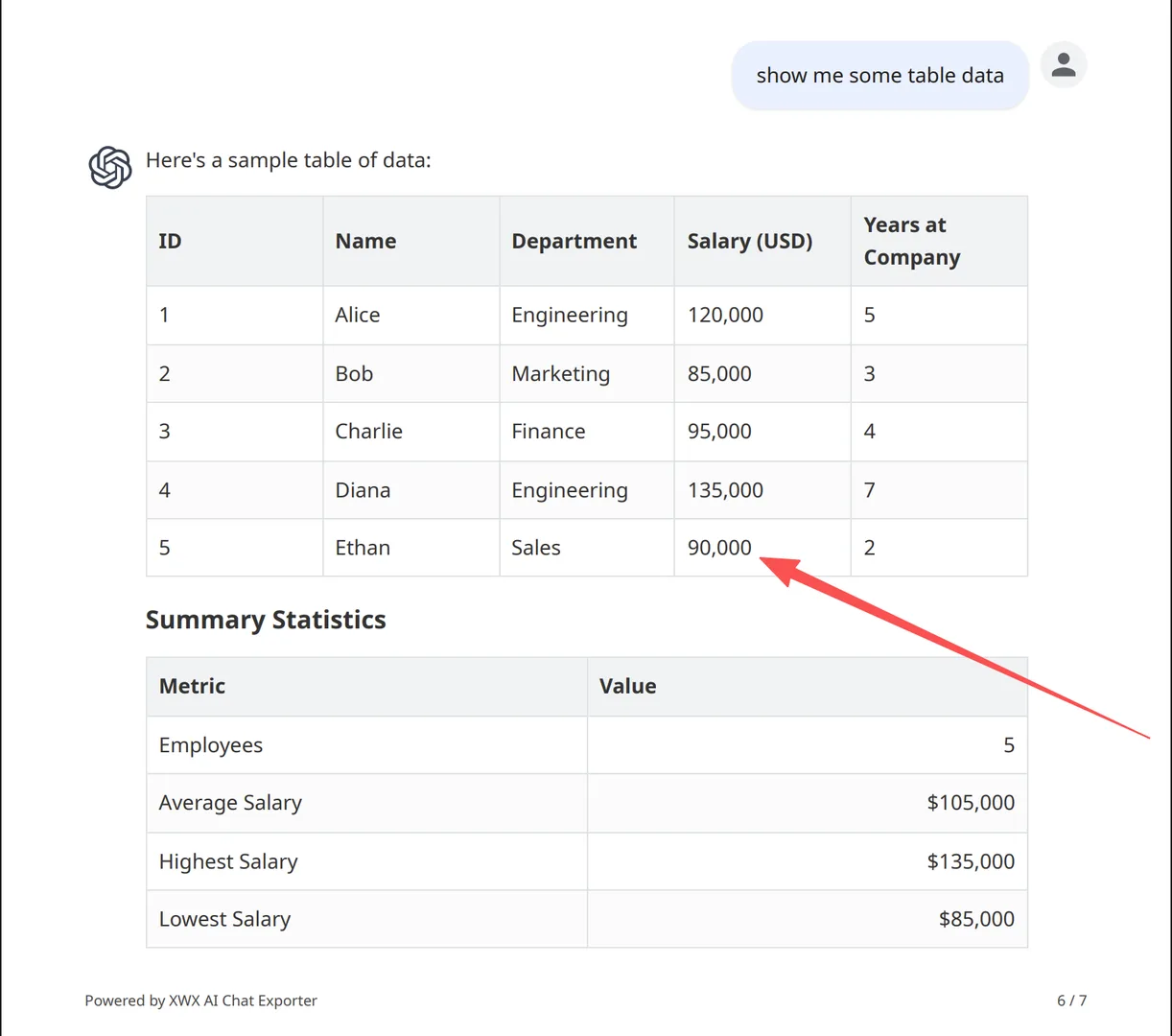
- Tables: Full formatting with configurable border styles (Solid, Dash, None)
- Charts & visualizations: Full-color charts rendered as images
- Images: Both AI-generated and uploaded images included
- Message structure: User/AI roles clearly distinguished
- Avatars: User and AI profile pictures (toggleable)
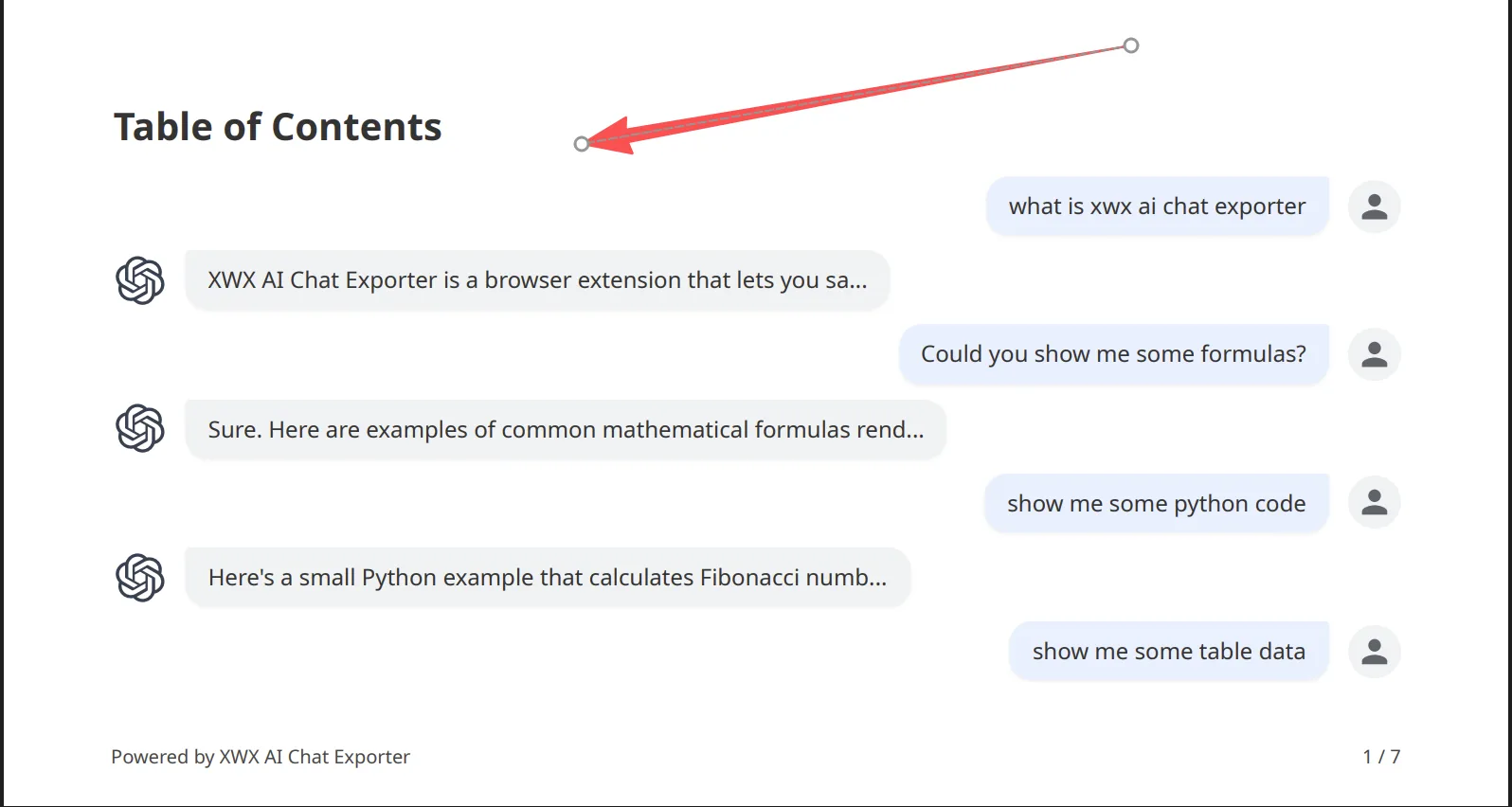
- Table of Contents: Auto-generated for long conversations (toggleable)
PDF Settings
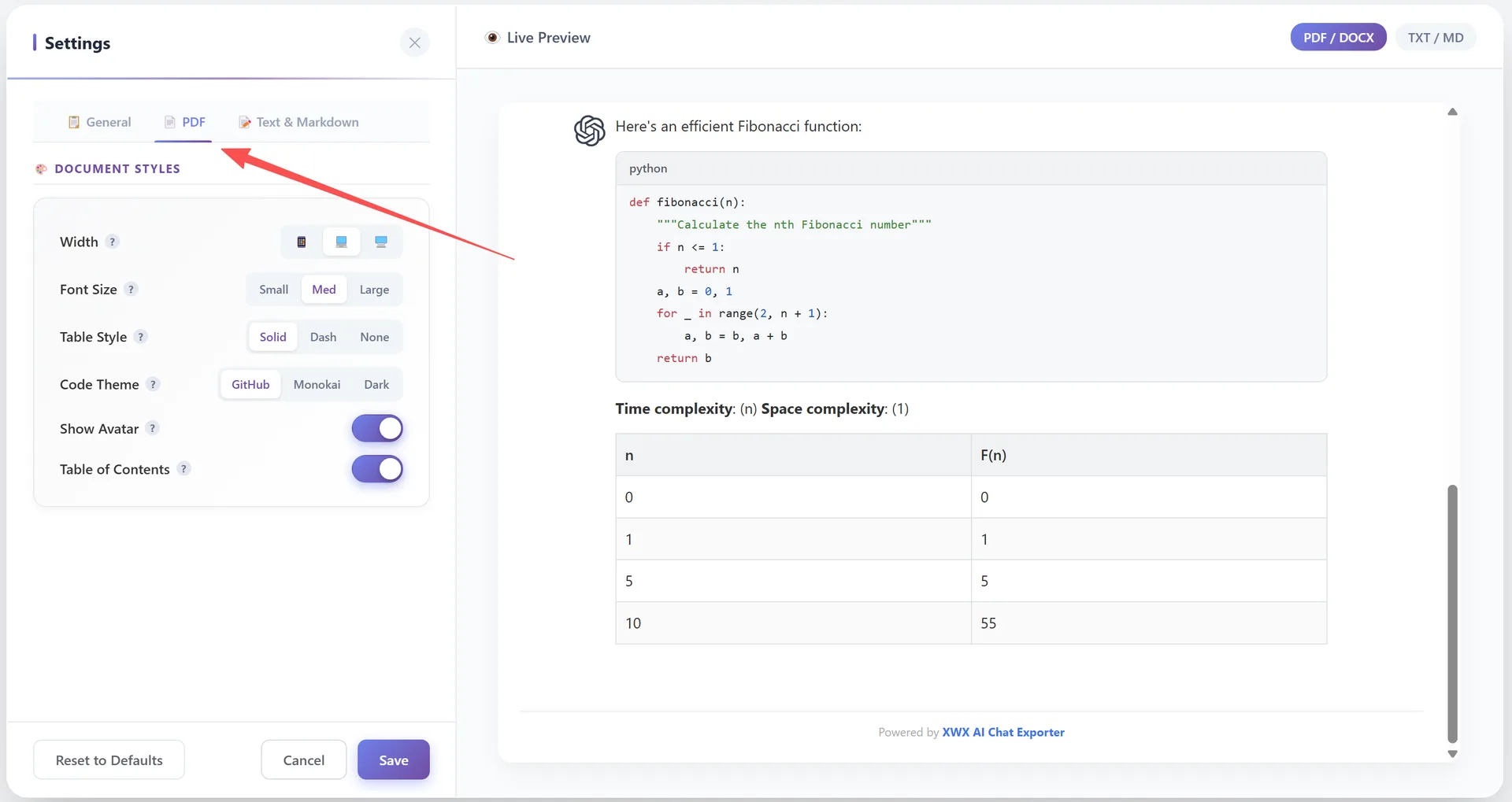
Customize your PDF output in Settings → PDF tab:
Width:
- 📱 Narrow — Mobile-friendly, narrower content area
- 💻 Standard — Balanced layout (default)
- 🖥️ Wide — Maximum content area
Font Size:
- Small — Dense, more content per page
- Med — Standard readability (default)
- Large — Comfortable reading
Table Style:
- Solid — Full borders (default)
- Dash — Dashed borders
- None — No table borders
Code Theme:
- GitHub — Clean light theme (default)
- Monokai — Classic dark theme with vibrant colors
- Dark — Modern dark theme
Show Avatar: Toggle user/AI profile pictures on/off (default: ON)
Table of Contents: Auto-generate a clickable ToC for long conversations (default: ON)
Frequently Asked Questions
Is PDF export free?+
Yes, PDF export is free for all users. The 💎 label indicates enhanced rendering quality. Free users can export to all 7 formats without limitations.
Does it support code syntax highlighting?+
Yes. 50+ languages are supported with 3 color themes: GitHub (light), Monokai, and Dark.
Can I export math formulas?+
Yes. LaTeX math formulas are rendered as vector graphics in the PDF — they remain crisp at any zoom level.
How long can a conversation be?+
There is no hard limit. Very long conversations (100+ messages) may take 30-60 seconds to process.