Sync AI Chats Directly to Notion
Notion sync is different from file export — your AI conversation is pushed directly to your Notion workspace. No download, no import step. Content appears as structured Notion blocks, ready to organize.
How to Sync to Notion
First-time setup:
- Go to Settings → Integrations → Notion
- Click Connect Notion
- Authorize the integration in Notion
- Select the database or page where conversations should be saved
Syncing a conversation:
- Open your AI chat
- Click the XWX floating button
- Select Notion from the format menu
- The conversation is pushed to your Notion workspace instantly
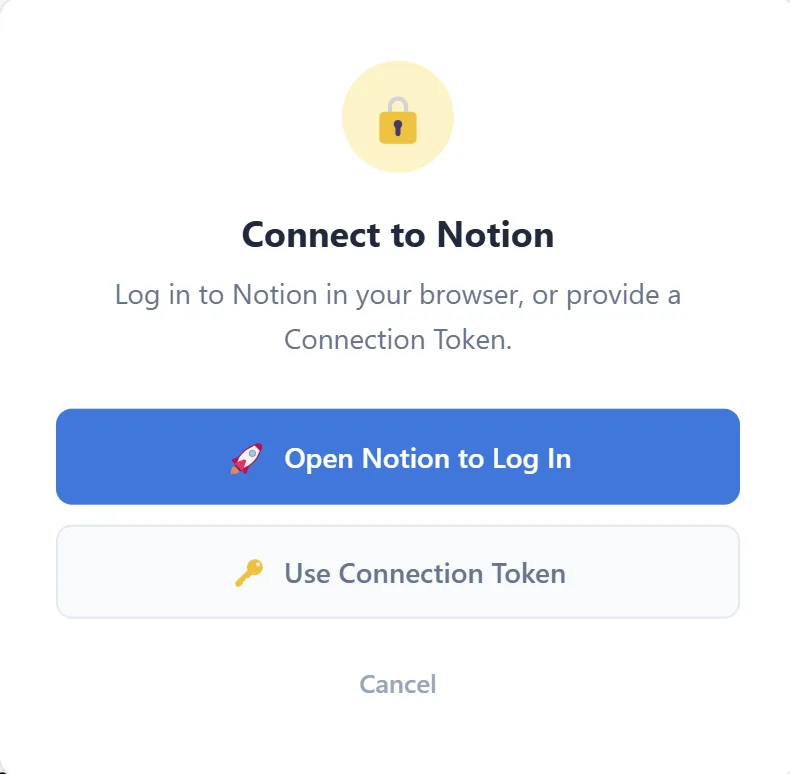
Notion integration setup — Connect and authorize
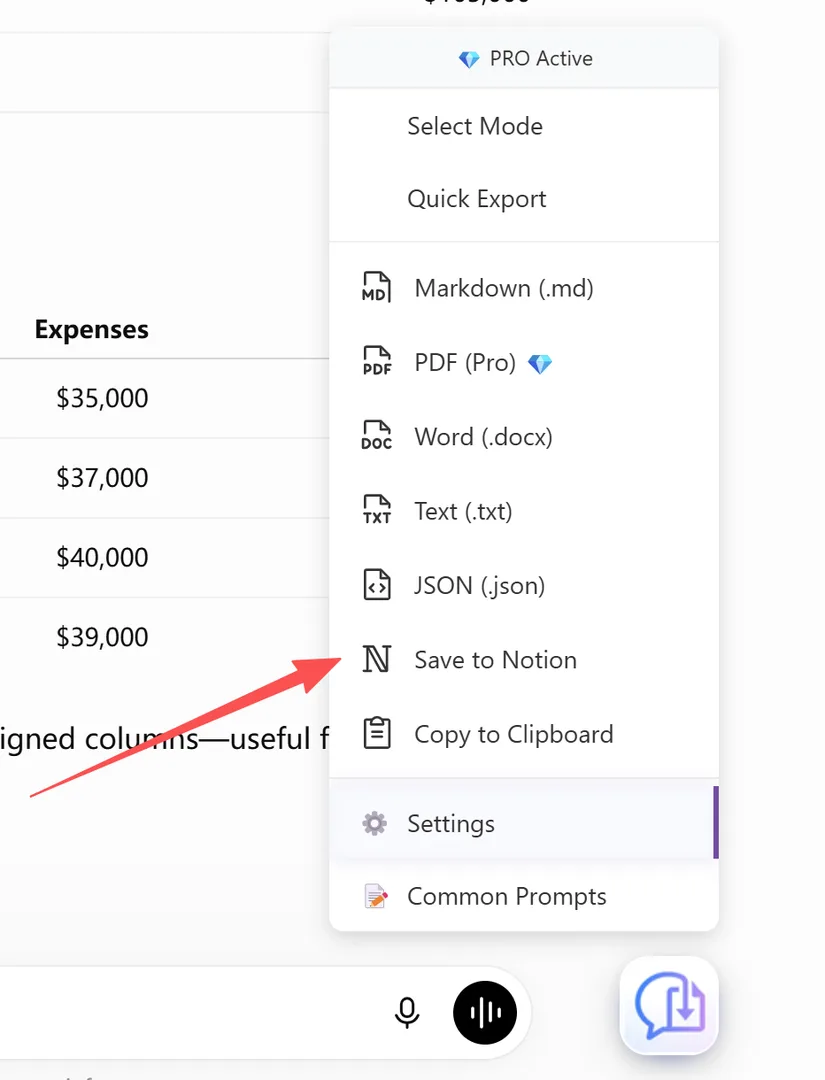
Save to Notion option in the export menu
How Content is Structured in Notion
Each synced conversation becomes a Notion page with:
- Title: Auto-generated from the first user message or conversation topic
- Headings: Mapped to Notion heading blocks (H1, H2, H3)
- Paragraphs: Standard text blocks
- Code blocks: Notion code blocks with language labels
- Tables: Notion simple tables
- Images: Uploaded and embedded
- Toggle blocks: Long content sections can be collapsed
- Callout blocks: Important notes and tips highlighted
- Properties (optional): Tags, date, model, and platform as Notion properties
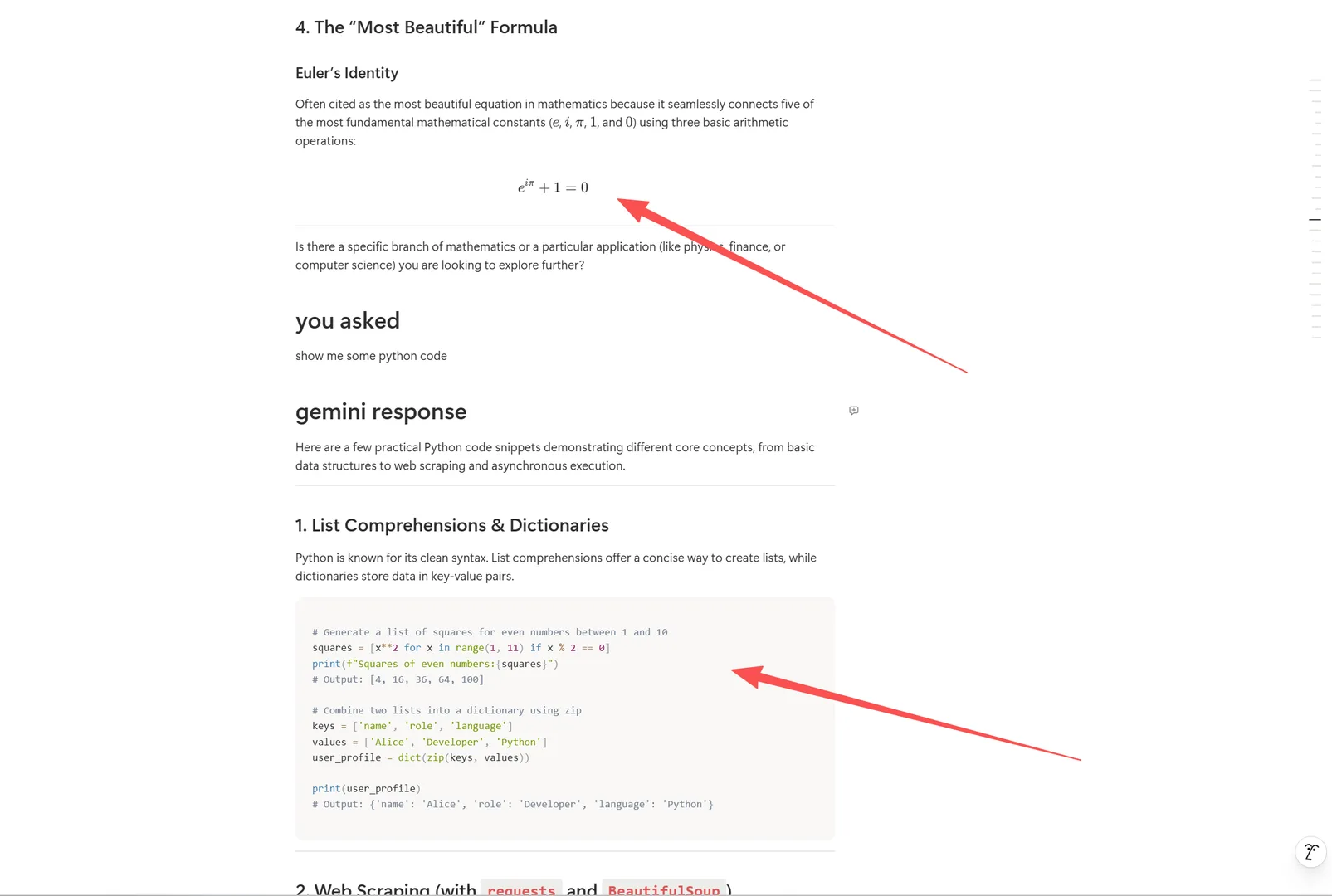
Synced Notion page — headings, code blocks, toggle blocks, callouts

Notion page properties — tags, date, model, platform
tip: Use AI Tags & Summaries to auto-generate tags that become Notion properties — making your synced conversations filterable and searchable.
Organizing Synced Conversations
Recommended organization strategies:
- By platform: Create separate databases for ChatGPT, Claude, Gemini exports
- By topic: Use AI-generated tags as Notion tags for cross-platform topic grouping
- By date: Sort by sync date for chronological archives
- By project: Use Notion relations to link conversations to project pages

Notion database with synced conversations — filterable by tags
Frequently Asked Questions
Do I need a Notion API key?+
The integration uses OAuth — just click Connect and authorize. No manual API key setup required.
Does it work with all AI platforms?+
Yes. Notion sync works with all 13+ supported AI chat platforms.
Is Notion sync free?+
Yes, Notion sync is completely free. No Pro subscription required.