How to Export ChatGPT to Claude (Chats, History & Files)
Moving from ChatGPT to Claude — or keeping both side by side — hits the same wall for everyone: neither platform imports the other’s history. ChatGPT’s official export is a ZIP of raw JSON that Claude can’t read, and copy-pasting months of conversations by hand isn’t a plan. This guide walks through the migration honestly: what can transfer, what can’t, and the fastest path that actually works — export your ChatGPT history as clean, readable files, bring the ones that matter into Claude Projects, and keep a local backup of everything so the move is reversible.
Quick answer
There is no official ChatGPT-to-Claude import — on either side. The working method is three steps: (1) export your ChatGPT conversations as readable files (Markdown or PDF, not the raw JSON archive), (2) bring the ones you need into Claude — as Project knowledge files or by pasting single messages, and (3) keep the full export as a local backup so nothing depends on either platform. Expect about 30 seconds per conversation with a free browser extension, or one batch run for the whole history with the desktop app.
What transfers to Claude — and what doesn’t
Set expectations before you start, because "migrate" means different things for different parts of your account:
| What | Transfers? | How |
|---|---|---|
| Conversation text | Yes | Export as Markdown/PDF, then attach to a Claude Project or paste |
| Code blocks, tables, math | Yes, with the right export | Markdown export preserves them; copy-paste usually breaks them |
| Images inside chats | Partially | Embedded in Markdown exports; screenshots need re-saving |
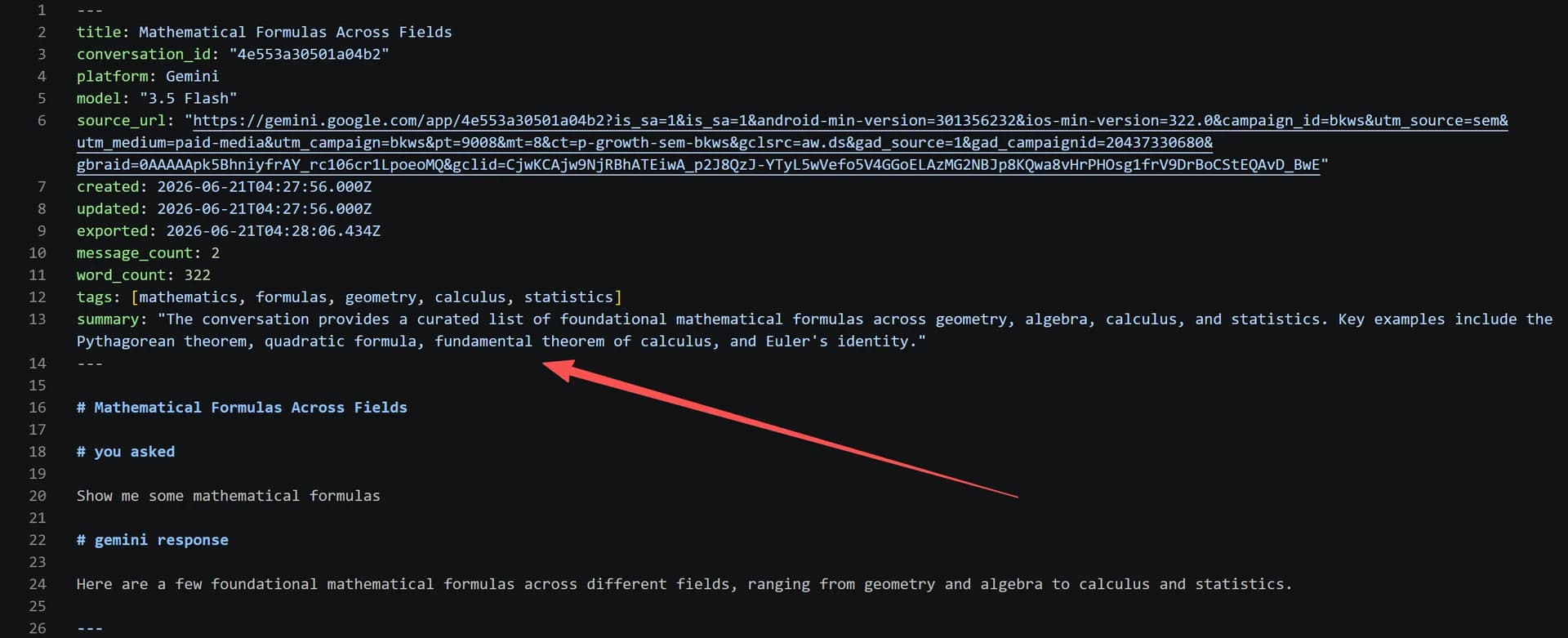
| Chat history (dates, order) | As files | Each conversation becomes a dated file; no in-app timeline in Claude |
| Custom instructions | Manual | Copy the text into Claude’s preferences or a Project’s instructions |
| ChatGPT "memory" | No | Rebuild it: distill exported chats into a context primer (below) |
| Projects & folder structure | Manual | Recreate Projects in Claude; files re-upload per Project |
| Your ChatGPT account | Stays put | Nothing here deletes or touches your OpenAI account |
The honest summary: your content moves as files; your setup (memory, instructions, project structure) is re-created by hand. That’s true for every tool on the market — no exception exists because neither OpenAI nor Anthropic offers an import.
Step 1 — Export your ChatGPT conversations as readable files
You have two routes, and they serve different needs:
Route A — The whole account, as an archive. ChatGPT’s Settings → Data Controls → Export Data emails you a ZIP of conversations.json. It’s complete, but it’s machine-readable JSON — you can’t attach it to a Claude Project or read it as documents. Keep it as the safety-net copy; it’s not the migration format.
Route B — Readable files, per conversation or in bulk (recommended for migrating). The free XWX AI Chat Exporter extension exports any open ChatGPT conversation as Markdown or PDF in one click — code highlighting, tables, and math survive, and each file carries YAML frontmatter with the date, model, and source URL. Markdown, TXT, and JSON exports are free and unlimited.
- Install XWX AI Chat Exporter from the Chrome Web Store — no account or signup.

Open each conversation and export it (about 30 seconds each)
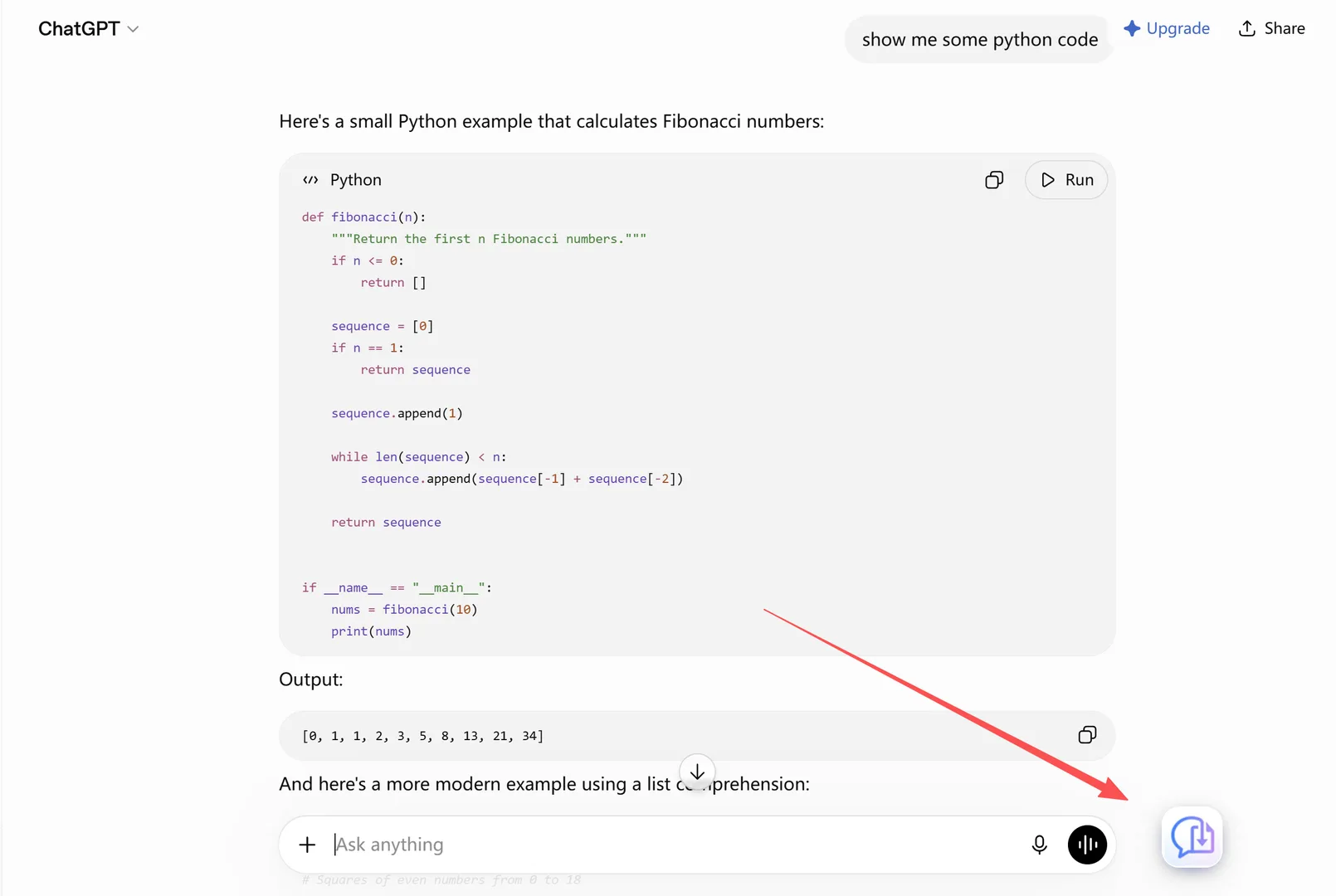
Step 2 — Open the conversation you want to move. Go to chatgpt.com and open the chat; the extension detects it automatically.
Step 3 — Click Export and choose Markdown. The file downloads immediately, formatted and self-contained. Choose PDF instead if the conversation is a deliverable you’ll share as-is.

Moving the whole history? Batch-export it in one run
For years of history, one conversation at a time is the wrong tool. The XWX Backup desktop app (Windows) pairs with the extension and batch-exports your entire ChatGPT library — filtered by date or selected in bulk — into a local folder: one Markdown file per conversation, already-saved chats skipped on re-runs. You can also put it on a schedule, which doubles as your ongoing backup after the migration is done.
The practical migration pattern: batch-export everything once, migrate the top conversations deliberately, and keep the local folder as the permanent archive. You get the full history in Claude-readable form without trying to hand-carry 2,000 chats into a Project.

Step 2 — Bring the files into Claude
Claude reads files, not platform histories. Depending on how you work:
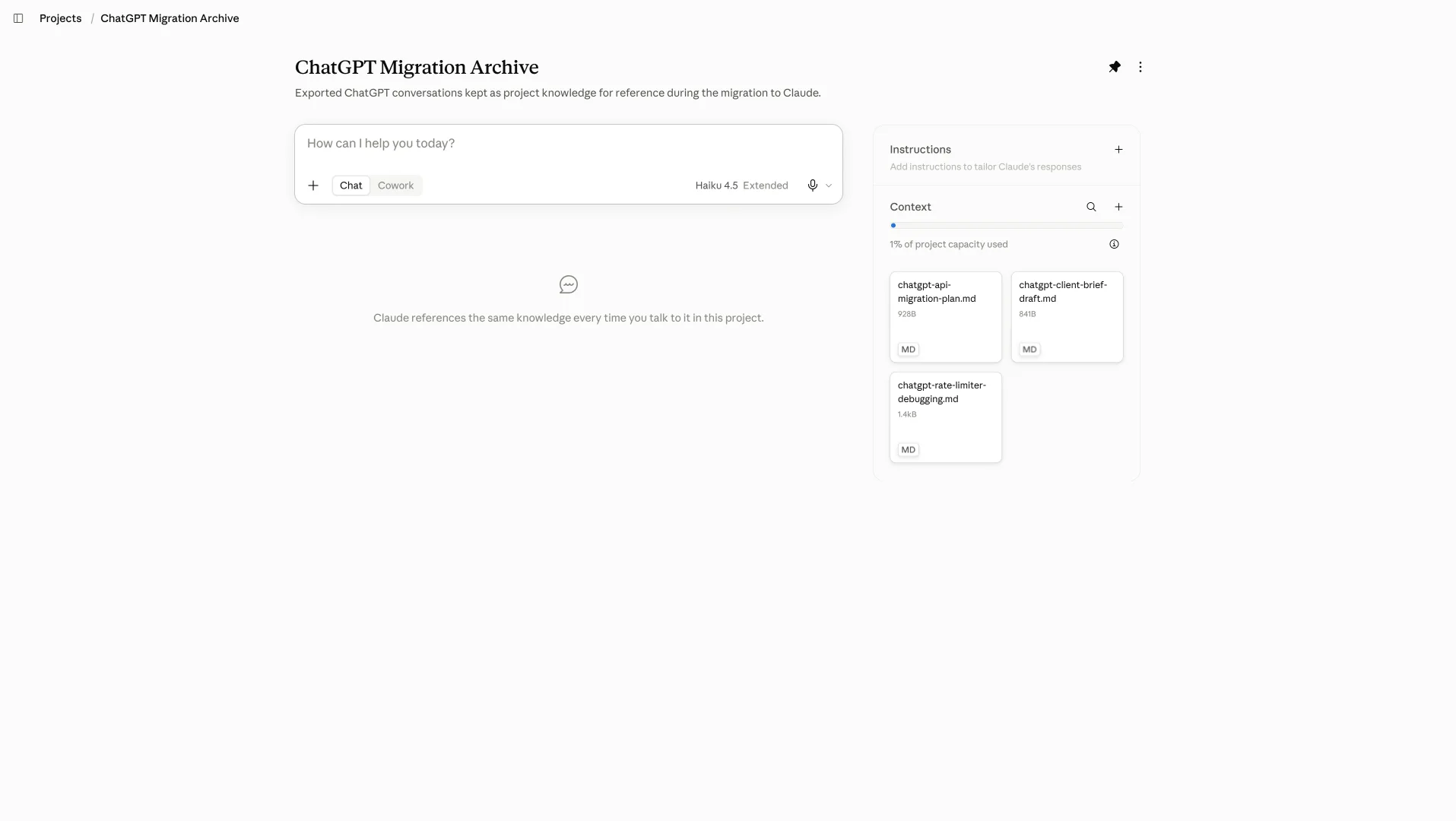
- Project knowledge (best for ongoing work). Create a Claude Project for the topic — a client, a codebase, a research line — and attach the exported Markdown or PDF files as Project knowledge. Every conversation in that Project can then draw on them. This is the closest thing to "importing" your history: the knowledge is available in context, even though there’s no chat-by-chat timeline.
- Single messages (best for one-off references). Open the exported file, copy the exchange you need, paste it into a new Claude chat. Markdown pastes cleanly — tables and code blocks included.
- Custom instructions. If you had ChatGPT custom instructions, copy the text into Claude’s profile preferences or the Project’s instructions field. It’s a two-minute job people forget.
A note on scale: Claude Projects have file-attachment limits (count and size), and they change over time — check Claude’s current limits before uploading a 300-file archive. Migrate the conversations you actually reference; keep the long tail in the local archive where anything is retrievable.
Step 3 — What about ChatGPT's memory? Build a primer
ChatGPT’s memory doesn’t export, and Claude’s memory is a separate system — there is no memory transfer, whatever any tool claims. What you can do in ten minutes:
- Skim your most important exported conversations — the ones where you corrected the model, stated preferences, or established how you work.
- Distill them into a one-page context primer: who you are, your stack and tools, writing style, recurring projects, standing preferences.
- Paste the primer into Claude’s profile preferences, or keep it as the first file in every Project.
Users who do this report it works better than platform memory — because you control it, it’s inspectable, and it survives the next platform switch too.
Step 4 — Keep both platforms (and your archive) in sync
Migration is rarely a light switch — most people run both platforms for weeks. Two habits make that period safe:
- Keep the scheduled backup on. With XWX Backup’s scheduled export enabled, every new ChatGPT conversation lands in your local folder on its own — so even after you stop living in ChatGPT, the archive stays current. The same schedule covers Claude, Gemini, and ten other platforms, so both sides of your transition stay backed up in one place.
- Export from Claude too. Claude has the same structural weakness you’re leaving ChatGPT for: no per-chat export button, and an official export that’s a JSON dump. The same extension exports Claude conversations to Markdown or PDF — see how to back up Claude conversations.
The result is a local archive that belongs to you, not to either vendor — which is the actual end state of a successful migration.
Every migration method, compared
| Method | What moves | Readable result? | Whole history? | Cost |
|---|---|---|---|---|
| Copy-paste by hand | One message at a time | Formatting often breaks | No — unusable at scale | Free, and slow |
| Official ChatGPT export → attach ZIP | Nothing directly — Claude can’t read conversations.json | No | Archive only | Free |
| Per-chat export → Claude Projects | Any conversation, formatting intact | Yes — Markdown/PDF | Selectively | Free (MD unlimited) |
| Batch export → local archive + Projects | Everything, one run | Yes — one file per chat | Yes | Free extension + desktop app |
The bottom row is the setup this guide builds: a complete, readable archive on your own disk, with the working subset living in Claude Projects.
The honest limitations
- No importer exists. Neither OpenAI nor Anthropic offers history import or export between the platforms — every method above produces files you move yourself.
- The chat timeline doesn’t reappear in Claude. Exported conversations become files and Project knowledge, not scrollback in Claude’s sidebar.
- Memory and custom GPTs don’t transfer. Memory is rebuilt via the primer in Step 3; custom GPTs have no Claude equivalent — their instructions can be pasted into a Project’s instructions.
- Project attachment limits apply. Check Claude’s current file limits per Project before bulk-uploading.
- ChatGPT Plus isn’t cancelled by exporting. This guide moves your content; manage your OpenAI subscription separately.
Who moves from ChatGPT to Claude
- Developers consolidating on Claude Code — the coding workflow lives in Claude, but months of debugging context are stranded in ChatGPT. Exporting the relevant threads into Project knowledge keeps the context with the work.
- Teams standardizing on one platform — when a workspace settles on Claude, each member migrates their own history; batch export makes that an afternoon, not a week.
- Privacy-motivated movers — keeping a local, plain-file archive of everything either platform holds, independent of any vendor’s policies.
- Dual-platform users — most movers keep both accounts. A shared local archive plus Projects on each side beats loyalty to either.
If you’re leaving for backup reasons rather than platform preference, start with automatic backups — you can keep ChatGPT and stop worrying about it.
Frequently Asked Questions
Can I export ChatGPT conversations to Claude directly?+
No — there is no direct import in either direction. ChatGPT’s official export is a JSON archive that Claude can’t read, and Claude has no ChatGPT importer. The working path: export conversations as Markdown or PDF files (free with the XWX extension), then attach them to a Claude Project as knowledge or paste them into chats.
How do I transfer my ChatGPT history to Claude?+
Three steps. (1) Export your ChatGPT conversations as readable files — per chat with the XWX extension, or the whole library in one batch run with the desktop app. (2) Create a Claude Project for each topic and attach the files as Project knowledge. (3) Copy any custom instructions over, and keep the local export folder as your archive. There’s no in-app timeline in Claude afterward — your history lives as files you control.
Can I transfer ChatGPT memory to Claude?+
Not directly — ChatGPT’s memory can’t be exported, and the two platforms’ memory systems are unrelated. The practical substitute: distill your exported conversations into a one-page context primer (preferences, stack, projects, style) and put it in Claude’s profile preferences or at the top of each Project. It’s inspectable, editable, and survives future platform switches.
Does Claude have an import feature for chat history?+
No. Claude has no import for any external chat history — ChatGPT or otherwise. Files can be attached to Projects as knowledge, which is the closest equivalent: the content becomes available in context, without appearing as past conversations.
Will exporting my ChatGPT history delete my account?+
No. Exporting copies your data; it changes nothing on OpenAI’s side. Your account, subscription, and history stay exactly as they were. Most people keep both platforms running in parallel during a transition.
What’s the free way to move ChatGPT chats to Claude?+
Markdown, TXT, and JSON exports with XWX AI Chat Exporter are free and unlimited — so per-chat Markdown exports cost nothing, and Markdown pastes into Claude with formatting intact. The desktop app’s batch export is the paid-tier convenience for whole-history moves; the free route is simply slower, not less capable.