How to Back Up Your AI Conversations Automatically
Every AI platform lets you export your data — manually, once, as a zip archive you will never open again. That is not a backup. A backup happens without you remembering to trigger it: on a schedule, incrementally, so the copy you restore from next year contains everything up to last night. This guide shows how to set that up for ChatGPT, Claude, Gemini, and eight other platforms with a desktop app — what to configure, how often to run it, and how to keep your accounts safe while it works.
Why manual exports fail as a backup strategy
The official data-export options (ChatGPT’s Settings → Data Controls → Export, Google Takeout for Gemini) have two structural problems:
- They are one-time snapshots. Run an export today and everything you discuss tomorrow is unprotected until you remember to run it again.
- They are inconvenient by design. ChatGPT’s export arrives by email within 24 hours as a zip of raw JSON and HTML files. Takeout can take hours or days. Nobody repeats that weekly.
The result is always the same pattern: someone loses access to an account or cannot find a discussion they remember having — and their most recent backup is months old.
The three pieces of a real automatic backup
A useful setup needs exactly three things:
| Piece | Job | What we use |
|---|---|---|
| A logged-in browser | The only way to read your conversations — platforms require your session | Chrome with the free XWX Exporter extension |
| A scheduler | Runs the export on an interval, unattended | XWX Backup (desktop app for Windows 10/11) |
| A local vault | Plain Markdown files on your own disk, one per conversation | ~/.xwx-backup/ vault with an SQLite search index |
Nothing is stored on any server. The desktop app drives the browser extension through your normal logged-in sessions — no passwords ever reach the app.
Step 1 — Install both pieces
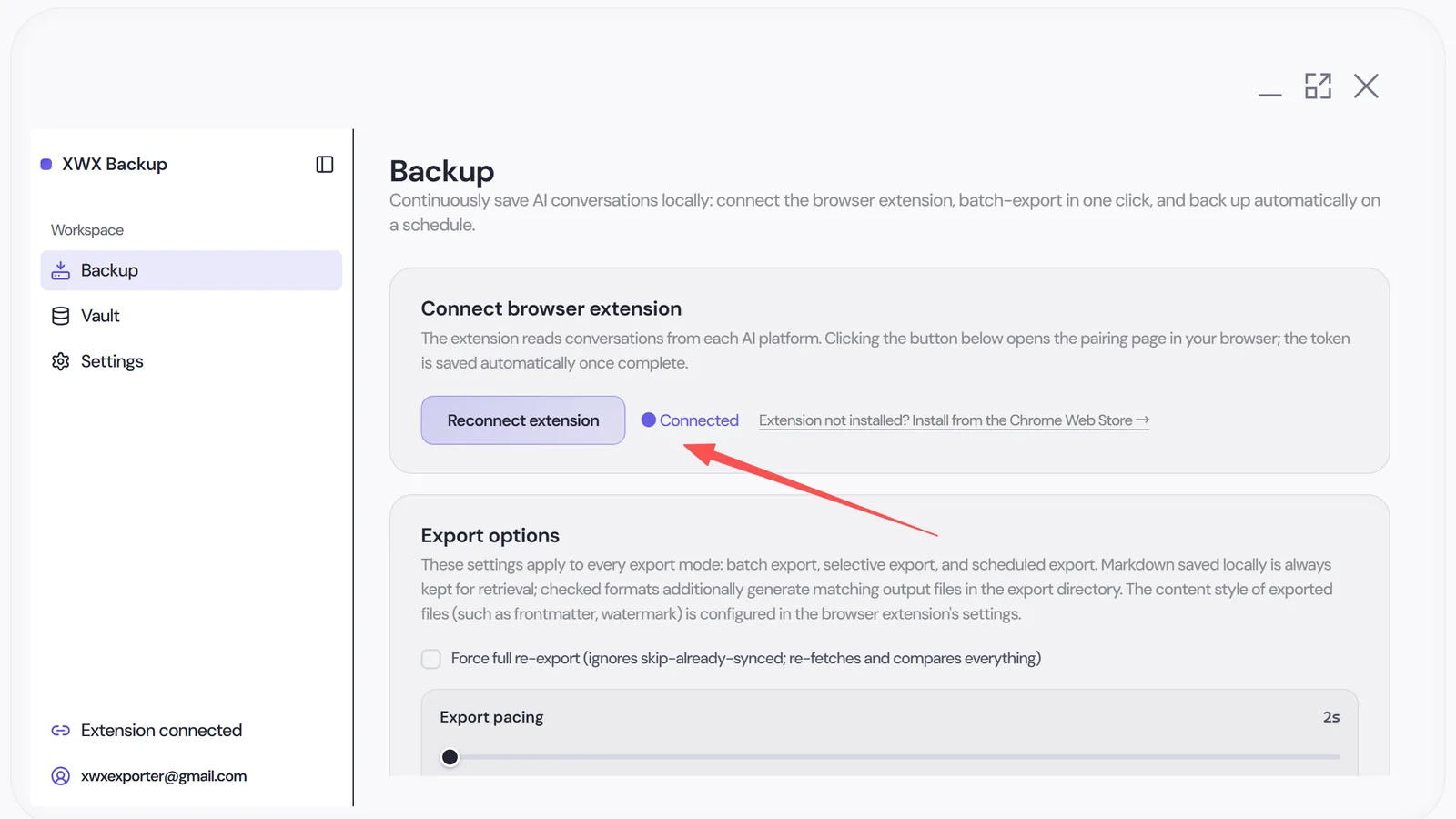
Download XWX Backup from the download page and install it (Windows SmartScreen shows a warning because the app is newly published — click More info → Run anyway). Launch it, then connect the free XWX Exporter extension from the Backup page.

Step 2 — Choose platforms and an interval
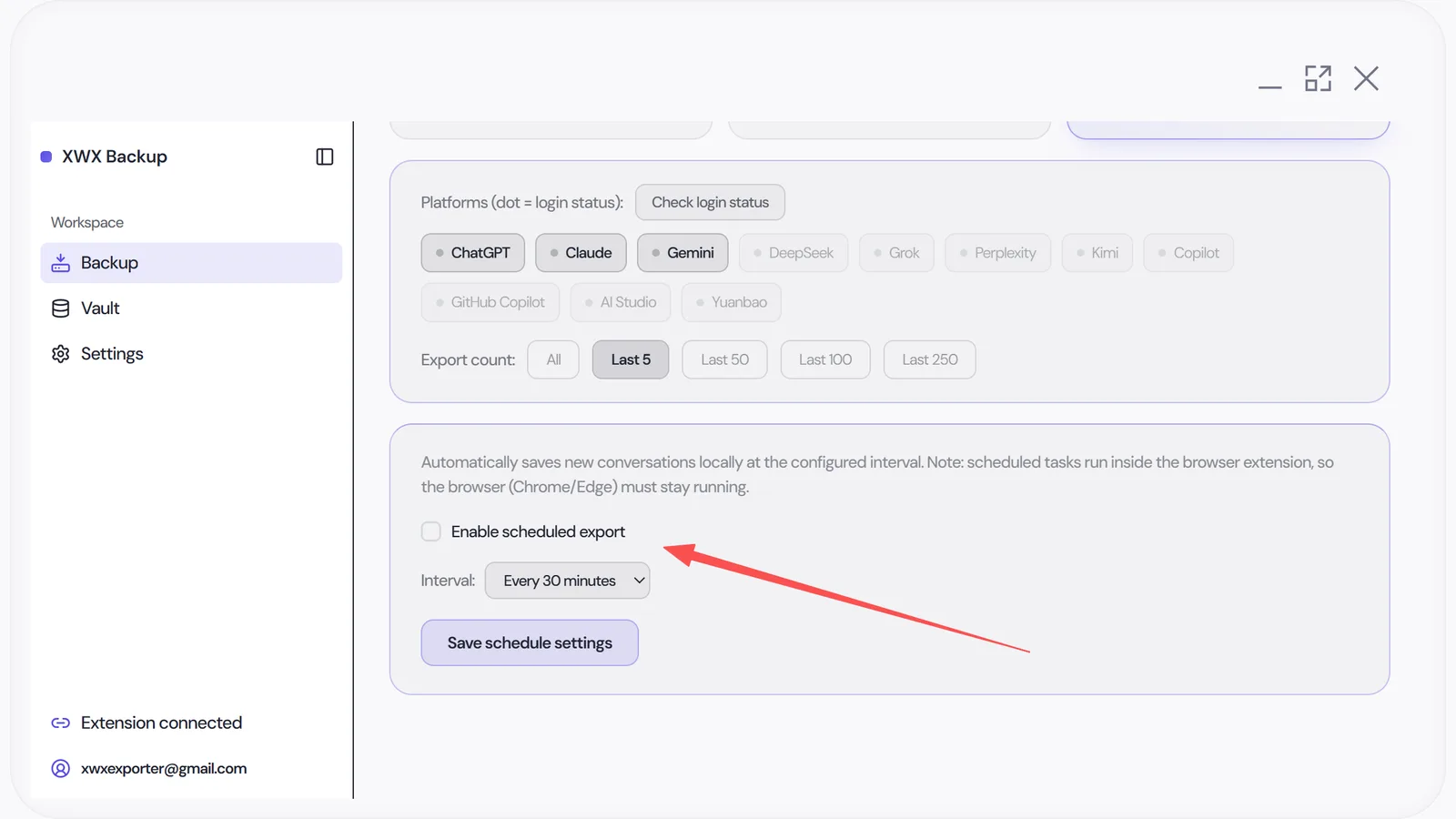
On the Backup page, open the Scheduled export section. Toggle it on, then pick an interval: every 30 minutes, hourly, every 3 hours, every 12 hours, or daily. Set a limit per run — for example, the latest 20 conversations — and optionally restrict which days and times it may run. Platforms follow the same selection as manual batch exports, so you can back up ChatGPT daily and Gemini weekly if that matches how you use them.
How it stays incremental (no duplicates, no re-downloading)
Each run compares conversations against what is already in the vault and skips anything saved before, so a daily run typically transfers only the handful of new threads. Output formats — Markdown plus optional PDF, Word, JSON and TXT rendering — are configured once under Export options and apply to every future run.
The schedule itself is kept by the desktop app, which triggers each run automatically — even waking your browser if it is closed. One honest limitation: exports still read real browser sessions against live platforms, and a run can only happen while the app is running. If the machine was off, nothing is lost — the schedule re-arms for the next interval and the next run picks up where things left off, because completed items are remembered either way.
Keeping your accounts safe while it runs
Bulk reading hits platform web APIs that were never designed for automation, so conservative pacing is not optional — it is the whole ballgame:
- About 6 seconds per conversation by default, with randomized intervals between requests
- An automatic cooldown break of a few minutes after every 100 items
- Back-off and retry when a platform returns a rate-limit response
- Platforms owned by the same company are never operated in parallel
Pacing is adjustable on the Backup page (0–30 seconds per conversation, with a live risk estimate as you move the slider) — slower is safer. If you would rather watch the first run yourself, trigger one manual batch export; scheduled runs then only handle the small incremental delta.
Where your files land (and why Markdown matters)
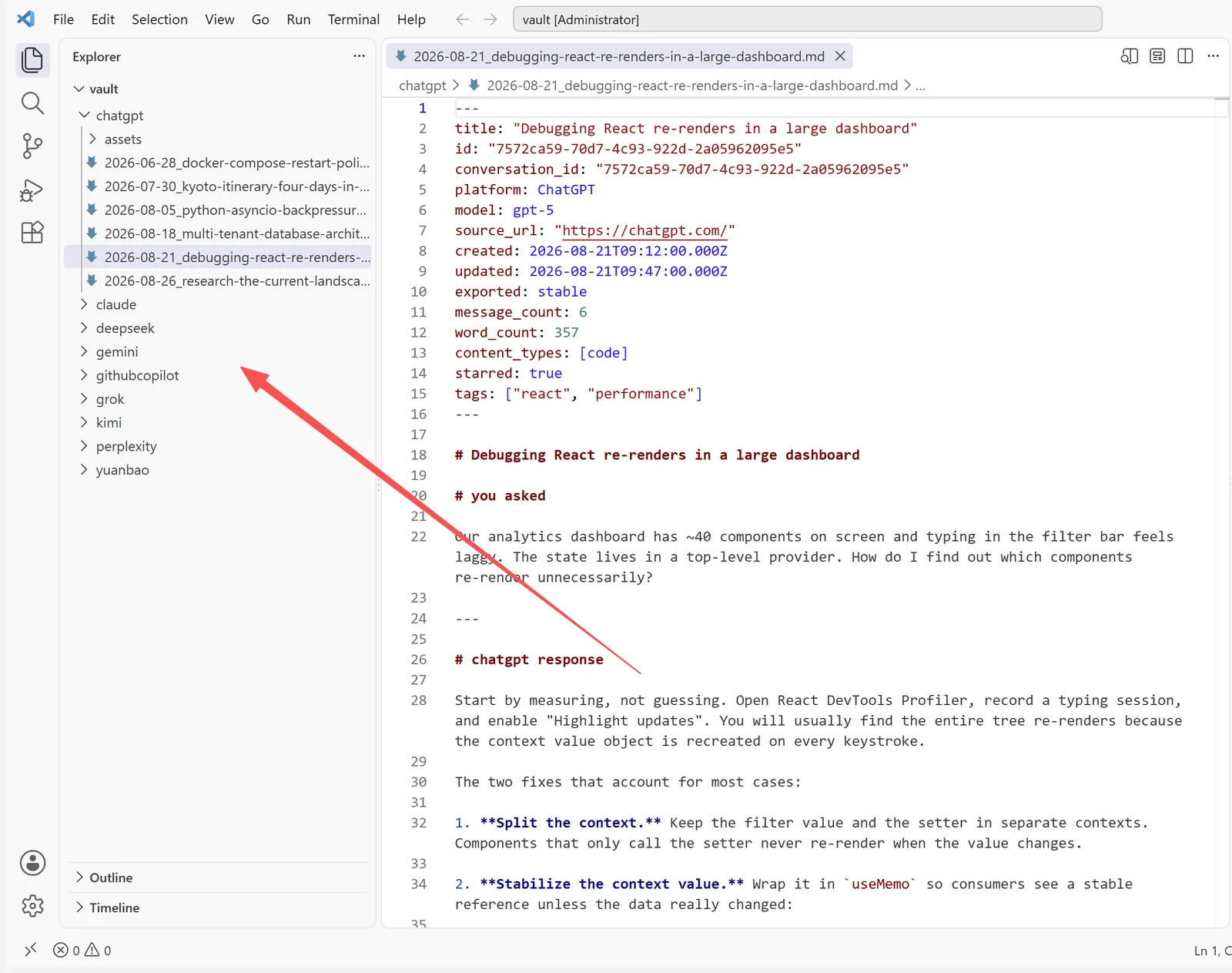
Everything lands in the vault at ~/.xwx-backup/: one plain Markdown file per conversation, with YAML frontmatter recording the platform, model and timestamps — indexed by SQLite full-text search so any message is findable across all platforms in milliseconds.
Because the files are plain text on your own disk, they are yours in the fullest sense: copy them with any tool, grep them, open them in any editor. If Obsidian is your knowledge hub, Obsidian Sync mirrors every conversation into a subfolder of your vault as standard Markdown — a free feature, like everything else in the desktop app.
The 60-second backup audit
Whichever tool you end up using, a backup only counts if it passes this checklist:
- [ ] Does it run on a schedule, not when you remember?
- [ ] Is it incremental — new conversations captured without redoing old ones?
- [ ] Do files land in an open format (Markdown/PDF), not a proprietary store?
- [ ] Is the copy on a different disk or machine than the browser?
- [ ] Have you actually opened a restored file to confirm it is complete?
If any box is unchecked, the fix takes less time than reading this article did.
Frequently Asked Questions
Which platforms support automatic backups?+
Batch and scheduled export work with the 11 platforms that expose a conversation list: ChatGPT, Claude, Gemini, DeepSeek, Grok, Perplexity, Kimi, Microsoft Copilot, GitHub Copilot, Google AI Studio and Tencent Yuanbao. Google Search AI Mode and NotebookLM currently support single-conversation exports via the extension — if you need batch export for either, [reach out to the developer](/en/contact) and it can be prioritized.
Is my data uploaded anywhere?+
No. The vault lives on your disk. The extension reads conversations through your normal logged-in browser session and hands them to the desktop app locally — conversation content never touches XWX servers.
Will scheduling get my account banned?+
The default pacing (~6 seconds per item, cooldown breaks, rate-limit back-off) is deliberately conservative, and platforms owned by the same company are never queried in parallel. Pick the Safer profile if you want maximum caution — slower is always safer.
Does it work on macOS or Linux?+
XWX Backup currently ships for Windows 10/11 (64-bit); macOS and Linux builds are planned. The browser extension itself works cross-platform for single-conversation exports.
Can scheduled backups generate PDF or Word files too?+
Yes. Output formats are configured once under Export options — Markdown always goes to the vault, and you can optionally generate PDF, Word, JSON or TXT copies per conversation. Whatever you select applies to scheduled runs exactly as it does to manual ones.
Export Your AI Chats
Free Chrome extension. No account required. Works on 13 AI platforms.