How to Save a ChatGPT Conversation Without an Account — Temp Chats, Anonymous Mode & Shared Links
Millions of people now use ChatGPT without ever creating an account. You open chatgpt.com, ask your question, get a genuinely useful answer — and then close the tab. There’s no sidebar entry, no history, no account folder where that conversation lives. The same goes for Temporary Chats, which are designed to vanish. And if someone shared a conversation link with you, that conversation was never in your account to begin with — and the person who shared it can delete it at any time. So when you try to save one of these conversations, two things go wrong: there’s nothing saved anywhere to come back to later, and even a successful export often comes back **incomplete** — older messages quietly missing from the middle of the file. This guide explains why that happens and shows the 30-second fix: use ChatGPT’s own Share button to give the conversation a real ID, then export from the share link. The result is a complete PDF or Markdown file of every message, even without an account.
Three kinds of ChatGPT conversations that don’t live in any account
Not every ChatGPT conversation ends up in your history. Three very common situations leave a conversation with no account-side copy at all:
- Anonymous chats (not logged in). Since OpenAI allowed free usage without an account, chatgpt.com works for anyone. But those conversations belong to no user: they never appear in any sidebar, and OpenAI may purge them after roughly 30 days.
- Temporary Chats. ChatGPT’s built-in incognito mode. By design, temporary chats are never written to your history, never feed memory, and are gone once you close the session — OpenAI’s own FAQ confirms they aren’t recoverable afterwards. A long research thread in temporary mode is one accidental tab-close away from disappearing.
- Shared links you received. If a colleague or friend sent you a chatgpt.com/share/... link, the conversation lives under their account, not yours. They can update or delete the share whenever they want — and when it’s gone, your access is gone.
In all three cases, if the conversation matters to you, saving it yourself isn’t optional — it’s the only copy you will ever have.
Why exporting these chats loses half the conversation
There’s a second problem on top of “nothing is saved”: exports of these conversations tend to come back missing older messages. Here’s why.
Every export tool needs a data source. For normal, logged-in conversations, the best source is ChatGPT’s backend API — identified by the conversation ID in the URL (the /c/... part). Ask the API, and you get the entire thread: every message, in order, with code blocks, tables, math, and images intact.
But anonymous chats and many temporary sessions have no conversation ID in the URL. With no ID to query, an exporter has exactly one option left: read whatever is currently rendered on the page. And ChatGPT virtualizes long conversations — only the messages near your scroll position exist in the page at any moment. Everything above the viewport is unloaded until you scroll back to it.
The result: an export of an anonymous or temporary long chat can look fine at first glance, yet silently contain only the most recent screenfuls. Older turns — sometimes the whole first half of the conversation — never make it into the file. Browser print has the identical blind spot.
XWX Exporter is API-first: it reads from the platform’s backend wherever an ID exists. When there is no ID (anonymous chats, some temp sessions) it falls back to page extraction — and it now tells you so, showing a clear info dialog instead of a plain success popup whenever that fallback was used, so an incomplete export never catches you by surprise.
The 30-second fix: give the chat a real ID with Share
ChatGPT’s Share button does more than create a link to send to friends. When you share a conversation, OpenAI creates a server-side snapshot with its own share ID. That snapshot contains the full thread — including all the lazy-loaded history that page-based reading misses. And critically, the share API that serves this snapshot doesn’t require being logged in.
So the fix is: click Share, open the generated link, export from there.
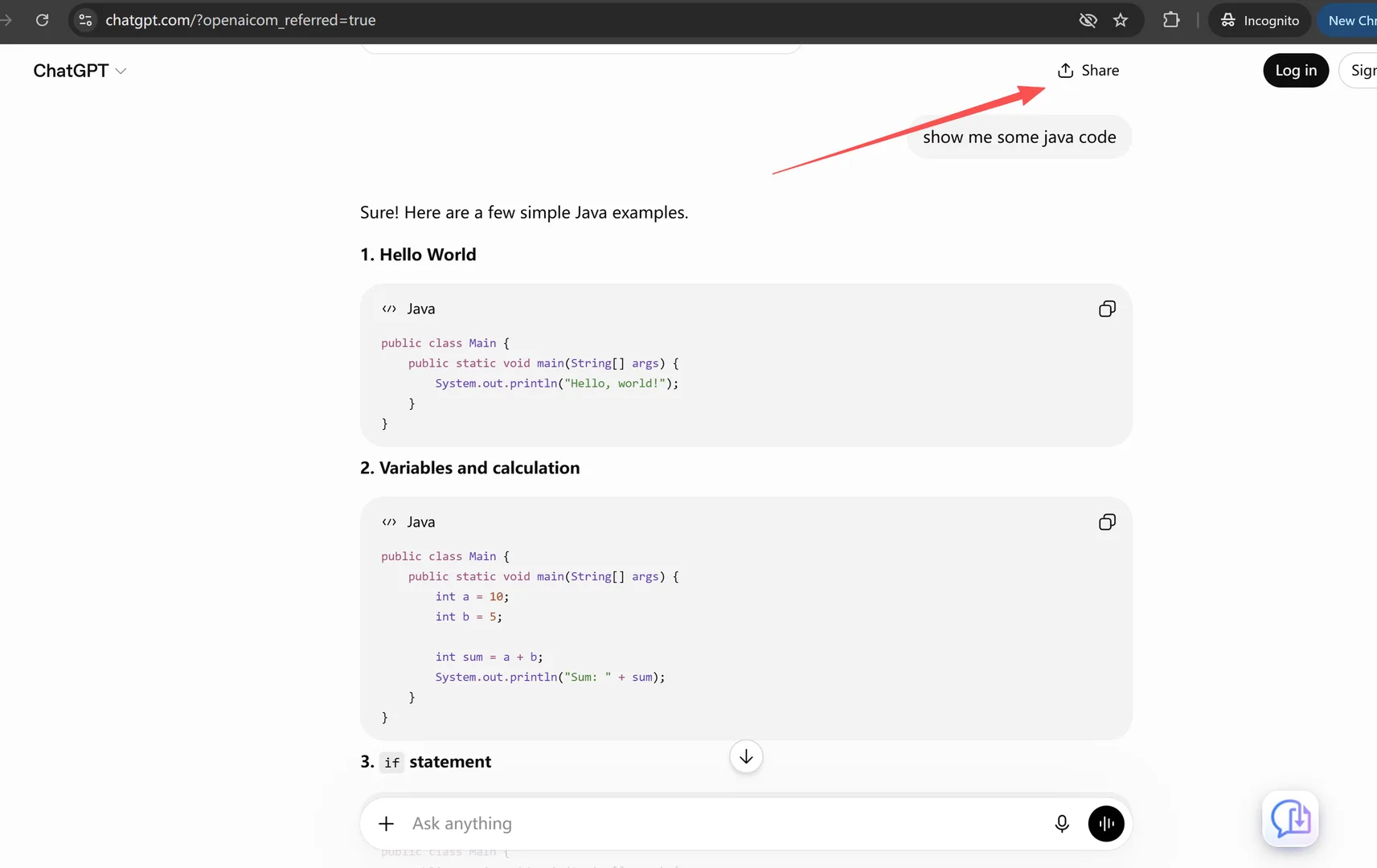
Step 1 — Click Share in the conversation. You’ll find the button at the top of the chat (or under the … menu). You don’t need to send the link to anyone — creating it is what gives the conversation a complete server-side copy.
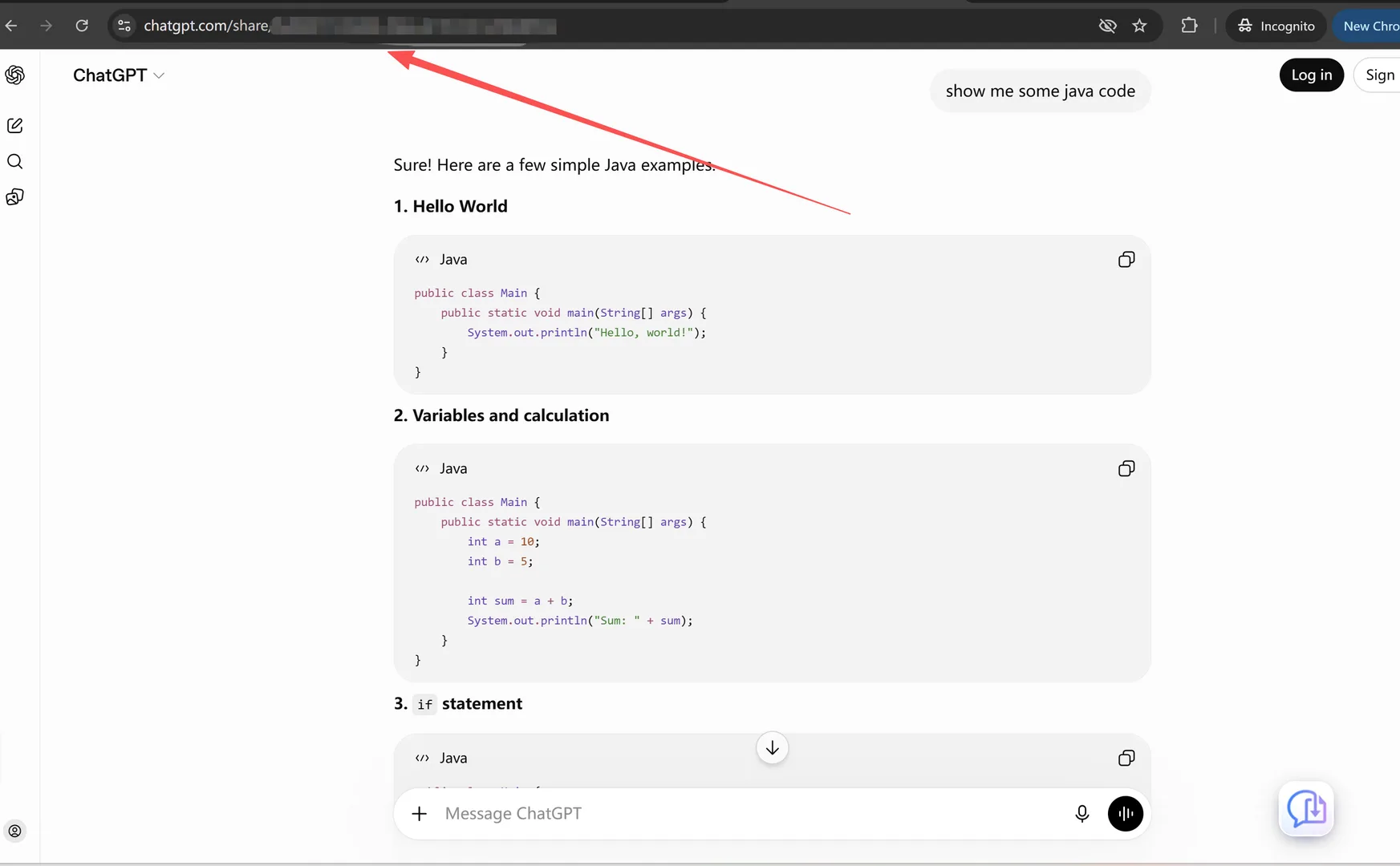
Step 2 — Open the share link
Copy the link and open it in your browser (a regular tab or an incognito window both work — no login needed). The page renders the full conversation, and the URL now carries the share ID that export tools can read.
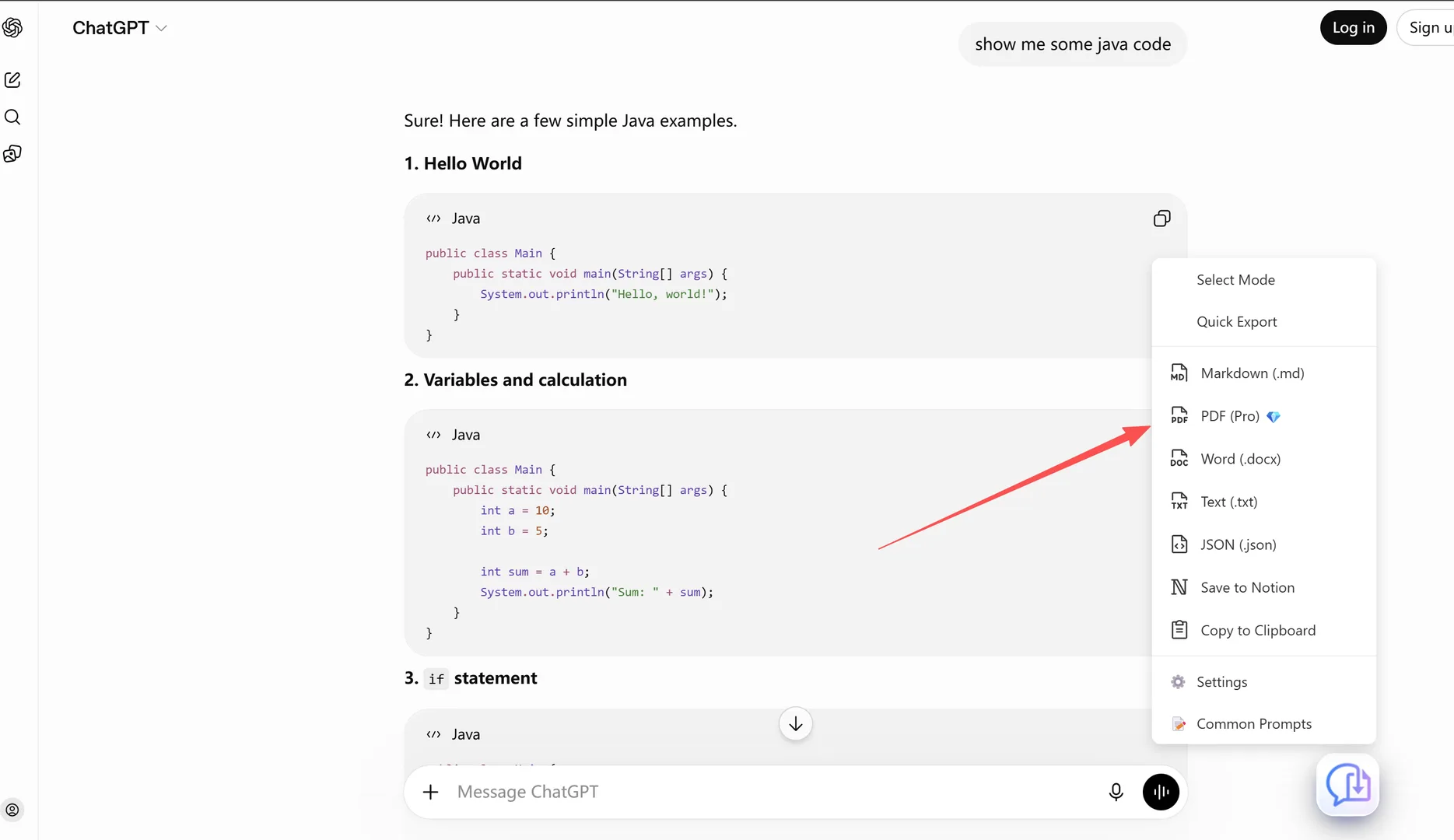
Step 3 — Export from the share page
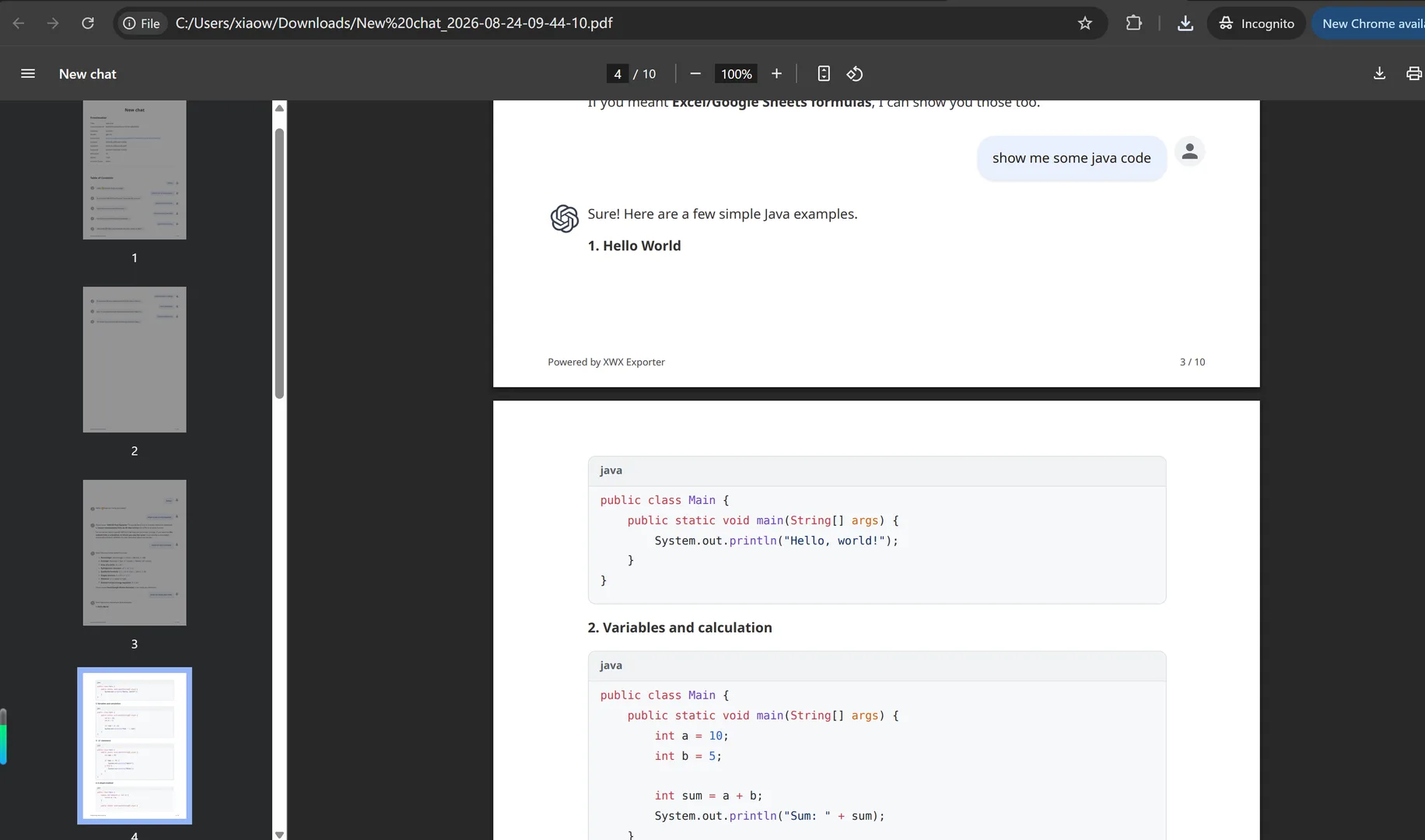
With the share page open, click the XWX floating button and pick your format — PDF, Markdown, Word, TXT, JSON, Notion, or clipboard. Because the URL now identifies a real backend snapshot, the export runs through the API path and includes every message, top to bottom.
Archiving a conversation someone shared with you
The same flow works in reverse — and it’s even simpler. If someone sent you a chatgpt.com/share/... link:
- Open the link in Chrome (no ChatGPT account required).
- Click the XWX floating button and choose PDF or Markdown.
- You now hold a permanent local copy — even if the author later deletes the share, and even if you never sign up for OpenAI.
This matters because shared links are fragile: the author can delete them from Settings → Data controls → Shared links at any time, and there’s no way to recover one afterwards. If a shared conversation contains something you’ll need next month — lecture notes, a debugging solution, a research summary — archive it while the link still resolves.
A note on Temporary Chats specifically
Temporary Chats deserve their own warning, because they’re the easiest way to lose real work. People start them for privacy — unbiased answers, sensitive topics — then produce genuinely valuable content in them, and assume it’s retrievable later. It isn’t: once the session closes, there is no history entry, no trash folder, and no support path to restore it.
If a temporary chat turns out to matter, save it before closing the tab, using the Share-then-export steps above. In ChatGPT this works even in Temporary mode — the Share button is right there at the top of the conversation, exactly where it is in a normal chat. On some other platforms the Share button isn’t available in every mode; there, your options are exporting immediately via the extension (fine for short chats) or copying the key answers before leaving. And going forward: if a topic might matter later, start it as a normal chat — privacy-focused users can always delete it from history afterwards, which achieves the same result as a temporary chat but keeps an exit ramp.
What the exported file contains (and how to clean up the share link)
Exporting from a share link produces the same high-fidelity output as any API-backed export:
- Syntax-highlighted code blocks
- Rendered LaTeX math
- Intact tables and lists
- Embedded images (subject to the image host being reachable)
- Thinking/reasoning blocks where the platform exposes them
- Metadata: model name, timestamp, message count, source URL
Two privacy notes worth knowing. First, sharing doesn’t modify your conversation — it just creates a snapshot and a link. Second, you control the link: share links created while logged out aren’t tied to an account to manage, but for logged-in users the link can be deleted anytime under Settings → Data controls → Shared links. Many people share → export → delete the link in under a minute, keeping the PDF and leaving no public trace.
Does this work beyond ChatGPT?
Yes — the same principle applies across AI platforms, because the root cause is the same: exports are complete when they read a backend conversation, and incomplete when they can only read the rendered page.
- Microsoft Copilot allows anonymous use too; its share links work the same way, and XWX falls back to page extraction only when Copilot’s auth tokens are unavailable.
- Gemini requires a Google account, but anonymous-session chats and homepage temp chats hit the same no-ID limitation — Gemini’s share link resolves it identically.
One caveat: ChatGPT’s Share button is reliably there (including in Temporary mode), but not every platform offers a Share feature in every state — availability varies by platform and account type. Where Share exists, use it; where it doesn’t, export directly from the open chat and keep conversations short enough that page-loaded content is the whole story.
XWX supports 13 platforms, and wherever a share link is available the rule holds: it converts “whatever is on screen right now” into “the complete stored conversation.”
Frequently Asked Questions
Can I save a ChatGPT conversation without an account?+
Yes. Install a Chrome export extension like XWX AI Chat Exporter, open the conversation, and export to PDF or Markdown. For anonymous or temporary chats, click Share first to generate a share link, then export from that link — the share link gives the tool access to the complete conversation without requiring any login.
How do I save a ChatGPT Temporary Chat before it disappears?+
Temporary Chats are never written to history and can’t be recovered after you close the session, so save it while it’s still open. Click Share to create a link, open the link, and export it as PDF or Markdown — in ChatGPT, Share works in Temporary mode just like in a normal chat. On platforms that don’t offer a Share button, export directly from the open chat (short chats export fully) or copy the key answers before leaving.
Why is my ChatGPT export missing older messages?+
Long conversations are virtualized — only messages near your scroll position exist on the page at any moment. Exports that read the rendered page (browser print, copy-paste, page scraping) can only capture loaded messages. Exports backed by ChatGPT’s conversation or share API return the complete thread. If your exporter shows an info dialog about page extraction, use the share-link method.
Can I download a ChatGPT conversation someone shared with me?+
Yes. Open the shared link in Chrome and export it with an extension like XWX — no OpenAI account needed. Do it promptly: the person who created the share can delete it at any time, and a deleted share link can’t be recovered.
Are anonymous ChatGPT conversations saved anywhere?+
They don’t belong to any account, never appear in a sidebar, and may be purged by OpenAI after roughly 30 days. Treat them as ephemeral: if the conversation matters, export it yourself before closing the tab.
Does clicking Share change my conversation or make it public?+
Sharing creates a server-side snapshot and a link; your original conversation is unchanged. Logged-in users can delete any share link under Settings → Data controls → Shared links. A common pattern is share → export → delete the link, keeping the file and removing the public copy.
Is the export free?+
Markdown, TXT, JSON, and clipboard exports are free with no limits. PDF and Word include a free daily quota. The extension itself requires no signup — install it and it works on the share page immediately.
Export Your AI Chats
Free Chrome extension. No account required. Works on 13 AI platforms.