How to Export Grok Chat Conversations (PDF, Word & Markdown)
Grok is the model people open when they want a second opinion fast — and then the conversation lives only inside the app. There is no "Download this conversation" button on grok.com, and the X integration buries past chats behind the side panel. The part people actually want to keep is the grey "think" reasoning chain, the code that compiles, the math that works. Screenshots capture it as an image you can’t search. Copy-paste drops the structure. This guide walks through every realistic way to get a Grok conversation out of the app, and which one keeps the formatting you’ll actually want to reuse.
Why Grok is worth exporting (and why there’s no button)
Grok runs on grok.com and inside X. Neither offers "save this conversation" as a first-class action, the way ChatGPT lets you export your whole account or Notion exports a page. That leaves your best Grok work — a debugging session with a working code snippet, a detailed comparison you want to send to a colleague, a long reasoning chain — stuck in one place.
Why that matters for Grok more than for other platforms: the "think" reasoning chain is the part people screenshot and share. Copy-paste drops it or flattens it, and it is exactly what makes a Grok answer worth keeping. If you export the wrong way, you lose the part that had value.
The 4 ways to export a Grok chat (honest comparison)
| Method | Setup | Output quality | Single-chat export | Best for |
|---|---|---|---|---|
| Copy-paste into a doc | None | Poor — math, code, and "think" lose structure | Yes | Quick snippets only |
| Browser Print (Ctrl+P) | None | Fair — on-screen messages only, virtualized lists cut off | Yes | Short text-only threads |
| Screenshots | None | Poor — unsearchable images, long threads clipped | Yes | One-off sharing |
| Dedicated Chrome extension | 1 click | Excellent — code highlighting, tables, the reasoning chain preserved | Yes | Anyone who exports regularly |
Most of this guide focuses on the extension route, because it is the only one that produces a document that still looks like the conversation.
Method 1: Copy-paste into a document editor
- Open the Grok conversation you want to save.
- Select the messages and copy them.
- Paste into Word, Google Docs, or Markdown.
- Tidy up the formatting manually.
This works for plain text. The moment you hit a code block, a table, or an equation, you are rebuilding the document by hand — and the reasoning chain usually arrives as a block of grey text with no visual separation.
Method 2: Browser Print (works, but fights you)
- Open the conversation.
- Press Ctrl+P (Windows) or Cmd+P (Mac).
- Choose Save as PDF.
- Under More settings, disable Headers and footers and enable Background graphics for dark mode.
The catch is the same one ChatGPT users hit: long answers render in a virtualized list, so printing captures only the messages currently on screen. A 30-message thread often produces a PDF with a handful of messages. Code blocks lose their background, and the "think" chain can appear as an unlabelled wall of text.
Method 3: Screenshots (the current workaround)
Screenshots feel like progress, but a Grok answer routinely runs longer than one screen. Scrolling screenshot tools stitch fragments together and mangle tables. The reasoning chain becomes a tall grey image you cannot search or reuse. If you only need to share one short answer quickly, a screenshot is fine. For anything you will want to search, cite, or edit later, it is the worst option.
Method 4: Export with a Chrome extension (recommended)
Step 1 — Install the extension. Search for XWX AI Chat Exporter in the Chrome Web Store and click Add to Chrome. No account, no signup, no configuration.

Step 2: Open the conversation you want to export
Step 2 — Open the conversation you want to export. Open the chat on grok.com or in the X side panel. The extension auto-detects Grok — a floating export button appears in the bottom-right corner.
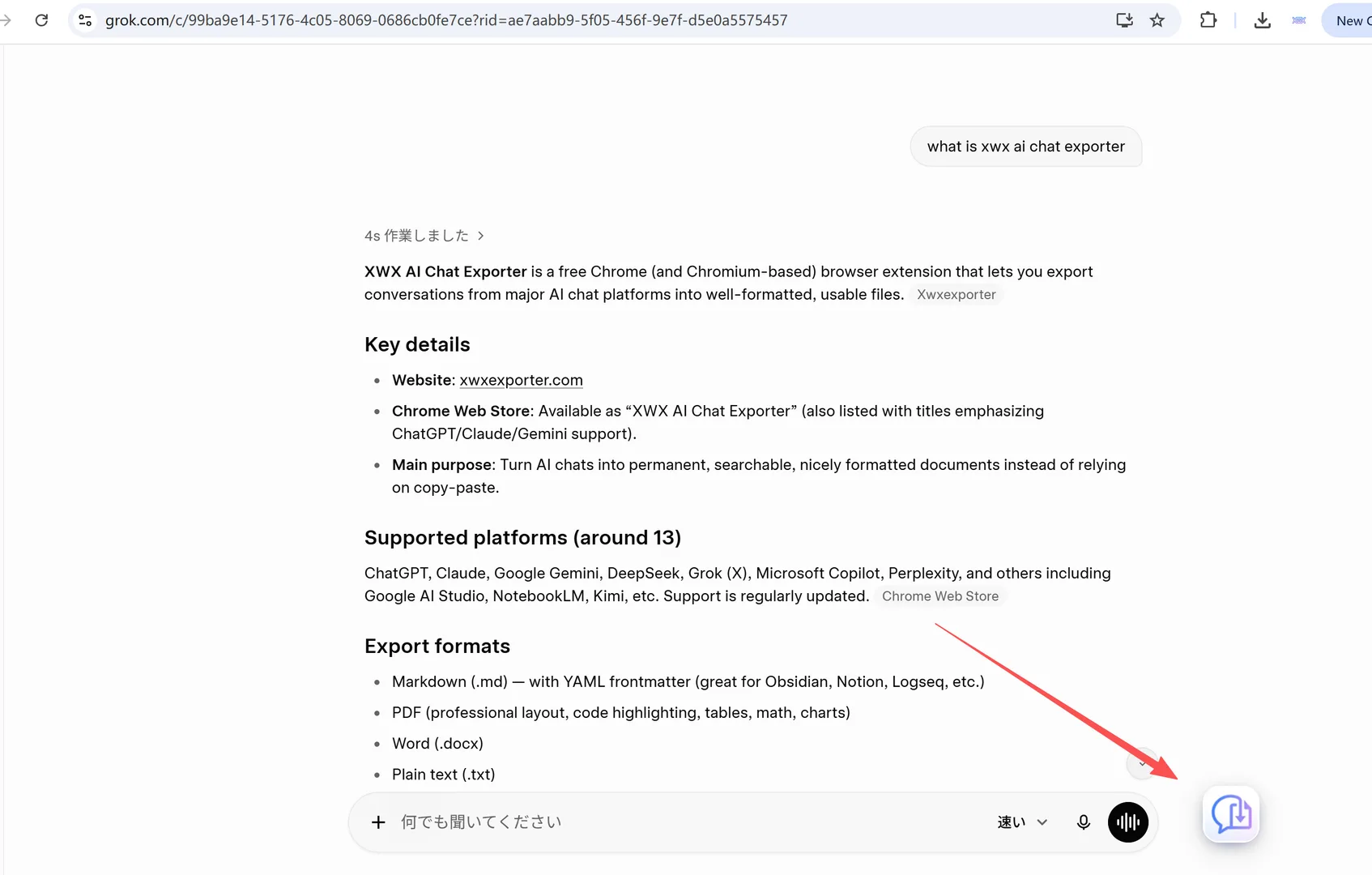
Step 3: Click Export and choose a format
Step 3 — Click the export button and choose a format. Pick PDF, Word (.docx), or Markdown (.md) from the menu. Each format keeps the conversation structure, code blocks, tables, and images.
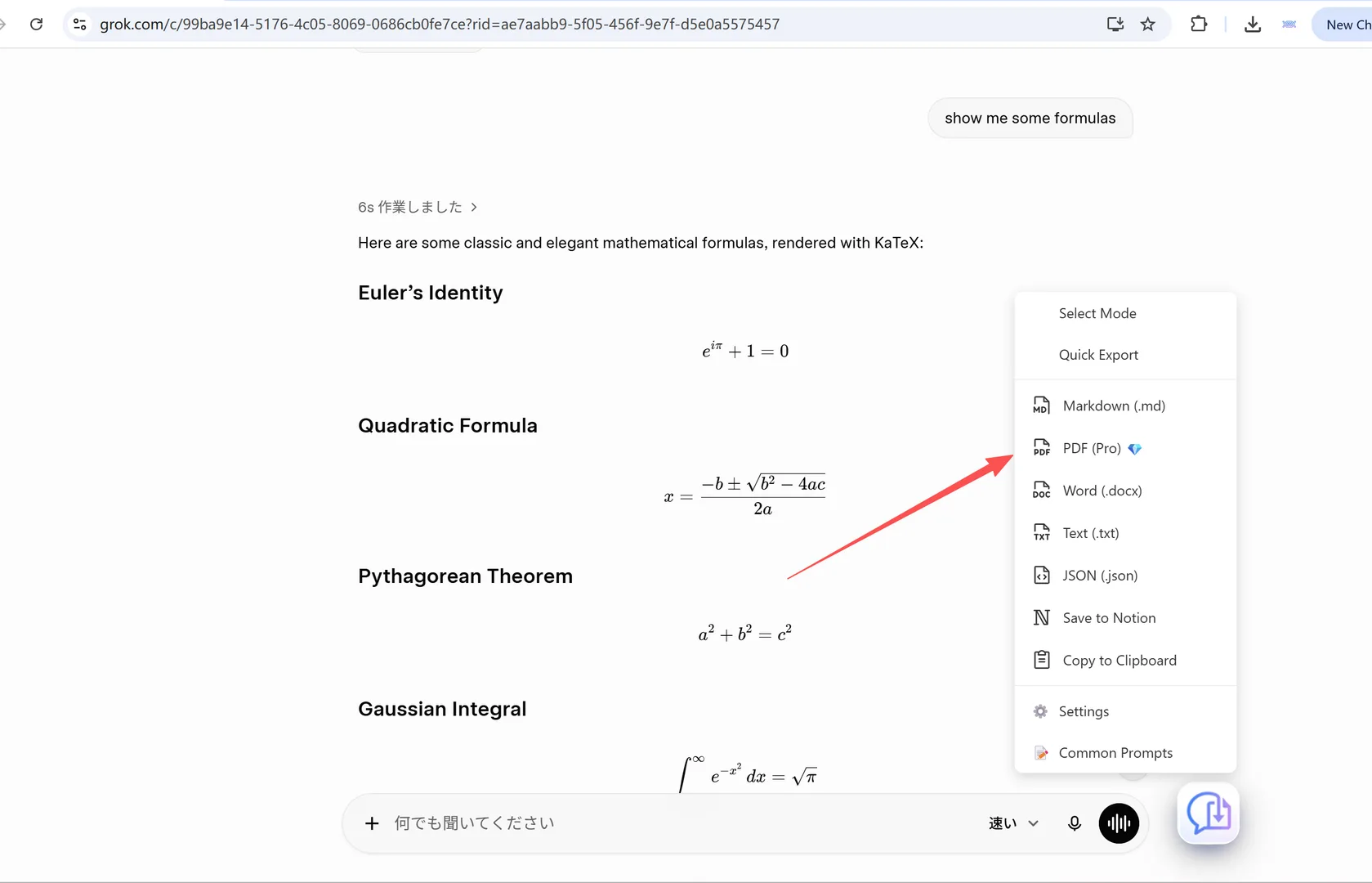
Step 4: Download and keep the reasoning chain
Step 4 — Download the file and check it. The document downloads immediately. If you want to keep the grey "think" reasoning chain in the export, leave the toggle on — it can also be collapsed if you only need the final answer.
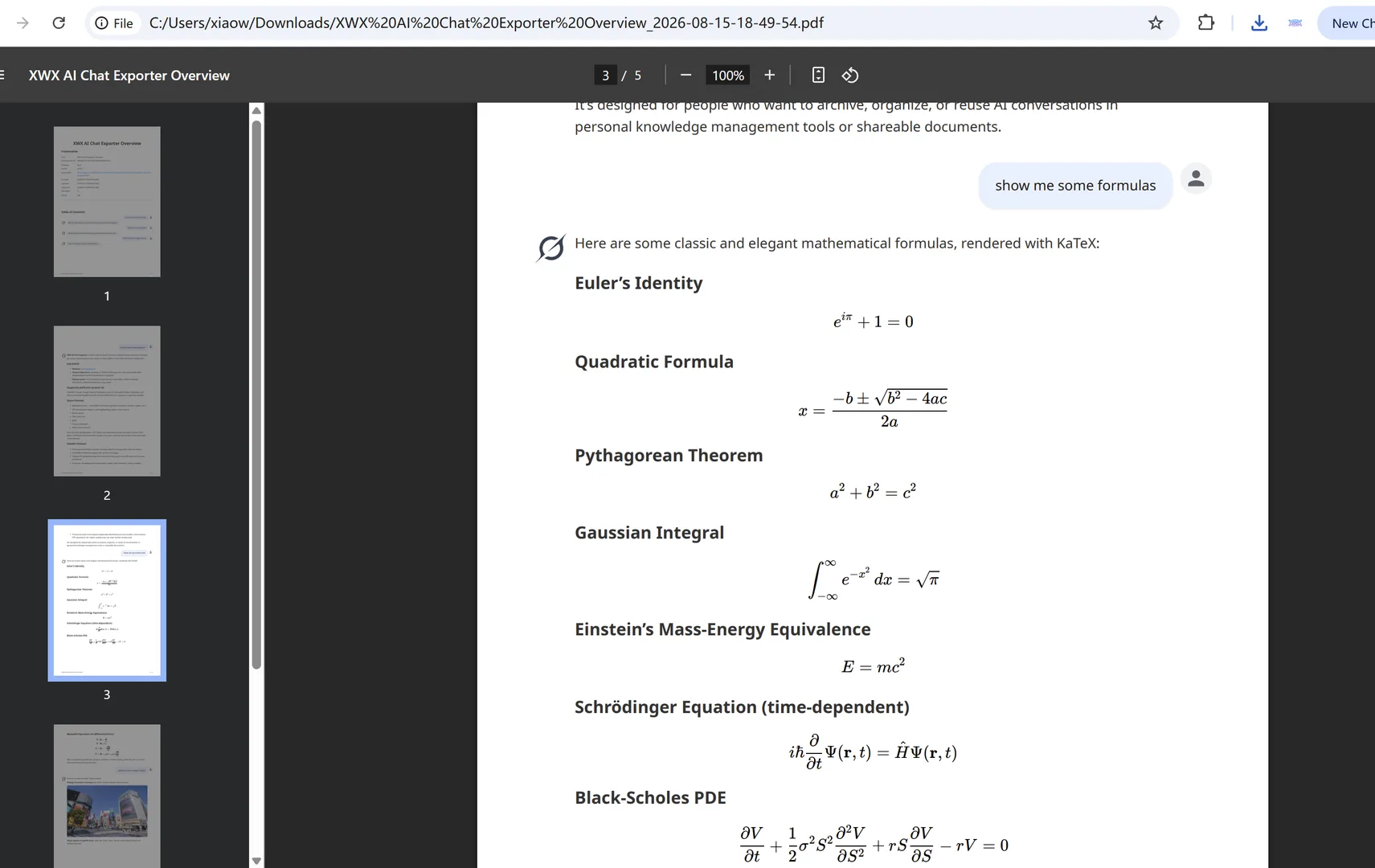
Choose PDF, Word, or Markdown
| Format | Best for | What it keeps |
|---|---|---|
| Sharing, printing, archiving | Layout, code highlighting, tables | |
| Word (.docx) | Editing, sending to others | Editable text, tables |
| Markdown (.md) | Obsidian, Notion, code repos, AI workflows | Clean structured text |
If you are not sure, start with PDF for a finished document and Markdown if you plan to move the chat into a notes app or another AI tool.
What survives a Grok export (and what doesn’t)
What is preserved with the extension route:
- Message order and structure
- Code blocks with syntax highlighting
- Tables and lists
- Images that were part of the conversation
- The reasoning chain (via the toggle)
What no tool can restore: a Grok answer that used live tools or widgets in ways that only render inside the app. If a message relied on a widget that is not part of the conversation, the export records the message text, not the widget itself.
The realistic limitations
Grok is a fast-moving product and its interface changes often. If the extension ever misses a new layout, the same export works from the conversation text that is on screen — and the extension is updated to match Grok’s current interface.
Exporting is also one-directional: it turns a conversation into a document. It does not sync back into Grok, and it does not archive your entire account in one click the way an account-level export would — if Grok ever ships one, that is the right tool for full-account backups.
Who actually exports Grok chats
Three groups keep hitting the same wall:
- Developers who debug with Grok and want the working code snippet in a clean document.
- Writers and researchers who compare Grok’s answers and need the reasoning chain preserved for their notes.
- Teams that share Grok output internally and want a PDF or Word file instead of a link that may expire.
If you recognise yourself in any of these, a dedicated export tool saves you the recurring 15-minute reformatting session.
Alternatives to PDF (and when to choose them)
- Markdown for Obsidian, Notion, or a GitHub repo — the most portable format.
- Word when the export is going to a colleague who will edit it.
- PDF when the document is final and you want it to look the same everywhere.
The format matters less than picking one and building the habit. A conversation exported today as Markdown is searchable, editable, and reusable; a conversation left in the app may be gone the next time Grok rolls out an update.
Frequently Asked Questions
Can I export Grok chats?+
Yes, but Grok has no built-in per-conversation export button. You can copy-paste, print to PDF, screenshot, or use a Chrome extension like XWX AI Chat Exporter, which preserves formatting, code, and the reasoning chain.
Does Grok have an export button?+
No. As of 2026, grok.com and the X integration do not offer a native "download this conversation" action. Account-level export options are limited, so most people use copy-paste, print, or an extension.
Can I export the Grok "think" reasoning chain?+
Yes, with the right tool. XWX AI Chat Exporter includes a toggle to keep the grey reasoning section in the export, so the thinking chain survives alongside the final answer.
Does a Grok export preserve math, code, and tables?+
Copy-paste and screenshots lose most of this structure. The extension route preserves code highlighting, tables, lists, and images, which is why it is recommended for anything you plan to reuse.
How do I export a Grok chat to Word or Markdown?+
Use an extension that supports those formats directly. XWX AI Chat Exporter exports to PDF, Word (.docx), and Markdown with one click.
Is it free to export Grok chats?+
Markdown, TXT, JSON, and clipboard exports are completely free with no limits. PDF and Word include a free daily quota; Pro removes the limits and adds AI-generated tags and summaries.
Export Your AI Chats
Free Chrome extension. No account required. Works on 13 AI platforms.