How to Export Gemini Chats to Obsidian
Obsidian users have a habit other AI users don’t: they expect their material to be plain Markdown on their own disk, forever. Gemini makes that habit hard — no per-chat export, and a Takeout archive that’s a flat log instead of notes. This guide closes the gap: how to get any Gemini conversation into your vault as a properly formed Markdown note, with YAML frontmatter that Dataview can query, in one click and for free.
What makes an AI chat a good Obsidian note
A pasted Gemini answer is text. A good vault note is structured text:
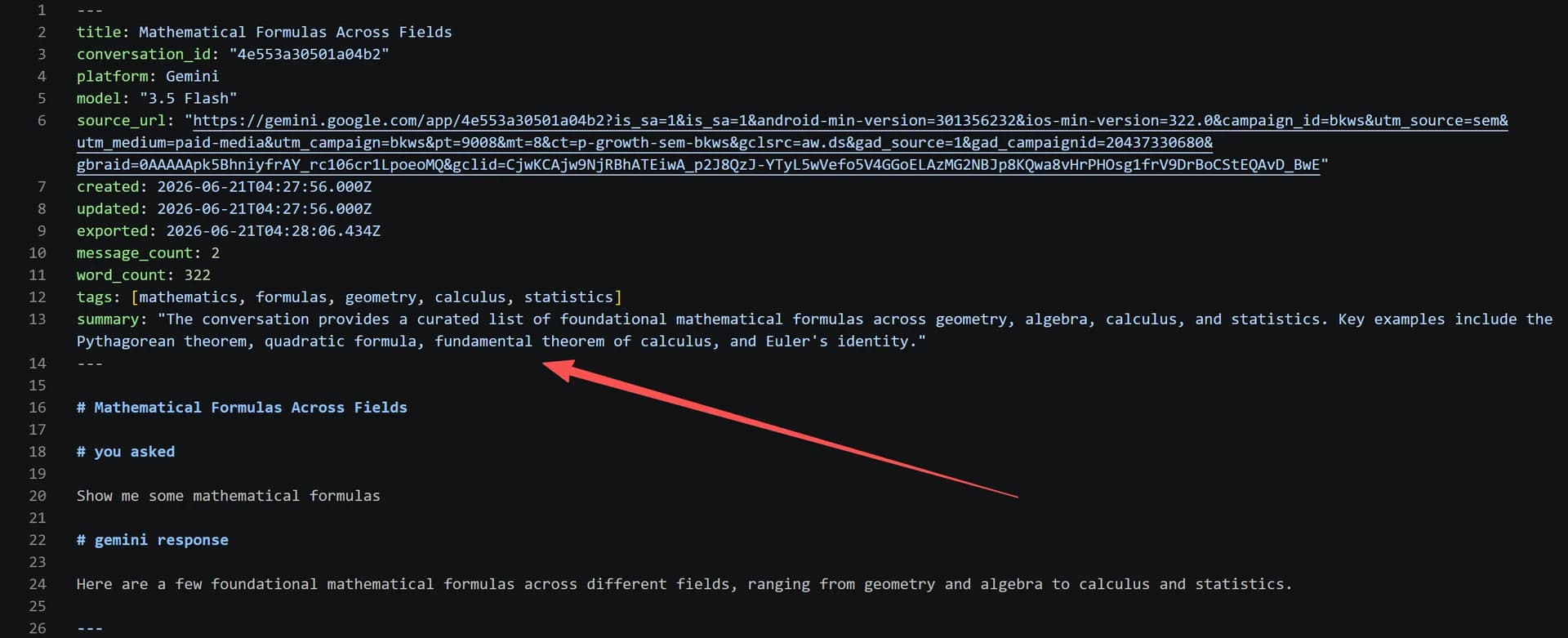
- YAML frontmatter at the top — platform, model, date, message count, source URL — turns the note into data. Dataview queries like "all Gemini notes from this month" or "chats where I used 2.5 Pro" just work.
- Preserved formatting — fenced code blocks, pipe tables, LaTeX — means the note is usable, not a flattened transcript.
- One file per conversation keeps links and graph view meaningful.
Gemini gives you none of this natively; the export below produces all of it.
Get a Gemini chat into your vault in three steps
Step 1 — Install the extension. Add the free XWX AI Chat Exporter from the Chrome Web Store.

Export the chat as Markdown
Step 2 — Open the conversation on gemini.google.com; the extension detects it automatically.
Step 3 — Click the floating button, choose Markdown and save the file into your vault folder. That’s the whole workflow — the note lands with frontmatter and formatting intact, free and unlimited.

Query your Gemini notes with Dataview
Once chats live in the vault with frontmatter, questions like these become one query instead of sidebar archaeology:
TABLE model, message_count, file.ctime
FROM "AI Chats/Gemini"
WHERE platform = "gemini"
SORT file.ctime DESC
The same frontmatter feeds Obsidian’s search, graph, and plugins — which is the entire argument for Markdown over screenshots or a Takeout log.
Skip the manual step (scheduled vault sync)
If Obsidian Sync or a Git repo backs up your vault, one more layer makes Gemini chats flow in on their own: the XWX Backup desktop app exports Gemini (and ten other platforms) on a schedule into a local folder you can point your vault at — one Markdown file per conversation, no duplicates on re-runs. Manual exports stay useful for one-off keepers; the schedule covers everything you forgot to save.
Frequently Asked Questions
Can Gemini export to Obsidian directly?+
There’s no native path — Gemini has no per-chat export, and Google Takeout returns a flat activity log rather than notes. The working route: the free XWX extension exports the open chat as Markdown with YAML frontmatter, and you save the file into your vault.
Does the note keep code blocks and tables?+
Yes — code blocks keep their fences and language tags, tables survive as pipe tables, LaTeX stays as LaTeX, and images from answers are embedded so the note is self-contained.
What frontmatter fields are included?+
Platform, model, timestamps, message count, word count, and the source URL of the conversation — the fields Dataview and Obsidian search rely on.
Can I bulk-export my Gemini history into Obsidian?+
Yes. The XWX Backup desktop app batch-exports Gemini as one Markdown file per conversation into a local folder — point your vault (or a synced subfolder) at it and optionally enable scheduled export for new chats.
Is it free?+
Markdown, TXT, JSON, and clipboard exports are free with no limits. PDF, Word, and Notion exports include a free daily quota; Pro removes the limits.