Export Claude Charts & Diagrams to PDF Without Losing Them
Claude does not just answer with text. Ask it to plan a workflow, compare options, or explain an architecture, and you get a real visual: a flowchart, a pie chart, a bar chart, or a diagram rendered right in the conversation. That visual is often the most valuable part of the answer — and it is exactly what most exporters destroy. This guide shows how to export Claude conversations to PDF with every chart and diagram preserved exactly as it appeared in the web app.
Why Claude charts break in most exporters
Claude is one of the few AI platforms where the visuals inside the answer are as important as the text. Ask Claude to design a workflow, and you get a flowchart. Ask for a comparison, and you get a pie chart or a bar chart. Ask for architecture, and you get a diagram. These visuals are rendered by Claude’s web app — and they are exactly what most exporters destroy.
Generic exporters and even several Claude-specific tools struggle here in predictable ways:
- Screenshots clip the chart to whatever fits on screen, so a flowchart splits across several images.
- Print-to-PDF renders charts at inconsistent sizes — sometimes blown up to fill a page, sometimes shrunk to unreadable thumbnails.
- Copy-paste loses the visual entirely, leaving only alt text or nothing.
- DOM-scraping exporters read the rendered page, which often differs from what you saw — a chart that animates on hover exports as a blank box or a distorted image.
The chart you see in Claude is not a static picture in the page source. It is a structured widget that the web app renders. Exporting it correctly means reading the conversation’s structured data — not scraping pixels — and re-rendering each chart faithfully.
The charts people export from Claude
| Claude visual | What it is | Typical failure in other exporters |
|---|---|---|
| Flowchart / diagram | Boxes and arrows showing a process | Clips across pages, or scales badly |
| Pie chart | Proportions of a whole | Becomes a flat image or alt text |
| Bar / column chart | Comparisons between values | Exports too large or too small |
| Line chart | Trends over time | Distorted, or missing entirely |
| Table + chart combo | Data table with visualization | Table keeps, chart lost |
XWX handles all of these by rendering the widget itself during export, so the result matches what you saw in Claude.
How to export Claude charts to PDF
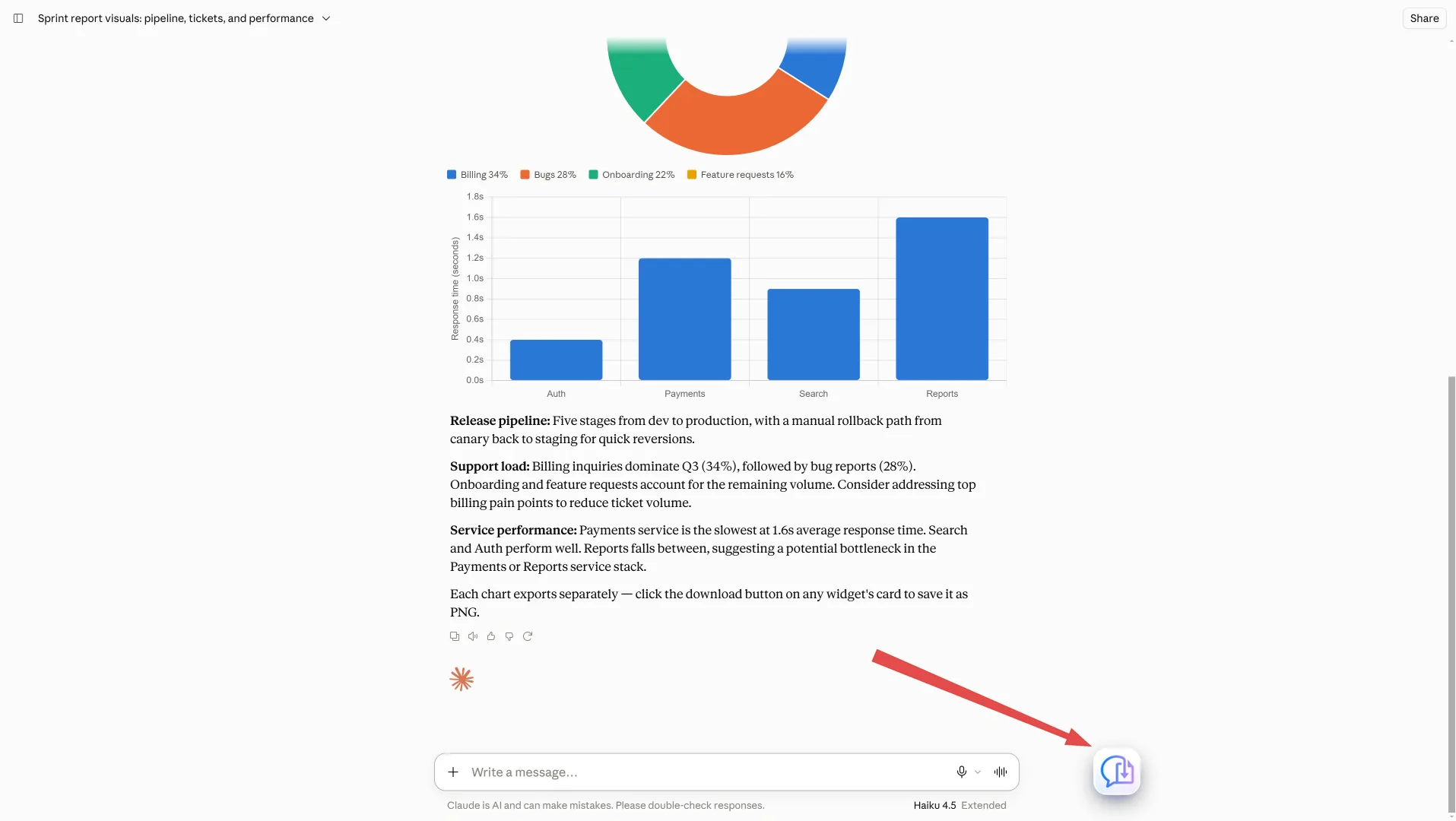
Step 1 — Install XWX AI Chat Exporter. Search for it in the Chrome Web Store and click Add to Chrome. No account, no signup.

Open the conversation with the charts
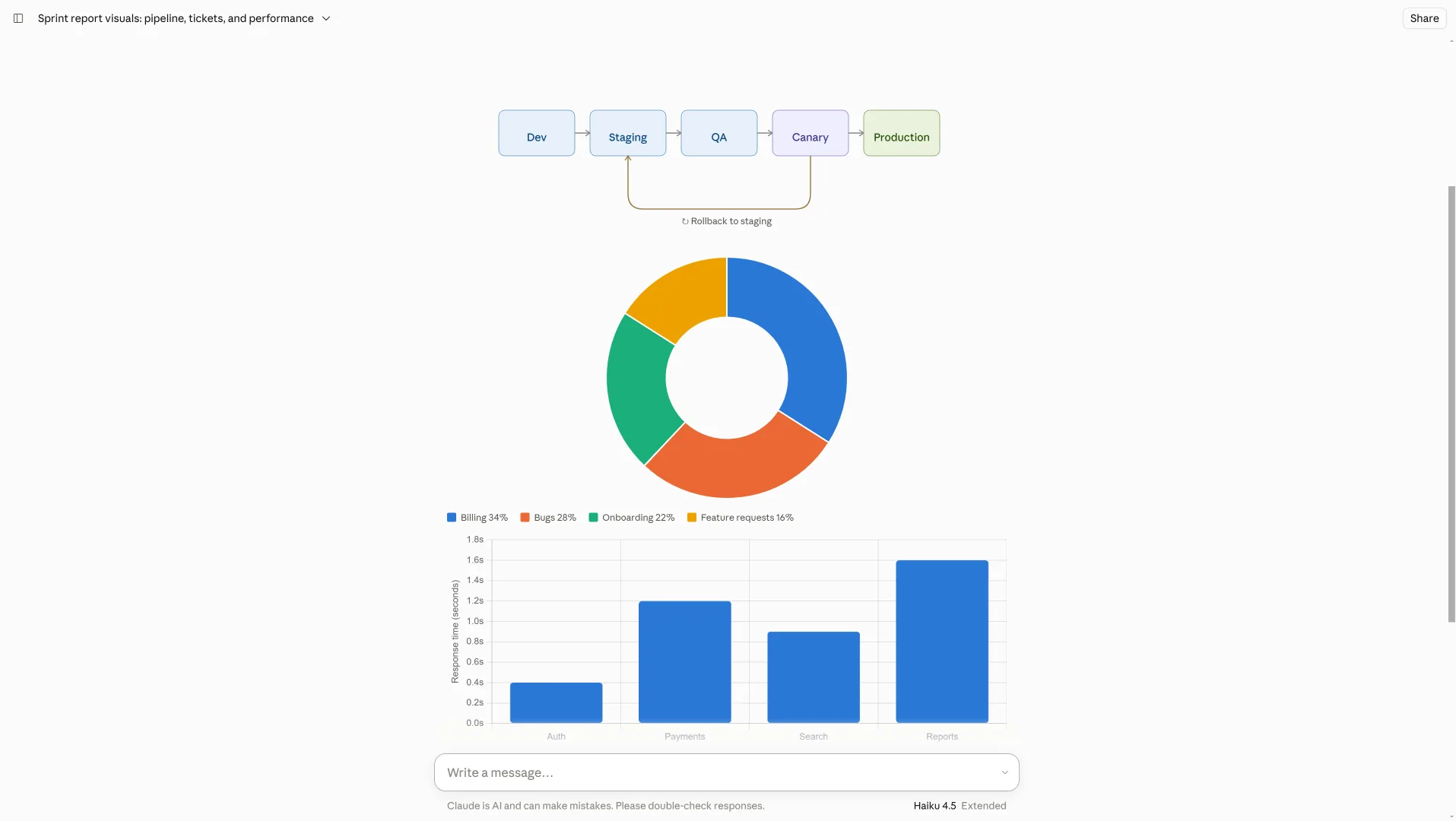
Step 2 — Open the Claude conversation with the charts. Navigate to claude.ai and open the chat. The extension detects Claude automatically, and the floating button appears in the bottom-right corner.
Export and verify the charts
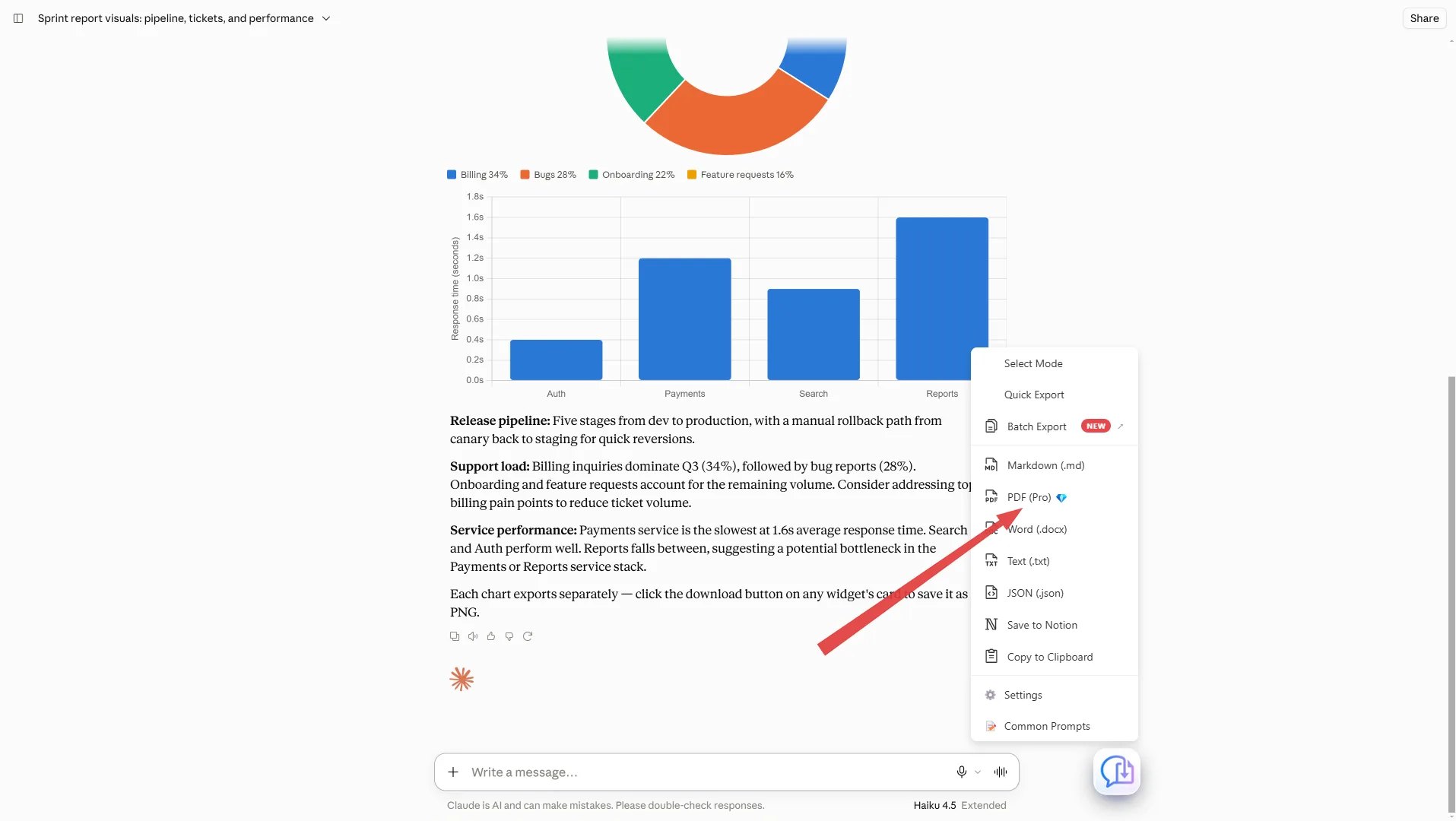
Step 3 — Click Export and choose PDF. The exporter reads the conversation’s structured data and re-renders every chart at its correct size — flowcharts, pie charts, bar charts, and diagrams included.
What the exported PDF contains
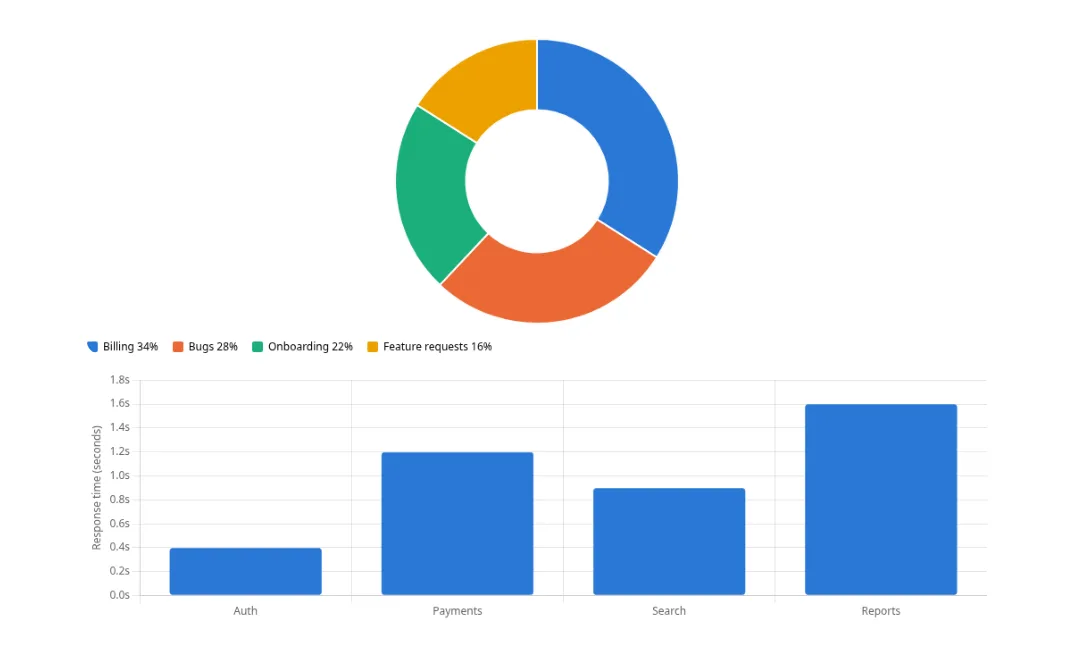
The exported PDF preserves the visuals the way Claude showed them:
- Flowcharts stay readable — boxes, arrows, and labels intact, sized to fit the page.
- Pie and bar charts render as clean vector-style visuals, not pixelated screenshots.
- Diagrams keep their structure and spacing.
- Code and tables in the same conversation export perfectly too.
- The model name and timestamp are recorded in the document metadata.
How XWX differs from other exporters
The difference is visible immediately. Other exporters either scale the chart to fill a whole page (too big), shrink it until the labels are unreadable (too small), or produce a result that looks nothing like the web app. XWX re-renders each chart from the conversation’s structured data, so the exported chart matches what you saw on screen — same layout, same proportions, same readability.
Honest limitations
- PDF exports go through a render server for consistent professional layout; content is deleted immediately after generation and never stored. Markdown, Word, TXT, and JSON exports run locally.
- Highly animated widgets may export as a static frame — the content is preserved, but interactive animation is not.
- If a widget type is new or changed by Anthropic, an export may briefly need an extension update.
Try it: prompts that generate great charts in Claude
Want to see this export shine? Ask Claude for visuals directly:
- “Create a flowchart showing the user onboarding flow for a SaaS product.”
- “Compare these three pricing plans with a bar chart and explain your reasoning.”
- “Break down our Q3 spending into a pie chart with categories.”
- “Draw a diagram of a microservices architecture with labels.”
Then export the conversation to PDF and see the charts preserved as Claude rendered them.
Frequently Asked Questions
Can you export Claude charts and diagrams to PDF?+
Yes. XWX AI Chat Exporter re-renders Claude’s flowcharts, pie charts, bar charts, and diagrams from the conversation’s structured data, so they appear in the PDF exactly as shown in the web app.
Why do charts break in other exporters?+
Most exporters either scrape the rendered page (catching the chart at the wrong size or before it finishes drawing) or ignore visual content entirely. XWX reads the structured conversation data and renders each chart itself.
Will the chart be too big or too small in the PDF?+
No. XWX sizes each chart to fit the page while keeping the proportions and label readability of the web version.
Is it free to export Claude chats?+
Markdown, TXT, JSON, and clipboard exports are free with no limits. PDF exports include a free daily quota; Pro removes the limit.