Export Gemini Slides to PDF (Beautifully, Not as Code)
Ask Gemini to build a presentation and it does — a full slide deck with titles, bullet points, images, and clean layouts, rendered right inside the conversation. Getting that deck out as a usable file is another story. Many exporters treat the slides as raw HTML and dump the markup into your document. You end up with a wall of tags instead of a presentation. This guide shows how to export a Gemini slide deck to PDF with every slide rendered beautifully — the way you saw it in Gemini, not as code.
Why Gemini slides export as HTML code in other tools
Gemini can build a full presentation for you inside the conversation: structured slides with titles, bullet points, images, and clean layouts — a complete deck, ready to present. The problem is getting that deck out of the conversation in a usable form.
Most exporters fail with Gemini slides in a very specific way: they see the slide content as raw HTML code and dump the markup into the document. Your beautiful presentation becomes a wall of <div>, <section>, and style rules — technically present, completely unusable.
Other approaches fail differently:
- Screenshots capture one slide at a time and split the deck across images.
- Print-to-PDF breaks the slide layout and pagination.
- Text-only exporters strip everything except the words on the slides.
The deck is a structured slide widget, not plain text and not plain HTML. Exporting it correctly means re-rendering each slide as a designed visual — not printing the underlying code.
How to export Gemini slides to PDF
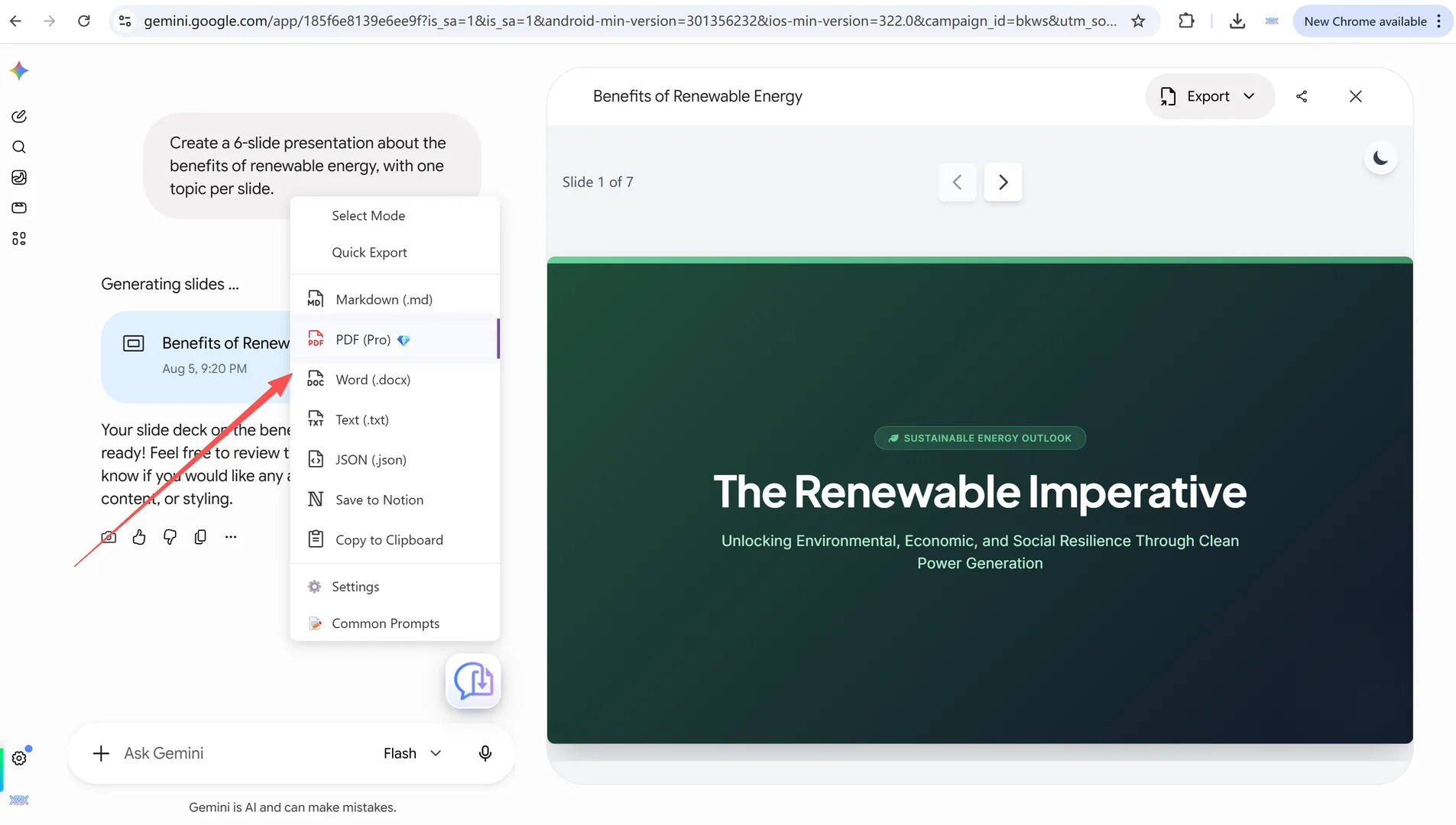
Step 1 — Install XWX AI Chat Exporter. Search for it in the Chrome Web Store and click Add to Chrome. No account, no signup.

Open the Gemini conversation with the deck
Step 2 — Open the Gemini conversation with the slides. Navigate to gemini.google.com and open the chat that contains the presentation. The extension detects Gemini automatically.
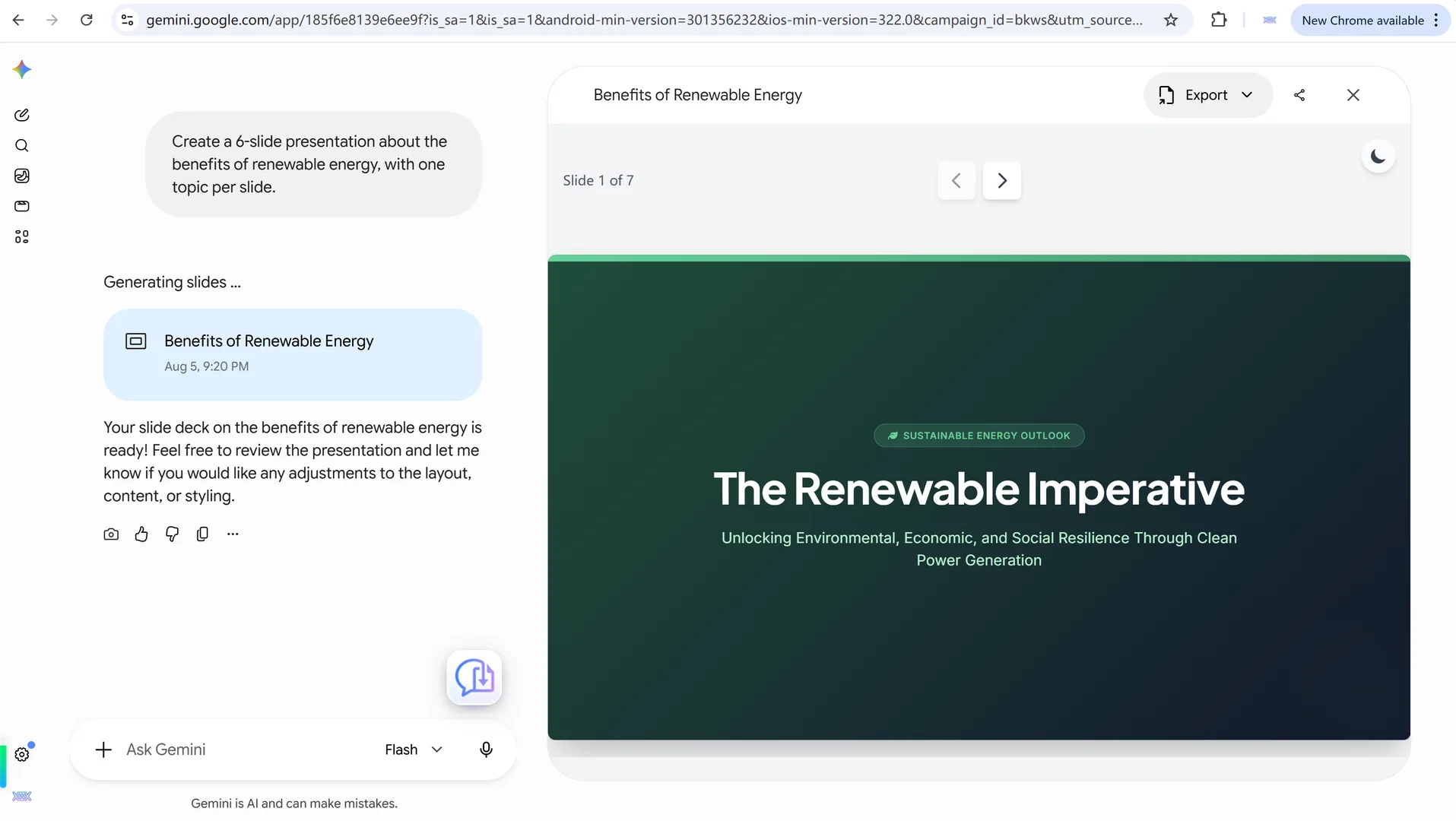
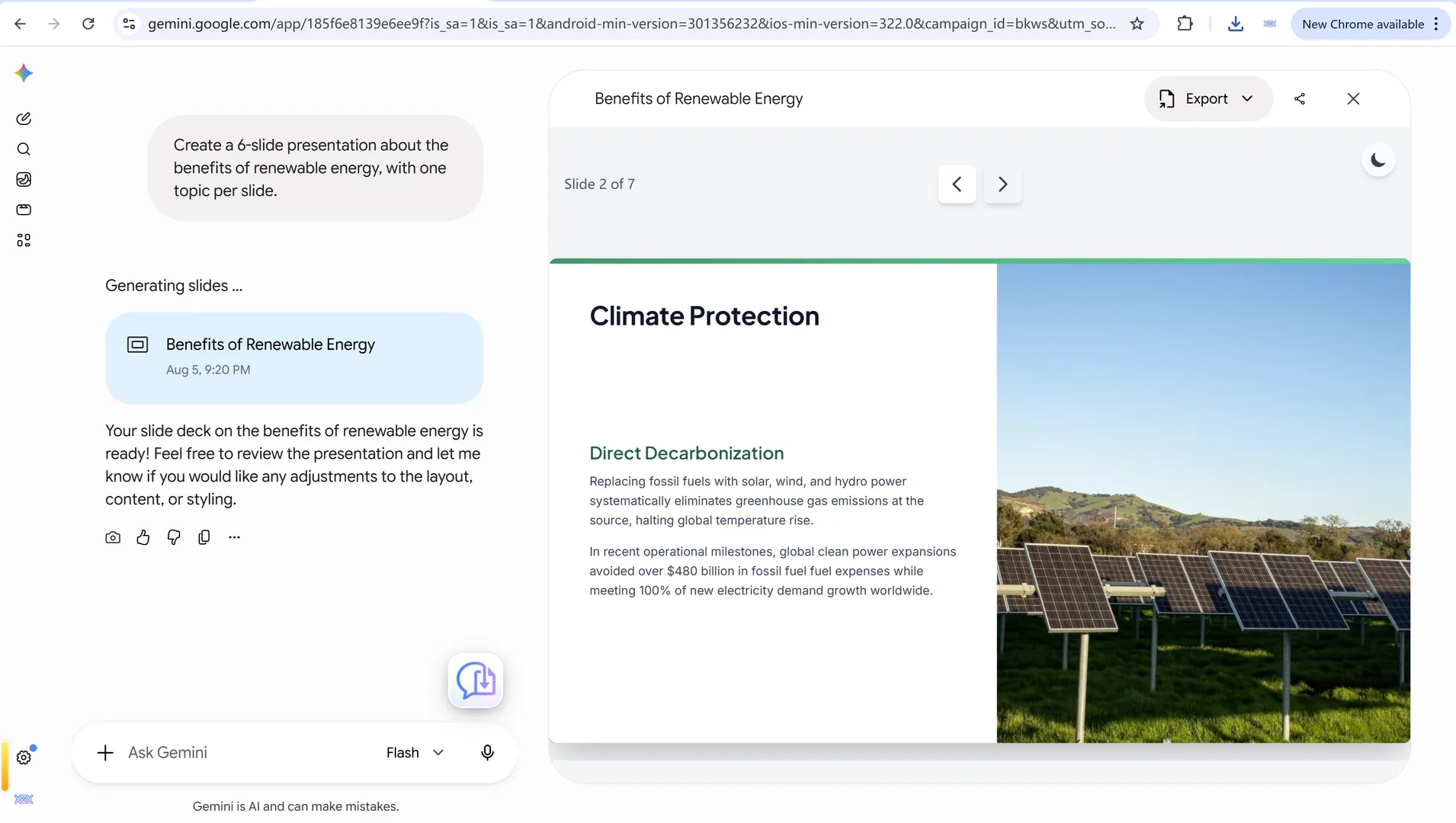
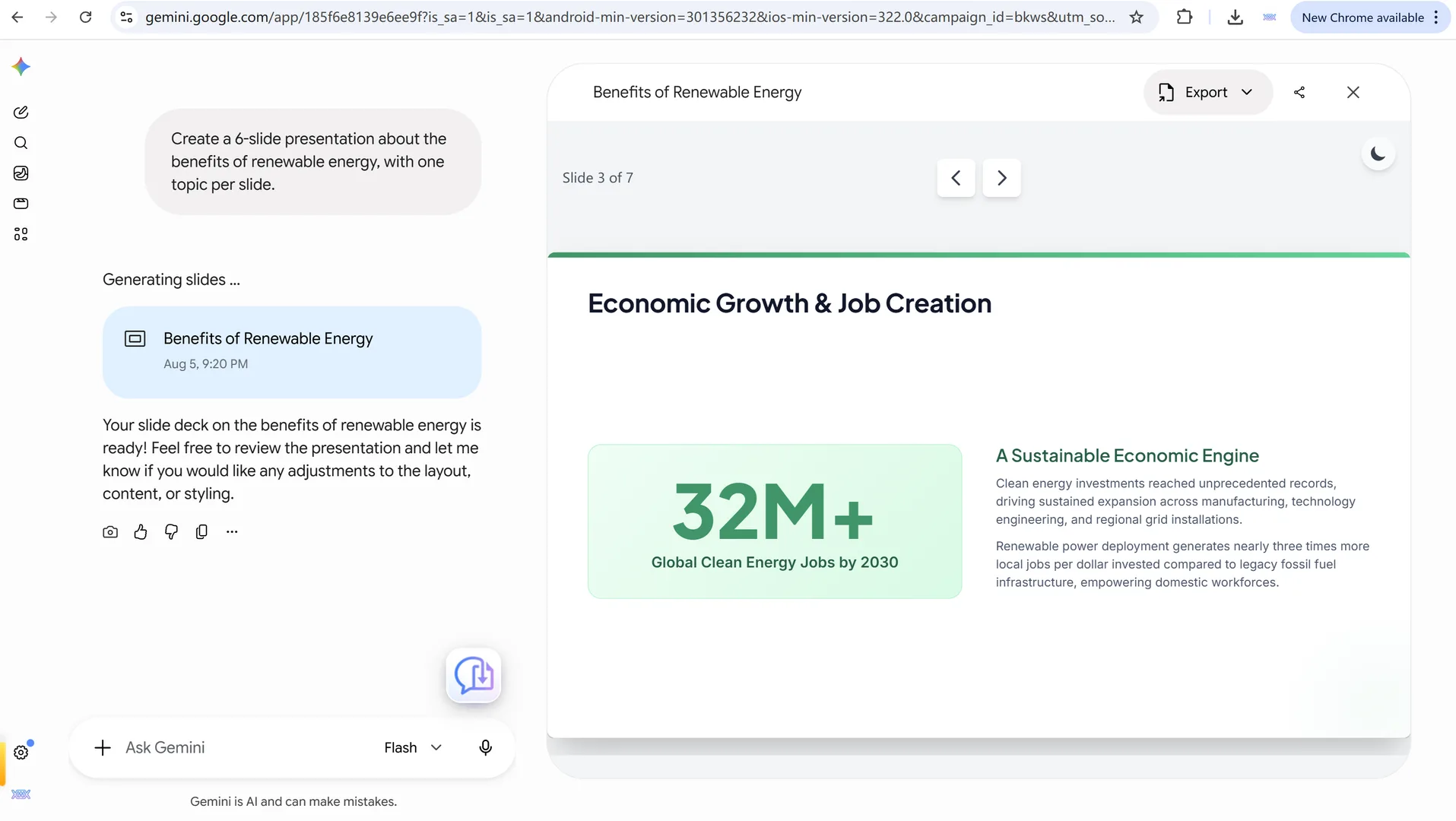
Export and see the deck in PDF
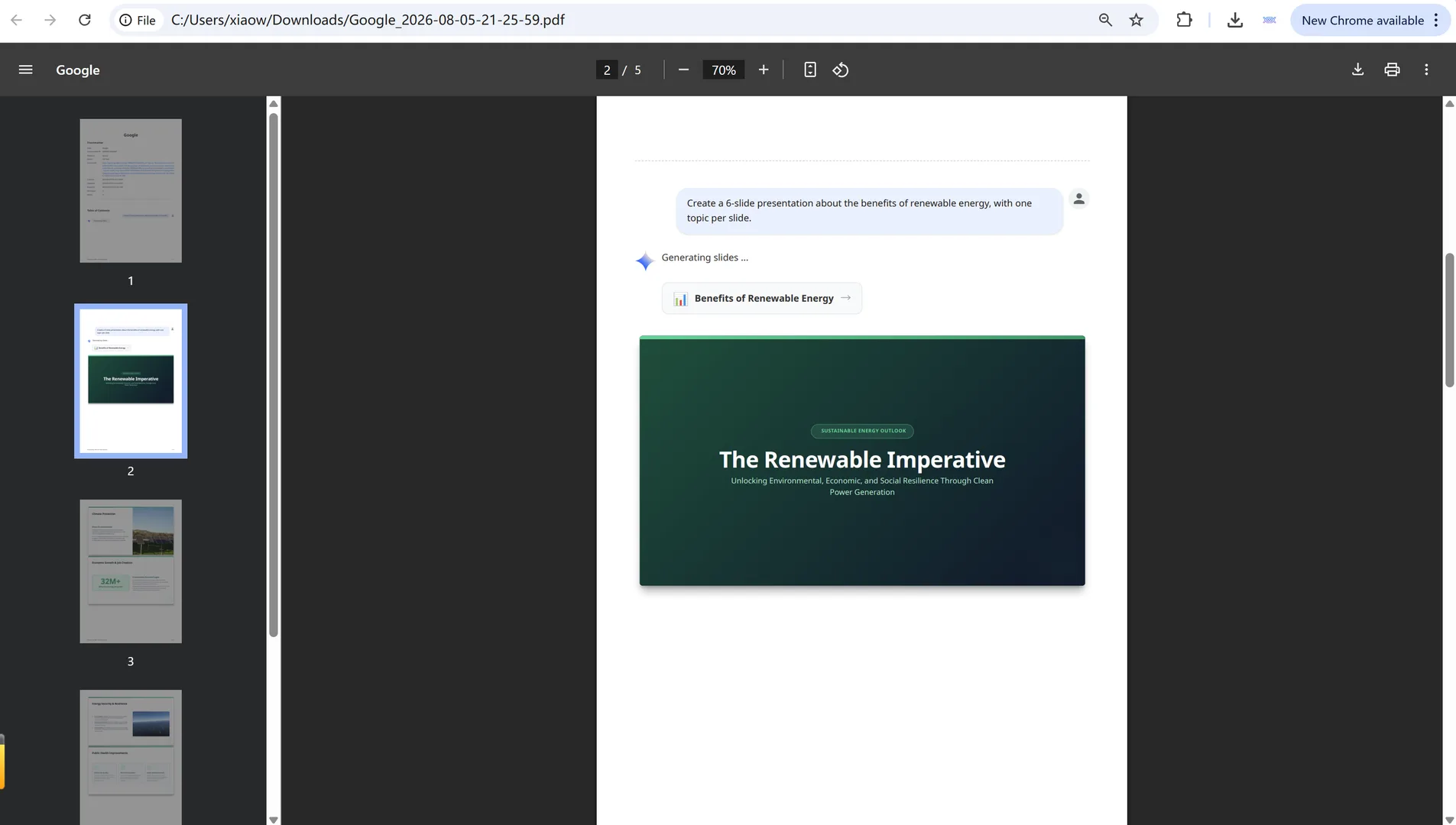
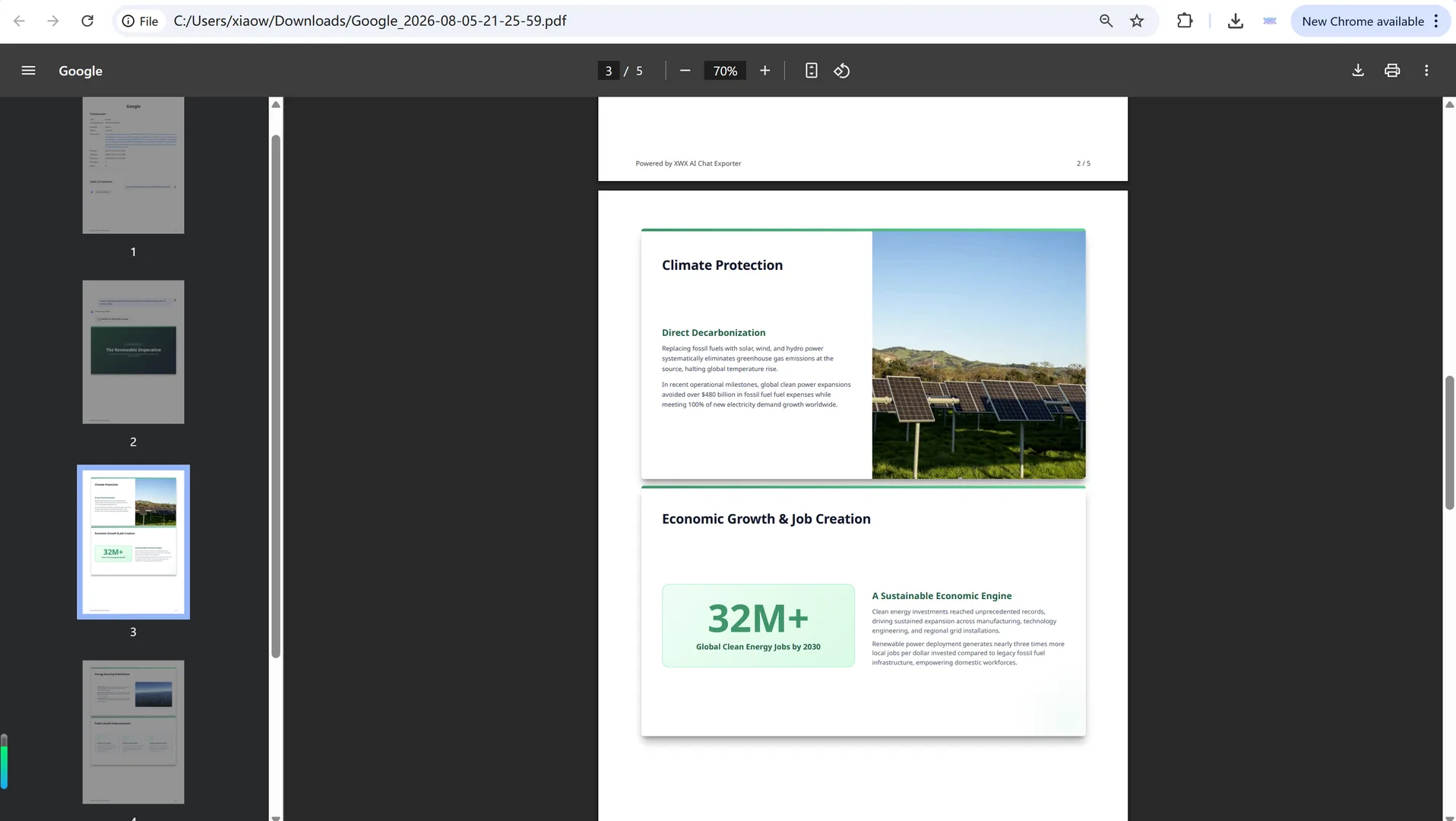
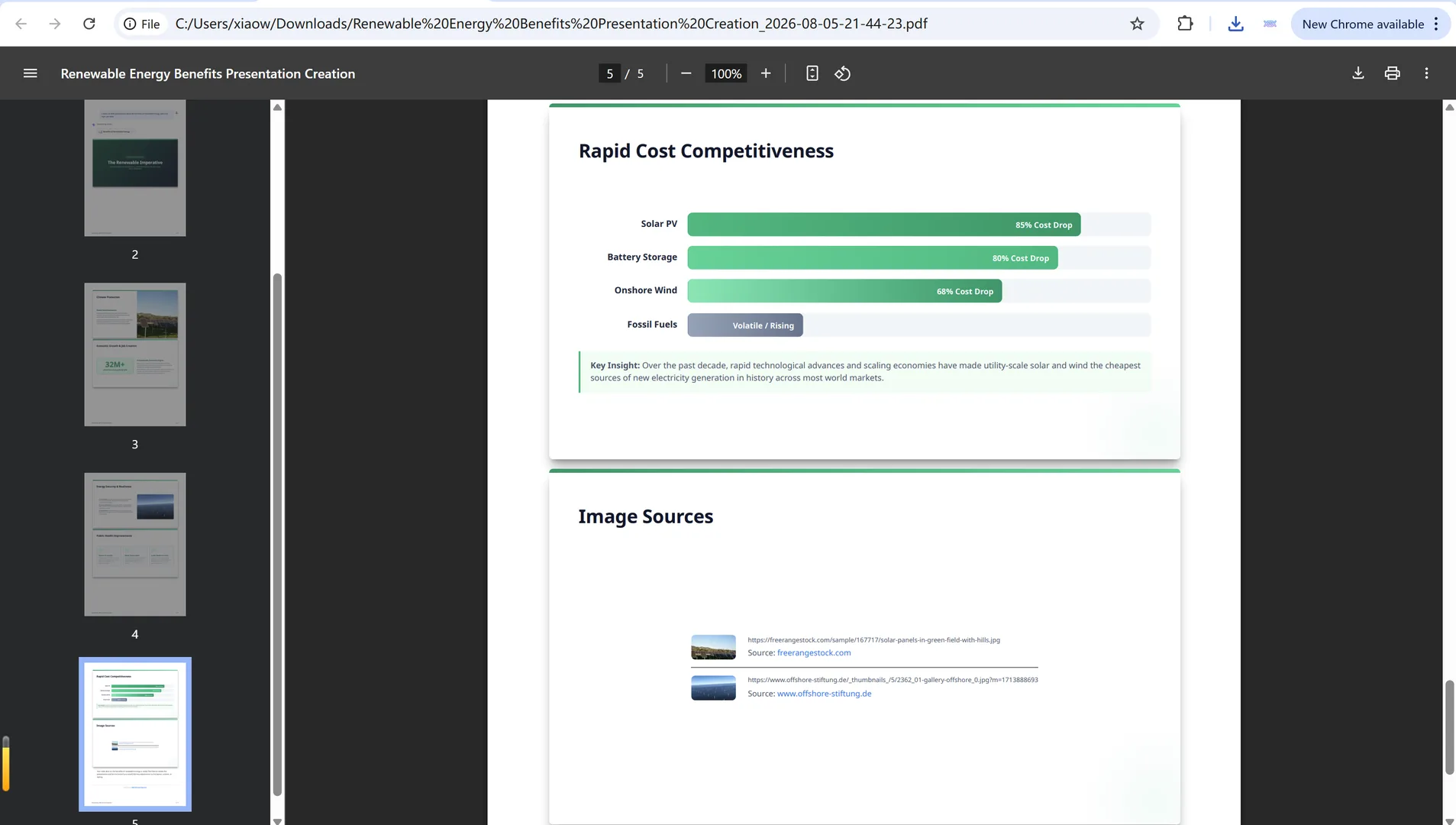
Step 3 — Click Export and choose PDF. Each slide is rendered as a designed page in the PDF — titles, bullets, images, and layout intact. Not HTML code. Not a screenshot. The actual presentation.
What the exported PDF contains
The exported PDF turns the Gemini presentation into a clean deck:
- Each slide becomes a page, preserving the visual design.
- Titles, bullet points, and images stay in their positions.
- Text remains selectable and searchable (it is real text, not an image).
- Layouts and spacing match the web app.
- The deck is print-ready and shareable as a normal PDF file.
Rendered slides vs raw HTML
This is where XWX differs from most exporters. A generic tool sees the slide part as HTML content and writes the tags into your file. XWX recognizes the slide widget, extracts each slide’s content and layout, and renders it as a designed page in the PDF. The result looks like the deck Gemini showed you — not like a developer’s debugging dump.
Honest limitations
- PDF exports go through a render server for consistent professional layout; content is deleted immediately after generation and never stored. Markdown, Word, TXT, and JSON exports run locally.
- Animated or interactive slides export as static pages — the content is complete, but motion is not preserved.
- If Gemini changes the slide widget structure, an export may briefly need an extension update.
Try it: prompts that generate great slides in Gemini
Get a deck worth exporting with prompts like:
- “Create a 6-slide presentation about the benefits of renewable energy, with one topic per slide.”
- “Build a slide deck comparing three cloud providers for a startup.”
- “Make a presentation explaining how a neural network works, with a diagram on one slide.”
- “Design slides for a product launch, including an agenda and a roadmap slide.”
Then export the conversation to PDF and watch each slide come out as a designed page.
Frequently Asked Questions
Can you export Gemini slides to PDF?+
Yes. XWX AI Chat Exporter renders each slide of a Gemini presentation as a designed page in the PDF — titles, bullets, images, and layout preserved, not as raw HTML.
Why do other exporters show HTML code for Gemini slides?+
Gemini represents slides as structured HTML widgets. Generic exporters write that HTML directly into the document instead of rendering it visually. XWX recognizes the slide widget and renders it as a designed page.
Will the slides look like the web app?+
Yes. Each slide is re-rendered with its design intact, so the PDF matches what you saw in Gemini — text stays selectable and searchable.
Is exporting Gemini chats free?+
Markdown, TXT, JSON, and clipboard exports are free with no limits. PDF exports include a free daily quota; Pro removes the limit.