How to Export AI Chats for Research (Keep Sources, Citations & References)
A research conversation is not the text — it is the evidence trail. The source that backed the claim, the chart that showed the number, the link you need to cite. Most export attempts destroy exactly that. Screenshots turn citations into flat images. Copy-paste drops the source links entirely. And a "clean" export that keeps only the answer leaves you with a claim you can no longer verify. This guide shows how to export AI chats the way researchers actually need them: with sources, citations, and references preserved, in a format you can file, search, and cite later.
Why exporting AI chats with sources intact matters for research
ChatGPT, Perplexity, Gemini, and Google AI Mode increasingly answer with citations: a list of source links behind every claim. For a researcher, that citation list is the part with standalone value. It is what lets you verify the claim, cite the primary source, and audit the answer later.
A chat exported as plain text is a set of claims without evidence. A chat exported with its source links is a working reference list. The difference is the difference between a note and a source.
What actually gets lost (and why it breaks citations)
Each common export method damages a different part of the evidence trail:
- Screenshots freeze the citation as an image — you cannot click it, search it, or copy the URL.
- Copy-paste keeps the visible text but silently drops the hyperlinks; the answer survives, the sources do not.
- Built-in share links depend on the platform still hosting the conversation — and on the platform not changing its sharing rules.
None of these gives you a reusable record of which source supported which claim, which is the minimum a research workflow needs.
The 4 ways to export an AI chat with sources (honest comparison)
| Method | Keeps source links | Keeps layout | Reusable later | Best for |
|---|---|---|---|---|
| Screenshots | No (flat image) | Partially | No | Quick sharing |
| Copy-paste into a doc | No (links dropped) | No | Hard | Drafting text |
| Platform share/export | Depends on platform | Depends | Depends | Same-platform notes |
| Chrome extension export | Yes | Yes | Yes | Research libraries |
For a citation you will actually use, the source URL has to survive as a real link — which is exactly what an extension export preserves.
Method 1: Screenshots (fast, but unverifiable)
Screenshots are the fastest way to capture an answer, and the worst way to capture a citation. The source links become pixels. If you later need the URL — to verify, cite, or share — you are retyping from an image or re-running the query. Use screenshots for quick notes, not for anything you expect to cite.
Method 2: Copy-paste into a document (sources become plain text)
Copying an answer into Word or Google Docs keeps the text but usually strips the hyperlinks. The citation numbers survive, the URLs do not. You end up with "according to [1]" and no list of what [1] was. Some platforms do copy the links if you use the in-app copy action rather than the browser one — worth testing, but inconsistent.
Method 3: Platform share links and built-in exports
ChatGPT, Perplexity, and Gemini all offer share links or account-level exports. A share link is fine while the platform keeps hosting it, but it is not a document — it renders inside the platform, and citations there are clickable only inside that interface. Account-level exports (like ChatGPT’s JSON dump) are complete but structured for machines, not for reading or citing directly.
Method 4: Export with a dedicated Chrome extension (recommended)
Step 1 — Install the extension. Search for XWX AI Chat Exporter in the Chrome Web Store and click Add to Chrome. No account, no signup, no configuration.

Step 2: Open the research conversation
Step 2 — Open the research conversation you want to save. Open the chat on ChatGPT, Perplexity, Gemini, Claude, or Google AI Mode. The extension auto-detects the platform — no need to switch modes. A floating export button appears in the bottom-right corner.
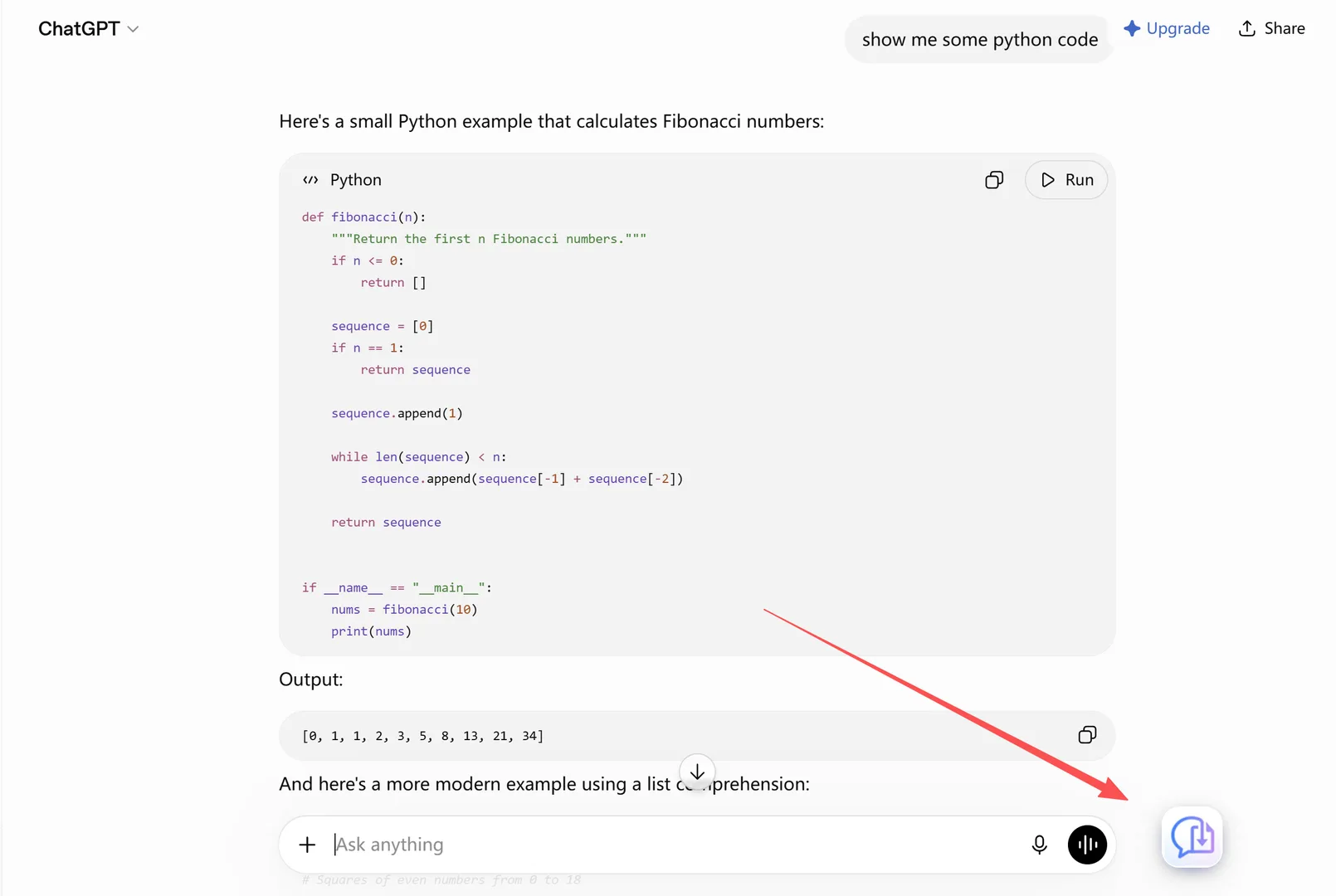
Step 3–4: Click Export and choose a format
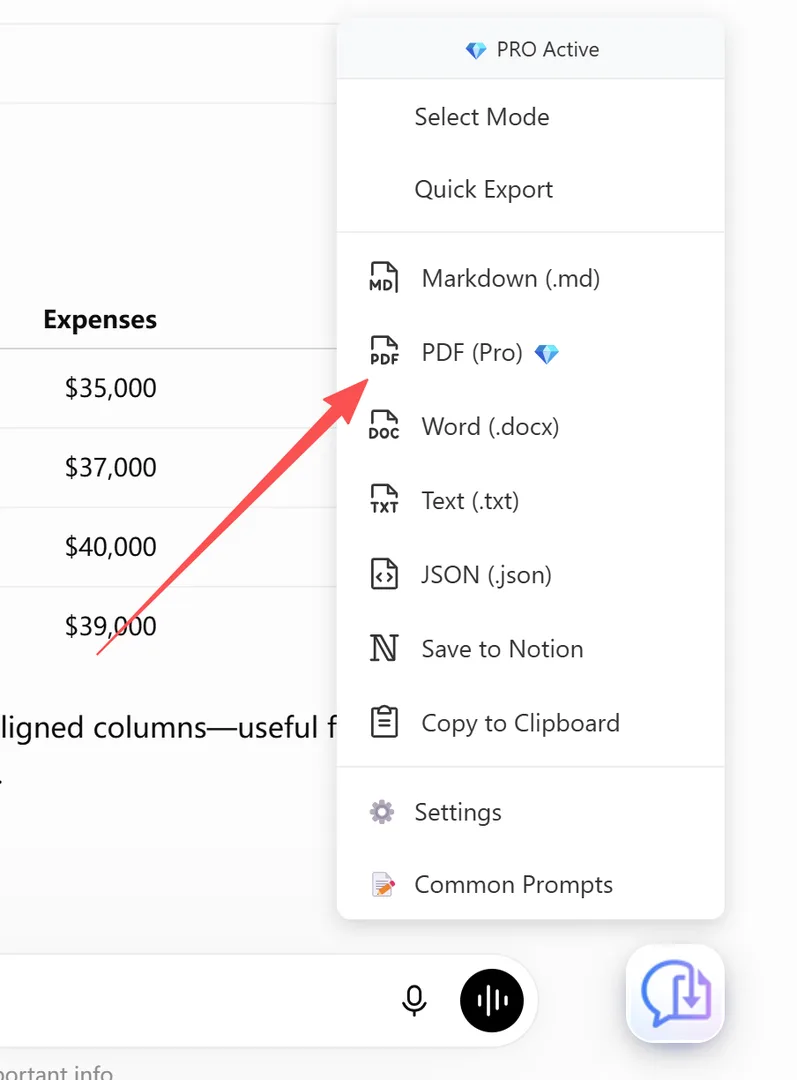
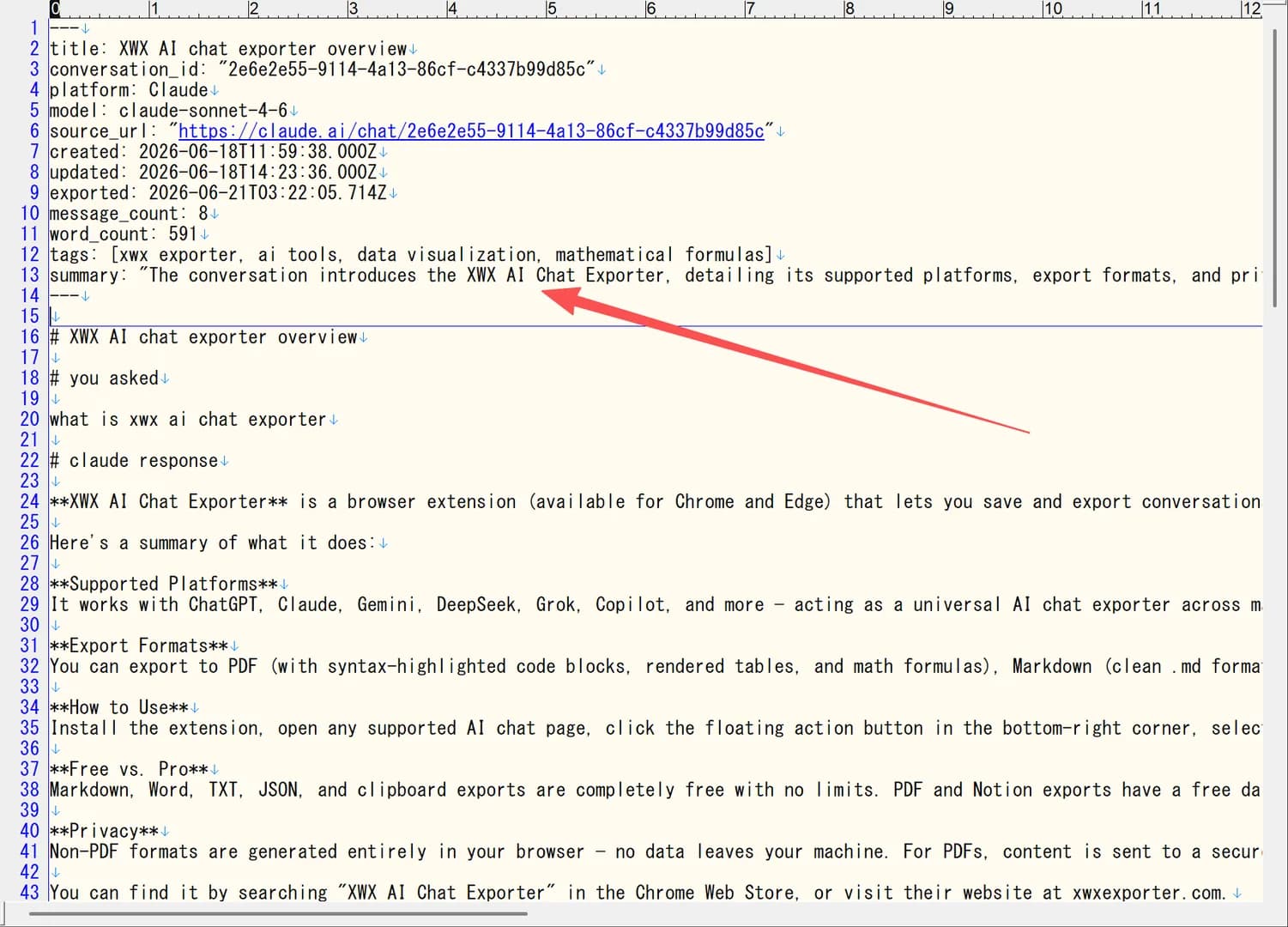
Step 3 — Click the floating button and choose a format. Select PDF, Markdown, or Word from the format menu. XWX keeps the source links and citation references as real, clickable URLs in the exported document, alongside the answer text.
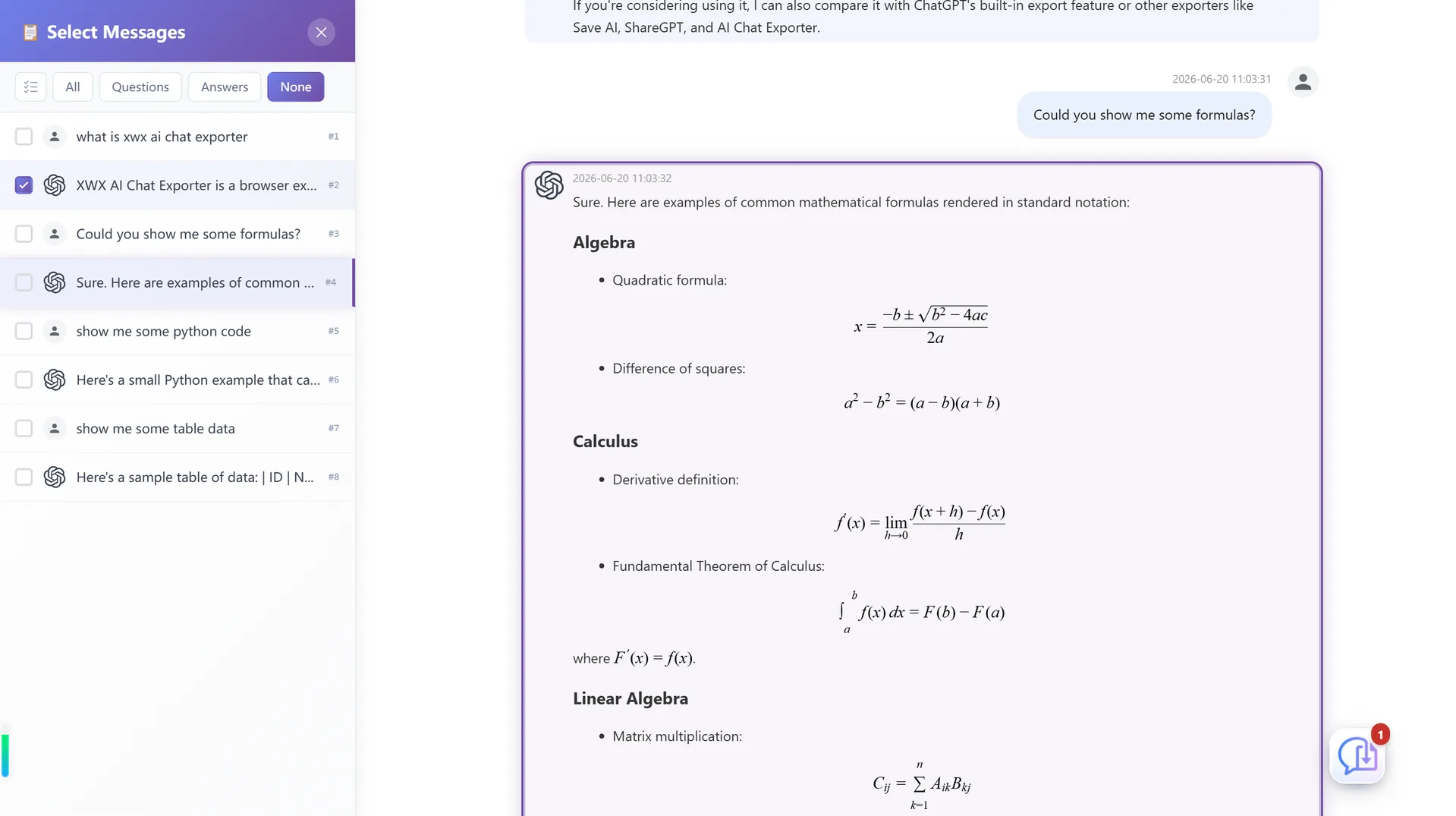
Step 4 — (Optional) Export only the messages you need. If the thread is too long, use Smart Selection: a side panel opens with the full conversation rendered, and you can click any message — or drag across a range — to pick exactly what goes into the export. That is the whole process, from open chat to file downloaded in under 30 seconds.
How to verify your export kept every source
Before you rely on an export, spend 30 seconds on three checks:
- Links are live — are the source URLs real, clickable links and not plain text?
- Citations line up — does each "[n]" in the answer still correspond to a visible source?
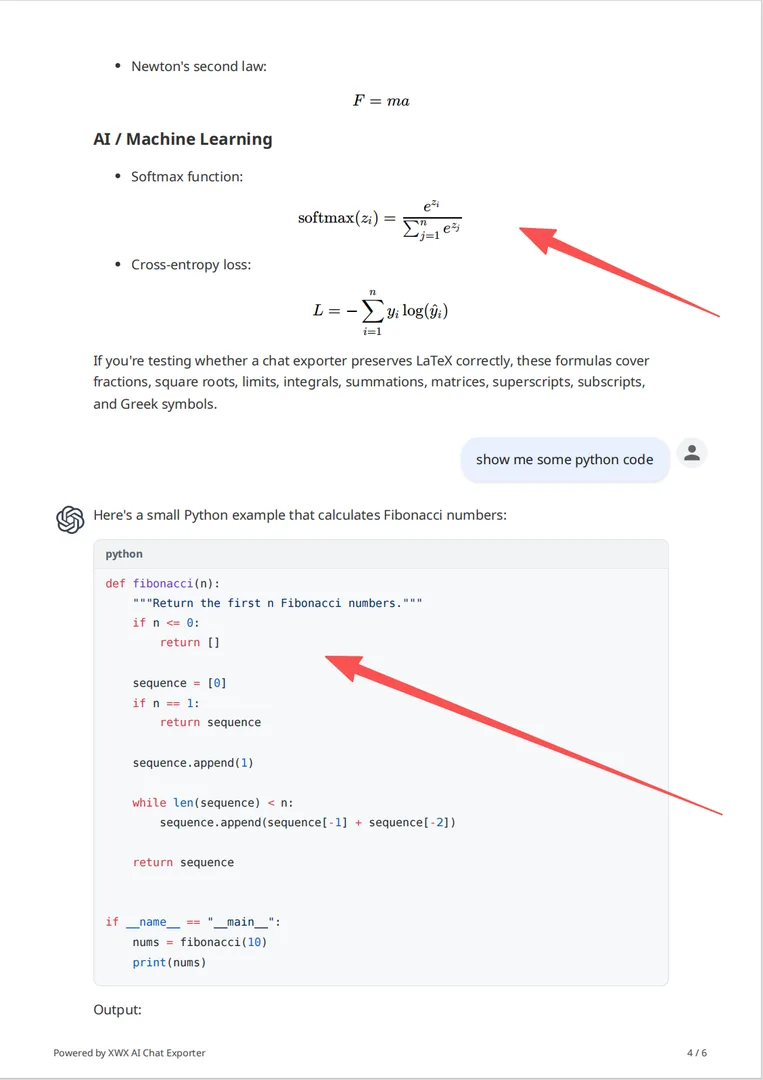
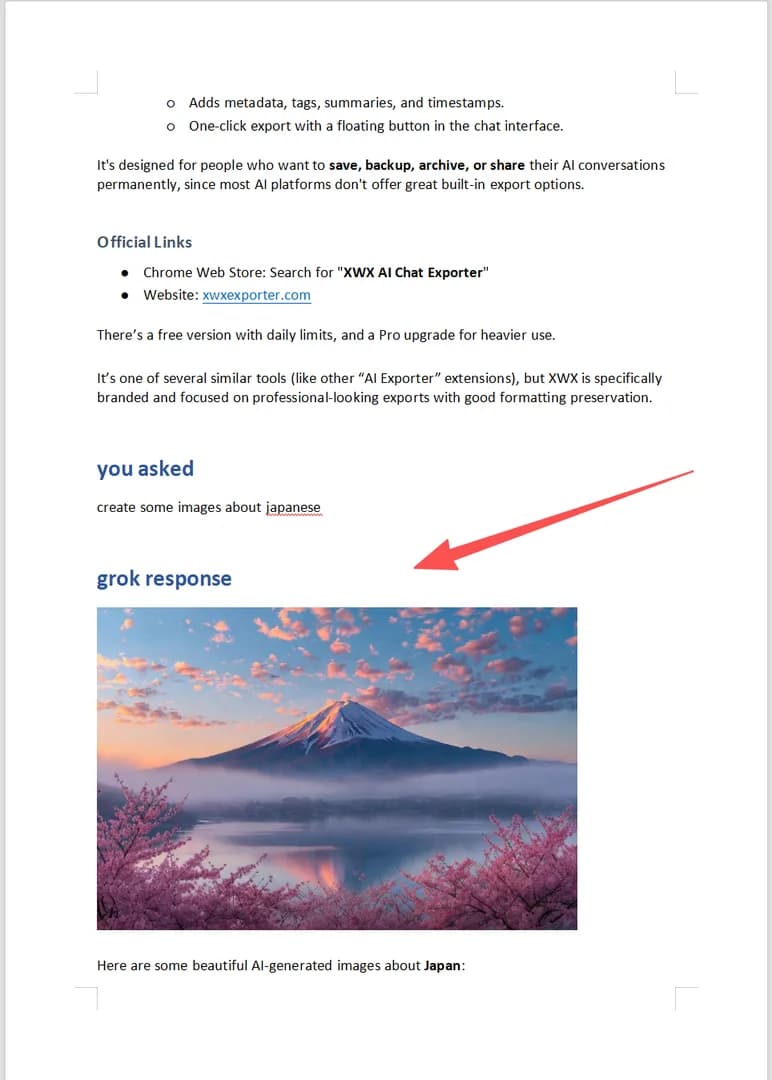
- Images and charts survived — research answers often embed charts that carry the data; confirm they exported as images, not placeholders.
If all three pass, the export is safe to treat as a research record.
Formats that work for a research workflow
| Format | Use it for | Notes |
|---|---|---|
| Markdown | Notes, Obsidian, Zotero import | Link-friendly, plain text, versionable |
| Sharing, printing, submission appendices | Fixed layout, easy to send | |
| Word | Editing, annotating, review | Track changes, comments |
Markdown is the most research-friendly because it keeps links as real URLs and imports cleanly into note systems and citation managers.
Building a repeatable research workflow
A citation survives only if the record survives. A practical loop:
- Export immediately while the conversation is fresh and the sources are loaded.
- File by project — one folder per topic, Markdown files named by date and query.
- Add your own notes to the export (what you used it for, what still needs verifying).
- Re-verify before citing — AI answers change; the export is a snapshot, not a guarantee.
This turns one-off "interesting answers" into an accumulating, searchable research library.
Realistic limitations
An export preserves what was on screen — it cannot revive a source the platform itself removed, or a link that was never there. Some platforms render citations only inside a widget; if the URL is not part of the visible text, no export tool can manufacture it. Treat every export as a faithful snapshot of the conversation at export time, not as a guarantee that every source still exists next month.
Alternatives when you don’t need sources
If you are exporting an AI chat purely for the prose — a draft, a translation, a piece of writing — you can skip source preservation entirely and use the format that is easiest to edit (Markdown or Word). Source-preserving exports cost a little more care and are worth it only when the evidence trail is part of the value. For research work, it almost always is.
Frequently Asked Questions
Does the export keep source links and citations?+
Yes, when you export with a tool that preserves links. XWX AI Chat Exporter keeps source URLs as real, clickable links and preserves citation references in the exported PDF, Word, or Markdown document.
Can I import exported chats into Zotero or EndNote?+
Exported Markdown with live source URLs imports cleanly into Zotero and similar citation managers via their web or file import. You can then attach the exported file to the reference entry for safekeeping.
Which AI platforms are supported?+
XWX AI Chat Exporter works across ChatGPT, Claude, Gemini, DeepSeek, Grok, Perplexity, NotebookLM, and Google AI Mode, so research conducted across platforms can be exported into one consistent format.
Does it preserve images, charts, and tables too?+
Yes. Research answers frequently embed charts and tables that carry the data, and the export keeps them as images and structured tables alongside the text and source links.
Is it free to export AI chats for research?+
Markdown, TXT, JSON, and clipboard exports are free with no limits. PDF and Word include a free daily quota; Pro removes the limits and adds AI-generated tags and summaries.
How do I check nothing was lost before citing?+
Three quick checks: confirm the source URLs are live links, confirm each citation number still maps to a visible source, and confirm charts and images exported as actual images. If all three pass, the export is a reliable record.
Export Your AI Chats
Free Chrome extension. No account required. Works on 13 AI platforms.