How to Export AI Chats to Obsidian
If you run a second brain in Obsidian, your AI conversations are a strange gap. You save PDFs, screenshots, and half-finished copy-pastes of important chats — and then spend an afternoon trying to find them again, because a screenshot isn’t searchable and a copy-paste has no context. Meanwhile the conversation itself lives in a tab that’s one refresh away from disappearing. The fix is boring and effective: export AI chats as Markdown files and drop them into your vault. This guide covers how to do it so the results are actually useful — searchable, queryable, and tagged.
Why Markdown + YAML frontmatter matters in Obsidian
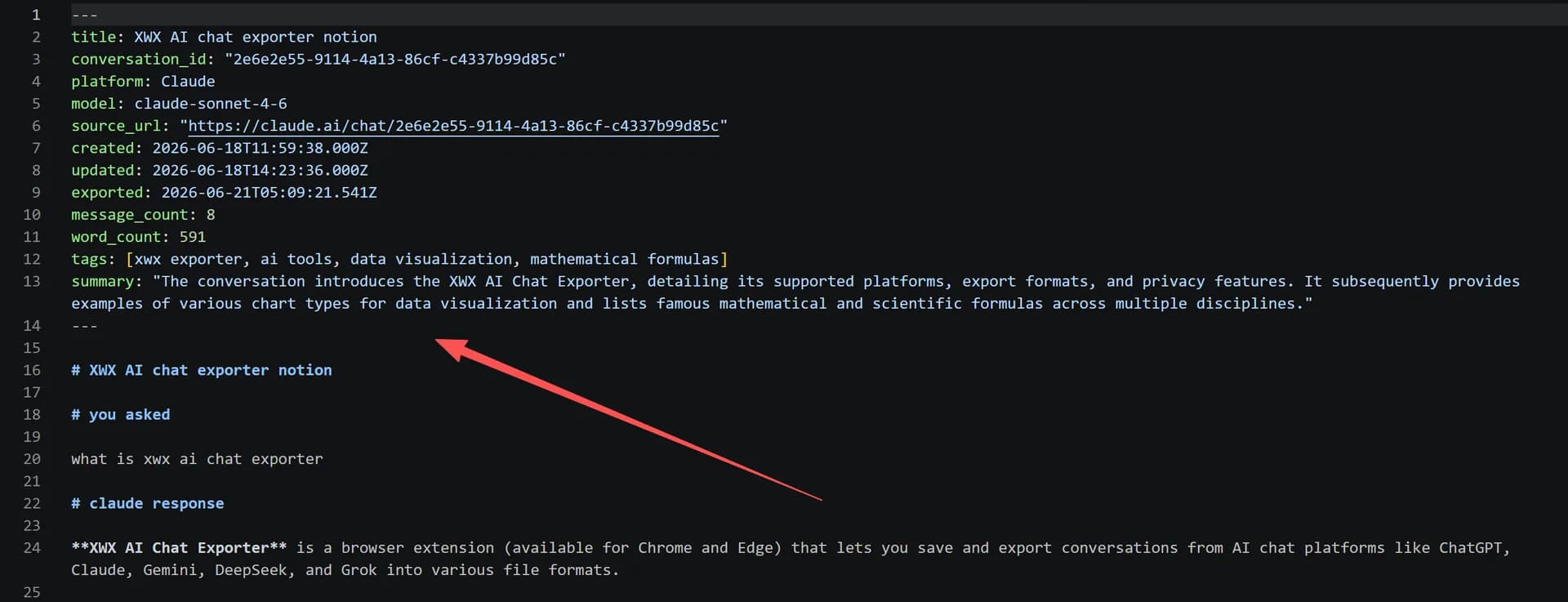
Obsidian is a folder of Markdown files. Everything else — backlinks, graphs, Dataview queries — works because the files are plain text with structured metadata at the top. That metadata block is called YAML frontmatter, and it’s what makes a note more than text:
---
title: Debugging a Python rate-limiter with ChatGPT
platform: chatgpt
model: gpt-4o
date: 2026-07-14
message_count: 12
word_count: 1860
source_url: https://chatgpt.com/c/...
tags:
  - ai/debugging
  - python
---
Notes with frontmatter can be queried with Dataview, filtered by platform or date, and grouped into dashboards. Notes without it are text you have to read to know what they contain.
The 4 ways to get AI chats into Obsidian (honest comparison)
| Method | Setup | Frontmatter | Queryable | Fidelity | Best for |
|---|---|---|---|---|---|
| Copy-paste into notes | None | No | No | Poor — code/math break | Quick snippets |
| Official platform export → convert | Slow, batch | No | No | Depends on tool | Full-account backup |
| Save as web page / print | None | No | No | Poor | Archival only |
| Export with a dedicated extension | 1 click | Yes — auto-generated | Yes (Dataview-ready) | Excellent | Daily PKM workflow |
Only an exporter that writes structured frontmatter gets it into your system in a way you can find again.
Method 1: Copy-paste into a new note
Open Obsidian, create a note, paste the conversation. It works — until the conversation has a code block, a table, or a formula. And there’s no metadata: no platform, no model, no date you didn’t type yourself, no link back to the original chat. For a daily PKM workflow, this scales badly.
Method 2: Official export + a converter
ChatGPT, Claude, and Gemini all offer a full-account data export (ZIP, JSON, arrives by email). You can convert that to Markdown with a script or a third-party tool. It’s a fine full-account backup, but it’s batch-only, slow, and the converter decides what your metadata looks like — usually nothing.
Method 3: Browser save / print
Save the page as HTML or print to PDF, then drop the file into your vault. Now you have a note you can’t edit, query, or backlink. It’s a screenshot with extra steps.
Method 4: Export with a dedicated extension (recommended)
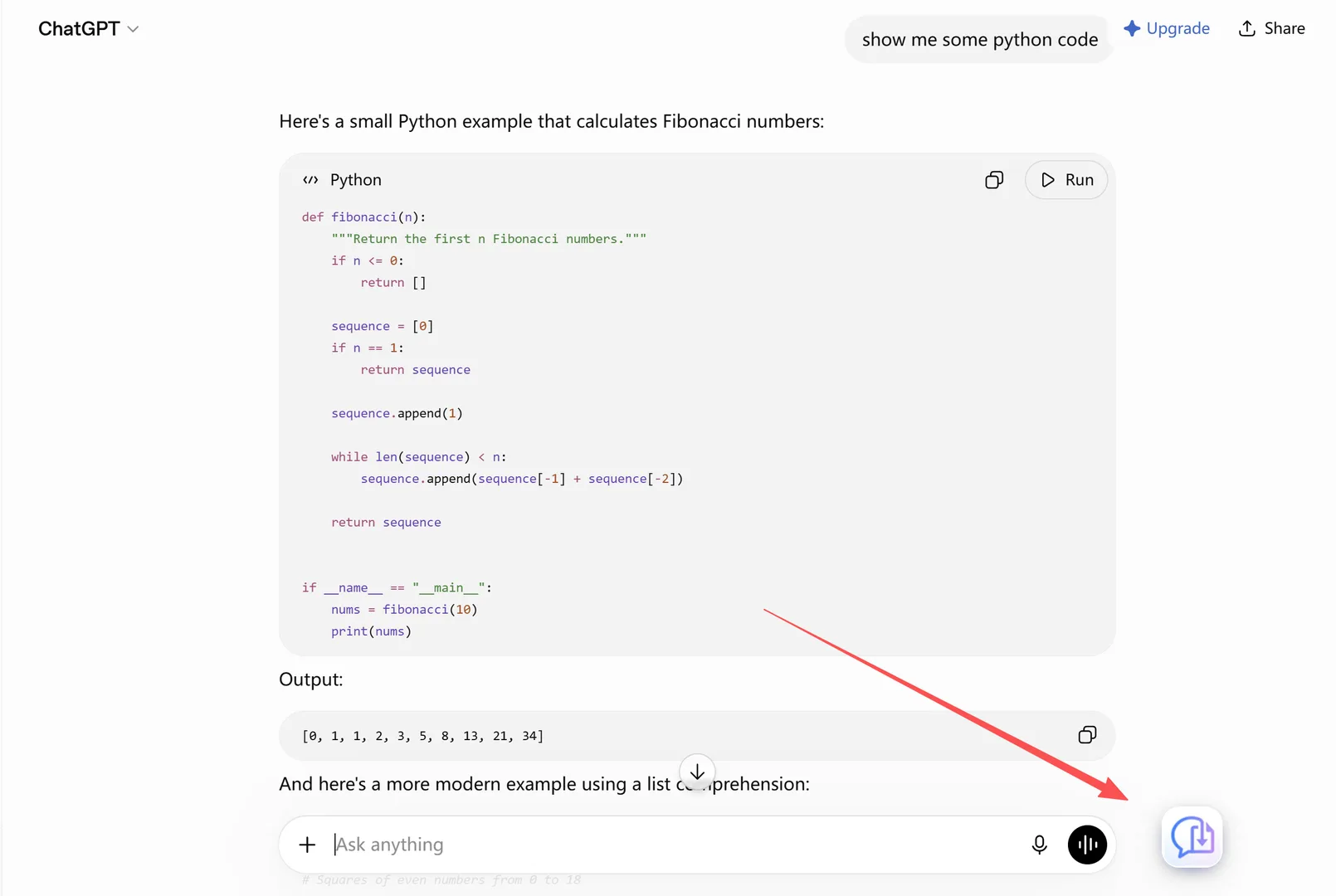
Step 1 — Install. Search for XWX AI Chat Exporter in the Chrome Web Store and click Add to Chrome. No account, no signup.

Steps 2–4: Open the chat, choose Markdown, move it into your vault
Step 2 — Open the conversation you want to save. Go to ChatGPT, Claude, Gemini, DeepSeek, or any of the 13 supported platforms and open the chat. The extension auto-detects the platform.
Choose Markdown
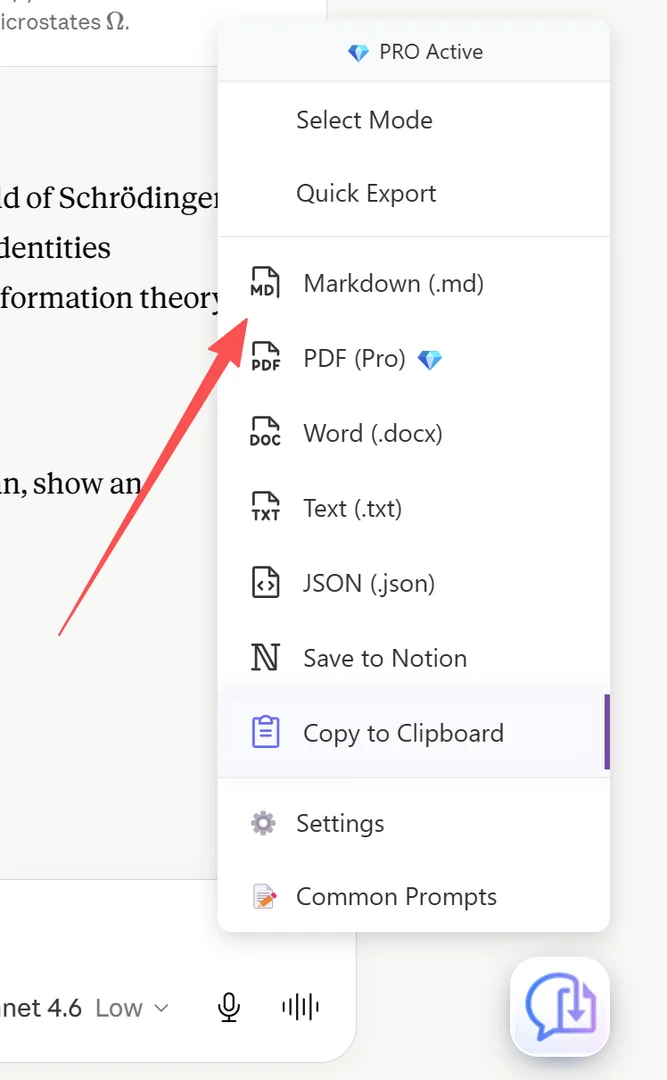
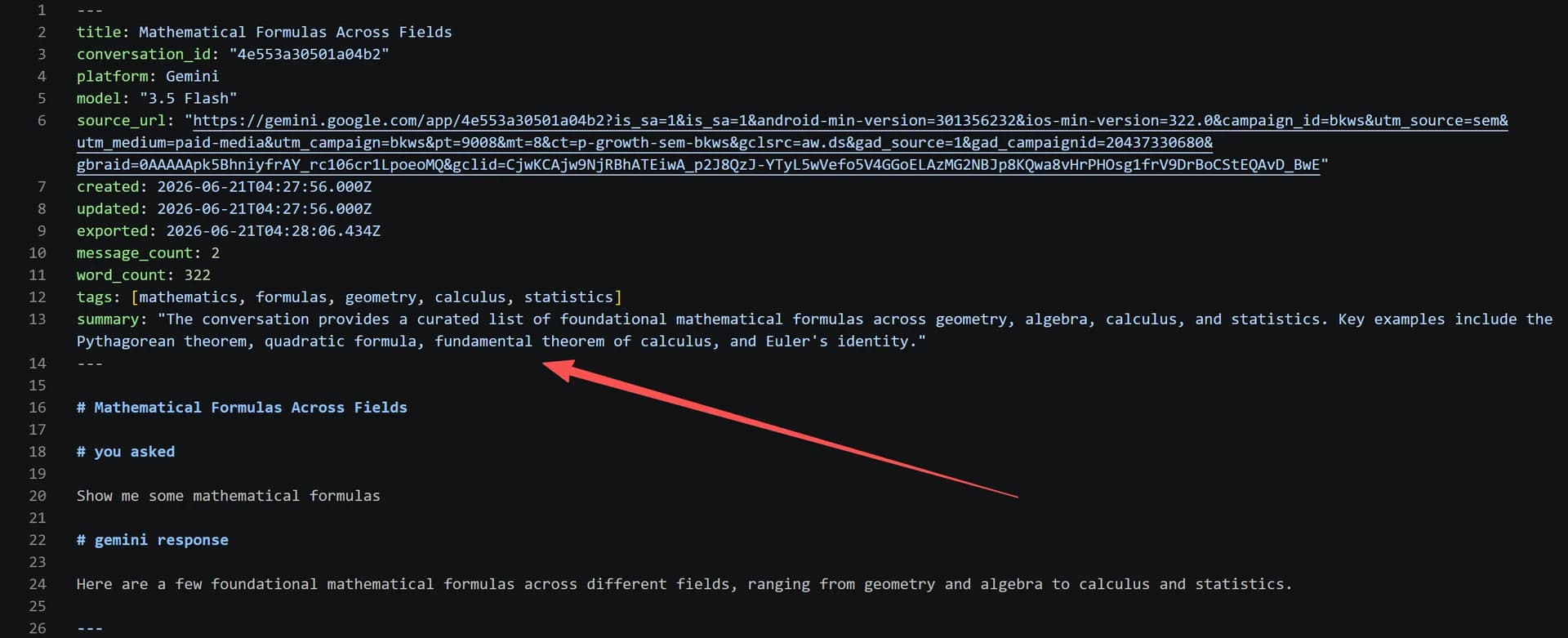
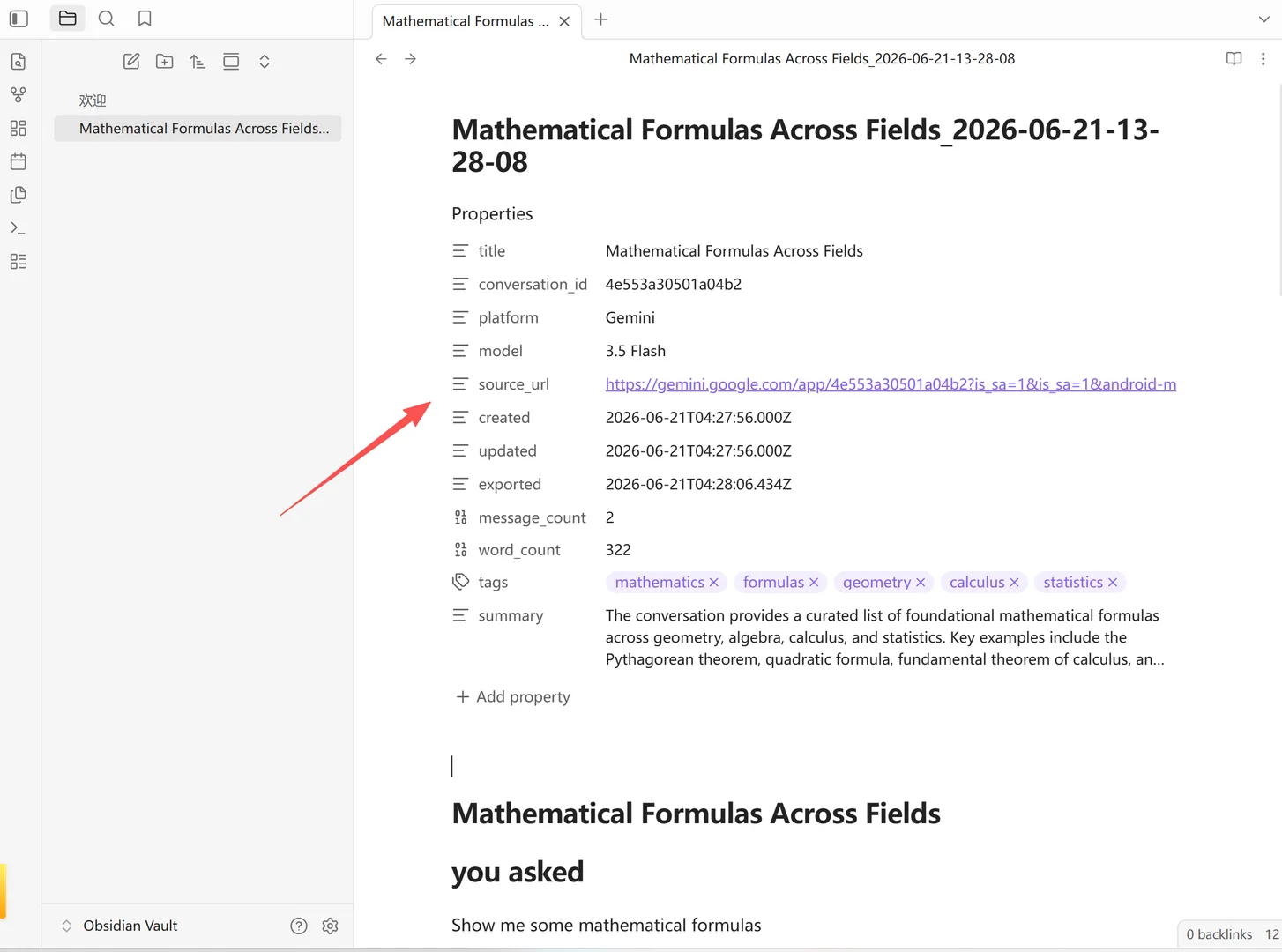
Step 3 — Choose Markdown. Click the floating button and select Markdown. The file downloads with a .md extension and YAML frontmatter already written in — title, platform, model, timestamp, message count, word count, and the source URL. Nothing to fill in yourself.
Move the file into your vault
Step 4 — Move the file into your vault. Drag the downloaded .md file into your Obsidian vault folder, or set your browser downloads to save directly into it. The note appears in your graph, links work, and Dataview can see it immediately.
Step 5 — (Optional) Query it with Dataview
Because every export has structured frontmatter, you can build a view of your AI notes. A simple example:
TABLE platform, model, message_count, source_url
FROM "AI Chats"
WHERE date >= date(2026-01-01)
SORT date DESC
That gives you a live, sorted list of every AI conversation you’ve exported since the start of the year — by platform, model, and length — without ever opening a single note. See Obsidian Dataview queries for AI chat archives for more.
What the frontmatter includes (and what needs Pro)
Every Markdown export writes these fields automatically: title, platform, model, date / timestamps, message_count, word_count, and source_url — a link back to the original chat.
Two optional fields are available with Pro + your own API key: AI tags and summary, auto-generated by an LLM you configure (OpenRouter, OpenAI, Gemini, Qwen, Kimi, DeepSeek, and others). With those enabled, the frontmatter grows a tags: list and a summary block — which makes Dataview filtering by topic possible, not just by platform and date. See AI Tags & Summaries.
What survives the export
| Content type | Copy-paste | XWX Markdown export |
|---|---|---|
| Code blocks | Indentation lost | Preserved with syntax highlighting |
| Tables | Broken | Intact Markdown tables |
| Math formulas | Flattened | Kept as $...$ / $$...$$ LaTeX |
| Images | Missing | Embedded (or URL fallback) |
| YAML frontmatter | Never | Auto-generated |
| Source URL | Never | Written into frontmatter |
| Long conversations | Manual, partial | Complete |
Realistic limitations
- Markdown export is 100% local. Unlike PDF, the Markdown file is generated in your browser — nothing is sent to a server.
- Obsidian renders math only if you enable it. The exported Markdown keeps
$...$delimiters; enable "Math" in Obsidian’s settings and equations render inline. - Images need a downloadable source; if a host blocks it, the export uses a URL or placeholder.
- AI Tags & Summaries need Pro and your own API key. It’s not free out of the box, and the LLM you configure sees whatever content you choose to send to it. If you don’t want that, skip the feature — the base frontmatter still gives you everything above.
Who exports AI chats into Obsidian
- PKM / second-brain users — capturing research and thinking in a place that’s queryable, not just a tab that vanishes.
- Students — archiving explanations and solved problems with the model and date attached, so a term’s worth of AI help becomes searchable.
- Researchers — keeping source-backed AI discussions with the source URL in frontmatter for later verification and citation.
- Developers — saving debugging conversations with code intact, then finding them by platform or date.
- Writers — collecting brainstorming and editing threads as editable notes they can reuse in drafts.
Alternatives to Markdown
- PDF — when you need something shareable and printable. See Export ChatGPT to PDF.
- Word (.docx) — when you need to edit or fold the conversation into a report. See Export AI Chats to Word.
- Notion — pushes the conversation to your Notion workspace with database properties instead of frontmatter. See Sync AI Chats to Notion.
- JSON / TXT — structured and plain-text records for archival or scripts.
常见问题
Can I export ChatGPT to Obsidian?+
Yes. Export the conversation as Markdown and move the file into your vault. With XWX, each file arrives with YAML frontmatter — platform, model, date, word count, and source URL — so it’s a proper Obsidian note from the start.
Does the export work with Obsidian Dataview?+
Yes. The auto-generated YAML frontmatter is exactly what Dataview queries against. You can filter notes by platform, model, date, or message count the moment they’re in your vault.
How do I export AI chats to Obsidian for free?+
Markdown export is free with no limits. Install the extension, open a chat, click Export → Markdown, and drop the file into your vault. No account, no watermark, no daily cap on Markdown.
Does Obsidian need a plugin for the frontmatter to work?+
No. YAML frontmatter is native to Obsidian. The Dataview plugin is only needed if you want to query and aggregate the metadata — which is where the real payoff is.
Can I auto-tag my AI notes?+
With Pro and your own API key, XWX generates AI tags and a summary for each export, written straight into the frontmatter. Without Pro, you can add tags manually in Obsidian like any other note.
What happens to math and code blocks?+
They’re preserved — code with syntax highlighting, math as `$...$` / `$$...$$` LaTeX that Obsidian renders once you enable Math in its settings.