Export NotebookLM Chats to PDF & More
You’ve spent an afternoon feeding sources into NotebookLM, asking questions, and building out a Notebook. Then you realize the answer you just got — the one with the perfect source citations — lives only inside a Google tab. There’s no "Download this notebook" button. NotebookLM (Google’s research tool, which also now appears under the name Gemini Notebook since the July 2026 rebrand) was never built to hand your work back to you. This guide covers every realistic way to get a NotebookLM conversation, its notes, and its source-backed answers out as a PDF, a Word document, or clean Markdown.
Why NotebookLM is harder to export than ChatGPT or Claude
Three things make NotebookLM exports a different problem from exporting a normal AI chat:
- No export feature at all. Not a PDF button, not a Markdown export — the closest Google offers is manual copy-paste, source by source.
- The value is in the sources. NotebookLM answers come with inline citations to the sources you uploaded. A plain copy-paste drags the text out but drops the
[1],[2]citation map — which is the whole point of using NotebookLM over a chatbot. - Mixed content. Notebooks contain source documents, your notes, chat threads, and Studio material (audio overviews, study guides, briefing docs). Each type needs different handling.
If you export a notebook once a semester, copy-paste might get you by. If you export research regularly — for a thesis, a lit review, a client report — you want a method that keeps the sources attached.
The 4 ways to export a NotebookLM notebook (honest comparison)
| Method | Setup | Output quality | Citations kept | Best for |
|---|---|---|---|---|
| Browser Print (Ctrl+P) | None | Poor — chat collapses, citations misalign | Partial | Quick one-offs |
| Copy-paste → docs | None | Poor — formatting and citation map lost | No | Text-only notes |
| Google Drive / Docs sync | Manual, per-note | Fair — notes only, no chat threads | No | Note-level backup |
| Chrome extension | 1 click | Excellent — sources, citations, chat intact | Yes | Regular research work |
The rest of this guide focuses on the extension route, because it’s the only one that produces a document that still reads like a NotebookLM answer — with the [1]/[2] source markers intact.
Method 1: Browser print
- Open the notebook on notebooklm.google.com.
- Press Ctrl+P (Windows) or Cmd+P (Mac).
- Destination → Save as PDF.
- Disable Headers and footers; enable Background graphics if you want the dark theme.
The catch: NotebookLM renders answers as a stream of cards. Printing captures what’s on screen, so long threads clip mid-answer, and the inline citation superscripts and the sources sidebar are printed out of order — or not at all.
Method 2: Copy-paste into a document editor
Select the answer text, copy, and paste into Word or Google Docs, then export as PDF. This is fine for a single short answer. The moment you paste a multi-source answer, the [1]/[2] markers become orphaned numbers with no source list to resolve them.
Method 3: Notes via Google Drive / Docs (notes only, no chats)
If you use NotebookLM’s note feature, individual notes can be dragged out or opened in Google Docs — but that covers your notes, not the chat threads where the actual source-grounded answers live, and not the source documents themselves. It’s a partial backup at best.
Method 4: Export with a Chrome extension (recommended)
Step 1 — Install. Search for XWX AI Chat Exporter in the Chrome Web Store and click Add to Chrome. No account, no signup.

Steps 2–4: Open the notebook, pick a format, export only what you need
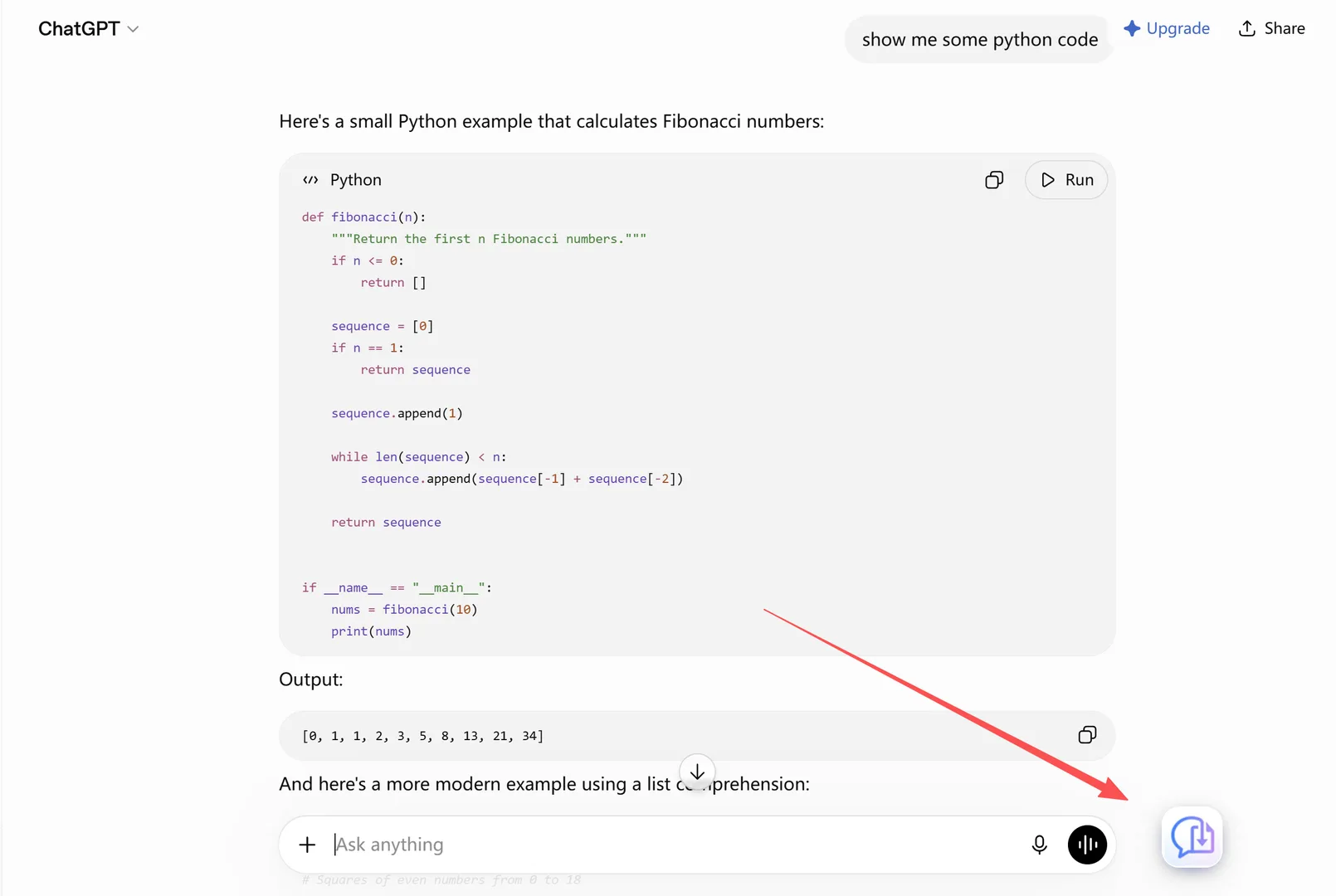
Step 2 — Open the notebook and answer you want to save. Navigate to notebooklm.google.com, open the notebook, and pull up the chat answer (or the note) you want to export. The extension auto-detects NotebookLM.
Pick PDF, Word, or Markdown
Step 3 — Pick PDF, Word, or Markdown. Click the floating button and choose your format:
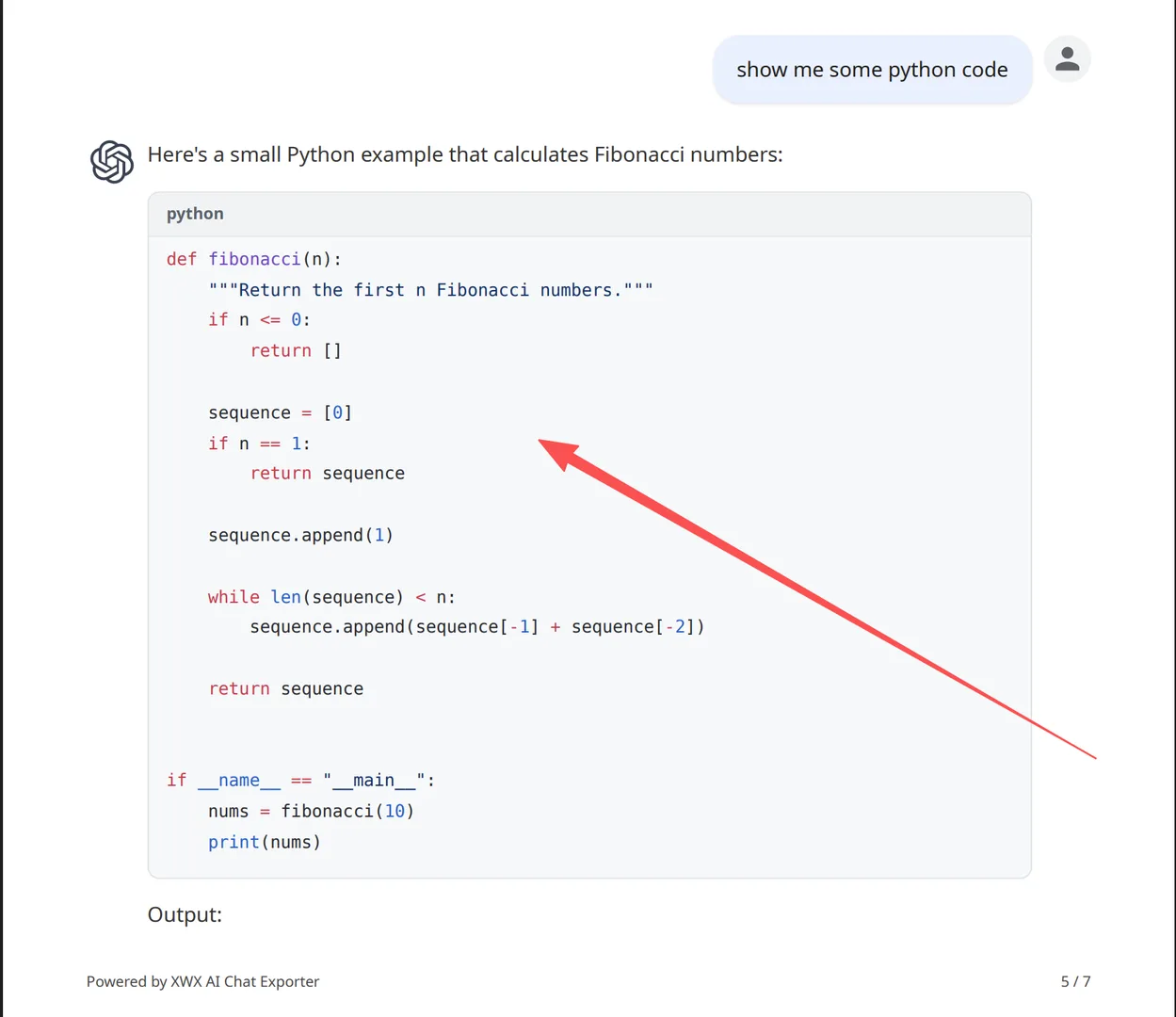
- PDF — a share-ready document with the full conversation, notes, and source citations laid out in order.
- Word (.docx) — fully local, editable, and formatted for annotation and merging into a report.
- Markdown — a
.mdfile with YAML frontmatter (title, model, timestamp, message count, source URL) that drops straight into Obsidian, Logseq, or Typora.
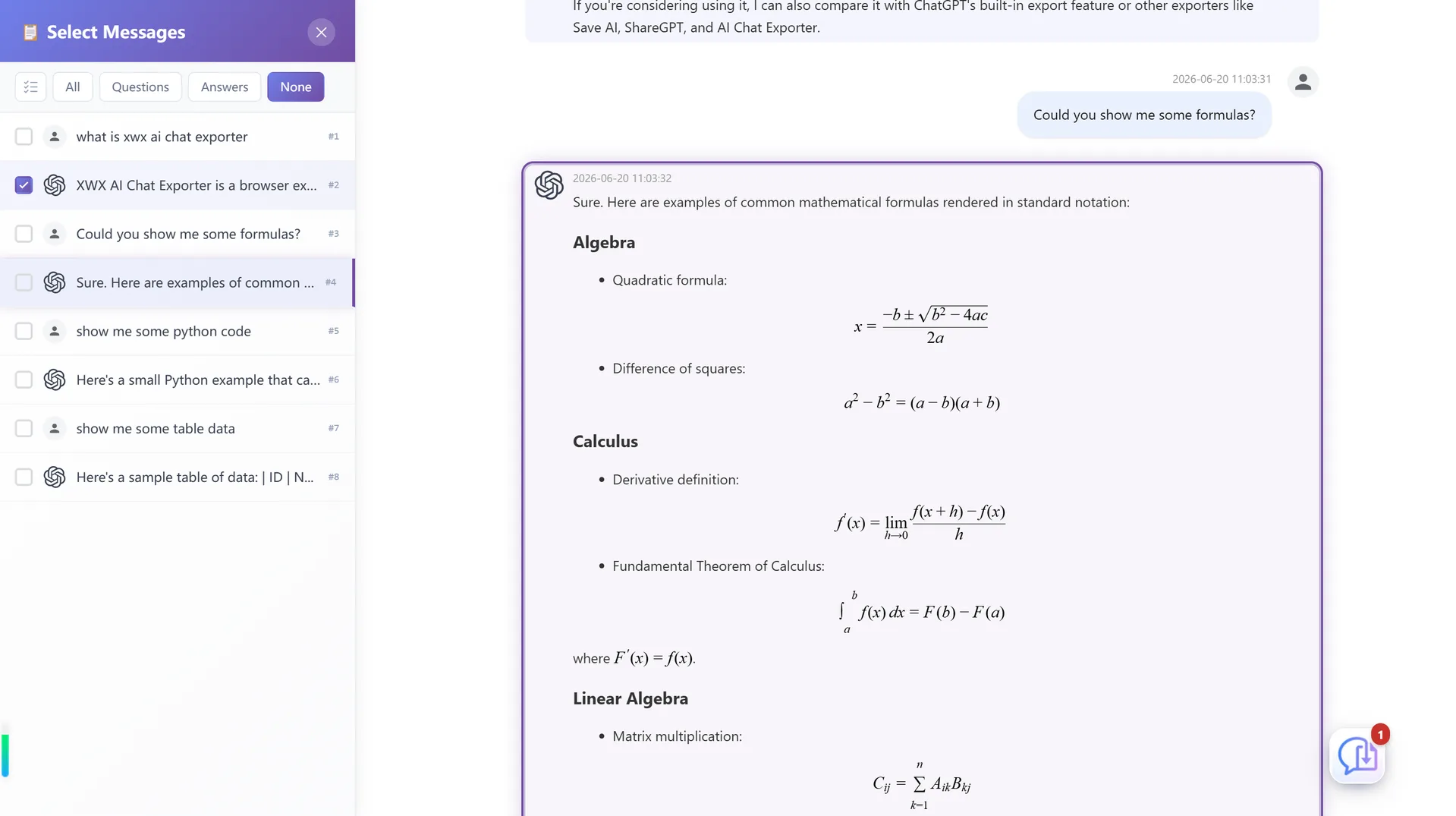
Step 4 — (Optional) Export only what you need. If the whole thread is too long, use Smart Selection to pick the exact messages for the export — for example, just the final grounded answer with its sources.

What actually survives an export
| Content type | Browser print | XWX export |
|---|---|---|
| Chat threads with Q&A | Clips on long threads | Complete |
Inline source citations ([1], [2]) | Misaligned or lost | Kept in place |
| Source / reference lists | Printed out of order | Preserved with the answer |
| Notes you created in the notebook | Manual only | Included |
| LaTeX / math in answers | Raw text on some devices | Rendered |
| Tables in answers | Wrapped | Intact |
| Long multi-turn conversations | Cut off | Complete |
| Source URL metadata | Not included | In frontmatter |
The citation fidelity is the reason researchers use a dedicated exporter for NotebookLM. When an answer says "source 3 supports this claim," you need to know which document source 3 is — a browser print gives you the number without the map.
Realistic limitations
- PDF exports go through a render server for consistent professional layout; the content is deleted immediately after generation and never stored. Word, Markdown, TXT, and JSON run 100% locally.
- Images require the source to be downloadable. If an image host blocks the request, the export falls back to the image URL or a placeholder.
- Audio Overviews and other Studio media are best exported from the platform’s own download options where they exist; the text side of your notebook exports cleanly with XWX.
Who exports NotebookLM notebooks
- Students — turning NotebookLM study sessions into clean PDFs to read offline, print, or share with study groups, with citations intact.
- Graduate researchers — saving literature-review conversations as Word docs with the citation map, ready to merge into a thesis draft.
- Freelance analysts — producing client-ready research summaries where every claim traces back to an uploaded source.
- PKM / Obsidian users — dropping Markdown exports into a notes vault, with YAML frontmatter so each notebook becomes a queryable note.
- Writers — preserving interview transcripts and research briefs built in NotebookLM before a shared notebook expires.
Alternatives to PDF (and when to choose them)
- Markdown — the format for building a research vault. Obsidian, Logseq, Notion, and GitHub all ingest it. See Export AI Conversations to Obsidian.
- Word (.docx) — when you need to edit, annotate, or merge the content into a paper or report. See Export AI Chats to Word.
- TXT / JSON — plain-text and structured exports for archiving, scripts, or moving data between tools.
- Notion — pushes the notebook conversation directly into your Notion workspace as a structured page. See Sync AI Chats to Notion.
Perguntas frequentes
Can I export a NotebookLM notebook to PDF?+
Not natively — NotebookLM has no export button. A browser extension like XWX AI Chat Exporter adds one: open the notebook, click the floating export button, choose PDF, and the conversation downloads with formatting intact.
Does NotebookLM have an export feature?+
No. Google offers no per-notebook or per-chat export. The practical workarounds are browser print, copy-paste, or a dedicated Chrome extension.
Can I export NotebookLM chat to Markdown?+
Yes, with XWX. You get a `.md` file with YAML frontmatter (title, model, timestamp, message count, source URL) that works in Obsidian, Logseq, Typora, Notion, and GitHub.
Are source citations kept when I export?+
With browser print or copy-paste, usually not — the `[1]`/`[2]` markers lose their source map. XWX keeps citations in place so each claim still points to the right uploaded source.
Is NotebookLM being renamed?+
Google renamed NotebookLM to Gemini Notebook in July 2026, so you may see either name. Both refer to the same tool at the same URL, and XWX supports notebooklm.google.com either way.
Is it free to export NotebookLM notebooks?+
Markdown, TXT, JSON, and clipboard exports are free with no limits. PDF and Word include a free daily quota; Pro removes limits and adds AI-generated tags and summaries.