How to Export ChatGPT to Word (.docx)
Here’s the workflow most people live with: copy a ChatGPT answer, paste it into Word, and spend twenty minutes fixing line breaks, rebuilding tables, and re-pasting code that arrived as a blob of plain text. The paste works. The document doesn’t. ChatGPT has no native Word export. This guide walks through every way to turn a ChatGPT conversation into a real .docx file — and why one of them produces a document you can actually hand to a reviewer or a client without apologizing for the formatting.
Why "just paste it into Word" fails
Copy-paste is the default because it’s the only method everyone already knows. But ChatGPT answers are built from structured blocks — code, tables, math, lists, images — and the clipboard flattens all of them:
- Code arrives as unstyled text with the highlighting gone and the indentation mangled.
- Tables collapse into tab-separated soup that wraps into nonsense.
- Math formulas paste as raw LaTeX or broken characters.
- Long answers split into awkward page breaks mid-table.
- Images don’t come along at all in most cases.
The document technically opens in Word. That’s not the same as being usable.
The ways to get ChatGPT into Word (honest comparison)
| Method | Setup | Output quality | Editable | Local | Best for |
|---|---|---|---|---|---|
| Copy-paste → Word | None | Poor — code/tables/math break | Yes | Yes | Snippets only |
| OpenAI export → converter | Slow, batch | Depends on converter | Partial | Yes | Full-account backup |
| Google Docs import | Manual | Fair — better than paste, still breaks | Yes | No | Quick drafts |
| Chrome extension (.docx) | 1 click | Excellent — real Word formatting | Yes | 100% local | Reports, papers, contracts |
The extension route is the only one that produces a genuine .docx — with Word-native styles, images embedded, and math rendered — without the paste-cleanup phase.
Method 1: Copy-paste into Word (the default, and its limits)
- Open the ChatGPT conversation on chatgpt.com.
- Select all, copy, paste into Word.
- Rebuild everything that broke: code blocks, tables, lists, spacing.
- Save as .docx.
This works for a few short text paragraphs. For a technical answer with code and tables, the cleanup takes longer than the original exchange.
Method 2: Official export + a converter
Settings → Data Controls → Export Data emails you a ZIP of conversations.json. It’s complete, but it’s batch-only, can take hours to arrive, and the JSON has to be run through a converter to become a document. If you need one conversation as a clean Word file today, this is the wrong tool.
Method 3: Google Docs import
Paste into Google Docs first, then download as Word. Docs is more forgiving with some pasted content, but the same blocks break, and you’re still doing manual cleanup — plus one extra export step.
Method 4: Export a real .docx with a Chrome extension (recommended)
Step 1 — Install. Search for XWX AI Chat Exporter in the Chrome Web Store and click Add to Chrome. No account, no signup.

Steps 2–4: Open the chat, choose Word, trim if needed
Step 2 — Open the ChatGPT conversation. Navigate to chatgpt.com and open the chat you want. The extension auto-detects ChatGPT — no toggles, no mode switches.
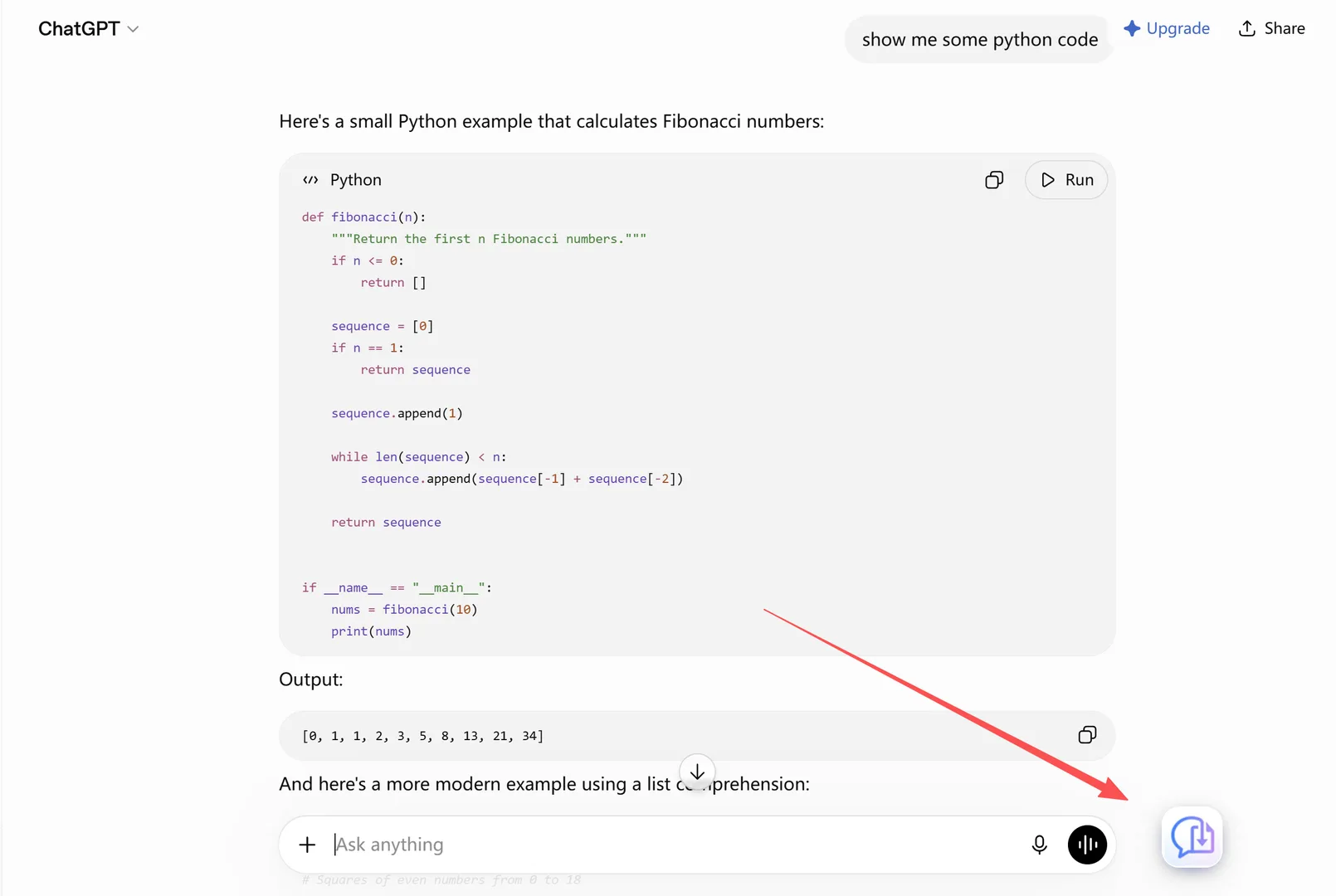
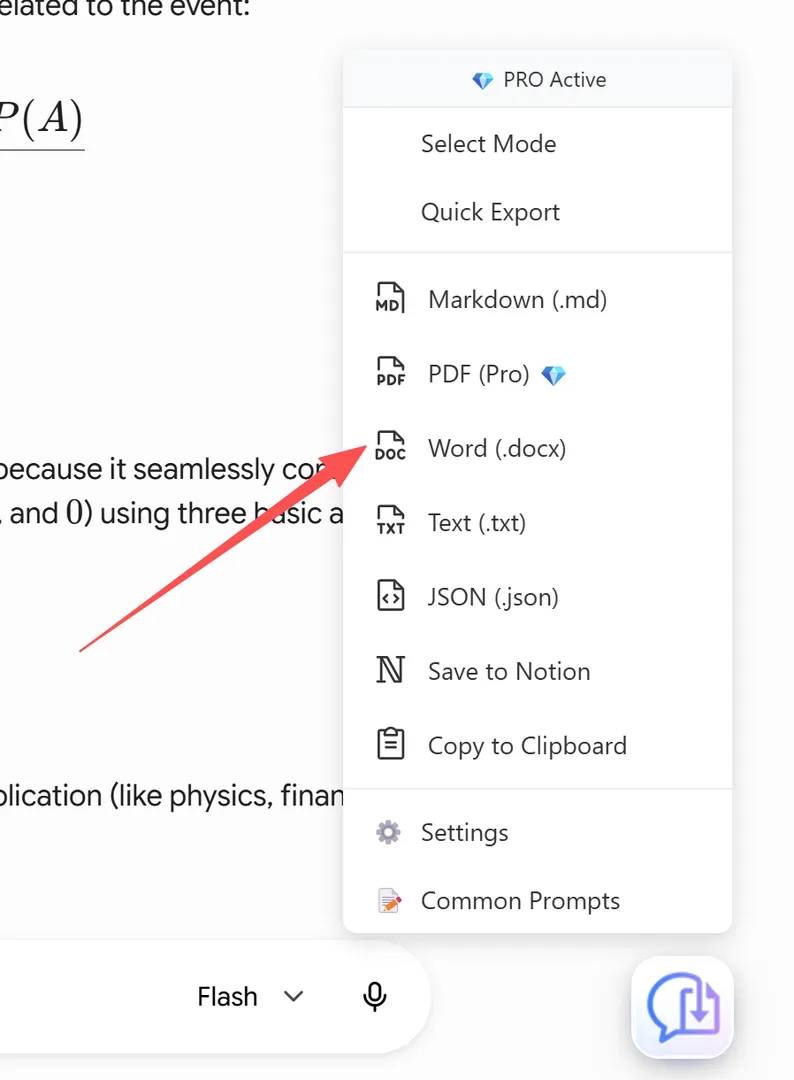
Click Export and choose Word (.docx)
Step 3 — Click Export and choose Word (.docx). Click the floating button and select Word (.docx). The document is generated entirely in your browser — nothing is uploaded — and downloads as a real .docx file.
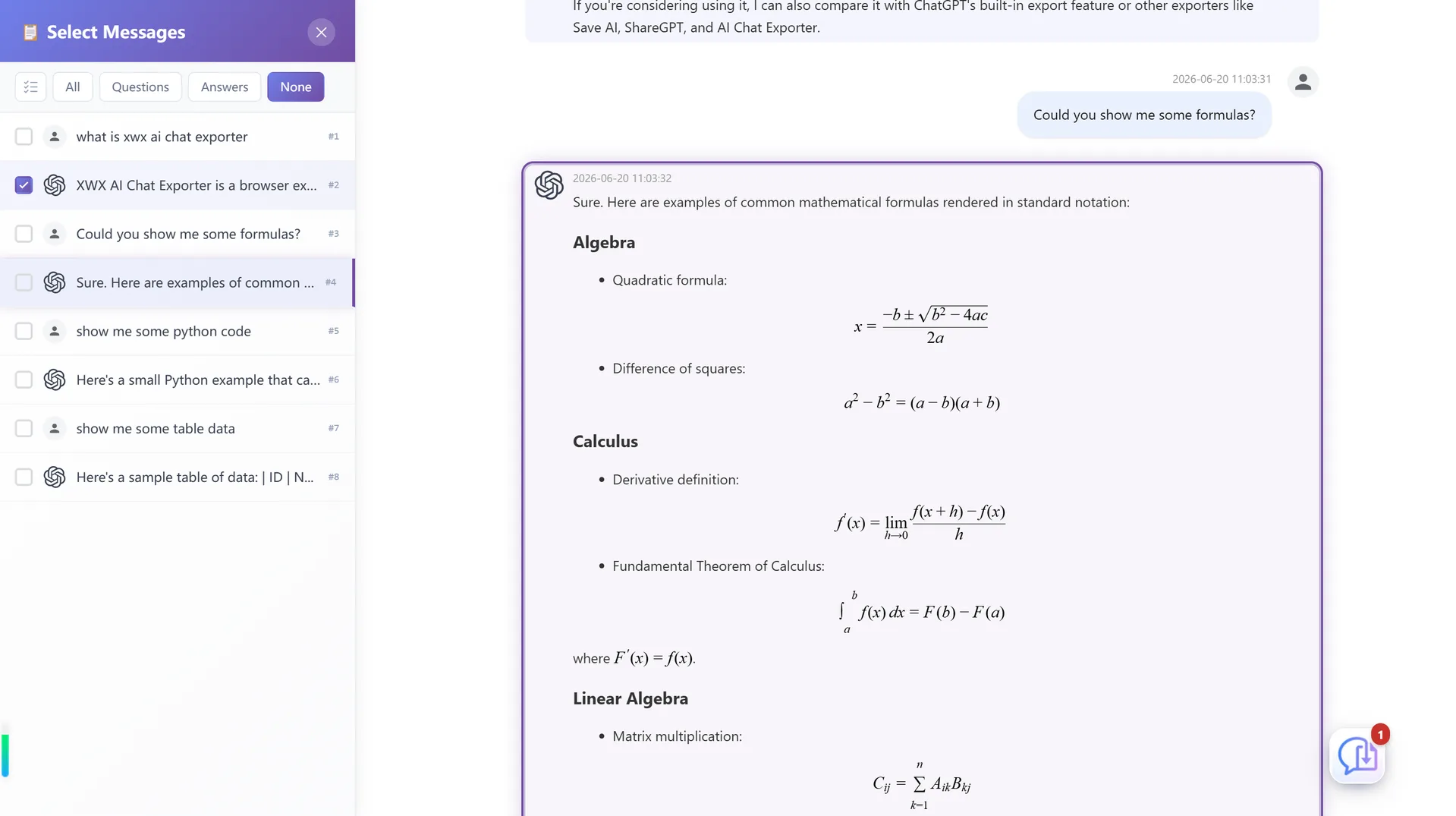
Step 4 — (Optional) Trim the conversation first
Use Smart Selection to export only the relevant messages — say, just ChatGPT’s final answer, not your fifteen-message prompt history. The side panel lets you click to pick messages (Shift+click selects a whole range), and both panels stay in sync.
That’s the whole flow — open chat, click, done. The .docx opens directly in Word, Google Docs, and LibreOffice, ready to edit.
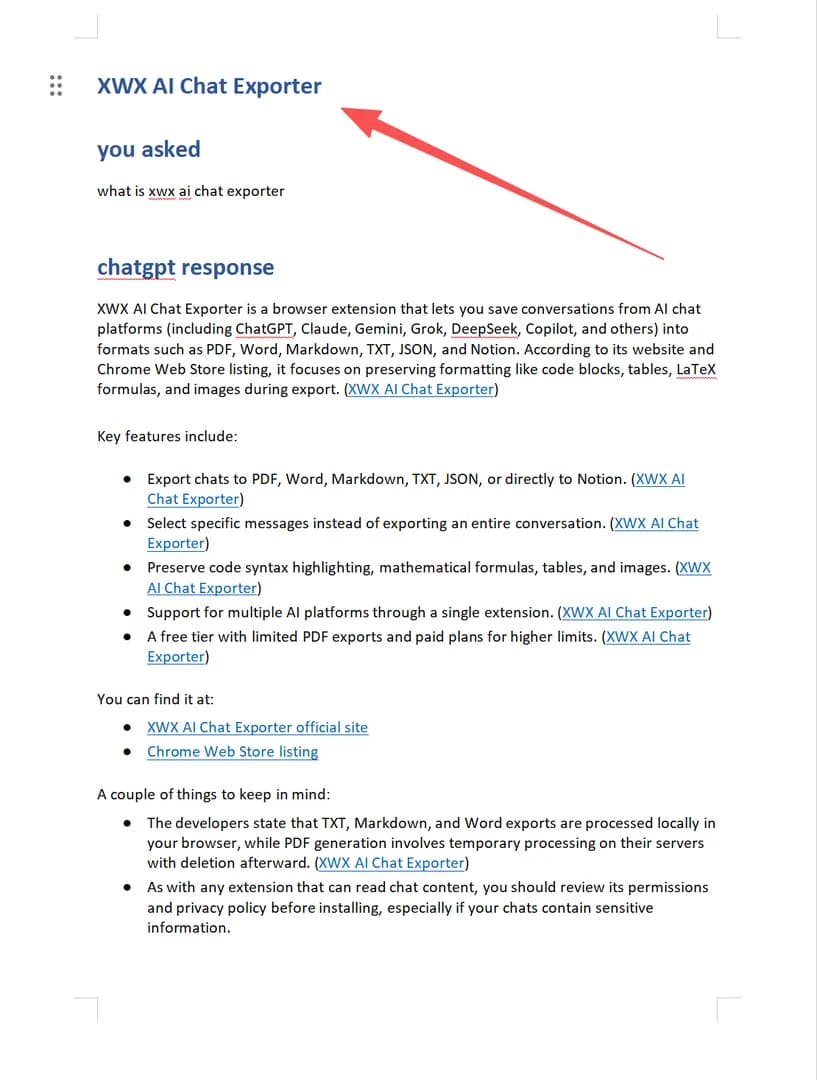
What the .docx actually looks like
| Content type | Copy-paste into Word | XWX .docx export |
|---|---|---|
| Code blocks | Unstyled plain text | Syntax-aware, readable |
| Tables | Collapsed into text soup | Proper Word tables |
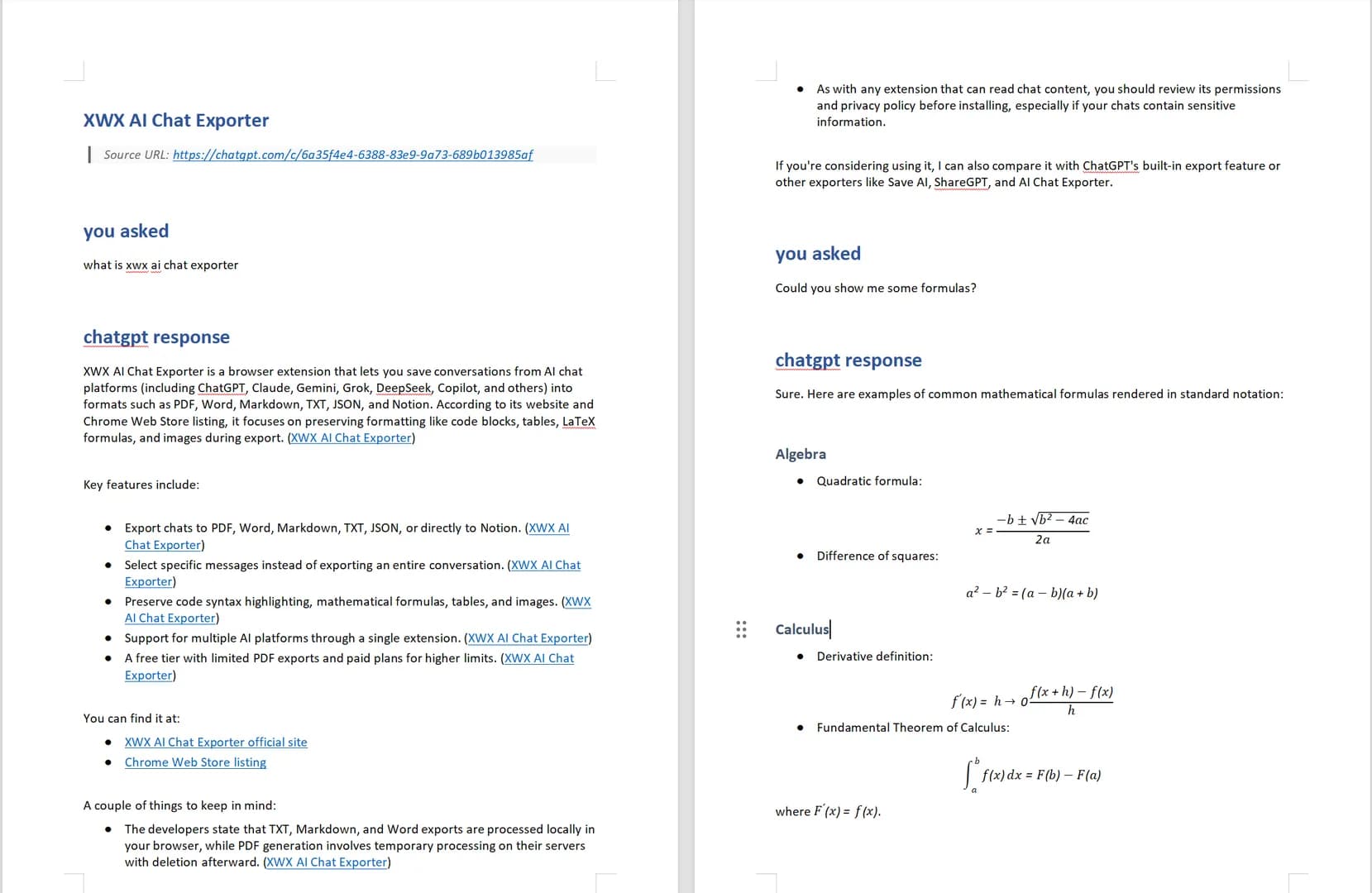
| Math / LaTeX formulas | Raw $...$ or broken chars | Rendered with KaTeX |
| Inline & generated images | Usually missing | Embedded |
| Extra-long images | Break layout | Auto-sliced across pages |
| Lists & headings | Inconsistent styles | Clean Word styles |
| Metadata (model, timestamp) | Not included | Available in frontmatter / properties |
Two details matter most for Word specifically: images are embedded, not linked — so the file survives being emailed or moved — and extremely tall images are automatically sliced so a long chart doesn’t shove half the document off the page.
Realistic limitations
- Word export is 100% local — the .docx is generated in your browser and never leaves your machine. (If you export PDF, that render goes through a secure server and is deleted immediately after generation — different pipeline, same privacy posture.)
- Images require the source to be downloadable. If an image host blocks the request, the export falls back to the URL or a placeholder.
- Exported documents are snapshots. If you edit the conversation in ChatGPT later, the Word file doesn’t update — re-export when you want a fresh copy.
- Math renders as KaTeX-generated content. It’s editable text and looks clean in Word, but if you need native Word equation objects, convert afterward.
Who exports ChatGPT to Word
- Students — turning research answers into formatted paper drafts with math and tables that survive a merge into a thesis.
- Report writers & consultants — producing client-facing .docx files that go straight into an existing report template.
- Legal & contract reviewers — saving drafting conversations as reviewable Word documents for redlines and tracked changes.
- Writers & editors — exporting brainstorming sessions as working drafts that open in Google Docs or LibreOffice.
- Anyone in an approval flow — a formatted file doesn’t need an apology note about the formatting.
Alternatives to Word (.docx)
- PDF — when you’re done editing and just need to share or print. See Export ChatGPT to PDF.
- Markdown — when the destination is Obsidian, Notion, GitHub, or a wiki. See Export AI Chats to Obsidian.
- Notion — pushes the conversation straight into your Notion workspace as a structured page. See Sync AI Chats to Notion.
- JSON / TXT — structured data or plain text for scripts and archival.
Perguntas frequentes
How do I export a ChatGPT conversation to Word?+
ChatGPT has no native Word export. The cleanest route is a browser extension: install XWX AI Chat Exporter, open the chat, click Export → Word (.docx). The file downloads with tables, images, and math intact.
Is the Word export generated locally?+
Yes. The .docx is created entirely in your browser — nothing is uploaded to any server. (PDF exports use a render server, but Word, Markdown, TXT, and JSON never leave your machine.)
Can I edit the exported Word file?+
Absolutely. It’s a standard .docx that opens in Microsoft Word, Google Docs, and LibreOffice. You can edit, annotate, run tracked changes, and merge it into other documents.
Why does my ChatGPT text paste into Word as garbage?+
Copy-paste flattens ChatGPT’s structured content: code loses highlighting, tables collapse, and math breaks. That’s a clipboard problem, not a Word problem. A proper export keeps the structure instead of flattening it.
Does the export include images?+
Yes. Images are embedded in the .docx, and extra-tall images are auto-sliced across pages so they don’t break the layout.
Is it free to export ChatGPT to Word?+
XWX includes a free daily quota for Word and PDF exports. Markdown, TXT, JSON, and clipboard exports are free with no limits; Pro removes the quotas and adds AI-generated tags and summaries.
Will formulas and code be formatted correctly?+
Yes. Code keeps syntax highlighting and formulas render via KaTeX, so they look right in the document instead of appearing as raw LaTeX text.