How to Export AI Chats to Obsidian With the Images and Files Still Attached (2026)
You can export an AI conversation’s text a dozen ways. Keeping the images and the files is a different story. ChatGPT, Claude, and Gemini all generate charts, spreadsheets, decks, and PDFs — and every official way of saving them loses exactly those: the data export is a JSON dump, generated images sit on links that quietly expire, and the files the AI built are gone the moment the sandbox is recycled. This guide shows how to export AI chats to Obsidian with the images and downloadable files still attached and still working — one conversation at a time, or your whole library mirrored automatically.
Quick answer
Two tools, two scales:
- One conversation. In the free XWX AI Chat Exporter extension, export a chat as Markdown and choose Download when it asks what to do with images and files. You get a single ZIP — a clean
.mdplus animages/folder and adownloads/folder. Unpack it into your Obsidian vault and the pictures show up where they were in the chat, and the generated files are links you can click to open. - Your whole history. The optional XWX Backup desktop app (Windows) batch-exports every conversation into a local vault and mirrors it into an
XWX Backupsubfolder inside your Obsidian vault, carrying each note’s images and files along with it. Re-runs only add what changed.
Copy-paste and the official data exports both lose the images and files — that’s the gap this guide closes.
Why the text survives and the images and files don’t
Saving the words of an AI chat is easy. Everything that isn’t text is where exports fall apart — the generated images, and the downloadable files the model produced (spreadsheets, decks, PDFs, code).
- ChatGPT → Export data gives you
conversations.json, and images are stored as links that expire — weeks later they’re broken. Code Interpreter files aren’t in the archive at all. - Claude → Export data is JSON too, and the download link expires in 24 hours. Files Claude created live in a sandbox that gets torn down.
- Gemini → Takeout is a flat activity log, not notes.
- Copy-paste loses images and files entirely, and usually mangles code and tables.
The platforms keep shifting the format underneath you — ChatGPT changed how it stores attachments as recently as 2026, breaking import tools overnight. If your backup depends on the official format, it isn’t really a backup. The net effect: a chat that looks complete in the browser becomes, once exported the official way, a text transcript with dead image links and no attachments.
What “working in Obsidian” actually means
Obsidian is just a folder of Markdown files, so a note with images and files only works if those files sit next to the note and are linked by relative path — the same format GitHub, Typora, and VS Code understand:

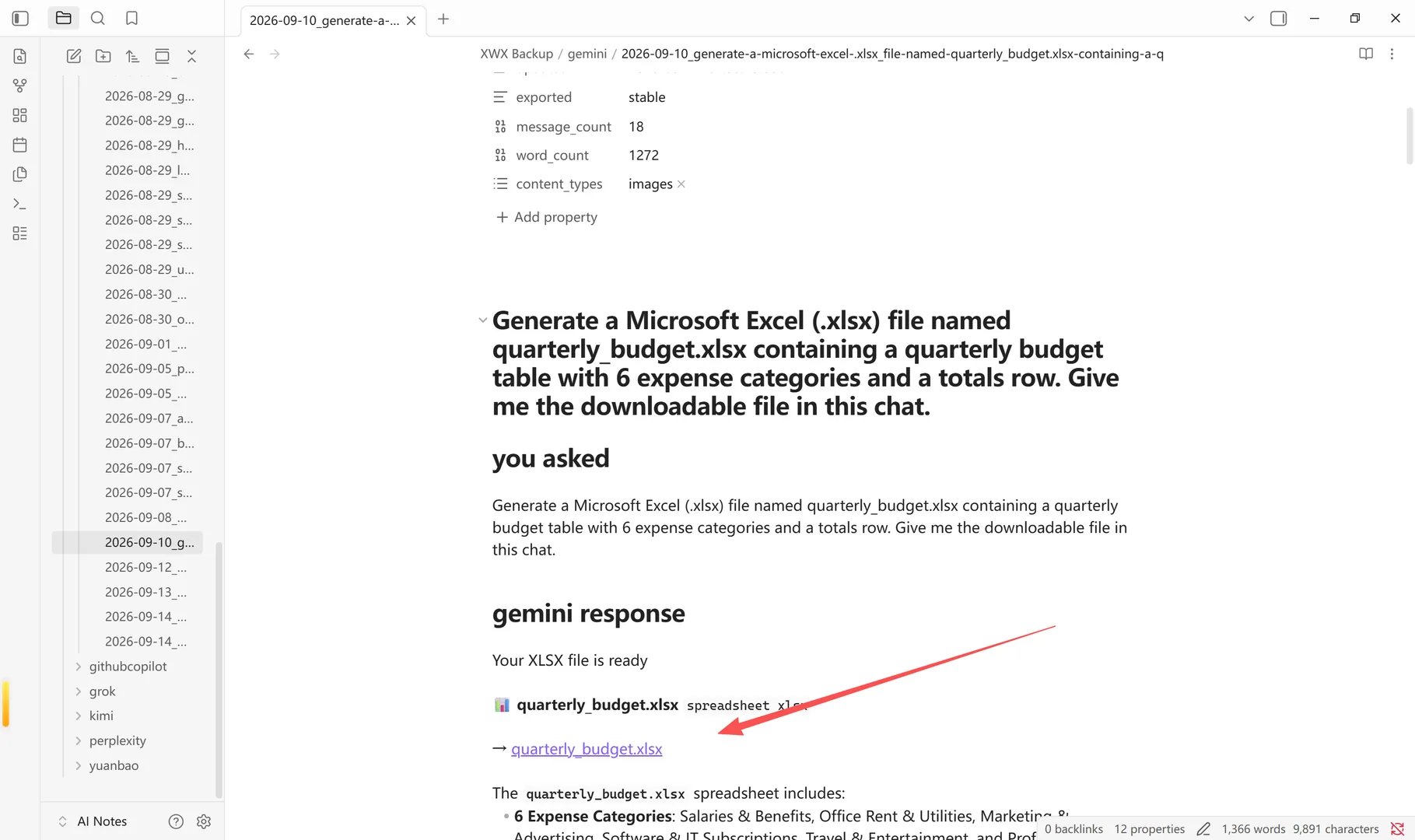
→ [quarterly_budget.xlsx](downloads/quarterly_budget.xlsx)Put the note and its folders in a vault and: the image renders inline, and the file link is clickable — Obsidian opens it in your default app. The two usual failure modes are leaving images as expiring web links (broken icons) or base64-embedding them (renders, but a huge file you can’t click). XWX lets you pick per export.
Method 1 — One conversation, straight to your vault
Step 1 — Install. Search XWX AI Chat Exporter in the Chrome Web Store and click Add to Chrome. It works on 13 AI platforms, needs no account, and Markdown is generated entirely in your browser.
Step 2 — Open the chat and choose Markdown. Click the floating save button on a ChatGPT, Claude, or Gemini conversation and select Markdown.
Step 3 — Pick “Download” when asked. If the chat contains images or generated files, XWX shows a small dialog with the real counts and asks how to handle each. Choose Download for both: images become files in an images/ folder, generated files become files in a downloads/ folder, and the note links to both. (You can tick Remember so it stops asking.)
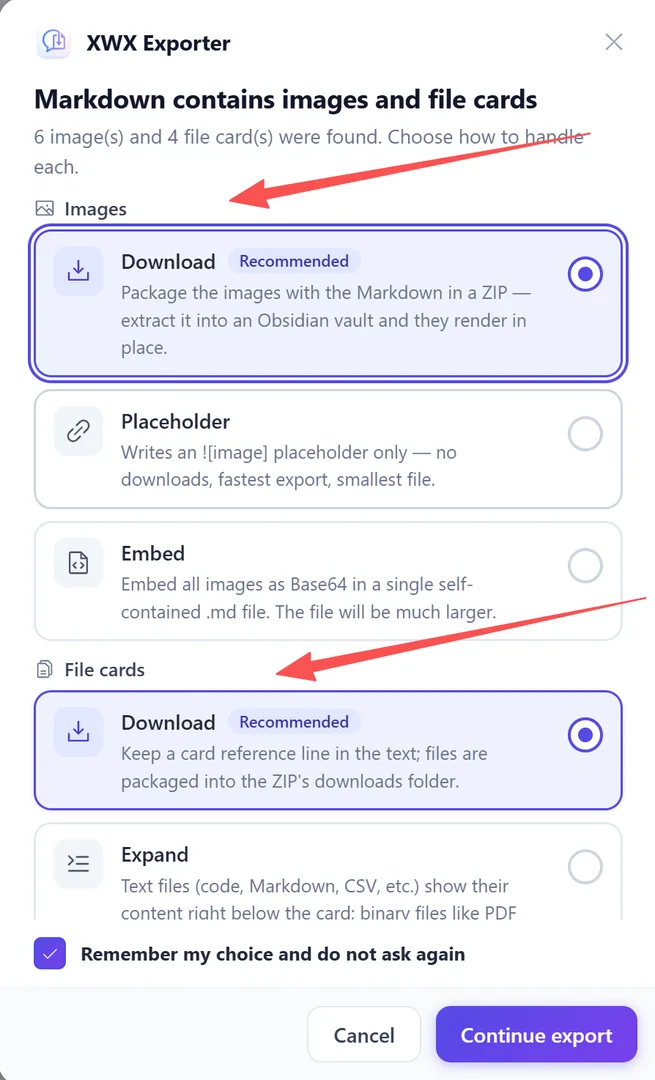
Step 4 — You get one ZIP; unpack it into the vault
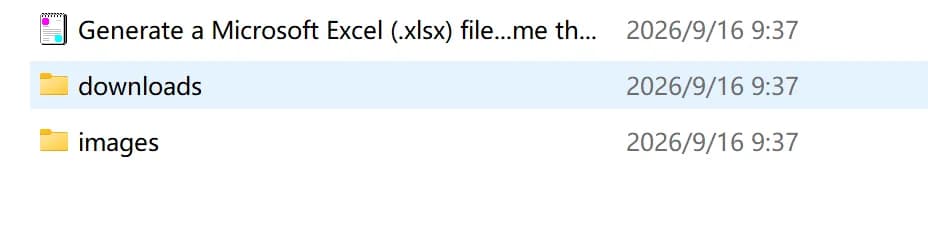
The export downloads a single ZIP that unpacks to exactly the layout Obsidian wants — the note, an images/ folder, and a downloads/ folder. Extract it into any folder inside your vault and open the note: images render in place, files open on click. No plugin, no configuration, no converter.
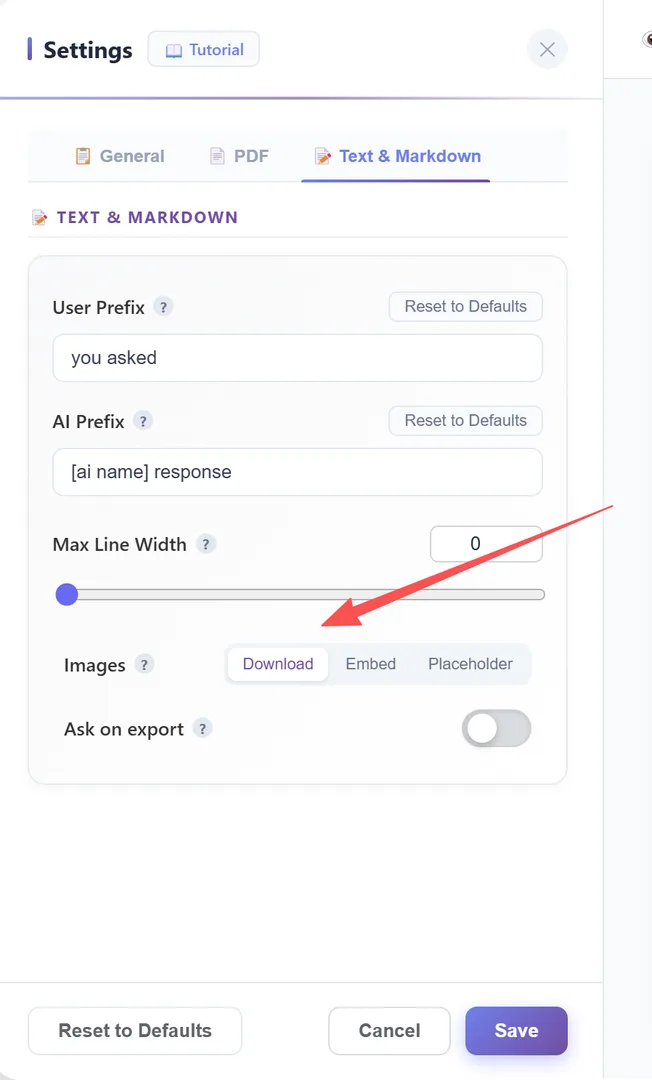
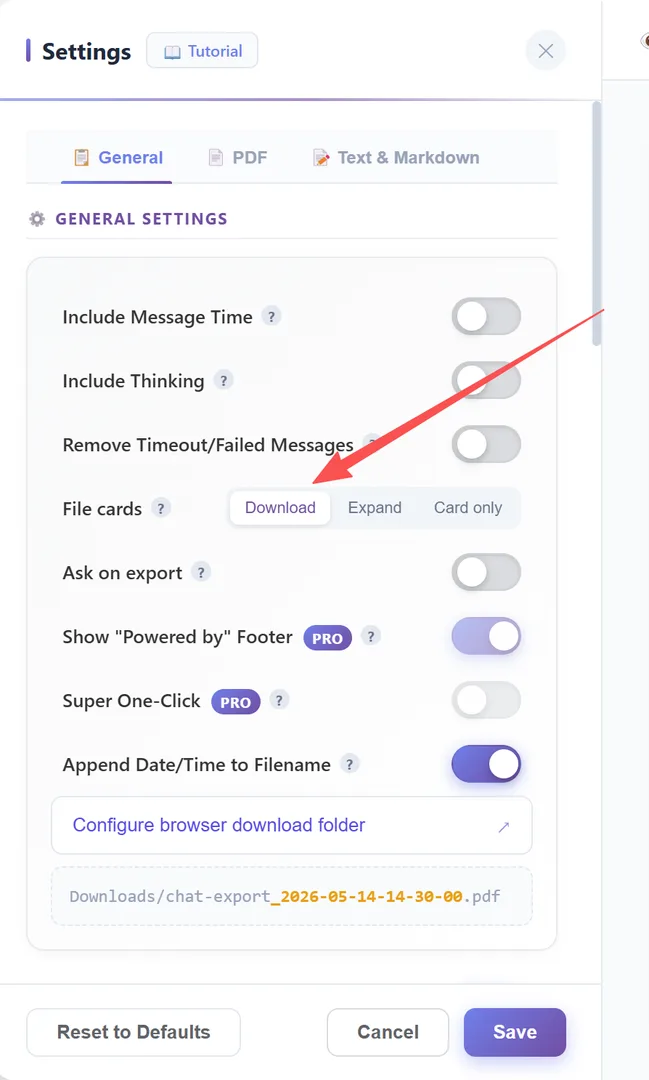
Make Download the default (optional)
If you always want the same behavior, set it once in Settings instead of answering the dialog. On the Text & Markdown tab, set Images to Download; on the General tab, set File cards to Download. Turn Ask on export off and XWX stops prompting. The other modes stay available: Embed keeps every image inside one self-contained .md, and Placeholder writes text only.
Method 2 — Mirror your whole library, assets included
For more than one chat at a time, the optional XWX Backup desktop app (Windows 10/11) automates the same result across your account:
- Connect the extension once — the app drives your logged-in browser over localhost; nothing is uploaded.
- Batch-export the conversations you want, across the 11 platforms that have a conversation list. Each becomes one Markdown file in a local vault.
- Turn on Obsidian sync in Settings → Vault → Export to Obsidian, pointing at your vault. Notes mirror into an
XWX Backupsubfolder.
The part that matters for images and files: when asset sync is on, each note’s images and generated files are copied into a single `assets/` folder beside the Markdown, and the sync carries that folder too — so the links keep working inside Obsidian. (One difference from the browser: a single export uses separate images/ and downloads/ folders in its ZIP, while the desktop vault keeps everything together in one flat assets/ folder.) Re-runs skip unchanged chats, so nothing duplicates, and a schedule (every 30 minutes to daily) keeps the archive current on its own.

The result, inside Obsidian
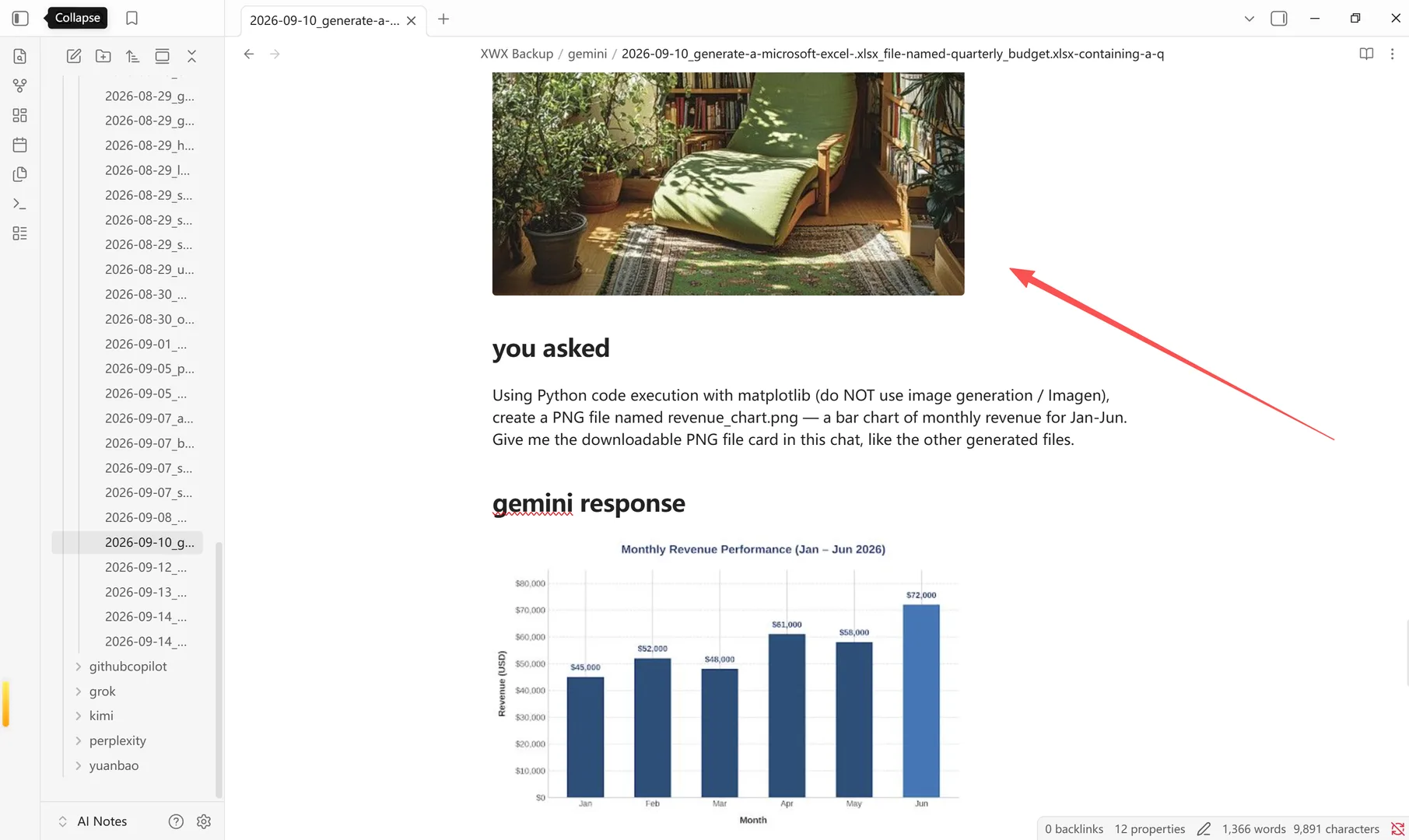
This is the part worth seeing. A saved conversation opens as a normal note: the AI’s chart renders inline where it appeared in the thread, and the files the assistant built sit below as links — click one and Obsidian hands it to your default app. Because the export writes standard Markdown with YAML frontmatter, everything else works too: backlinks, the graph, and Dataview queries over platform, model, and date.
The image and file modes, side by side
| Setting | What you get | Best for |
|---|---|---|
| Images → Placeholder | a ![image] marker only | Fastest export, smallest file |
| Images → Embed | images inside the .md itself | One self-contained file to email |
| Images → Download | an images/ folder + links | Obsidian / vault workflow |
| File cards → Card only | the filename label only | A light reference |
| File cards → Expand | text files’ contents in the note | Reading a generated doc inline |
| File cards → Download | a downloads/ folder + links | Keeping real spreadsheets / decks / PDFs |
The trade-offs, stated plainly
- Downloaded images are optimized (smaller, JPEG) so a long chat stays a sane size. That means PNG transparency is flattened and animated GIFs keep one frame — use Embed if you need exact pixels inside the note.
- Expired files can’t be recovered. Generated files come from a temporary sandbox; once it’s recycled the bytes are gone and no tool can get them back. If a chat produced a file you care about, export it soon.
- Desktop automation is Pro. The extension and single-chat Markdown are free. Batch export, scheduled backups, and automatic Obsidian sync are the paid layer, and the desktop app is Windows-only today (macOS and Linux planned).
- A few images may stay as links if a host blocks the download — the note still renders; that one asset may need a manual save.
Who this is for
- PKM and second-brain users who want the analysis and the chart, not a text stub of it.
- Analysts, finance, and ops — the AI built a
.xlsxwith the real numbers; you need the file, not a description of it. - Developers keeping generated scripts, notebooks, and diagrams with the reasoning behind them.
- Researchers and students preserving figures and data tables alongside the discussion that produced them.
- Anyone who has opened an old chat only to find the image or download is already a dead link.
Perguntas frequentes
Can I export a ChatGPT conversation to Obsidian with its images?+
Yes. Export the chat as Markdown and choose Download for images: you get a ZIP with the note and an images/ folder linked by relative paths. Unpack it into your vault and the images render in place. ChatGPT’s official export keeps only expiring web links, not the files.
How do I keep the Excel, PDF, or slides the AI generated?+
Choose Download for file cards when you export Markdown (or set it in Settings). XWX saves each generated file — Code Interpreter, Claude, or Gemini outputs — into a downloads/ folder with a clickable link. Export soon after: these live in a temporary sandbox that expires.
Why don’t images show up in my exported Markdown in Obsidian?+
Most exporters leave images as web links that expire, or drop them. Use relative-path image files (Images → Download) and keep the images/ folder next to the .md. A base64 Embed also renders but makes a big file whose links aren’t clickable.
Does this need an extra Obsidian plugin?+
No. The export writes standard Markdown with relative links, which Obsidian, GitHub, and Typora all render. Dataview works too, because every note carries YAML frontmatter — platform, model, dates, message count, and source URL.
Can I sync my whole history with images and files intact?+
Yes. The XWX Backup desktop app batch-exports every conversation to a local vault and mirrors it into an XWX Backup subfolder in Obsidian, copying each note’s images and files into an assets/ folder beside it. Re-runs are incremental. It’s Windows-only, and the automation is Pro.
Are my chats sent to a server?+
No. Markdown, TXT, and JSON are generated 100% locally in your browser, and desktop transfers go only to the paired app on your own machine. No account is required to export.