How to Back Up ChatGPT Conversations
A week of research, a debugging conversation that took three days to converge, a client brief you drafted with ChatGPT — and then one wrong click on the sidebar, and it’s gone. Not in a trash folder. Not recoverable. Just gone. ChatGPT has no recycle bin. When a conversation is deleted — by you, by an accidental click, by a workspace cleanup, by an account switch — it’s permanent. This guide builds the backup system that prevents that from ever mattering again.
Why you don’t want to find out the hard way
In 2025, a widely reported incident wiped a large batch of ChatGPT users’ chat history for several days. If you were affected, you know exactly what this guide is about: your threads were unreachable, recovery was uncertain, and there was no local copy to fall back on.
That’s the structural problem. Your ChatGPT history exists only on OpenAI’s servers, behind your login. If the box misbehaves, there is no copy.
What the official backup gives you (and what it can’t)
OpenAI’s Settings → Data Controls → Export Data is a real tool, and you should run it — but it has limits you need to know before you rely on it:
- It exports all conversations as a ZIP of
conversations.json— complete, but a machine-readable tree, not documents you can open and read. - It’s slow: the file takes anywhere from 20 minutes to several hours to arrive by email.
- The download link expires after 24 hours. Miss it, and you start over.
- On Business and Enterprise workspaces, the self-serve export button is frequently missing — a recurring complaint on Reddit.
- It’s all-or-nothing. There’s no way to back up just today’s conversation without dumping your entire history.
So the official export is your safety net for the whole account. It’s not a working backup system, because a working system backs up the thing you’re working on now.
The two-tier backup system that actually works
Treat ChatGPT like any other asset you don’t want to lose: one full backup on a schedule, and continuous small saves for the important stuff.
Tier 1 — Full-account backup, monthly. Run the official export. It’s slow and clunky, but it’s a complete snapshot. Keep the JSON in cloud storage or an external drive. Do this monthly, or before any major account change.
Tier 2 — Per-chat backups, every time it matters. For any conversation you’d be upset to lose, save it as a Markdown or PDF file right then. This takes under a minute and covers the gap the official export can’t: the conversation you need this week, available instantly, in a format you can actually read.
How to back up a single ChatGPT conversation (the 60-second method)
Step 1 — Install. Search for XWX AI Chat Exporter in the Chrome Web Store and click Add to Chrome. No account, no signup.

Open the conversation and choose Markdown
Step 2 — Open the conversation you want to keep. Go to chatgpt.com and open the chat. The extension detects ChatGPT automatically.
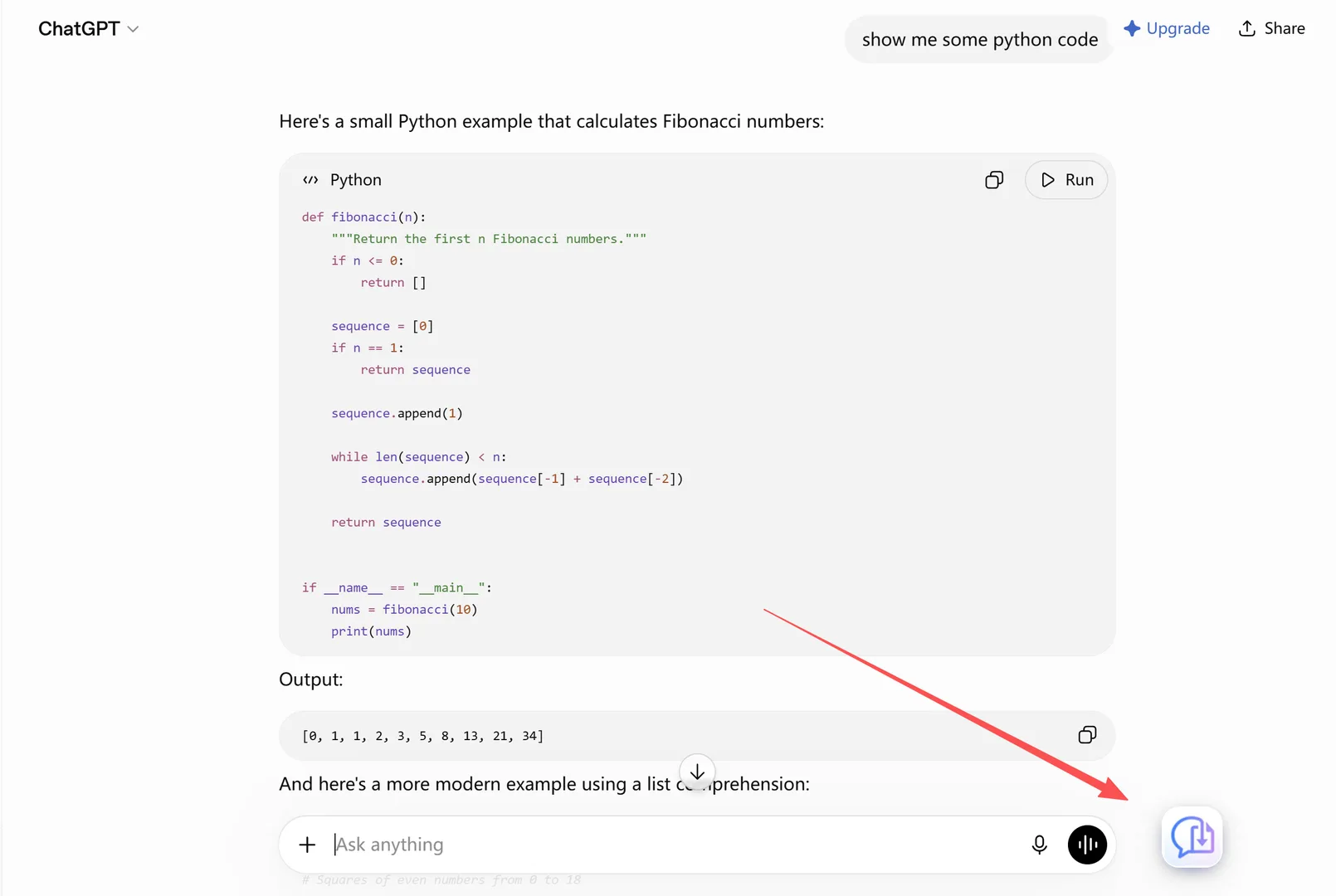
Click Export and choose Markdown (free, unlimited)
Step 3 — Click Export and choose Markdown (free, unlimited). Markdown exports are permanently free with no limits, and every file comes with YAML frontmatter — title, platform, model, timestamp, message count, word count, and source URL. That metadata is what makes a pile of exported chats searchable later.
Step 4 — Save it where you keep your notes. Markdown opens in Obsidian, Notion, Logseq, Typora, GitHub, or any notes app — and because of the YAML frontmatter, tools like Obsidian Dataview can query your chat archive by model, date, or tag. If you prefer a share-ready file, choose PDF instead.

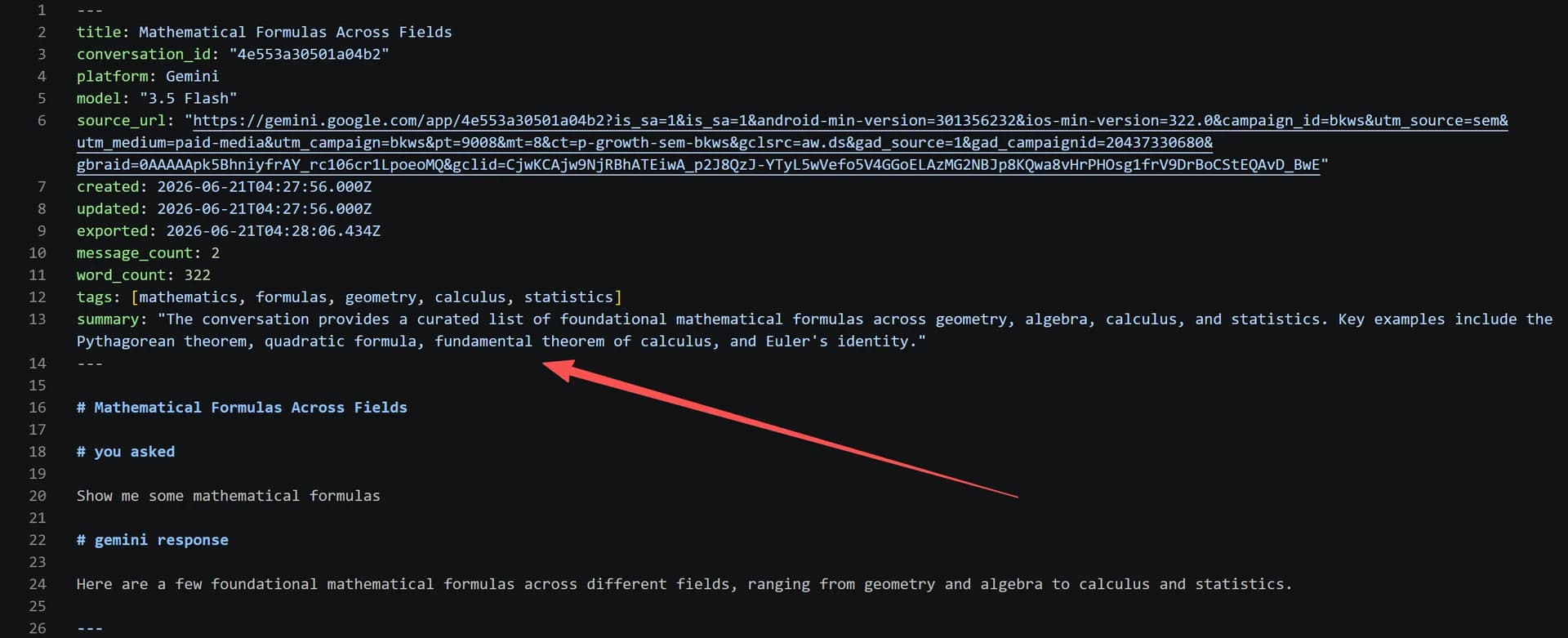
Step 5 — (Optional) Set up the monthly full backup
In ChatGPT, run Settings → Data Controls → Export Data, download the ZIP within 24 hours, and store it alongside your per-chat files. That’s the safety net; the daily Markdown saves are the system you actually live in.
Backup methods compared
| Method | Covers | Speed | Readable format | Business/Enterprise | Cost |
|---|---|---|---|---|---|
| Official Export Data | Whole account | Hours, email, 24h link | JSON only | Button often missing | Free |
| Per-chat Markdown export | One conversation | ~30 seconds | Yes, editable | Yes | Free, unlimited |
| Per-chat PDF export | One conversation | ~30 seconds | Yes, share-ready | Yes | Free daily quota |
| Screenshots | Whatever you capture | Fast | Image only, not searchable | Yes | Free |
| Nothing | Nothing | — | — | — | The cost of losing it |
The realistic limitations
- A backup is only as good as its location. Files stored only in your Downloads folder don’t survive a dead laptop. Move exported chats to cloud storage or a drive you sync.
- PDF exports go through a render server so the layout engine stays consistent; the content is deleted immediately after generation and never stored. If you want everything to stay 100% in your browser, use Markdown, TXT, or JSON — those never leave your machine.
- The official export is still worth doing. It’s your only complete snapshot of the entire account, even if it’s slow and JSON-only. XWX covers the daily gap; OpenAI covers the archive.
- Nothing protects against logging into a different account. Backups are per-account. If you switch between personal and work accounts, run backups in both.
Who actually needs this (and why)
- The person who deleted one chat too many. Cleaning the sidebar, clicking the wrong row, and watching a conversation vanish — then realizing there’s no undo. A backup habit makes that a non-event.
- The account switcher. Going from a personal account to a work workspace means leaving chats behind. Export before you switch.
- Researchers & writers — a month of source-gathering conversations is exactly the kind of thing that disappears in a history purge.
- Developers — debugging conversations where the working solution lives. A Markdown file with highlighted code preserves what a screenshot can’t.
- Freelancers & consultants — client work happens in ChatGPT, and clients expect the deliverable to survive. A PDF or Markdown record is part of the paper trail.
What to do if you already lost a chat
- Check for an account-level export. If you run the official export now, your current history is included — anything that survived will be in the JSON.
- Search the platforms that touched it. If you copied text into a doc, emailed a snippet, or synced it anywhere, recover it from there.
- Reconstruct from memory if you must — but this is exactly the situation the backup habit prevents. Run the full export now, then start per-chat saves going forward.
Häufige Fragen
Can I recover deleted ChatGPT conversations?+
No. ChatGPT has no recycle bin, and deleted conversations can’t be restored through OpenAI support. Prevention — regular backups — is the only real answer.
Does ChatGPT automatically save conversations?+
ChatGPT stores your history on OpenAI’s servers, but "saved" isn’t the same as "backed up." Conversations can disappear with history purges, workspace changes, or account issues. The 2025 history outage is the reminder that server-side storage isn’t a copy.
How do I export my ChatGPT history?+
Settings → Data Controls → Export Data sends you a ZIP of `conversations.json` by email (link expires in 24 hours). For individual conversations, a browser extension like XWX AI Chat Exporter exports Markdown or PDF in about 30 seconds.
How do I back up one ChatGPT conversation?+
Open the conversation, click the XWX floating button, and choose Markdown (free, unlimited) or PDF. The file downloads with formatting and metadata intact — no need to export your entire history.
Why can’t I export ChatGPT conversations on a Business or Team plan?+
On many Business and Enterprise workspaces, the self-serve Export Data button is missing entirely. A browser extension works on those plans and exports individual conversations directly from the page you’re viewing.
Is backing up ChatGPT conversations free?+
Yes. Markdown, TXT, JSON, and clipboard exports are free with no limits. PDF exports include a free daily quota. That’s enough to back up every conversation that matters.